


 Video Converter Ultimate
 Screen Recorder
 Videó javítás
 Biztonságos letöltés
Hogyan lehet kivonni az MP3-t az M4V-ből 4 kiváló módszerrel, amelyet tudnia kell
Ha már vásárolt néhány M4V videót az iTunes áruházból, hogyan lehet az M4V-t MP3-ba konvertálni könnyedén? A többi videó formátumtól eltérően az M4V DRM Fair-Play védett videó formátum. Amikor ki kell szednie az MP3 fájlokat az M4V-ből, akkor előzetesen meg kell dekódolnia a védelmet. Csak tudjon meg többet a 4 legjobb M4V to MP3 konverterről, és válassza ki a kívántat az Ön igényei szerint.

1. rész: Az M4V MP3-ba konvertálásának végső módszere
A FVC Video Converter Ultimate egy kívánatos M4V–MP3 konverter, amely nemcsak kívánt minőségben alakítja át az M4V videót MP3 formátumba, hanem lehetővé teszi a DRM‑védelem feloldását is. Ezen felül módosíthatja a videó‑ és hangbeállításokat, sőt, akár fejlett hardveres gyorsítással is konvertálhatja a videofájlokat.
- 1. Bontsa ki az MP3 audiofájlokat M4V, MP4 és más egyéb videoformátumokból.
- 2. Módosítsa a képkockasebességet, a videó minőségét, a videokodeket, a hangbeállításokat és egyebeket.
- 3. Fejlett hardveres gyorsítás a videó gyors konvertálásához.
Ingyenes letöltés Windows 7 vagy újabb rendszerre Biztonságos letöltés
Ingyenes letöltés macOS 10.7 vagy újabb rendszerre Biztonságos letöltés
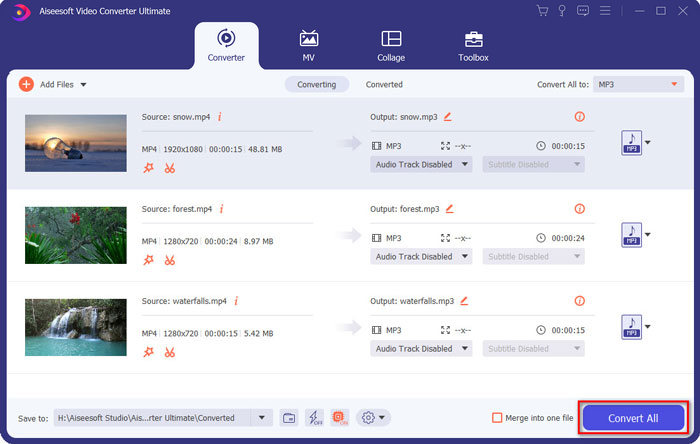
1. lépés. Töltse le és telepítse az M4V–MP3 konvertert, majd indítsa el a programot a számítógépén. Kattintson az Add Files menüre, vagy húzzon be közvetlenül több M4V videót a programba.

2. lépés. Miután importálta az M4V videókat, válassza az MP3 formátumot kimenetként. Természetesen a Gear ikonra kattintva módosíthatja a videó‑ és hangbeállításokat, például a mintavételezési frekvenciát, a hangcsatornát stb.

3. lépés. Emellett az Edit gombra vagy a Clip gombra kattintva szerkesztheti a kimeneti videókat. Beállíthatja a fényerőt, a kontrasztot, a telítettséget, az árnyalatot, valamint igény szerint kiválaszthatja a deinterlacing opciót is.
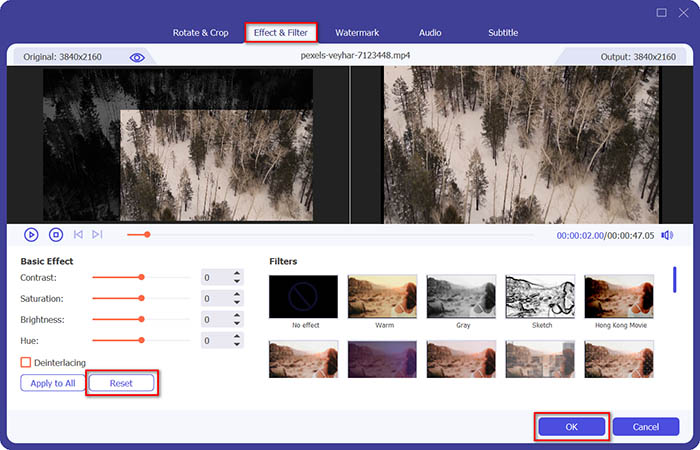
4. lépés. Ha elégedett az MP3 fájllal, vagy össze szeretné fűzni az MP3 fájlokat, jelölje be a Merge into one file négyzetet, és kattintson a Convert gombra, hogy egyszerűen elindítsa az MP4–MP3 átalakítást.
2. rész: 3 módszer az MP3 kivonására az M4V-ből könnyedén
1. módszer: Az M4V konvertálása MP3 Online-ba
A FVC Free Online Video Converter egy sokoldalú online M4V–MP3 konverter, amellyel könnyedén kinyerheti az MP3‑at az MP4 videóból. Ezen felül módosíthatja a videó bitrátáját, a mintavételezési frekvenciát, a képkockasebességet, a felbontást stb.
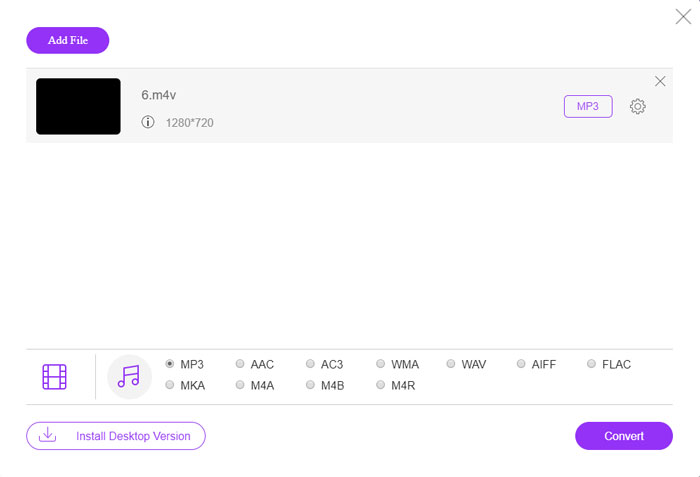
1. lépés. Nyissa meg az online M4V–MP3 konvertert, majd kattintson az Add Files to Convert gombra, hogy betöltse az M4V fájlokat a programba. Első használatkor előzetesen le kell töltenie a telepítőt.

2. lépés. Miután betöltötte az M4V fájlokat, válassza az MP3 opciót az Audio menüből. Itt módosíthatja a hangbeállításokat is, például a mintavételezési frekvenciát, a hangkodeket és egyebeket.

3. lépés. Ezután kattintson a Convert gombra az M4V–MP3 átalakítás indításához. A konvertálási folyamat során nem vész el adat. A kimeneti hangfájlt a merevlemezére mentheti.
2. módszer: Az M4V konvertálása MP3-ba a HandBrake segítségével
A HandBrake egy nyílt forráskódú M4V - MP3 átalakító, amely lehetővé teszi az átalakítási folyamat testreszabását. Van néhány speciális paramétere, amelyekkel beállíthatja a videó felbontását, a képkockasebességet és még sok mást.
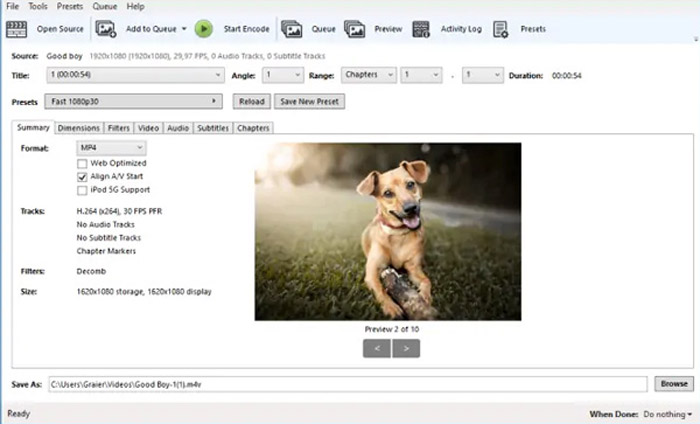
1. lépés. Töltse le és telepítse a programot a számítógépére, indítsa el, majd keresse meg azt az M4V fájlt, amelyet konvertálni szeretne. Ezután a videót megtalálja a felhasználói felületen.
2. lépés. Ezután kattintson az alul található Browse gombra, és adja meg az új fájlnevet és a célmappát. Ezután válassza ki az MP3 formátumot kimenetként, és állítsa be a szükséges paramétereket.
3. lépés. Ha elégedett a kimeneti MP3 fájllal, kattintson a felső menüben lévő Start Encode gombra az M4V–MP3 konvertálás elindításához. Az átalakítás eltarthat egy ideig.
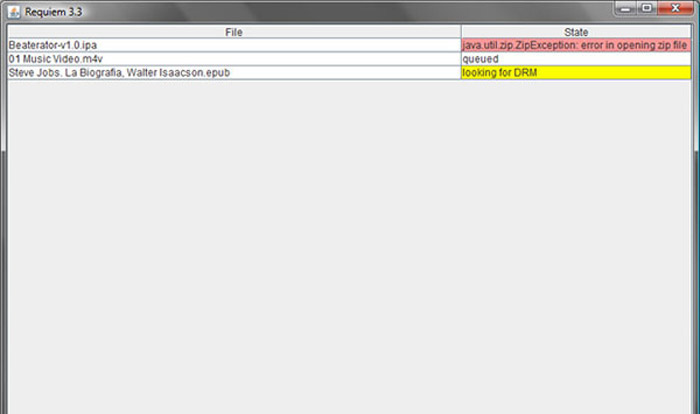
3. módszer: Az M4V konvertálása MP3-ba a Requiem segítségével
Több tucat M4V - MP3 online konverter létezik, amikor meg kell szabadulnia az M4V fájlok DRM védelmétől. A Requiem az egyik legjobb freeware, amelyet figyelembe vehet.
1. lépés. Miután telepítette a DRM‑eltávolító programot, indítsa el, hogy felismerje a DRM‑védelemmel ellátott fájlokat – beleértve a zenéket, videókat vagy hangoskönyveket – az iTunes könyvtárában.
2. lépés. Ezután elkezdheti eltávolítani a DRM‑védelmet ezekről az M4V fájlokról. Az eredeti fájlok a kukába kerülnek, és az iTunes könyvtárában található fájlok ezután DRM‑mentesek lesznek.
3. lépés. Miután megkapta a kívánt, DRM‑védelem nélküli M4V fájlokat, egyszerűen átkonvertálhatja őket online M4V–MP3 konverterekkel, vagy közvetlenül átmásolhatja okostelefonra. (Lásd: hogyan lehet az FLV‑t MP3‑ra konvertálni)
2. rész: Gyakran feltett kérdések az M4V-ről MP3-konvertálásra
1. Mi az M4V fájlformátum?
Az M4V fájlkiterjesztés egy MPEG-4 videó, amelyet iTunes videofájlnak is neveznek. Amikor videofájlokat vásárol vagy bérel az iTunes Store-ból, DRM-védelemmel M4V-ben töltheti le a videókat. De a videofájl működőképes az engedélyezett eszközök számára. Amikor az M4V-t MP3-ba konvertálja, az audio fájlt más eszközökhöz is felhasználhatja.
2. Mi az a 100% működőképes módszer az M4V átalakítására MP3-ra?
Ha nem tudja közvetlenül átalakítani az M4V-t MP3-ba, amelyet a DRM-védelem korlátoz, akkor a képernyő-felvevő segítségével rögzítheti az M4V videót MP3 hangként. Az FVC Free Screen Recorder egy sokoldalú online megoldás, amely lehetővé teszi, hogy az elégedett hangfájlokat díjmentesen megszerezze.
3. Hogyan lehet átalakítani az M4V-t MP3-ba DRM-védelemmel a HandBrake segítségével?
Ha át kell alakítania az M4V-t MP3-ba DRM-védelemmel, használhatja a videók visszafejtését a HandBrake segítségével? Igen, telepíthet néhány extra bővítményt a videók visszafejtéséhez az átalakítás előtt.
Következtetés
Ha az M4V fájlt MP3-ra kell konvertálnia, meg kell tanulnia a fontos tényezőket, hogy könnyedén megszerezhesse a kívánt fájlokat. Ha csak egyszerű DR4-védelem nélküli M4V fájlja van, akkor bármelyik online M4V video-MP3 átalakítót vagy ingyenes szoftvert választhat. Az FVC Video Converter Ultimate a végső átalakító, amely lehetővé teszi a videók konvertálását és a DRM-védelem visszafejtését.
-
 Az MP4 konvertálása MP3-ba Windows / Mac / iPhone / Android / Online rendszeren
 Ha MP3 hangot szeretne kivonni MP4 videóból, akkor ellenőrizze ezt a cikket, és 8 megoldást kaphat. Online és offline módokon is könnyen konvertálhatja az MP4-et MP3-ba a telefonján vagy a számítógépén.
-
 Hogyan konvertálhatunk M2TS fájlokat MP3-ba ingyen
 Konvertálható egy M2TS fájl MP3-ba? Ebben a bejegyzésben felsoroltuk a legjobb 6 ingyenes és online módszert, amelyek segítenek az M2TS átalakításában MP3, AAC, AIFF és még több audio formátumba.
-
 Mi a különbség az MP3 és az MP4 között
 MP3 vagy MP4, melyik a jobb? Mi a különbség az MP3 és az MP4 között? Ez a cikk összehasonlítja az MP3-t az MP4-gyel minden képpel.
