


 Video Converter Ultimate
 Screen Recorder
 Videó javítás
Egyszerűsített útmutató, hogyan konvertálhat DV-t WMV-vé Windowson és PC-n
A DV-fájlok szabványos, nyers műsorszórási formátumok, amelyeket gyakran használnak videokamerákon. Miután debütált, mint standard kamerás formátum, a Sony és a Panasonic egy, a DV-formátumtól eltérő, professzionálisabb formátumot vezetett be. Bár ez a DV-fájl kiváló szerkesztésre, Windows alatt a lejátszásához külön programra van szükség. Ezért mutatunk be most két konvertert, amelyekkel DV-t WMV-vé konvertálhat, és gond nélkül lejátszhatja a videót.

1. rész. Használja a Most Incredible Convertert a DV WMV formátumba konvertálásához
A FVC Video Converter Ultimate segíthet a problémáján, ha a formátumot egy új verzióra szeretné átalakítani. Ez az eszköz a konvertáláson túl számos egyéb funkciót is támogat. Tehát, ha ezt a konvertert használja, számíthat rá, hogy jóval többet is tehet vele, mint pusztán konvertálni. Ráadásul, ha azonnali átalakításra van szüksége, ez a legjobb választás DV konvertálására WMV, AVI, MOV, MP4, MKV és további 200+ médiaformátumba. Szeretne olyan új generációs konvertálót kipróbálni, amely profi kimenetet biztosít mindenféle bonyodalom nélkül? Ha igen, ez a bemutató segít megérteni, hogyan konvertálhatja a fájlt új WMV-formátumba.
Lépések a DV WMV-vé konvertálásához az FVC Video Converter Ultimate segítségével:
1. lépés. Töltse le az FVC Video Converter Ultimate programot az asztali meghajtójára, kattintson a letöltés gombra, kövesse a telepítési lépéseket, majd indítsa el az eszközt.
Ingyenes letöltés Windows 7 vagy újabb rendszerre Biztonságos letöltés
Ingyenes letöltés macOS 10.7 vagy újabb rendszerre Biztonságos letöltés
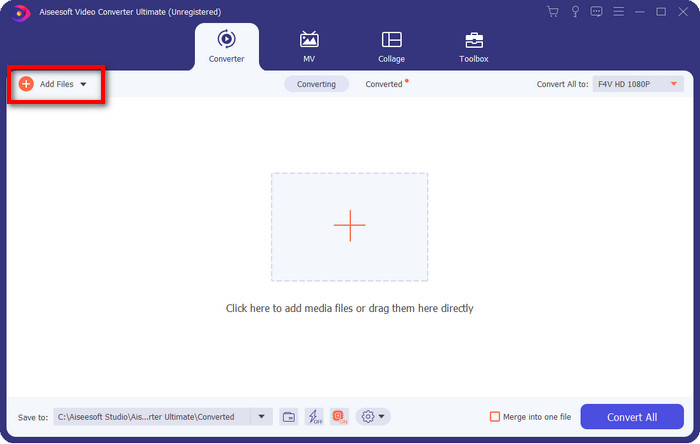
2. lépés. Miután mindent beállított, illessze be a fájlt a konverterbe az Add Files gombra kattintva, keresse meg az asztalán tárolt DV-fájlt a felugró mappában, majd kattintson az Open gombra.
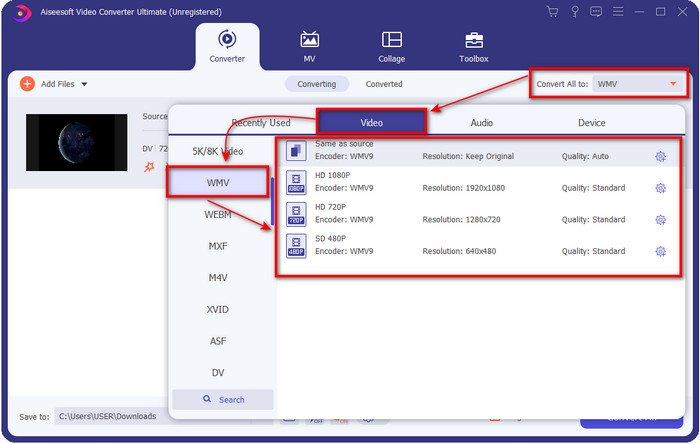
3. lépés. Változtassa meg a formátumot a felhasználói felület jobb felső részén található legördülő gombra kattintva. Ezután válassza ki a listából a WMV formátumot, és most már beállíthatja a videókimenet minőségét is.
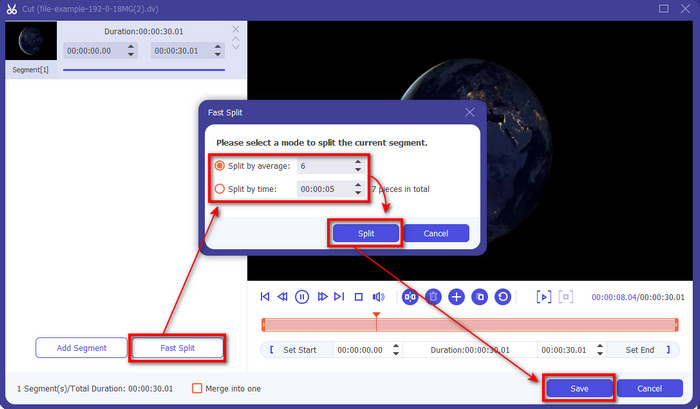
Szeretné a videóit több részre vágni? Ha igen, nyomja meg az olló ikont, kattintson a Fast Split gombra, állítsa be, hány szegmensre szeretné osztani és milyen hosszú legyen egy szegmens, majd a folytatáshoz nyomja meg a Split gombot. A létrehozott vágások mentéséhez kattintson a Save gombra.
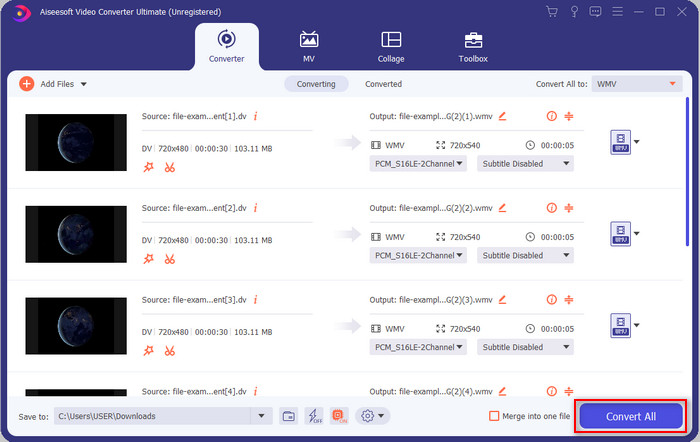
4. lépés. Kattintson a Convert All gombra, hogy megkezdődjön a DV-fájl konvertálása. A folyamat után egy új mappa jelenik meg a képernyőn az új WMV-fájllal.
2. rész. Használja az Online Convertert a DV konvertálásához WMV Online formátumba
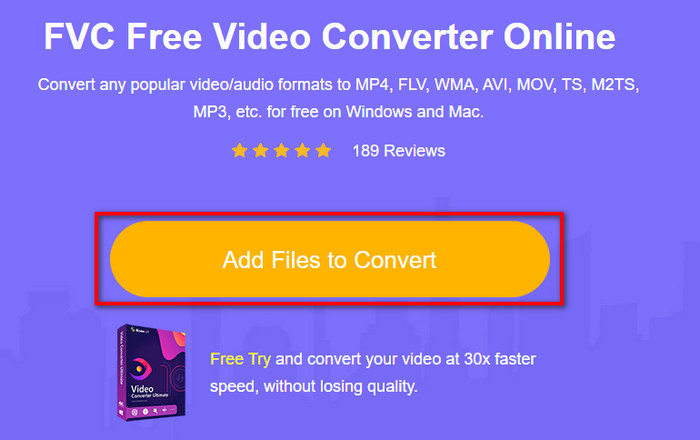
Online megoldást keres a DV WMV-vé konvertálására, méghozzá gond nélkül? Akkor az FVC a FVC Free Video Converter Online segítségével gondoskodik erről. Ez a webes konverter segít az átalakításban, de ezt az eszközt böngészőből kell elérnie, nem pedig letölteni. Ráadásul egyszerű, ingyenes és biztonságos, így jobbá teszi a konvertálási folyamatot. Szeretné tudni, hogyan kell használni ezt a webes eszközt? Akkor kövesse az alábbi lépéseket, hogy megtanulja, hogyan végezheti el az online konvertálást.
1. lépés. Kattinthat erre a linkre, hogy megnyissa a webes konvertert, ekkor egy új böngészőfül nyílik meg.
2. lépés. Kattintson az oldalon az Add Files to Convert gombra; ekkor egy mappa jelenik meg a képernyőn, válassza ki a DV-fájlt, majd nyomja meg az Open gombot.
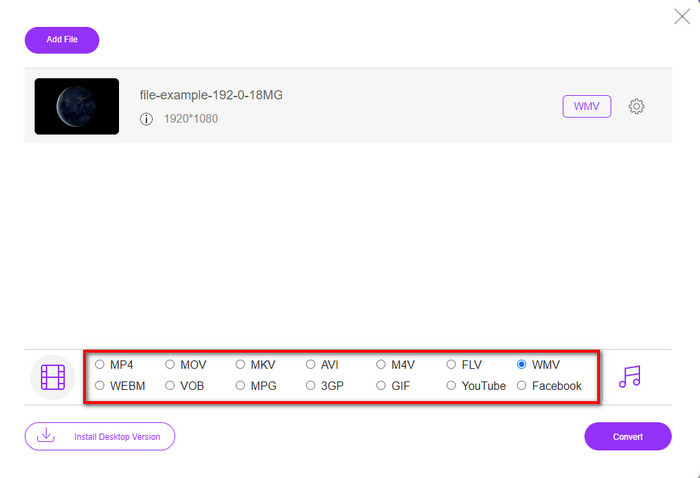
3. lépés. Miután a fájl feltöltődött, válassza ki a formátumot az alul megjelenő listából, vagy kattintson a WMV-re, hogy WMV-formátumban mentse.
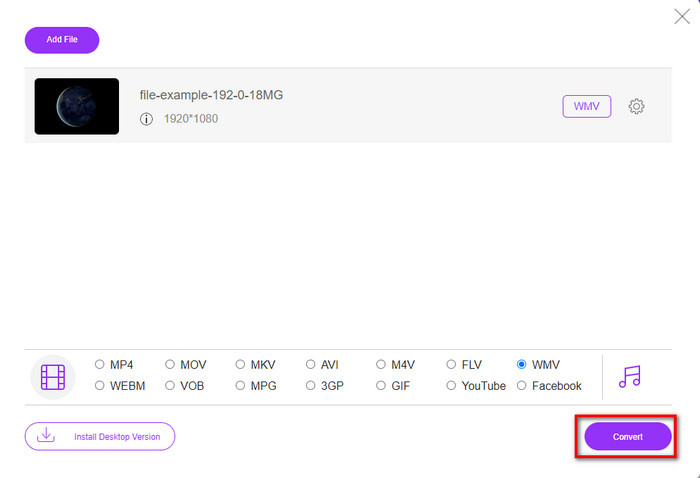
4. lépés. A Convert gombra kattintva megkezdődik az átalakítási folyamat. A művelet befejeztével a fájl automatikusan letöltődik az asztali meghajtóra.
3. rész: Mi a különbség a DV és a WMV között?
A DV és a WMV közötti különbség sok szempontból könnyen érthető. Tehát, ha tudni szeretné, mik ezek, olvassa el az alábbi listán található információkat.
Ha videokamerán szeretne videót rögzíteni, a DV a legjobb választás, mert képes tárolni az ilyen típusú tartalmakat. Ez a formátum emellett alapvető részleteket is tartalmazhat, például metaadatokat, alkódot, időt és dátumkódolást. Továbbá ez a formátum kereten belüli tömörítést használ minden egyes képkockán belül, és emiatt ideális a részletes szerkesztéshez. Bár a formátum kiváló, és DV szalagokon tárolják, a formátum kompatibilitása gyenge, és a fájl mérete óriási a WMV-hez képest. Másrészt a WMV a legjobb formátum videolejátszáshoz Windows rendszeren. És most adaptálja a 9-es verziójú formátumot HD DVD-hez és Blu-ray lemezhez, most VC-1 néven ismert.
4. rész. GYIK a DV-ből WMV-vé konvertálással kapcsolatban
Miért nem tudom használni a DV-t Mac szoftveren?
A DV-formátumot Macen nem támogatják, különösen az iMovie és a QuickTime Player esetében. De a DV-fájlt MOV formátumba konvertálhatja, hogy működjön a macOS-en. Ha nem tudja, hogyan konvertálja a DV-t MOV-vá, akkor szánjon 5 percet vagy még kevesebb időt ennek a cikknek az elolvasására, hogy megtanulja a folyamatot.
Még mindig a DV-fájlok a legjobb formátum a szerkesztéshez?
A DV-formátumok arról ismertek, hogy a szerkesztés egyik legmodernebb konténerei közé tartoznak. Mivel a DV kiváló minőségű videót tárol, és minden egyes képkockát tárol a könnyebben hozzáférhető szerkesztési célok érdekében. De ma ennek a formátumnak a képességét a legtöbb formátum már átvette. Tehát, ha azt kérdezi, hogy ez még mindig az ideális, akkor a válasz nem, mert ez a formátum nem kompatibilis.
Hogyan lehet kicsinyíteni a DV fájljaimat?
Ahogy talán már tudja, a DV-fájlok óriásiak, mert ez a formátum egy egyedi tömörítőt használ. Ezért teljesen megszokott dolog, hogy az ember tömörítőt keres a fájlméret csökkentésére, hogy helyet takarítson meg a meghajtón. Nehézségei vannak annak eldöntésében és megvalósításában, hogyan tömörítse a DV-fájlokat? Ha igen, kattintson erre a linkre.
Következtetés
A fent bemutatott összes konverter segíteni fog abban, hogy a DV-fájlokat WMV-formátummá alakítsa. Most tehát lezárhatjuk az 'utazást', mert az utolsó állomáshoz értünk: már elegendő tudást szereztünk a DV-fájlok konvertálásáról. Most önnek kell eldöntenie, melyik konverter felel meg legjobban az igényeinek. A választás az ön kezében van; bármelyik konvertert is használja, ezek az FVC eszközök garantálni fogják a sikert. Az FVC Free Video Converter Online vagy a FVC Video Converter Ultimate – ez a két konverter a lehető legkevesebb macerával segíti a konvertálási folyamatot.
-
 A legjobb stratégia a DV fájl AVI formátumba konvertálására részletes lépésekkel
 Szeretné konvertálni a DV fájlt AVI formátumba? Ezután olvassa el ezt a cikket, hogy megtudja, milyen egyedülálló eszközzel konvertálhat, valamint egy médialejátszót, amellyel lejátszhatja DV-jét PC-n vagy Mac-en.
-
 Hasznos DV FLV konverterek a DV FLV formátumba konvertálásához [2022]
 Ha a legjobb és könnyen használható eszközöket keresi a DV FLV-vé konvertálásához, itt található a legjobb cikk, amelyet elolvashat. Kiváló betekintést nyújt a cikk összes információjába.
-
 Az FLV WMV-re konvertálásának három legjobb módja Windows és Mac rendszeren
 Az FLV WMV formátumba alakításának legjobb módját keresi a PC vagy Mac minőségének romlása nélkül? Szerencséd van, mivel itt három módszert osztunk meg a munka egyszerű elvégzésére.
