


 Video Converter Ultimate
 Screen Recorder
 Videó javítás
3 hatékony módszer az M4V MKV-vé alakítására Mac/Windows/Linux rendszeren minőségromlás nélkül
Meg kell fordítanom az iTunes-on letöltött M4V videókat. Van ötleted, hogyan konvertálhatom át M4V-t MKV-vé Mac rendszeren, és hogyan használhatom később a TV-n?
This problem is widespread, especially on M4V videos downloaded on iTunes because this format is under Apple's Fair Play Policy, and it is protected. Therefore, you can't play the .m4v videos instantly on other devices without converting them. This article will provide facts about the converters you can use and succeed in converting the M4V format. Without any more delays, let's start to learn the efficient method of changing M4V to MKV on Mac or Windows.

1. rész: Az iTunes M4V konvertálása MKV-vé Mac és Windows rendszeren [Legtöbbet választott]
There are many free M4V to MKV converters on the market that you can download, and one of them is the FVC Video Converter Ultimate. But this ultimate tool provides a more effective conversion than the other converters due to its lightning speed conversion, unlimited upload to convert, and intuitive interface. Are you amazed at the ultimate converters? Or do you want to know more about the converter? In that case, here below are the key features you will see if you attain this converter.

FVC Video Converter Ultimate
2 999 368+ letöltés- Több iTunes M4V-t képes MKV-vé vagy 200+ médiaformátummá konvertálni, például MOV, AVI, MP4 stb.
- Az ultragyors konverziónak köszönhetően az M4V egy pillanat alatt konvertálható
- Speciális szerkesztési funkciók állnak rendelkezésre, hogy még jobbá tegyék videódat.
- Állítson be lenyűgöző funkciókat a tömörítéshez, átméretezéshez, GIF-készítőhöz stb. az Eszköztár alatt.
Ingyenes letöltés Windows 7 vagy újabb rendszerre Biztonságos letöltés
Ingyenes letöltés macOS 10.7 vagy újabb rendszerre Biztonságos letöltés
Hát nem elképesztő, hogy mindezek a funkciók hogyan lehetnek egyetlen eszközben? Ne vesztegessük tovább az időt, és az alábbi lépések követésével határozzuk meg, hogyan konvertálja ez az eszköz hatékonyan az iTunes M4V-t MKV-vé.
Step 1. First, download the ultimate converter on your drive by clicking the download button below. Choose the platform you are currently using, follow the installation process, press Start Now to proceed. Remember, you will need to be more familiarized with the tool's interface to avoid difficulties.
Ingyenes letöltés Windows 7 vagy újabb rendszerre Biztonságos letöltés
Ingyenes letöltés macOS 10.7 vagy újabb rendszerre Biztonságos letöltés
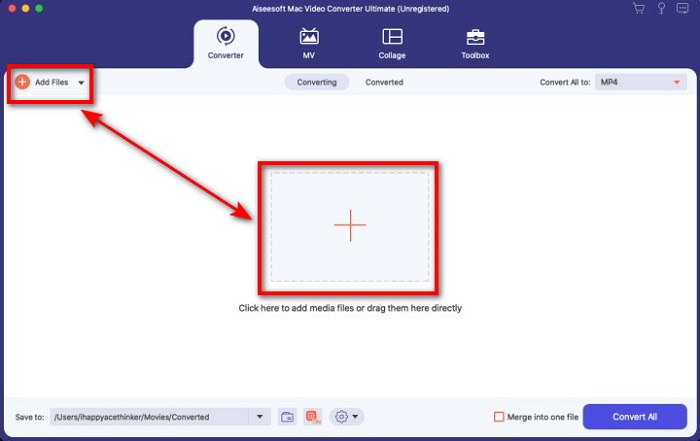
Step 2. Upload the M4V File on the interface by clicking the Add Files or the + button. After that, a computer folder will open on your screen, browse the .m4v File, and press Open.
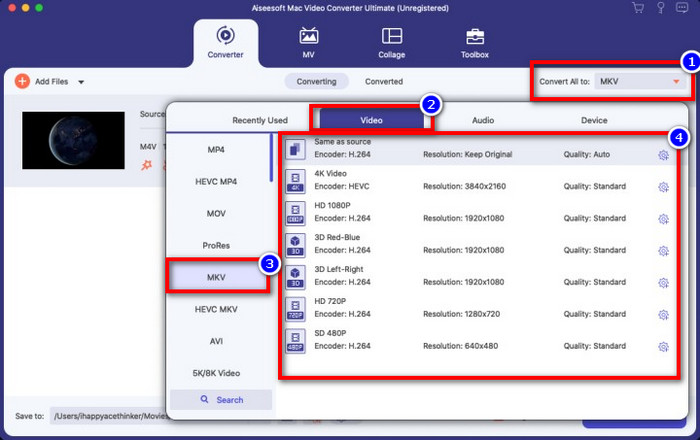
Step 3. Pick out the MKV format under the Convert All to and click it.
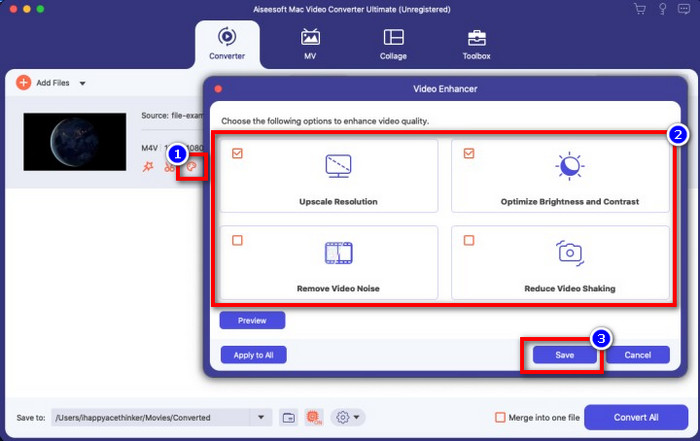
Optional. The effectiveness of this is, without a doubt doing great so far. But did you know that this tool also offers video enhancers? If you click the enhance video option, a dialog box will display; tick the box you want to improve on your video, and to apply it click Save.
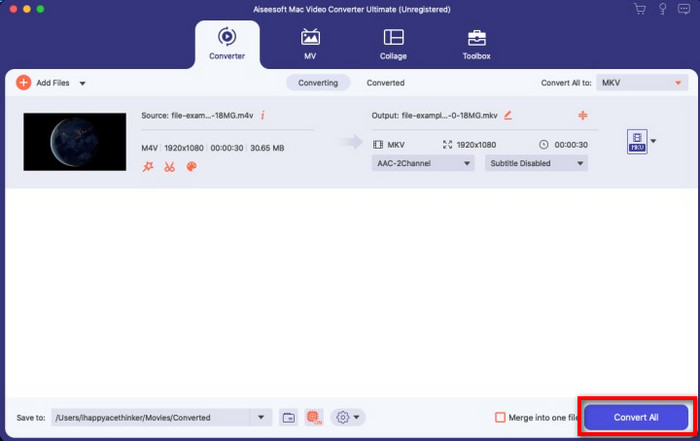
Step 4. By clicking the Convert All button, converting will begin within a short period. Here it is; with that, the file extension of your video is now .mkv.
2. rész. M4V konvertálása MKV Online-ra
Doesn't want to pay to convert M4V files; instead, want to convert M4V to MKV online? If that is the case, FVC Free Video Converter Online is an online converter that guarantees your converting process efficiency even on the web. A converter can finish the job without purchasing the converter itself or even downloading it. Also, there are no ads or even registration needed to use this. Even though the converter is free, the features presented here only focus on converting. Unlike the ultimate tool, it provides wide-scale and amazing features. Furthermore, if you need to convert your M4V files online, use this converter and copy the steps below.
Step 1. Kindly click this link to open the FVC Free Video Converter Online.
Step 2. Press Add Files to Convert option to launch and upload the M4V File you need to convert.
Töltse le az asztali verziót a fájlok kötegelt konvertálásához.
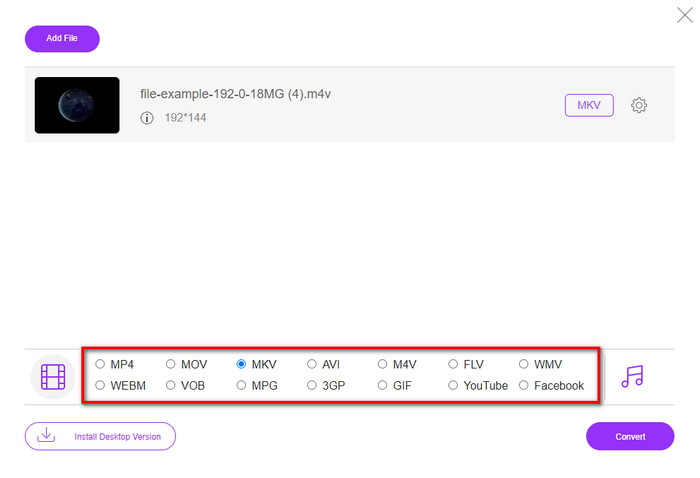
Step 3. Select the MKV format below or the other format you want to have.
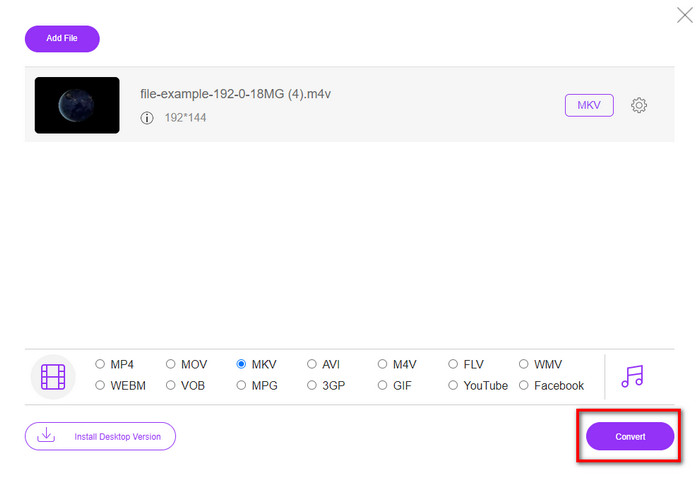
Step 4. Hit Convert for the process to begin.
3. rész. Konvertálja az M4V-t MKV-vá ingyen
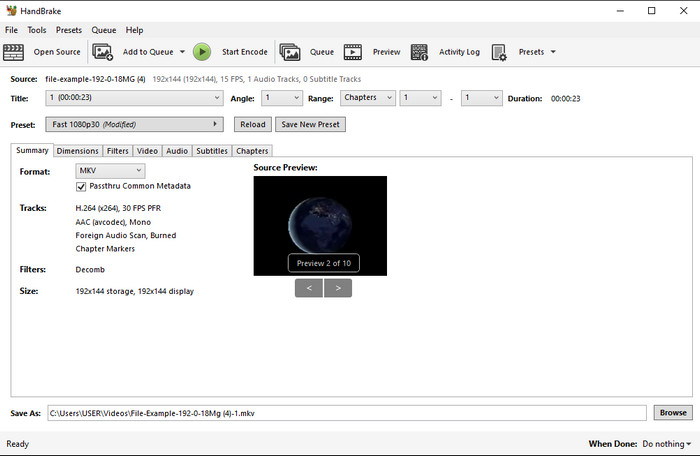
Handbrake provides a swift and efficient converting process like the other converter presented here. However, the format this tool supports is limited, which means you have no less choice option of choosing which format you want it to be. But if you want to use and convert M4V to MKV in Handbrake, apply the steps below.
Step 1. Download the Handbrake on your desktop. Upload the .m4v file by dragging and dropping it on the interface. You can also click File, locate the file on the computer folder, and press Open.
Step 2. Click Format and choose MKV.
Step 3. Click Start Encode for converting the process to begin.
4. rész. Mik a hasonlóságok és különbségek az M4V és az MKV között?
Mielőtt összehasonlítanánk az M4V-t és az MKV-t, nézzük meg a két formátum hasonlóságát. Az M4V és az MKV egyaránt a médiatartalom és az elemek konténerei. Ezenkívül ez a két formátum az egyik legjobb videóminőséget tárolja, például a HD videókat vagy a 4k-t. Ezenkívül nagyok az olyan elemek tárolására, mint a metaadatok. Ezenkívül az alábbi részletek a két formátum közötti különbséget mutatják be.
Az M4V nagyon hasonlít az MP4 formátumhoz; azonban ez a formátum DRM másolásvédelem alatt áll, ami azt jelenti, hogy nem használhatja szabadon. De nem minden M4V-fájl rendelkezik Apple-védelemmel, mivel néhány letölthető M4V-nek jogosulatlan licence van, ezért feltétlenül töltse le az .m4v fájlt az iTunes-ból, hogy elkerülje a rendszerét megfertőző rosszindulatú vírusokat. Bár a formátumnak van korlátozása, továbbra is használhatja ezt a formátumot több médialejátszón az iTunes-on letöltött videó megtekintéséhez. Sőt, ha védett mintára van szüksége Mac számítógépen, ez a formátum a legjobb választás.
Éppen ellenkezőleg, az MKV sajátos, hogy több médiatartalmat és elemet tartalmazzon egy fájlban. Ez a képesség csak az MKV-n érhető el, mivel ez a formátum ingyenesen használható, és rugalmasabb, mint az M4V. Ezen túlmenően számos oka van annak, hogy az M4V-t MKV-ra cserélje Mac vagy Windows rendszeren, és ezek egyike a videofájl korlátozás nélkülivé tétele.
M4V vs. MKV
Az M4V-t az Apple fejlesztette ki, amely szintén MPEG 4-et használ. Az M4V-fájlokat gyakran használják az Apple iTunes Store-ból letöltött videók, például zenei videók, TV-epizódok stb. tárolására. Előfordulhat, hogy néhány M4V-fájl másolásvédett, mivel Az Apple FairPlay DRM szerzői jogi védelme.
A 2002-ben kiadott Matroska multimédiás konténer formátum egy nyílt forráskódú formátum, amely számos videó-, hang-, kép- és feliratsávot tartalmazhat. Így egyszerűen használhatja rövid videoklipek, TV-műsorok és filmek tárolására. Nagyon népszerű az anime rajongók körében.
5. rész. GYIK az M4V-ről MKV-ra való átalakításról
Melyik a jobb szerkesztéshez, M4V vagy MOV?
The two said format is one of the Apple formats, so you will notice that there is no significant gap between M4V and MOV. However, MOV is much better at editing because this format often contains a series of video playback that is the best choice for professional editing. Maybe you think you should make your M4V into a MOV for editing purposes. If so, click this link to know more about converting M4V to MOV with a comprehensive understanding of it.
Az M4V és az MP4 ugyanaz?
Az M4V és az MP4 nagyon azonos a felépítés és a videó minősége szempontjából. De az Apple Plays védelem miatt az M4V csak kis támogatási körrel rendelkezik, és nem lehet csak videót lejátszani vagy szerkeszteni az .m4v kiterjesztéssel.
Melyek azok a médialejátszók, amelyek támogatják az M4V-t?
Not many media players support this type of format because of the DRM protection. So if you are looking for an MKV player, you will spend a lot of time and test it out, which consumes a lot of time. But if you read this article, you can download or use the top 5 MKV media players available on all platforms.
Következtetés
The three tools presented in this article will surely give you the effective conversion you want to have by following the steps. Although the converters have a lot in common, they still have a lot of differences as well. If you read the details we presented above, you will know many about the three tools. Suppose you want to have an excellent conversion in a one-go and still achieve the efficiency of the conversion, we would recommend the FVC Video Converter Ultimate. Sounds unbelievable? Indeed it is, so download it on your desktop to try it yourself.
-
 M4V to MP3 Converter - 4 legjobb módszer az MP3 kivonására az M4V fájlokból
 Ha könnyedén ki akarja vonni az MP3 hangot az M4V videókból, akkor többet megtudhat a 4 legjobb M4V - MP3 átalakítóról, hogy a kívánt hangfájlokat megszerezze a cikkből.
-
 [Útmutató] Hogyan konvertálhat M4V videókat animált GIF-ekké Windows/Mac rendszeren
 Ha animált GIF -fájlokat szeretne készíteni kedvenc M4V -videóiból, akkor ismerkedjen meg 2 egyszerű és hatékony módszerrel az M4V -videók GIF -formátumba való konvertálására, testreszabott beállításokkal.
-
 3 Video Converter program, amellyel az iTunes M4V AVI-t konvertálhat Mac rendszeren
 Nincs ötlete, hogyan lehet MKV-t AVI formátumba konvertálni? A cikk olvasása közben megismerjük azt a 3 eszközt, amelyek segíthetnek konvertálni ezt a fájlformátumot.

