


 Video Converter Ultimate
 Screen Recorder
 Videó javítás
 Biztonságos letöltés
4 legegyszerűbb módja a videolejátszási sebesség megváltoztatásának asztali számítógépen, weben és telefonokon
A legtöbb felhasználó hatékony módot keres arra, hogy egy egyórás videót egy óránál rövidebb idő alatt nézzen meg. Az egyetlen megoldás, amely valóban képes ezt a problémát megoldani, az éppen nézett videó lejátszási sebességének megváltoztatása. A piacon elérhető videószerkesztők többsége segíthet a feladat elvégzésében, de felmerül a kérdés: valóban megbízhatók-e? Kutatásunk során kiderült, hogy asztali gépen, online, iOS-en és Android-eszközökön is lehet videósebességet változtatni. Ha szeretné megtudni, hogyan kell ezt megtenni, mindenképp olvassa tovább ezt a blogot, mert olyan eszközöket és alkalmazásokat mutatunk be, amelyek segíthetnek önnek.

1. rész: A legjobb ajánlott módszer a videosebesség egyszerű megváltoztatására Windows és Mac rendszeren
Ha könnyedén szeretne videósebességet változtatni, a lehető legjobb eszközt kell választania, amely néhány egyszerű kattintással is kiváló eredményt nyújt – íme a FVC Video Converter Ultimate. Ez az eszköz bárhol és bármikor hatékonyan képes módosítani a videó sebességét. Emellett a videó sebességét akkor is megváltoztathatja, ha a formátum MP4, MOV, AVI, FLV, TS, RMVB vagy a több mint 1000 egyéb formátum egyike; a fájl feltöltése ide gyors és egyszerű. Legyen akár Windows-, akár Mac-felhasználó, a szoftver letöltése az adott operációs rendszerre lehetővé teszi, hogy néhány kattintással befejezze a lejátszási sebesség módosításának feladatát.
A videó sebességvezérlő funkciója mellett az eszköz egy büszkén multifunkcionális eszköztárral is rendelkezik, amely más feladatokat is segíthet. Például metaadatok hozzáadása, GIF létrehozása, vízjelek eltávolítása és még sok más. Bár az eszköz letölthető, használata során észreveheti, hogy nem kell nagy szerkesztési tapasztalat, mert felhasználóbarát. Vannak olyan funkciók és funkciók, amelyekről még nem írtunk, amelyek kiemelik ezt a terméket. De ha meg szeretné tudni, hogyan módosíthatja a videó sebességét, olvassa el a részleteket a know-howért.
Az Ultimate szoftver videosebesség-váltóként való használatának előnyei:
◆ Intuitív kezelőfelület, így néhány perc alatt megtanulják használni.
◆ Tölts fel 1000+ videót, hogy felgyorsítsd a lejátszást.
◆ Felhasználóbarát, hogy a felhasználók a legtöbbet élhessék meg.
◆ Egyéb funkciók is elérhetők az Eszköztárban, mint például az alapvető és haladó videószerkesztés.
◆ Ez az első választás a majdnem egymillió felhasználó közül, akik letöltik.
◆ Windows és Mac rendszeren is elérhető, így az eszköz könnyedén letölthető.
A videósebesség megváltoztatásának lépései az Ultimate szoftver használatával:
1. lépés. A végső megoldást nyújtó szoftvert Windowsra és Macre egyaránt letöltheti a letöltés gomb megnyomásával. A letöltött fájlra kattintva fejezze be a telepítési folyamatot, majd indítsa el a szoftvert a folytatáshoz.
Ingyenes letöltés Windows 7 vagy újabb rendszerre Biztonságos letöltés
Ingyenes letöltés macOS 10.7 vagy újabb rendszerre Biztonságos letöltés
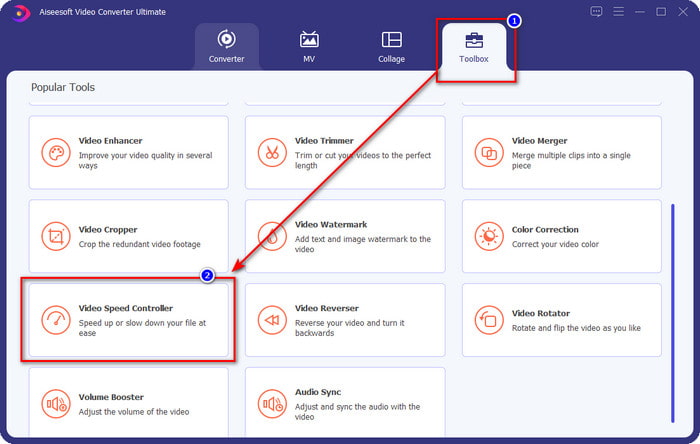
2. lépés. Miután megnyitotta a szoftvert, lépjen a Toolbox (Eszköztár) részhez, és ott nyissa meg a Video Speed Controller (Videósebesség-szabályozó) modult. Nem kell aggódnia, nem szükséges további erőforrásokat vagy bővítményeket letölteni az eszköz használatához.
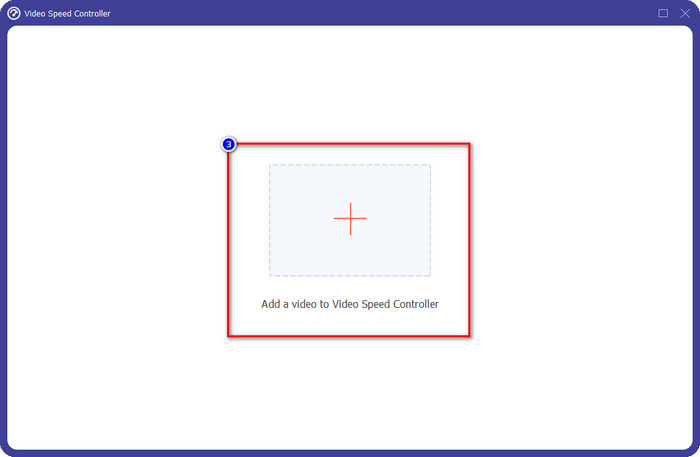
3. lépés. Nyomja meg a + ikont, adja hozzá a mappában található fájlt, kattintson rá, majd nyomja meg az Open (Megnyitás) gombot a videófájl feltöltéséhez.
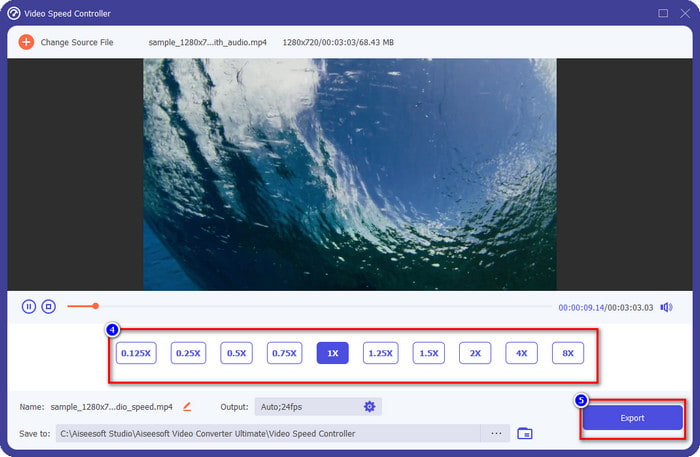
4. lépés. Válassza ki a listából a kívánt lejátszási sebességet – mindannyiunknak más tempóra van szüksége. Kattintson az Export gombra a módosított sebességű videó végső kimenetének mentéséhez. Kevesebb mint egy percen belül már meg is változtatta a videó sebességét. Ezután rövidebb idő alatt élvezheti a megtekintést.
2. rész. A legjobb ingyenes módja a videosebesség megváltoztatásának az interneten
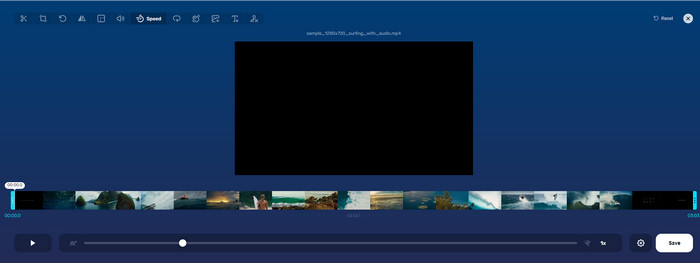
Az Online Video Cutter segítségével ingyenesen változtathatja meg a videó sebességét online. Az első eszközzel ellentétben itt nem kell semmilyen kiegészítő programot vagy telepítőt letöltenie az asztali gépére a webes eszköz használatához. A sebesség módosítása mellett alapvető szerkesztési műveletekre is használhatja ezt az eszközt. Bár a program nagyszerű, nem tölthet fel ide minden formátumot, mivel a támogatott formátumok köre korlátozott. A használatához kövesse az alábbi lépéseket.
1. lépés. Nyissa meg az ön által preferált böngészőt, és keressen rá a webes eszközre.
2. lépés. Nyissa meg a webes eszközt, kattintson az Open File (Fájl megnyitása) gombra, keresse meg a videófájlt, majd töltse fel.
3. lépés. Húzza a csúszkákat balra vagy jobbra a sebesség módosításához; ha elégedett az új lejátszási sebességgel, kattintson a Mentés (Save) gombra.
3. rész. A legjobb videószerkesztő iOS rendszeren a videósebesség ingyenes megváltoztatásához
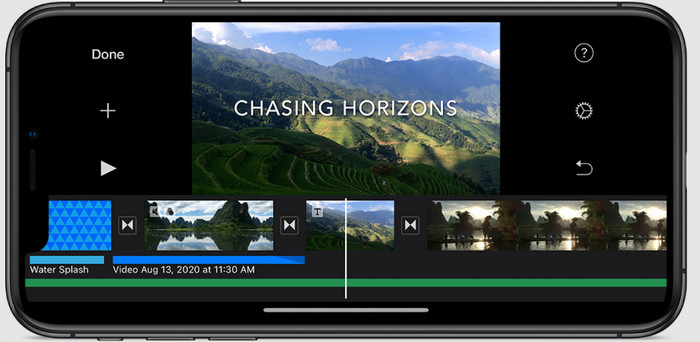
Az iOS-felhasználók az iMovie segítségével ingyenesen megtudhatják, hogyan módosíthatják a videó sebességét iPhone-on. Annak ellenére, hogy az eszköz natív videószerkesztő a Mac rendszeren, továbbra is választhat, hogy letölti-e az alkalmazást eszközére vagy sem. Ez a választás azt bizonyítja, hogy az iOS-felhasználók megtarthatják a szerkesztőt vagy sem, hogy helyet takarítsanak meg a tárhelyükön. Ha azonban rendelkezik az alkalmazással az iPhone-on, kövesse az alább hozzáadott lépéseket, hogy megtudja, hogyan működik ez az eszköz.
1. lépés. Töltse le, majd nyissa meg az alkalmazást az iPhone-ján, a Projektek között kattintson a + jelre, majd válassza a Movie lehetőséget.
2. lépés. Koppintson arra a videóra, amelyet fel szeretne gyorsítani, majd a képernyő alján érintse meg a Create Movie gombot, hogy a videót hozzáadja az idővonalhoz.
3. lépés. Koppintson a már feltöltött felvételre, majd nyomja meg a speed controller (sebességszabályozó) ikont, és állítsa be a videó sebességét a csúszkák húzásával az iPhone-ján. A mentéshez kattintson a Done (Kész) gombra, majd igény szerint exportálja a videót.
4. rész: A legjobb módja a videolejátszási sebesség megváltoztatásának Android-eszközökön a beépített szerkesztő használatával
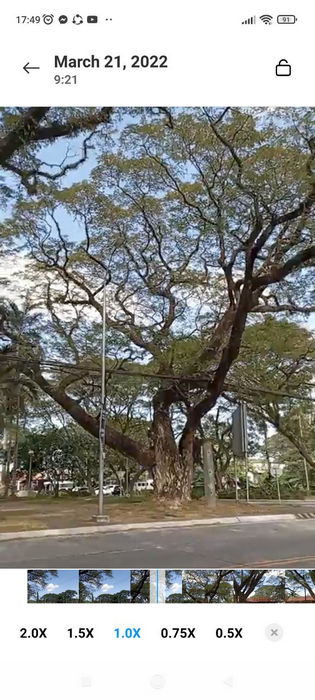
Android-felhasználó esetén nem tölthet le alkalmazást; módosítsa a videó sebességét telefonján a beépített videószerkesztővel. Ezzel a szerkesztővel elvégezheti a szükséges alapvető szerkesztéseket a videón, hogy jobban nézzen ki, mint korábban. Ezt a szerkesztőt a Galériában vagy az Albumban találhatja meg Android készülékén. Ha szeretné tudni, hogyan kell használni, a következő információk segítenek.
1. lépés. Nyissa meg a Galériát vagy az Albumot, majd koppintson arra a videóra, amelynek a sebességét módosítani szeretné.
2. lépés. Kattintson az Edit (Szerkesztés) gombra a folytatáshoz.
3. lépés. Koppintson a Playback Speed (Lejátszási sebesség) részre, majd módosítsa a sebességet az igényeinek megfelelően.
5. rész. GYIK a videosebesség módosításával kapcsolatban
Meg tudom változtatni a sebességet a YouTube-on?
Abszolút igen, akkor is módosíthatja a videó lejátszását a YouTube-on, ha nem tölt le hozzá szoftvert. Kövesse a lépéseket, hogy megtudja, hogyan módosíthatja a videó sebességét a YouTube-on. Először nyissa meg a YouTube-ot, keresse meg a megnézni kívánt videót módosított mozdulattal, kattintson a fogaskerék ikonra, alatta pedig a Lejátszási sebességre, válassza ki az elérni kívánt sebességet, és élvezze.
A sebesség megváltoztatása lerövidíti a videó időtartamát?
Attól függ, hogyan változtatja a sebességet; ha lelassítja a videót, akkor számítson arra, hogy az időtartama át fog terjedni, mert lassú módban játssza le. De ha a sebességet nagyra állítja, akkor a lejátszott videó időtartama rövidebb lesz, mint az eredeti. Ha többet szeretne megtudni a videó sebességének módosításáról, olvassa el az alábbi, fentebb hozzáadott részleteket.
A sebesség változtatása után a minőségnek lesz hatása?
A beállított videosebességtől függően a minőség romolhat vagy megmaradhat. Ha egy videót nyolcszor vagy többször játszol le, számíts arra a videóra, amelyet le fogsz játszani. Viszont a lejátszáson kívül nem sok különbséget veszel észre, minőségileg ugyanaz marad.
Következtetés
Most, hogy már tudjuk, hogyan lehet megváltoztatni a videó sebességét asztali gépen, online és telefonon, itt az ideje eldönteni, melyik megoldást érdemes használni. Tegyük fel, hogy nem szeretne szoftvert letölteni az asztali gépére, hogy helyet takarítson meg és elkerülje a telepítési lépéseket – ebben az esetben olvassa el a cikk második részét. Ha viszont iOS- vagy Android-felhasználó, akkor a harmadik és negyedik rész szól önnek. Ha a legjobb videószerkesztőt szeretné használni Windows és Mac rendszeren, mindenképpen töltse le a FVC Video Converter Ultimate programot. Ez a legjobb videósebesség-szabályozó, amellyel könnyedén módosíthatja a videók lejátszási sebességét az asztali gépén. Mire vár még? Töltse le most, és vegye igénybe kizárólag önnek szóló akciónkat!
-
 Hogyan lehet felgyorsítani a videózást a Premiere Pro-ban és annak alternatíváiban
 Szeretné tudni, hogyan használhatja a premier pro-t a videó felgyorsítására? Akkor a megfelelő cikkben jár, mivel lépéseket és más megfizethető alternatívákat kínálunk.
-
 2 egyszerű módszer egy videó felgyorsítására a TikTokon
 Szeretné tudni, hogy miként lehet felgyorsítani a videózást a TikTokon? Ezután olvassa el ezt a cikket, hogy megtudja, hogyan kell ezt megtenni, és megtudja, mi az a másik 2 eszköz, amely segít Önnek.
-
 Kiváló tippek 2021-re: Hogyan gyorsítsuk fel a videót az iMovie-on
 Ismerőse az iMovie-t javasolja, hogy segítsen megoldani a videó felgyorsítását az iOS operációs rendszerrel, de nem tudja, mit tegyen? Erről többet tudhat meg, miközben többet olvas ebben a cikkben.
