


 Video Converter Ultimate
 Screen Recorder
 Videó javítás
 Biztonságos letöltés
A legjobb megoldások a videók telítettségének növelésére
A videó telítettsége a videó színeinek intenzitását jelenti. Azt méri, hogy a színek milyen élénkek és hangsúlyosak. A videó telítettségi szintje állítható, hogy egyedi megjelenést vagy hangszínt hozzon létre. A telítettség növelése például élénkebbé és élénkebbé teheti a színeket, gyakran használják zenei videókban vagy reklámokban, hogy vizuálisan izgalmas és figyelemfelkeltő hatást hozzanak létre.
Másrészt az alacsonyabb telítettségi szintek visszafogottabb vagy nosztalgikusabb hangulatot teremthetnek, amit gyakran használnak filmekben vagy tévéműsorokban egy meghatározott hangulat vagy érzelem közvetítésére. Összességében a videó telítettsége alapvető eszköz a filmesek és videósok kezében ahhoz, hogy megteremtsék a kívánt vizuális stílust, és erősítsék munkájuk történetmesélő jellegét. Ezért ha videórajongó vagy, mindenképpen érdemes megtanulnod a különböző módszereket arra, hogyan növeld a telítettséget egy videóban.
1. rész: Videó telítettség szerkesztése számítógépen
1. Video Converter Ultimate
Amikor a projektvideód telítettségét állítod, a Video Converter Ultimate a segítőtársad. A legtöbb videórajongó ezt az alkalmazást részesíti előnyben fejlett szerkesztőfunkciói miatt, például a videó megjelenésének javítása és a telítettségi paraméterek módosítása miatt. A szoftver gyorsított funkciókat egyesít, amelyek jobb videó kimenetet eredményeznek. Színkorrekciós technológiát használ a fényerő, a kontraszt, az árnyalat és a telítettség beállítására. Ami ezt az eszközt egyedivé teszi, az a videószerkesztési lehetőségek sokfélesége. Tovább javíthatod a videót, készíthetsz 3D animációt, logókat helyezhetsz el, és különböző elemeket adhatsz hozzá a videófájlodhoz. Nézd át az alábbi útmutatást, hogy megtanuld, hogyan kell helyesen szerkeszteni egy videó telítettségét ezzel az alkalmazással.
1. lépés. Szerezd be a Video Converter Ultimate programot
A program telepítőcsomagját a számítógépedre a lenti Ingyenes letöltés lehetőségre kattintva szerezheted be. Lépj a PC-d letöltés mappájába, és futtasd a fájlt, hogy telepítsd az eszközre. Ezután fejezd be a telepítési varázslót, és indítsd el az alkalmazást, hogy elsajátítsd az alapvető funkcióit.
Ingyenes letöltésWindows 7 vagy újabb rendszerreBiztonságos letöltés
Ingyenes letöltésMacOS 10.7 vagy újabb rendszerreBiztonságos letöltés
2. lépés. A videófájl importálása
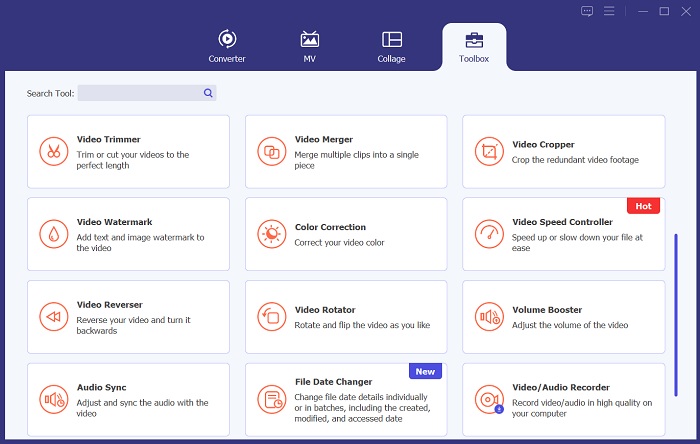
A következő lépés a videófájl importálása az eszközbe. Lépj a Eszköztár menüpontra, majd görgess le a Színkorrekció opcióig. Érintsd meg a szerkesztőfunkciót egy új párbeszédablak megnyitásához. Koppints a + ikonra, hogy elérd és importáld a projektvideót.
3. lépés. A telítettség szerkesztése
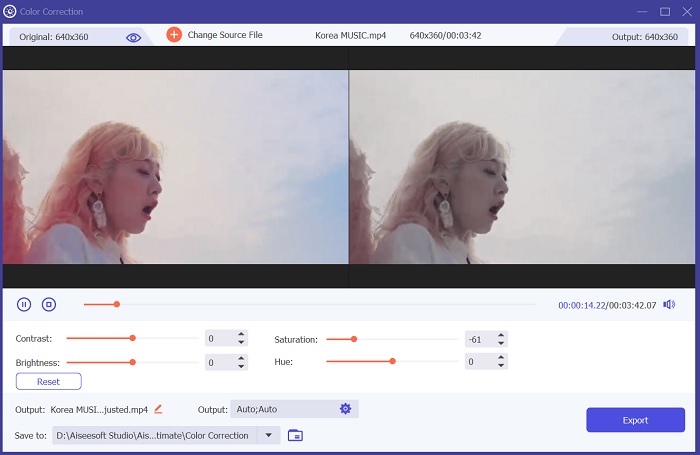
Végül használd a csúszkát a projektvideó telítettségének módosításához. Állítsd a csúszkát a kívánt kimenetnek megfelelően. Ezután kattints az Export ikonra a módosítások mentéséhez. Lépj a kimeneti mappába, és tekintsd meg az elkészült videót.
2. Clideo
Ha a videók szerkesztéséről van szó, a Clideo számos olyan összetevőt kínál, amelyek segíthetnek elérni a kívánt eredményeket. Az egyik ilyen funkció a videó telítettségének beállítása. A telítettség azt méri, hogy mennyire intenzívek vagy élénkek a videód színei, és ennek megváltoztatása drasztikusan megváltoztathatja a felvétel általános megjelenését és érzetét. A Clideo segítségével egyszerűen beállíthatja a videó telítettségét egy egyszerű csúszka segítségével. Ezzel a csúszkával növelheti vagy csökkentheti a videó telítettségi szintjét, így az Ön preferenciáitól függően élénkebbé vagy némábbá teheti azt. Ezzel az eszközzel a videó árnyalatát és fényerejét is beállíthatja, így tovább testreszabhatja a felvételek megjelenését és hangulatát. Tekintse meg az alábbi útmutatót az alkalmazás használatának megismeréséhez.
1. lépés. A telítettség szerkesztésének első lépése a Clideo-ban, hogy megnyisd az online eszközt a böngésződben. Keresd meg az alkalmazást, és lépj be a felületére. Ezután ismerkedj meg az alapvető szerkesztőfunkcióival, hogy jobb szerkesztési élményed legyen.
2. lépés. Ezután kattints a Fájl kiválasztása opcióra a videó importálásához. Keresd meg a számítógépeden tárolt projektvideót. Kattints a Megnyitás opcióra vagy ikonra, hogy hozzáadd a videót az online eszközhöz.
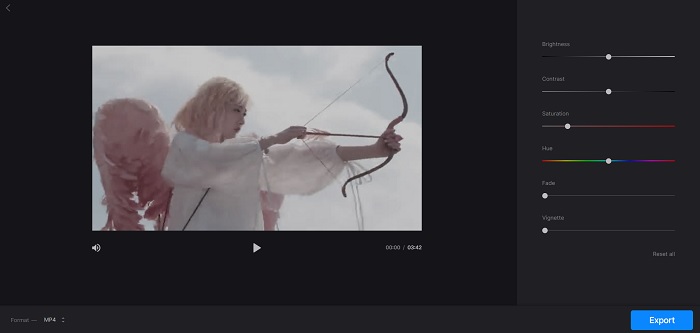
3. lépés. Végül megjelenik egy videoszerkesztő funkció és a projektvideód. Használd a Telítettség-csúszkát, hogy elhúzva módosítsd a videód telítettségét. Kattints az Export opcióra a módosítások mentéséhez az online alkalmazásban. Lépj a kimeneti mappába, és tekintsd meg a videót.
2. rész: Videó telítettség szerkesztése telefonon
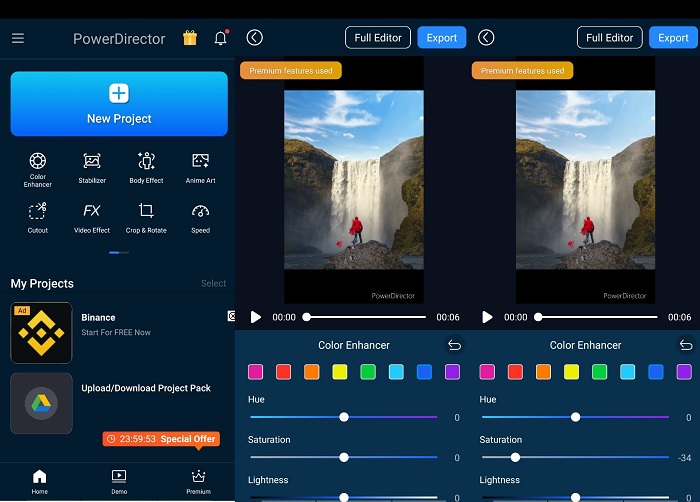
A PowerDirector egy megfelelő mobilalkalmazás a videó telítettségének szerkesztésére. Számos funkció áll rendelkezésre a felvételek javításához ebben az alkalmazásban. Először is, a szoftver lehetővé teszi az egyes színek telítettségi szintjének beállítását, így jobban szabályozhatja a videó általános megjelenését és hangulatát. Használhatja a színegyeztetési funkciót is, hogy a különböző klipek színeihez illeszkedjen, így biztosítva a konzisztenciát a projekt során. A PowerDirector másik értékes tulajdonsága, hogy képes előre beállított színeket alkalmazni, amelyek előre elkészített szűrők, amelyeket a felvételek megjelenésének javítására terveztek. Ezek az előre beállított értékek az Ön igényei szerint testreszabhatók, így még nagyobb kontrollt biztosítanak a végtermék felett.
1. lépés. A telítettség módosításához PowerDirectorban először szerezd be az alkalmazást. A mobilalkalmazást letöltheted a Google Play Áruházból vagy az App Store-ból. Indítsd el az appot, és ismerkedj meg az alapvető navigációval és funkciókkal.
2. lépés. Ezután importáld a videót úgy, hogy kiválasztod a videógalériádból azt a klipet, amellyel dolgozni szeretnél. Lépj a szerkesztési lehetőségekhez, és keresd meg a Színjavító menüt. Ott a csúszka balra vagy jobbra mozgatásával állíthatod a klip telítettségét.
3. lépés. Ha elégedett vagy a telítettség szintjével, elmentheted a módosításokat, és kattinthatsz az Export gombra a videó mentéséhez. Ezzel az egyszerű néhány lépéssel könnyedén beállíthatod a videoklipek telítettségét a PowerDirectorban. Ügyelj arra, hogy ne telítsd túl a klipet, mert ettől a színek természetellenesnek tűnhetnek.
További olvasnivaló:
Hogyan javíts ki egy túl világos videót? Íme a 5 legjobb módszer
Hogyan változtassa meg egy videó árnyalatát? A kreatív lehetőségek felfedezése
3. rész. GYIK a Video Saturation szerkesztésével kapcsolatban
Hogyan javítható a telítettség az iMovie-ban?
Az iMovie telítettségének javításához lépjen a Színkorrekció fülre, és állítsa a telítettségi csúszkát, amíg el nem éri a kívánt telítettségi szintet. Az egyes színcsatornák módosításával is finomhangolhatja az egyes színek telítettségi szintjét. Egy másik lehetőség egy színkorrekciós szűrő hozzáadása és a szűrőn belüli telítettségi beállítások módosítása. A végső videó exportálása előtt ne felejtse el megtekinteni a módosítások előnézetét.
Hogyan növeli a telítettséget?
A telítettség növelése érdekében módosíthatja a színbeállításokat az eszközön vagy a szerkesztő szoftveren. Próbáljon meg telítési eszközt vagy szűrőt használni a kép vagy videó színeinek javításához. Ne felejtse el a mértékletességet a telítettség növelésekor használni, mivel a túl telített színek irreálisnak és nem vonzónak tűnhetnek. Kísérletezzen a különböző telítettségi szintekkel, amíg meg nem találja a tökéletes egyensúlyt projektje számára.
Mi az ingyenes videószerkesztő a füsteffektushoz?
A különböző videószerkesztő eszközök javíthatják a projektvideó füsthatását. Ebben az esetben használhatja a Video Converter Ultimate-et, mivel tartalmaz egy színkorrekciós funkciót, amellyel tetszés szerint javíthatja, szerkesztheti és módosíthatja a projektvideó megjelenését.
Következtetés
Összességében a videó szerkesztése a kívánt telítettségi szint eléréséhez kielégítő és egyszerű folyamat. A projektvideódon különböző hatásokat és érzelmeket hozhatsz létre, ha megfelelően tudod szerkeszteni a telítettséget. A Video Converter Ultimate, a Clideo és a PowerDirector olyan eszközök, amelyek nagy segítséget jelentenek a filmes, „cinematic” szűrők és vágások megvalósításához. Ha elégedett vagy a cikkben bemutatott megoldásokkal, amelyekkel telítettséget adhatsz a videóhoz, csatlakozz a beszélgetéshez, és szólj hozzá alább. Kérjük, oszd meg velünk a javaslataidat és ötleteidet.
-
 Hogyan adjunk hozzá és készítsünk Instagram-szűrőt a képek és videók közzététele előtt
 Milyen szűrők vannak az Instagramon? Hogyan kell alkalmazni? Hogyan készítsünk egyet? Ezekre a kérdésekre ebben a bejegyzésben egyértelmű válaszok lesznek, ezért olvassa el őket.
-
 A legjobb technika a WebM metaadatok gyors szerkesztéséhez
 Olvassa el az alábbiakban megadott teljes részletet, miközben beszúrunk egy oktatóanyagot a WebM metaadatok szerkesztéséről. Kattintson erre a linkre, ha többet szeretne megtudni róla.
-
 Hogyan vágjunk le egyszerűen online videókat csodálatos programokkal
 Könnyen átméretezheti a videókat online az interneten elérhető különféle videószerkesztő eszközökkel. Próbálja ki a népszerű online videószerkesztő platformokat.
