


 Video Converter Ultimate
 Screen Recorder
 Videó javítás
 Biztonságos letöltés
Hogyan egyesíthetők az M4V fájlok? Itt van a 2 leggyorsabb megoldás
Az M4V fájlok, más néven MPEG-4 videófájlok, általában az iTunes-ról kerülnek letöltésre. Nagyon hasonlítanak az MP4 fájlokhoz, mivel mindkettő MPEG-4 konténerformátumot használ. Könnyen előfordulhat, hogy az iTunes-ról több befejezetlen, M4V formátumú videoklipet töltött le, és ezeket szeretné egyetlen, megszakítás nélküli, teljes történetté összefűzni M4V fájlokat. Hogyan lehet egybekapcsolni az M4V fájlokat? Ez a cikk két módszert mutat be, amelyekkel ezt hatékonyan, képminőség-romlás nélkül megteheti.

1. rész: A leggyorsabb megoldás - Használjon ingyenes M4V-fúziót online
A lehető leggyorsabb megoldáshoz használhatja a FVC Free Online Video Merger eszközt, amelynek lépéseit és beállításait nem tart sokáig elsajátítani. Csak töltse be az eszközt a böngészőjébe, adja hozzá az M4V fájlokat, majd egyetlen kattintással egyesítse az M4V fájlokat.
Fő funkciók
- • Egyesítsen bármilyen méretű és méretű M4V fájlokat egyetlen fájlba ingyen.
- • Könnyen használható felület és intuitív, egyesítés előtti folyamatok.
- • Az egyesített M4V fájlokat további 9 fő formátumban mentheti.
- • Ne hagyjon vízjelet a kombinált M4V videókban.
- • Töltse fel bármilyen méretű fájljait mindössze 1 másodperc alatt.
Lépések M4V fájlok online, ingyenes összefűzéséhez
1. lépés. Kattintson ide a FVC Free Online Video Merger betöltéséhez. Az online eszköz oldalán kattintson a képernyő közepén található Upload Videos to Merge (Videók feltöltése egyesítéshez) gombra.
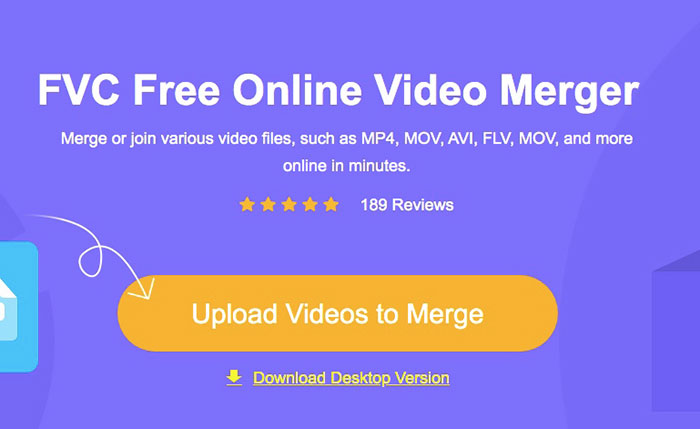
Megjegyzés: Az eszköz felszólítja egy indítóprogram letöltésére és telepítésére, ha első alkalommal használja. Miután telepítette az indítót, kattintson ismét az Upload Videos to Merge gombra.
2. lépés. Most fel kell ugrania a Megnyitás ablaknak. Itt válassza ki az M4V fájlokat, majd kattintson az ablak alján található Megnyitás gombra.
3. lépés. Az M4V fájlok feltöltése után módosíthatja a fájlok sorrendjét: eltávolíthatja a meglévőket, illetve újakat illeszthet be a kívánt helyekre.
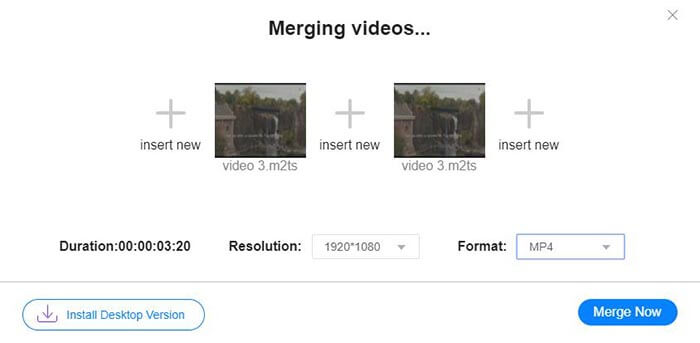
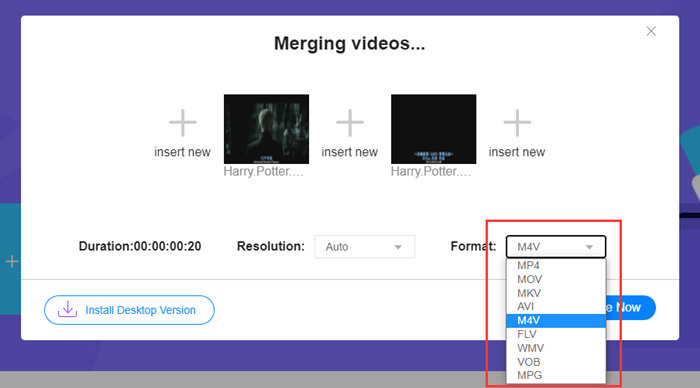
4. lépés. Ha az egyesített fájlt M4V formátumban szeretné megtartani, válassza az M4V lehetőséget a Format (Formátum) listából. Az itt felsorolt bármely más formátumot is választhatja, ha az egyesített M4V videót át kívánja konvertálni.
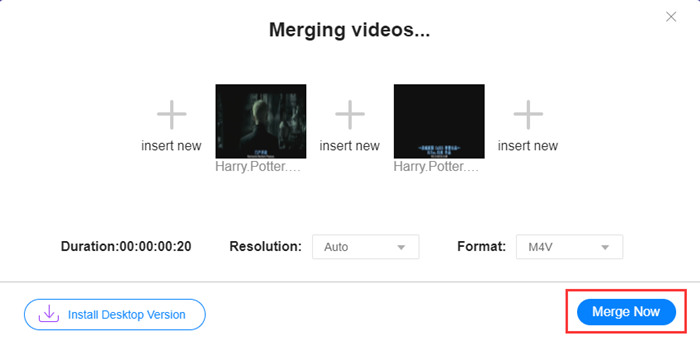
5. lépés. Kattintson a Merge Now (Egyesítés most) gombra az M4V fájlok összefűzésének elindításához. Az eszköz ezután megkéri, hogy válassza ki a kimeneti fájl mentési helyét.
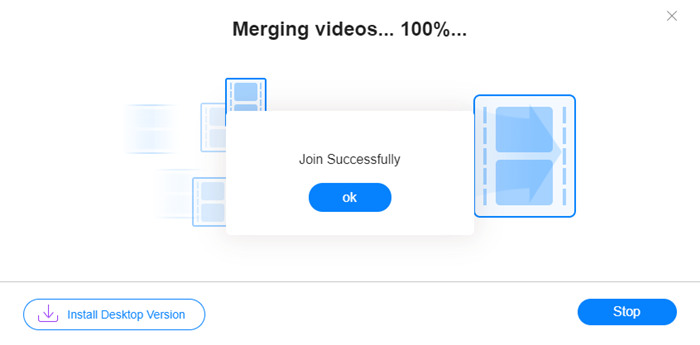
Amikor az alábbi sikertelen értesítést látja, az egyesített videó mentésre kerül a számítógépére.
Már megismerte a leggyorsabb módját annak, hogyan lehet egyesíteni az M4V fájlokat. Ez a módszer azonban csak a videók egymás után fűzésére alkalmas, de nem teszi lehetővé a nem kívánt végek levágását, ami a videóban hosszabb fekete képernyős szakaszokat eredményezhet. Lehet, hogy szüksége lesz a következő módszerre is, amely nemcsak az M4V fájlokat fűzi össze, hanem azokat zökkenőmentesen meg is tudja vágni. Itt akár tömörítheti is az M4V fájlokat.
2. rész: Az M4V fájlok zökkenőmentes egyesítésének módszere
Ahhoz, hogy egy teljes és megszakítás nélküli videót kapjon, pusztán az M4V fájlok egymás utáni összefűzése nem elegendő. A kezdő és befejező részekről el kell távolítania a nem kívánt szegmenseket is. Ehhez már egy videószerkesztő eszközre van szükség. Számtalan lehetőség közül választhat, mi azonban a Video Converter Ultimate használatát ajánljuk. Az ok egyszerű: könnyű használni, ugyanakkor funkciói bőven elegendőek a feladathoz.
Fő funkciók
- • Egyesítés, vágás, forgatás, kivágás és effektusok hozzáadása az M4V videókhoz.
- • A hardvergyorsító technológia 70x gyorsabban segíti az M4V fájlok összekapcsolását.
- • Bőséges szűrők és effektek gyűjteménye a videók szépítéséhez
- • A beépített videójavítóval javíthatja a videó minőségét
- • Alakítsa át videóit 3D-be, és élvezze azokat 3D szemüvegével
Ingyenes letöltés Windows 7 vagy újabb rendszerre Biztonságos letöltés
Ingyenes letöltés macOS 10.7 vagy újabb rendszerre Biztonságos letöltés
Lépések M4V fájlok zökkenőmentes egyesítéséhez
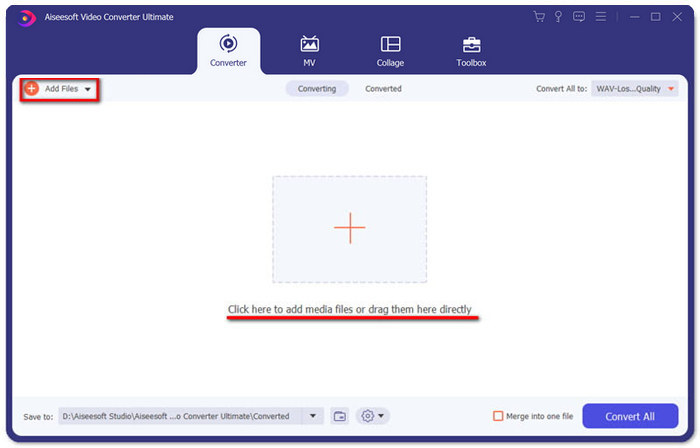
1. lépés. Telepítse és indítsa el a Video Converter Ultimate programot. Kattintson az Add Files (Fájlok hozzáadása) gombra, vagy húzza be a videókat a felületre.
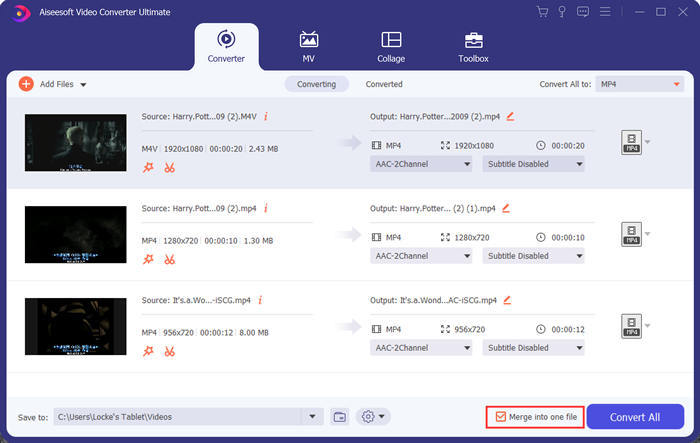
A fájlok hozzáadása után fel-le húzással módosíthatja a sorrendjüket. Emellett be kell jelölnie a Merge into one file (Összefűzés egy fájlba) négyzetet is, hogy a program ne külön-külön konvertálja a hozzáadott videókat.
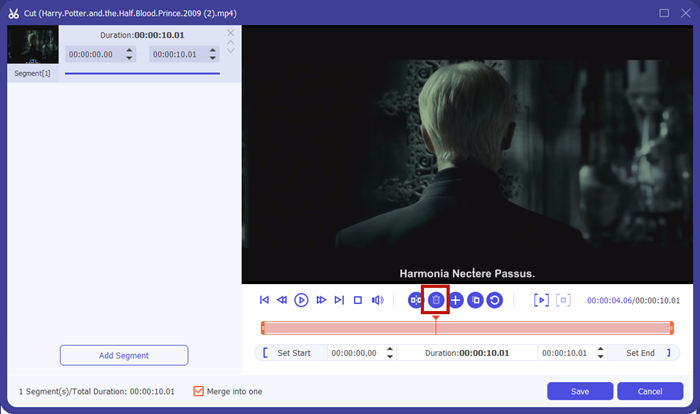
2. lépés. A vágási funkció használatához kattintson a Cut (Vágás) ikonra a hozzáadott videón.
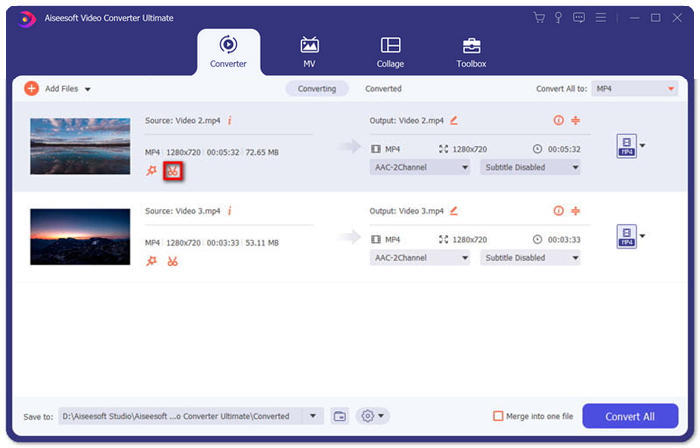
A Cut felületen könnyedén levághatja a videó nem kívánt részeit. Csak jelölje ki a szakaszt a kezdő- és végpont beállításával, majd kattintson a kuka ikonra az eltávolításához.
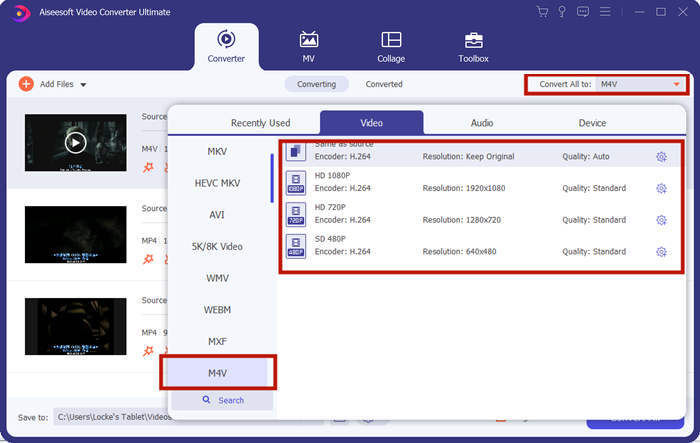
3. lépés. Térjen vissza a fő felületre, ahol kiválaszthatja a kimeneti fájl formátumát. Kattintson a Convert All to (Összes konvertálása erre) melletti lefelé mutató nyílra. Ezután választhat M4V-t vagy más formátumot kimenetként.
4. lépés. Kattintson a program jobb alsó sarkában lévő Convert All (Összes konvertálása) gombra, és várja meg, amíg a program egyesíti az M4V fájlokat.

Amikor az összevonás befejeződött, megjelenik egy sikertelen értesítés. Ezután megtalálhatja az egyesített M4V fájlt a célmappában. A fenti két módszer az M4V videofájlok összekapcsolására. Az alábbiakban számos leggyakrabban feltett kérdést is levontunk.
3. rész: GYIK az M4V fájlokhoz való csatlakozásról
Mi az az M4V fájl?
Az Apple által tervezett M4V-t néha iTunes Video File-nak is hívják. Hasonló az MP4-hez, mert mindkettő MPEG-4-en alapul. Az M4V legkülönlegesebb tulajdonsága, hogy az iTunes DRM védelmet adhat hozzá, hogy megakadályozza az iTunes videók jogosulatlan terjesztését.
Hogyan nyitható meg egy M4V fájl?
Ha egy M4V fájlt nem véd a DRM, akkor lejátszható például a VLC, a QuickTime, a Windows Media Player és számos más médialejátszó segítségével. Néha az is működik, ha a .M4V kiterjesztést .MP4-re módosítja. A DRM-mel védett M4V fájlok azonban csak engedélyezett eszközökön játszhatók le.
Eltávolíthatom a DRM-védelmet egy M4V fájlból?
Igen tudsz. Számtalan DRM eltávolító programot találhat a piacon. Íme néhány közülük: TunesKit DRM M4V Converter, Aimersoft DRM Media Converter, Requiem DRM Remover, Ondesoft iTunes Convertert, Apple Music Converter.
Következtetés
Ez az írás két hatékony módot mutatott be arra, hogyan lehet több M4V videófájlt egyetlen fájlba egyesíteni. A lehető leggyorsabb megoldáshoz a FVC Free Online Video Merger a legjobb választás. Ezt a programot letöltés nélkül használhatja, és a feltöltési folyamat is azonnal befejeződhet. Ha azonban jobb minőségre vágyik, vagy nemcsak összefűzni szeretné az M4V fájlokat, hanem meg is vágná őket, akkor érdemes a Video Converter Ultimate mellett dönteni. Ez az eszköz erőteljes szerkesztési funkciókat kínál, miközben a felhasználói felülete a kezdők számára is áttekinthető. Ha talált ennél jobb megoldást, örömmel vesszük, ha megosztja velünk egy hozzászólásban alább.
-
 Hogyan lehet átalakítani az M4V-t MP4-be DRM-mel / anélkül
 6 út az M4V MP4 konvertálásához (DRM eltávolítás mellékelve)
-
 5 legjobb M4V-lejátszó az M4V-fájlok egyszerű lejátszására számítógépeken / mobilokon
 A legjobb 5 M4V lejátszó Windows / Mac / Android / iOS rendszerhez, amelyeket tudnia kell
-
 Hogyan lehet kivonni az MP3-t az M4V-ből 4 kiváló módszerrel, amelyet tudnia kell
 M4V to MP3 Converter - 4 legjobb módszer az MP3 kivonására az M4V fájlokból
