


 Video Converter Ultimate
 Screen Recorder
 Videó javítás
 Biztonságos letöltés
Top vízjel eltávolító az Adobe Stock vízjel egyszerű eltávolításához a videókról
Tudta, hogy az Adobe‑nak van saját fotó‑ és videóstock oldala? Bemutatjuk az Adobe Stockot, az egyik legnagyobb webhelyet, amely bármilyen grafikai anyagot kínál, amire csak szüksége lehet, ráadásul jogdíjmentes licenccel, így elkerülhetők a nem kívánt következmények. A HD videókat ingyen is letöltheti, de vízjellel vagy bélyegzővel, ha még nem vásárolt kreditet vagy előfizetést. Talán felmerül Önben, hogy lehetséges‑e eltávolítani az Adobe Stock vízjelet a videóról – és igen, lehetséges! A következő részben megmutatjuk a legjobb vízjel‑eltávolítót, amire valaha szüksége lesz; olvassa tovább a cikket, hogy jobban megismerje!

1. rész: Az Adobe Stock vízjel eltávolítása a videóról körbevágással
A FVC Video Converter Ultimate egy komplett és egyszerűen használható képszerkesztő, amely támogatja a Windows és Mac verziókat. A szoftver egy erőteljes vágófunkcióval rendelkezik, amely lehetővé teszi, hogy Adobe Stock videót mentsen le vízjel nélkül. Emellett bármit kivághat a videóiból, például objektumot, bélyegzőt, vízjelet, dátumot vagy időt.
Még ha járatlan is a vágásban, akkor is meg tudja csinálni, ha végzett az alább hozzáadott oktatóanyag követésével. Ez a lépés azonban nem ideális, ha a vízjel a videó közepén van, mert átméretezi a méretet, és levágja a szükségtelen tényleges felvételt.
Hogyan vágja ki a videó vízjelét az FVC Video Converter Ultimate segítségével:
1. lépés. Kattintson az alábbi, megfelelő letöltés gombra, hogy a videószerkesztő megfelelő verzióját letöltse az asztalára. Kövesse a telepítési és beállítási folyamatot, majd kattintson a Start Now gombra, hogy megnyissa a szerkesztőt a rendszerén.
Ingyenes letöltés Windows 7 vagy újabb rendszerre Biztonságos letöltés
Ingyenes letöltés macOS 10.7 vagy újabb rendszerre Biztonságos letöltés
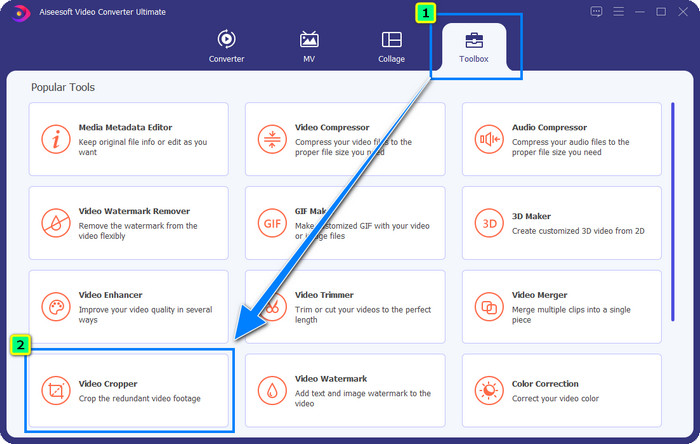
2. lépés. Miután megnyílt az eszköz, lépjen a Toolbox menüpontra, és válassza a Video Cropper funkciót.
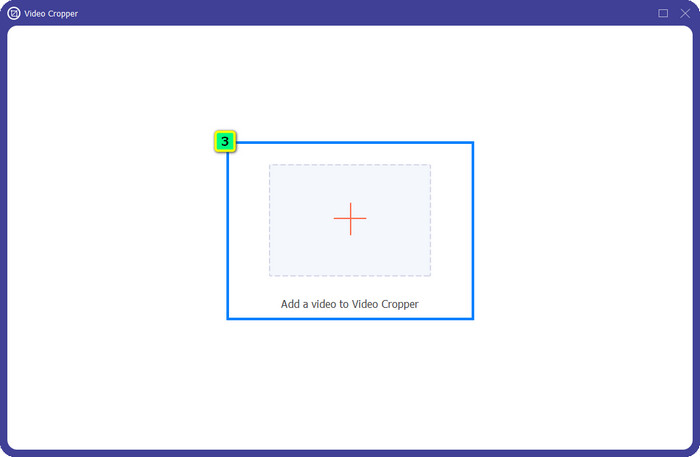
3. lépés. Egy új eszközablak jelenik meg a képernyőn; nyomja meg a + gombot, hogy feltöltse a kivágni kívánt videót.
4. lépés. Igazítsa a vágási területet a saját igényei szerint; ügyeljen rá, hogy a vízjel ne essen a kereten belülre, így a mentett videón már nem lesz vízjel.
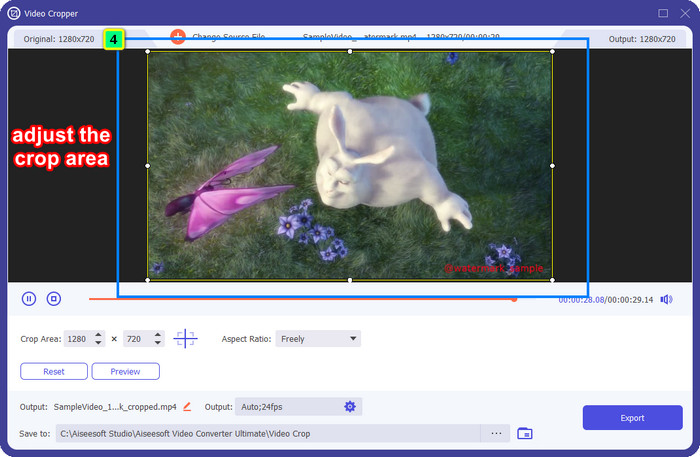
5. lépés. A szerkesztés befejezése után ideje exportálni a végső kimenetet. Nyomja meg a Save to gombot, és válassza ki a célmappát, ahová a fájl mentésre kerül, majd kattintson az Export gombra, hogy letöltse a végső fájlt a helyi meghajtóra.
2. rész: Az Adobe Stock vízjel eltávolítása a videóról vágás nélkül
Nem tetszik, hogyan lehet az Adobe Stock vízjelet a vágási funkcióval eltávolítani? Akkor használhatja ennek az átfogó konverternek a vízjel‑eltávolítóját; ez egy erőteljes eszköz, amely nem hagy semmilyen nyomot a vízjelből. Az FVC Video Converter Ultimate egy megbízható alkalmazás, amely számos funkciót és szolgáltatást támogat, és ezeket további bővítmények letöltése nélkül szabadon használhatja. A legutóbbi frissítés tartalmaz egy videós vízjel‑eltávolítót is, amelynek segítségével bárki egyszerűen és hatékonyan megoldhatja a videók vízjelével kapcsolatos problémáit.
A vágás funkciótól eltérően a vízjel-eltávolító funkció eltávolítja a vízjelet a videóról anélkül, hogy foltot hagyna a végső kimeneten. A megjelenésen semmit nem változtat, ugyanis nem vágja és nem tolja el a videó méretét és minőségét. Tehát, ha érdekli, hogyan távolíthatja el az Adobe Stock vízjelet egy videóból, kövesse a következő lépéseket.
1. lépés. Ha már letöltötte a szoftvert, továbbléphet a következő lépésre, ha viszont még nem, kattintson erre a letöltés gombra, telepítse, majd indítsa el a szerkesztőt.
Ingyenes letöltés Windows 7 vagy újabb rendszerre Biztonságos letöltés
Ingyenes letöltés macOS 10.7 vagy újabb rendszerre Biztonságos letöltés
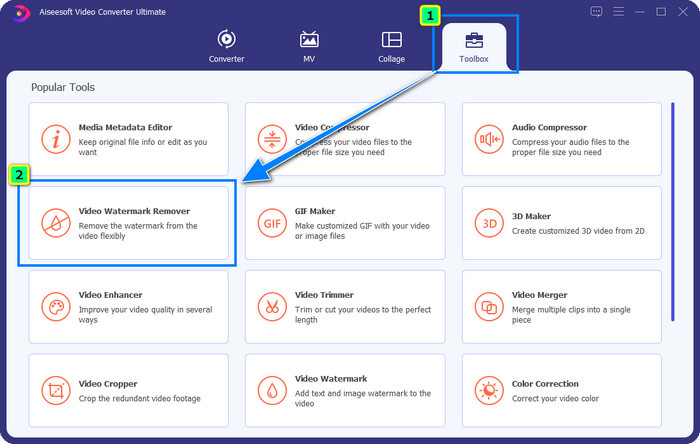
2. lépés. Miután az eszköz fut az asztalán, kattintson a Toolbox menüpontra, és válassza a szoftver által támogatott Video Watermark Remover funkciót.
3. lépés. Nyomja meg a plus gombot; ekkor egy mappaablak jelenik meg a képernyőn. Töltse fel a letöltött Adobe Stock videót, majd nyomja meg az Open gombot.
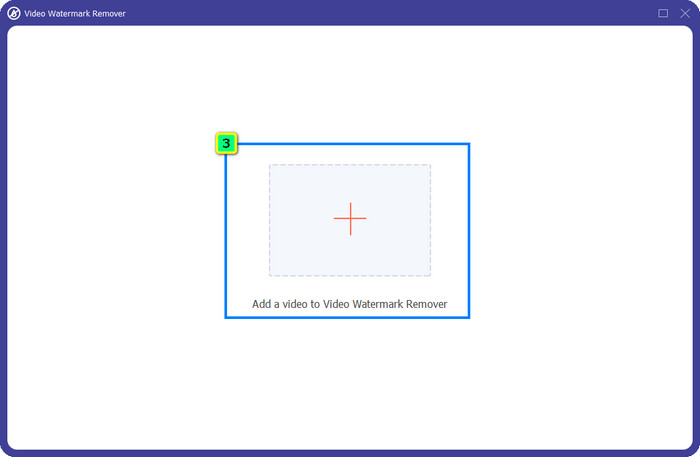
4. lépés. Nyomja meg az Add Watermark Removing Area gombot, hogy megadja a vízjel eltávolításának területét a videón.
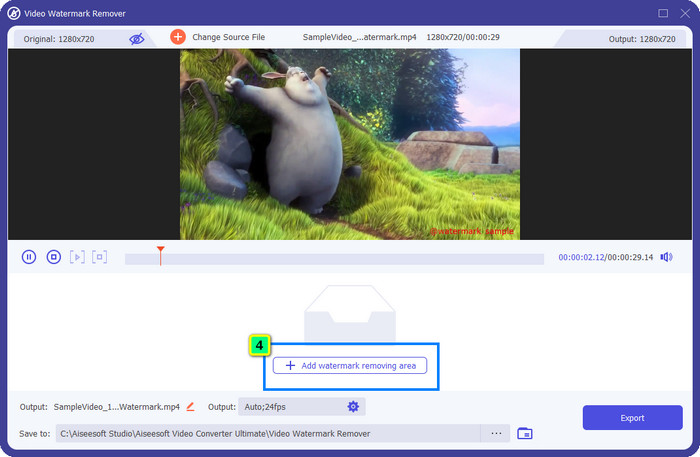
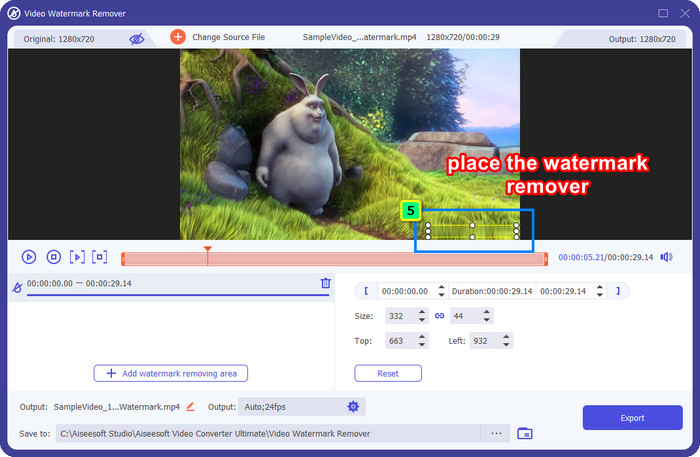
5. lépés. Helyezze a keretet a vízjel területére, és szabadon állíthatja a méretét, hogy pontosan a videóra helyezett vízjelhez igazodjon.
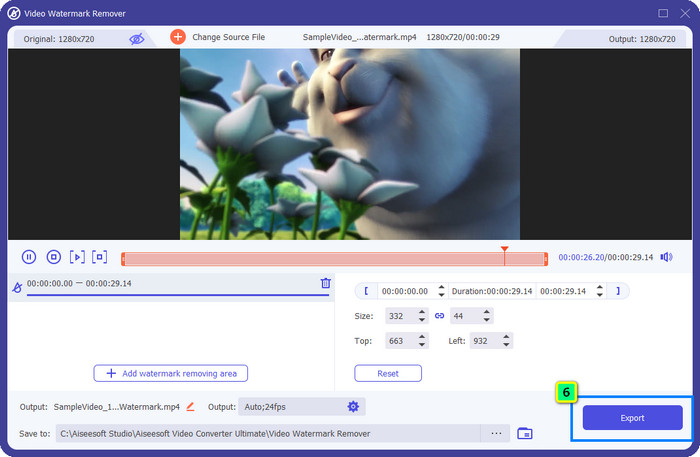
6. lépés. Végül kattintson az Export gombra, és máris élvezheti a videó használatát vízjel nélkül – ilyen egyszerű.
Bónusz: Hogyan távolítsuk el az Adobe Stock vízjelet az online képekről ingyen
A FVC Free Watermark Remover egy hatékony vízjel‑eltávolító, amelyet online elérhető képekhez használhat. Tehát ha vízjellel kapcsolatos problémája van egy letöltött vagy az eszközére mentett képpel, elkezdheti használni ezt a szoftvert. Ezután követheti az alábbi útmutatót, amellyel online eltávolíthatja az Adobe Stock vízjelet a képekről.
1. lépés. Az online vízjel‑eltávolító megnyitásához kattintson erre a linkre.
2. lépés. Nyomja meg az Upload Image gombot, hogy hozzáadja a vízjellel ellátott képet, amelyet itt szeretne szerkeszteni.
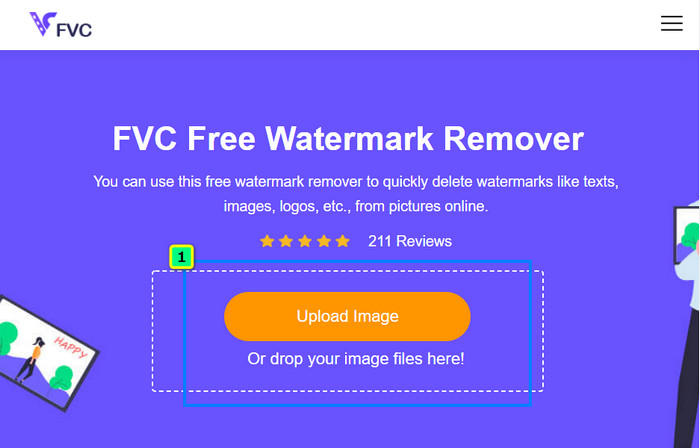
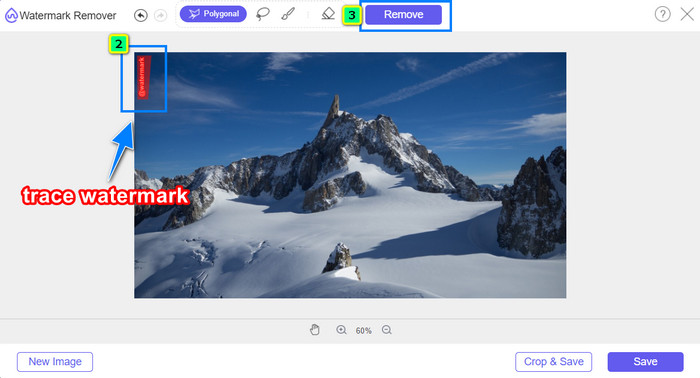
3. lépés. A polygon eszközzel pontonként rajzolja körbe a vízjelet az egér bal gombjának kattintgatásával. Miután teljesen körberajzolta, nyomja meg a Remove gombot, és az MI elvégzi Ön helyett a vízjel eltávolítását.
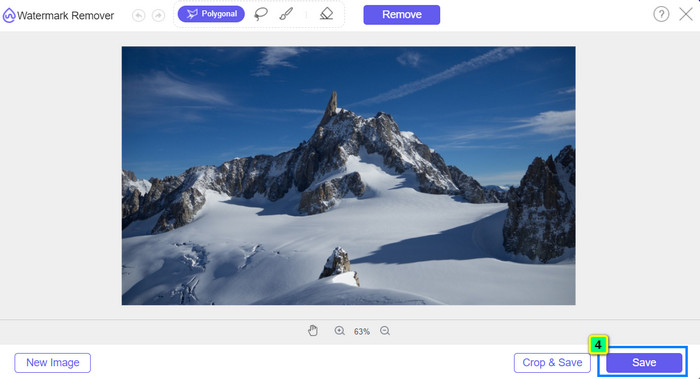
4. lépés. Amikor elégedett az eredménnyel, és készen áll a kép letöltésére, kattintson a Save gombra, hogy közvetlenül az asztalára mentse.
További olvasnivaló:
A legújabb módszerek objektumok eltávolítására fotókról [6 módszer]
Hogyan élesítsen fotón képet 3 módszerrel [Gyors útmutató]
3. rész: GYIK az Adobe Stock vízjel eltávolításáról a videóról
Az Adobe Stock vízjel eltávolítása a videóról rontja a minőséget?
Néha, amikor eltávolította a vízjelet a videóról, a használt eszköz rontja a videó kimenetét. De ha az FVC Video Converter Ultimate-et használja, akkor nem tapasztalhatja ezt a problémát. Valójában a videó minőségét sokkal magasabbra állíthatja a minőség javítása érdekében.
Hol vásárolhatok Adobe Stock krediteket?
Nyissa meg az Adobe Stock hivatalos webhelyét, majd lépjen az Árképzés oldalra. A Csomagok és árak részben különböző megvásárolható hitelcsomagokat láthat. Minél több hitel, annál drágább lehet. Kattintson a kívánt mennyiségre, nyomja meg a Vásárlás most gombot, adja meg a fizetési adatokat, majd kattintson a Biztonságos rendelés leadása lehetőségre.
Miért rendkívül drágák az Adobe Stock csomagjai?
Nagyon drágának tűnhet az Adobe Stock-on elérhető minden egyes termék ára miatt. Az ár mellett a növekedés az is, hogy a fejlesztő Adobe hírnevet szerzett. A terméket a nevével vásárolja meg.
Következtetés
Az ebben a cikkben bemutatott profi vízjel‑eltávolítóval most már befejezheti a Adobe Stock vízjel eltávolítását a letöltött videóról. De Ön szerint melyik módszer válik be jobban? A vágás vagy a vízjel‑eltávolítás? Mindkettő jól működik és kiváló eredményt ad. Ha azonban emiatt a videó képaránya vagy mérete túlságosan megváltozik, akkor érdemes inkább az FVC Video Converter Ultimate Video Watermark Remover funkcióját használni. Emellett az FVC képekről is kínál vízjel‑eltávolítást egy online eszköz segítségével, amely bármely asztali webböngészőből elérhető. Reméljük, hasznosnak találta az általunk megosztott információkat. Ha még többet szeretne megtudni, olvassa el az alábbi további cikkeket is.
-
 A vízjel eltávolítása a videóról a Final Cut Pro segítségével [Teljes útmutató]
 Problémája van a vízjellel a videókon? Nem szólt többet, mert bemutattunk egy oktatóanyagot a vízjel eltávolításához a videóról a Final Cut Pro segítségével.
-
 Távolítsa el a DaVinci Resolve vízjelet az exportált videókról a teljes oktatóanyag segítségével
 A Davinci Resolve vízjel eltávolításához egy eszközt kell használnia, vagy meg kell vásárolnia annak hivatalos verzióját. Olvassa tovább ezt, hogy többet megtudjon.
-
 Hogyan távolítsuk el a vízjelet a Lunapicban a mellékelt lépésekkel [3 módszer]
 Ismerje meg, hogyan távolíthatja el a vízjelet a Lunapic-ról a blogban hozzáadott módszerekkel. Olvassa tovább az információkat, hogy jobban megismerje.
