


 Video Converter Ultimate
 Screen Recorder
 Videó javítás
 Biztonságos letöltés
Útmutató a Lumion vízjel egyszerű eltávolításához az asztalon
A Lumion egy olyan alkalmazás, amelyet az építészek leggyakrabban használnak ház, kórház, iskola, infrastruktúra stb. 3D-s tervének elkészítésére. Az ehhez hasonló hatékony szoftverekkel könnyen képet adhat az embereknek arról, hogyan fog kinézni az épület a valóságban. -idő. Bár használhatja az ingyenes próbaverziót, a fő probléma az, hogy az exportálás után vízjelet hagy maga után. Professzionális prezentációkhoz nem kiváló.
Instead of worrying about this problem, you can use the best software to remove the watermark to present it without the logo of the Lumion. Do you want to know how to remove the Lumion watermark? If so, you must proceed with reading the information we added below in each software that can resolve the problem.

1. rész: A Lumion vízjel eltávolításának legnépszerűbb módjai az interneten és offline módban
FVC Video Converter Ultimate
Can you take off the Lumion pro 9 watermarks? There is no need to ask the question because FVC Video Converter Ultimate is the best solution to remove the watermark from the video you take on Lumion. This software is superior in removing the watermark; it uniquely removes the watermark attached to the exported video file. Also, suppose you are a Windows user. In that case, you can download its Windows version to remove the watermark with the help of this ultimate software. But if you are a Mac user, there is no need to worry because this software is available on other OS.
Mi több? Több dolgot is meg tud tenni, például effektusokat ad hozzá a Lumionnal készített videóhoz, és alkalmaz néhány átmeneti effektust a jobbá tétel érdekében. A többi szoftverhez képest ez az eszköz a legjobb szoftver a piacon letölthető többi vízjel-eltávolító közül. Tehát, ha el szeretné távolítani a Lumion vízjelet, kövesse az alábbi lépéseket, amelyek segítségével könnyedén és néhány lépésben megteheti.
Step 1. To download the software on your Windows or Mac, click the below download button. Please choose the appropriate button to download the correct version of it. Press the file you download earlier to install it, then open it to proceed to the next step.
Ingyenes letöltés Windows 7 vagy újabb rendszerre Biztonságos letöltés
Ingyenes letöltés macOS 10.7 vagy újabb rendszerre Biztonságos letöltés
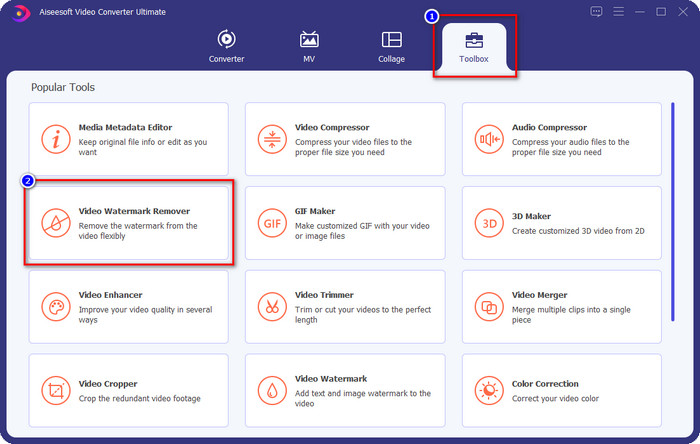
Step 2. After launching the software, open the Toolbox, and find the Video Watermark Remover on the set of features that will show after clicking the Toolbox.
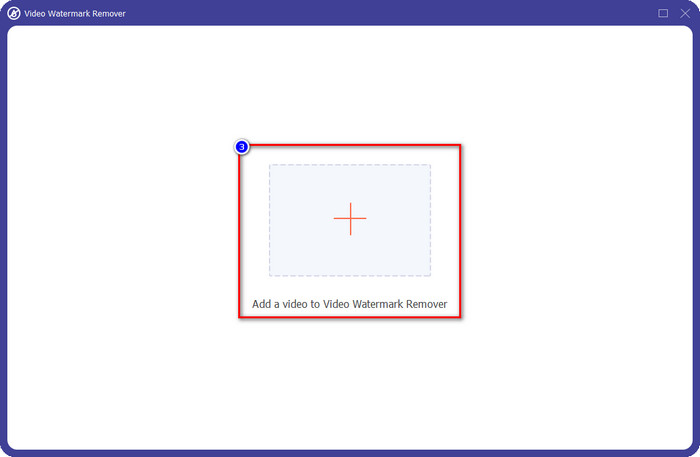
Step 3. To upload the Luminion file, you export with watermark, click the + icon, find the video file with watermark, click it, and then press Open to upload it.
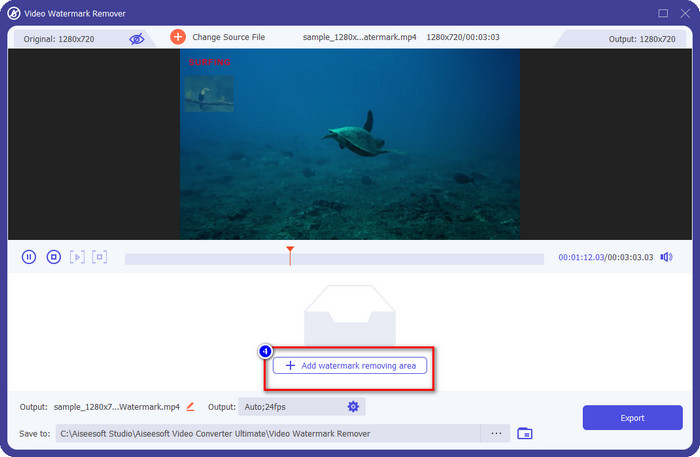
Step 4. Click Add Watermark Removing Area to remove the Luminion watermark placed on the video.
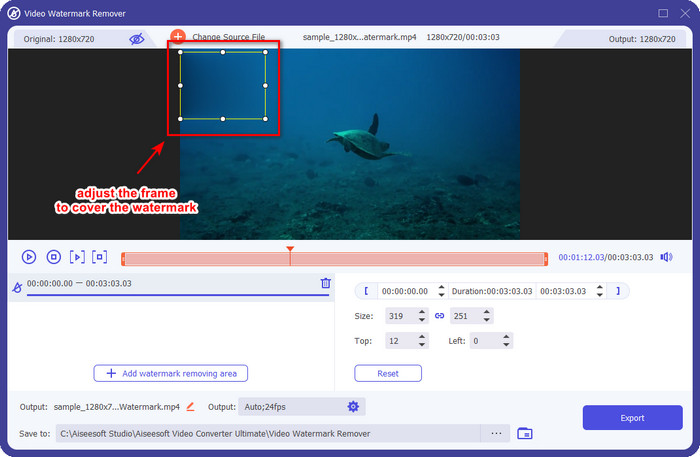
Step 5. Adjust the watermark remover by dragging the dots of the frame to cover the watermark. You can hold and drag the frame to place it properly in the video that has a watermark.
Step 6. To save the video without Luminion watermark, click Export, and it will automatically save the video without watermark.

Aiseesoft ingyenes vízjel eltávolító online
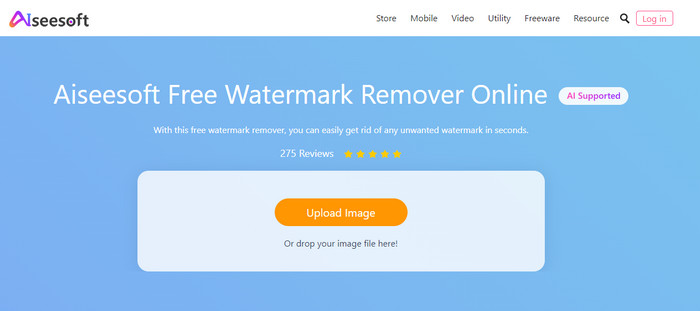
Aiseesoft Free Watermark Remover Online allows you to remove the Lumion watermark on your snap image. Though the web tool doesn't remove the watermark on video, you can still use this online software if you want to remove the watermark on your image. Also, downloading this tool isn't necessary because it is available on the web. So, if you want to save space on your desktop, and don’t want to wait on the downloading process, then luckily, you can use this software to remove the watermark.
Ez a szoftver a legjobb megoldás a vízjel eltávolítására minden képről. Ennek ellenére ez az eszköz ingyenesen használható, és minden webböngészőben elérhető a kereséshez.
Step 1. Search the official website of the remover online, then open the website of the watermark remover, and click Upload Image to add the image that has a Lumion watermark on it.
Step 2. Highlight the watermark using the tools presented above; ensure to cover the Lumion watermark so that you can remove it.
Step 3. Click Remove to make the Lumion trial watermark disappear before saving the image. After that, click Save to export the Lumion image without a watermark.
Gihosoft videószerkesztő
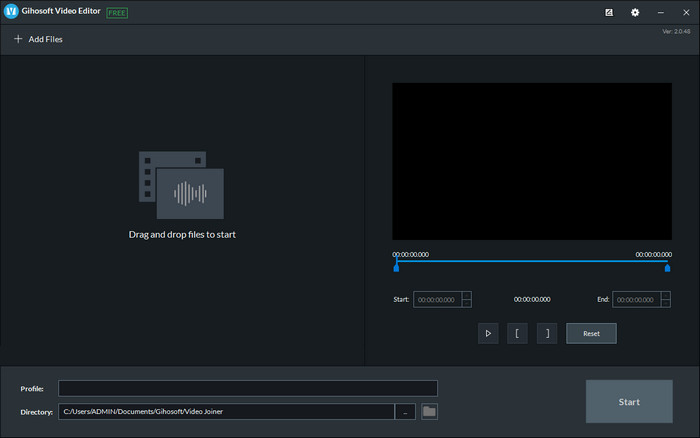
Gihosoft Video Editor can help you delete the watermark on the video you have by trimming it out. This tool can convert the video file you imported and simultaneously remove the watermark. Though the software is free to use on Windows and Mac, several drawbacks to removing watermarks became a problem for many users while they were using it. It can't directly remove the watermark on the video you upload, especially if the watermark is placed on the video and not at the beginning or end of the clip. Even though the software isn't as great as the other watermark remover we mentioned above, you can still use it to trim your clip's watermark with this tool easily.
Step 1. To download the software on your desktop, you will need to visit its official webpage to have the video cutter.
Step 2. Open the software, click Add Files, and upload the video with a watermark.
Step 3. Hold and drag the play heads in and out to trim out the watermark on your video.
Step 4. To save the changes, click Cut, and it will start the exporting process.
2. rész. GYIK a Lumion vízjel eltávolításával kapcsolatban
Megvehetem a prémium Lumiont a vízjel eltávolításához?
Igen, megvásárolhatja a prémium verzióját. Amikor exportálja az elkészített 3D-s tervet, nem lesz vízjel, legyen az videó vagy kép.
Mi a hatékony módja a Lumion vízjel eltávolításának?
Ahelyett, hogy szoftvert töltene le eszközére a Lumionba exportált videó vagy kép vízjelének eltávolításához, megvásárolhatja annak prémium verzióját. De tegyük fel, hogy nincs pénzed fizetni érte. Ebben az esetben használhatja a cikkben említett különböző vízjel-eltávolítót.
Miért nem tudom megfelelően elindítani a Lumiont?
Ha megfelelően szeretné használni a Lumiont, szüksége lesz egy nagy teljesítményű asztali számítógépre, amely megfelel a szabványnak. Bár elindíthatja alacsony verziójú specifikációkkal, gyakran összeomlik, és előfordulhat, hogy nem tudja megfelelően elindítani a szoftvert az asztalon.
Következtetés
Now that we know different ways how to remove the Lumion watermark. You can understand to eliminate the watermark on the 3D design you’ve made to present it professionally. So, which tool do you think will suffies your needs? Suppose you haven’t chosen which you should use. In that case, we highly recommend you to use the FVC Video Converter Ultimate to remove video watermark because it is simply the best among the rest. So, if you want to have the ultimate watermark video remover, click the download button above and use it right away after you download and install it.
-
 Vízjel hozzáadása egy videóhoz az iMovie-ban Mac rendszeren [All Embracing]
 Szeretné tudni, hogy mi a titkai annak, hogyan lehet vízjelet adni egy videóhoz az iMovie-ban? Ne öntse ki a teát senkire, és tanulja meg, ha elolvassa ezt a cikket.
-
 3 legegyszerűbb módja annak, hogy vízjelet adjon GIF-hez online és offline
 Vízjel hozzáadása egy GIF-hez olyan egyszerű, mint 1-2-3, ha megfelelően használja a megfelelő eszközt. A piacon lévő eszközök túl szélesek, de bemutatjuk azt a három eszközt, amelyekre számíthat.
-
 4 legjobb módszer a vízjel eltávolítására a GIF-ről [Online és offline]
 El kell távolítani a vízjelet a GIF-ről? Az ebben a cikkben található eszközzel megismerheti a különböző stílusokat a platformján elérhető különböző vízjel-eltávolítókkal.
