


 Video Converter Ultimate
 Screen Recorder
 Videó javítás
 Biztonságos letöltés
A videók rövidítésének leggyorsabb és legegyszerűbb módjai a legjobb eszközökkel
A videó megvágása vagy lerövidítése azért fontos, mert csak a szükséges klipeket emeli ki a videóból. A videó megvágása azt jelenti, hogy leveszi a videoklip végének elejét. A szerkesztés ezen alapvető eleme azért szükséges, hogy ne veszítse el a közönség figyelmét. Tehát, ha meg szeretné vágni vagy lerövidíteni a hosszú videót, ebből a cikkből megtudhatja, hogyan rövidíthet le egy videót.

1. rész. 2 módszer a videó rövidítésére a trimmeren a legjobb alkalmazás használatával
A(z) FVC Video Converter Ultimate a legjobb asztali eszköz a videód vágására. Ez az eszköz intuitív szoftverfelülettel rendelkezik, és ingyenesen használható. Ez az offline konverter lehetővé teszi, hogy szegmenseket adj a videófájlodhoz. Emellett rendelkezik egy olyan funkcióval is, amellyel a videódat gyorsan feloszthatod az általad preferált különböző részekre. És ha olyan eszközt keresel, amellyel több fájlformátumot egyesíthetsz egy fájlba, ez az alkalmazás erre is képes.
Ezen felül az eszköz számos speciális funkciót kínál, mint például a GIF-készítő, videó-összefűző, vízjel-eltávolító videókhoz stb. Ami még jobb, hogy számos fájlformátumot támogat, többek között MP4, WMV, FLV, AVI, MPG, WebM, MKV és további 1000+ formátumot. Tehát ha ezt az alkalmazást szeretnéd használni a videó lerövidítésére, két módszert is bemutatunk, amelyet követhetsz.
1. módszer. Használja az FVC Video Trimmerjét
1. lépés. Először töltsd le a FVC Video Converter Ultimate programot az alábbi Download gombra kattintva. Kövesd a telepítési folyamatot, majd indítsd el az alkalmazást.
Ingyenes letöltés Windows 7 vagy újabb rendszerre Biztonságos letöltés
Ingyenes letöltés macOS 10.7 vagy újabb rendszerre Biztonságos letöltés
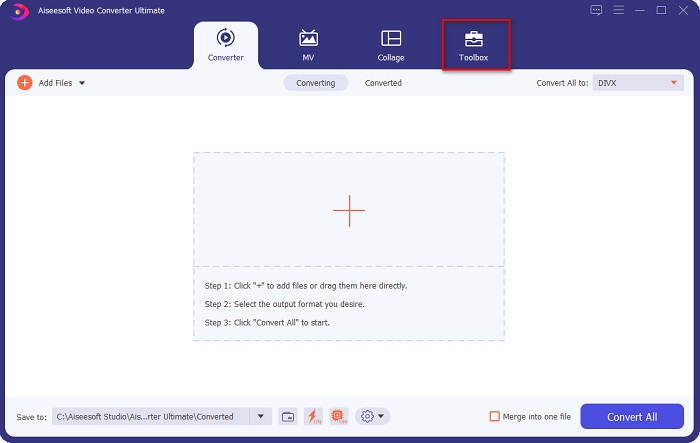
2. lépés. Ezután válaszd ki a Toolbox panelt a szoftver felületének felső részén. A Toolbox panelen kattints a Video Trimmer opcióra.
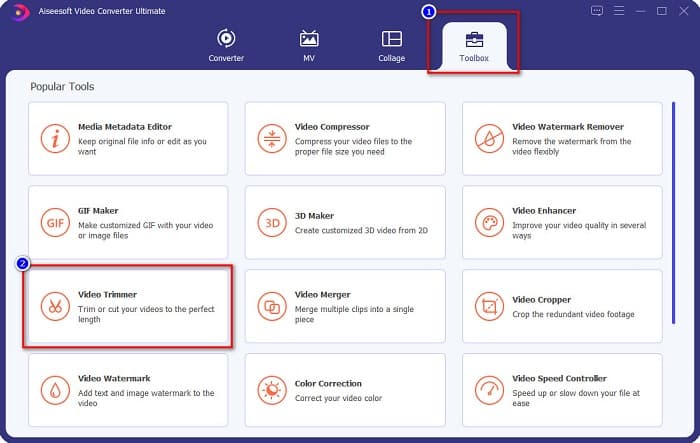
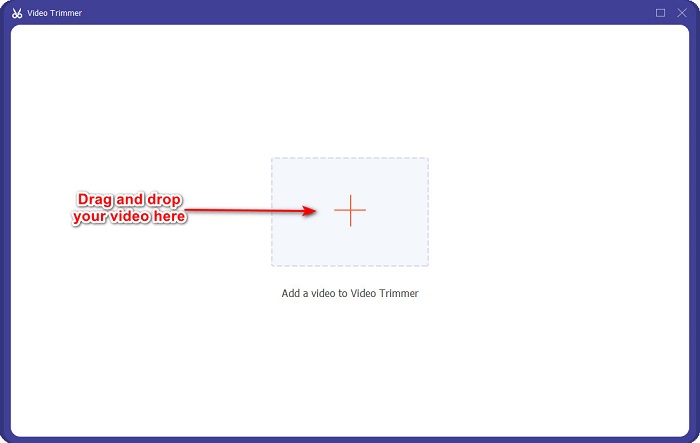
3. lépés. A következő felületen kattints a + jel gombra, vagy húzd és dobd a videódat a + jelre.
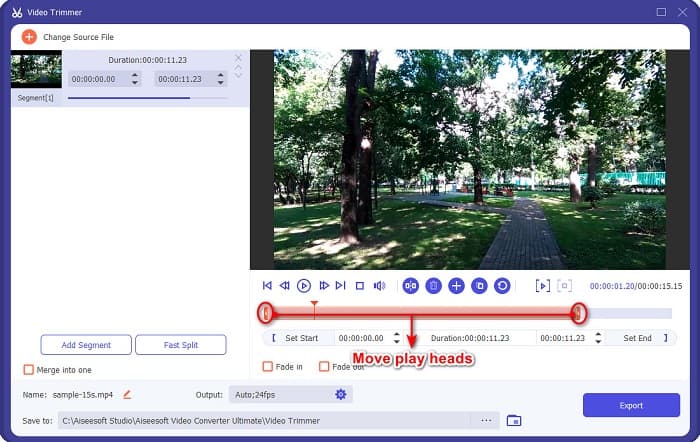
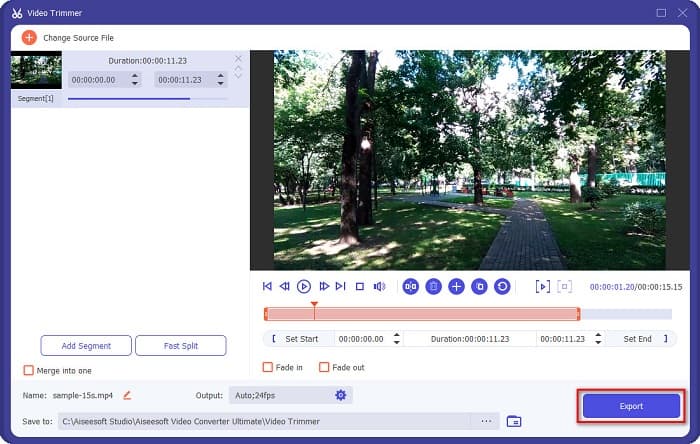
4. lépés. Ezután állítsd a lejátszófej-gombokat a kívánt hosszra. A nyílfej jelzi a videód előnézeti pozícióját. A lejátszófejek pedig a videód hosszát jelzik. A videód ideiglenes változtatásait az előnézetben láthatod.
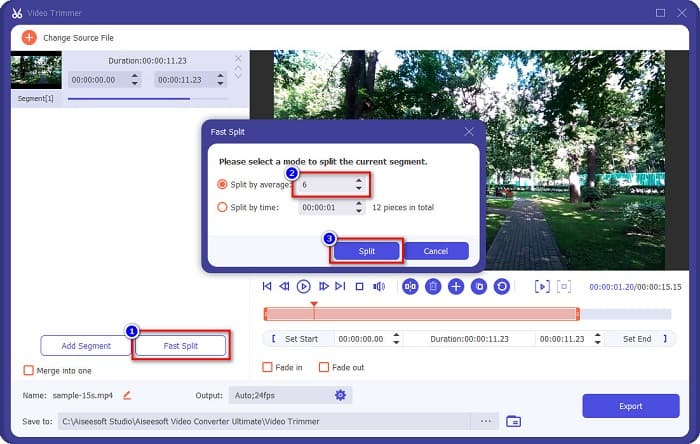
Opcionális. Ha egyszerűbben szeretnéd szegmensekre vágni a videódat:
1. Kattints a Fast Split gombra.
2. Válaszd ki, hány részre szeretnéd felosztani a videódat, majd nyomd meg a Split gombot.
3. Ha nem szeretné felosztani a videót, folytassa a következő lépéssel.
5. lépés. Végül kattints az Export gombra, hogy alkalmazd a változtatásokat a videódon. Az eredmény automatikusan elmentődik a számítógépedre.
2. módszer: Használja az FVC videósebesség-váltóját
Az FVC Video Converter Ultimate olyan funkcióval is rendelkezik, amellyel 0,125x, 0,25x, 0,5x, 0,75x, 1,25x, 1,5x, 2x, 4x és 8x sebességgel módosíthatja a videó sebességét. Ha pedig le szeretné rövidíteni a videó hosszát, állítsa be a videót gyors sebességre. A részletesebb lépésekért kövesse az alábbi útmutatót.
1. lépés. Nyisd meg a FVC Video Converter Ultimate programot. A szoftver fő felületén kattints a Toolbox opcióra.
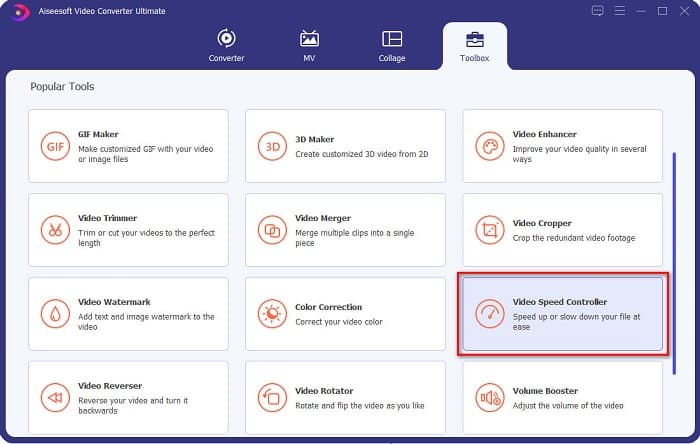
2. lépés. Ezután kattints a Video Speed Controller opcióra, és lépj a következő lépésre.
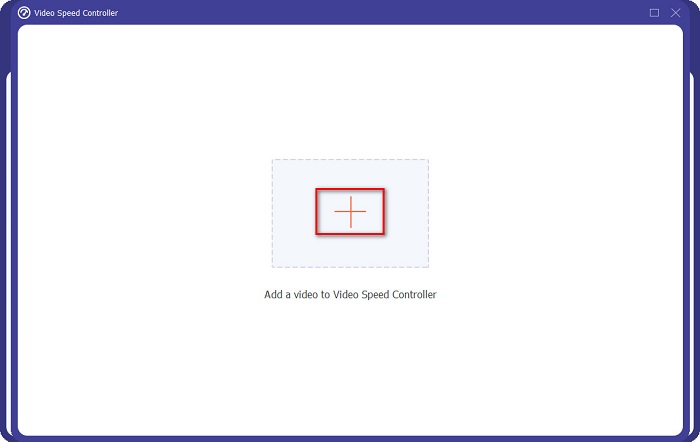
3. lépés. Ezután kattints a + jel gombra, hogy feltöltsd azt a videót, amelyet meg szeretnél vágni. Megjelennek a számítógéped mappái, ahol kiválasztod a videót, majd feltöltöd a szoftver felületére.
4. lépés. A videó lerövidítéséhez válaszd ki a sebességet 1,25x és 8x között.
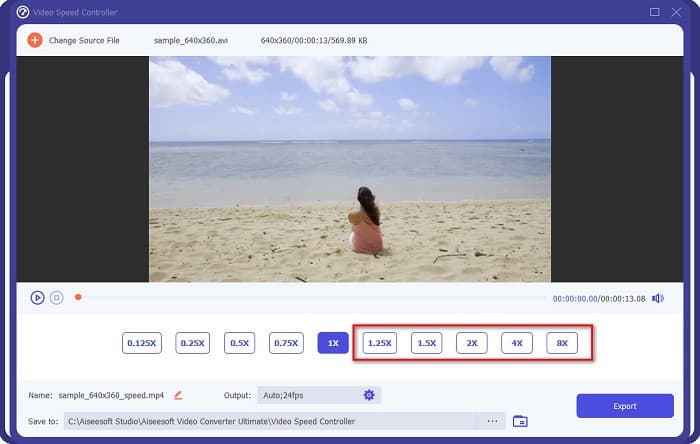
5. lépés. Az utolsó lépésként kattints az Export gombra, hogy elmentsd a videódon végrehajtott módosításokat. Az eredmény automatikusan elmentődik a számítógépedre.
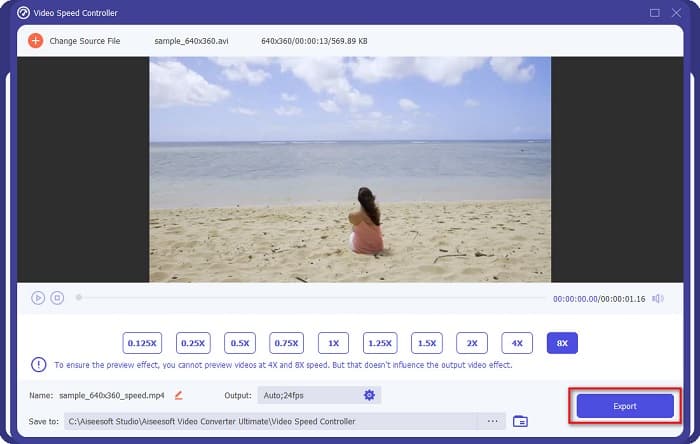
A videó rövidebb hosszához válassza a 8-szoros sebességet.
Előnyök
- Számos fájlformátumot támogat, beleértve a MOV, MKV, AVI, MP4, WMV, WMA, MPEG és 1000+ formátumot.
- Könnyen használható szoftveres felülettel rendelkezik.
- Lehetővé teszi a videó gyors felosztását néhány kattintással.
- Letölthető minden multimédiás platformon, például Windowson, Macen és Linuxon.
Hátrányok
- Először vásárolja meg az alkalmazást, mielőtt hozzáférne a többi funkciójához.
2. rész. 2 Kipróbálható online videovágó
Ha le szeretné vágni a videót anélkül, hogy bármit is letöltene, használhat online videovágókat. Felsoroltuk a legjobb online videovágókat, amelyeket sokan használnak ebben a részben.
Trim videó
A Trim Video egy online videóvágó eszköz, amelyet könnyű használni intuitív felhasználói felülete miatt. Nagyon praktikus, mivel nem igényel telepítést, mint más online eszközök. Emellett rendelkezik egy olyan funkcióval is, amellyel 90, 180 vagy 270 fokkal elforgathatod a videót. Továbbá nem kell aggódnod az adataid biztonsága miatt, mert ez az eszköz adatvédelmi szempontból védett. Viszont mivel webalapú alkalmazás, hirdetéseket tartalmaz, amelyek elterelhetik a figyelmedet.
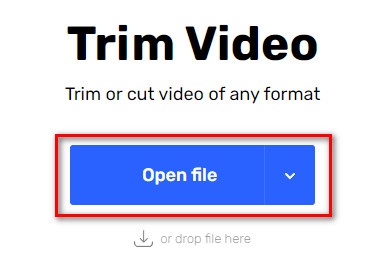
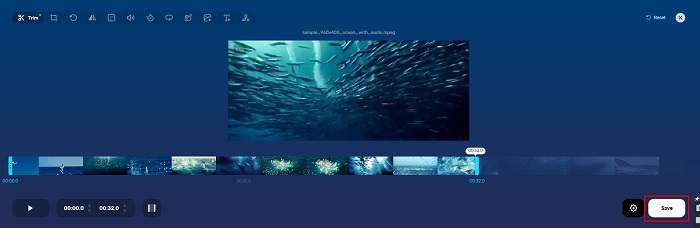
1. lépés. A böngésződben keress rá az online video trimmer kifejezésre. Ezután kattints a Trim Video oldalra. A szoftver fő felületén kattints az Open File gombra.
2. lépés. Ezután állítsd be a lejátszófej gombokat a kívánt hosszra.
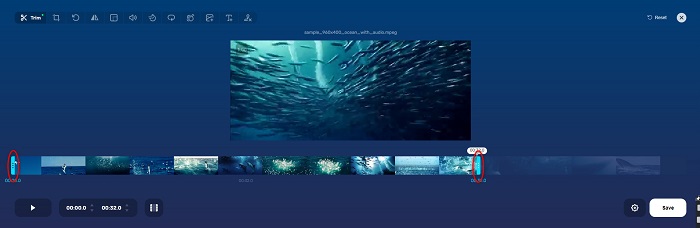
3. lépés. Kattints a Save gombra, hogy megváltoztasd a videód hosszát.
Előnyök
- Könnyen használható grafikus felhasználói felülettel rendelkezik.
- Olyan funkciókkal rendelkezik, amelyekkel körbevághatja és elforgathatja a videót.
- Használata biztonságos.
Hátrányok
- Bosszantó hirdetéseket tartalmaz.
- Lassú a betöltési és feltöltési folyamata.
Clideo
Egy másik online videóvágó eszköz a Clideo. Ennek az online eszköznek egyszerű a felhasználói felülete, ezért felhasználóbarát. A legtöbb szabványos fájlformátumot támogatja, mint például az AVI, MP4, VOB, MPG, MOV stb. Ezenfelül ez az eszköz magas szintű biztonságot nyújt, ami azt jelenti, hogy az adataid biztonságban vannak, és mások nem láthatják azokat. Továbbá a Clideo nem tartalmaz olyan hirdetéseket, amelyek elvonhatnák a figyelmedet.
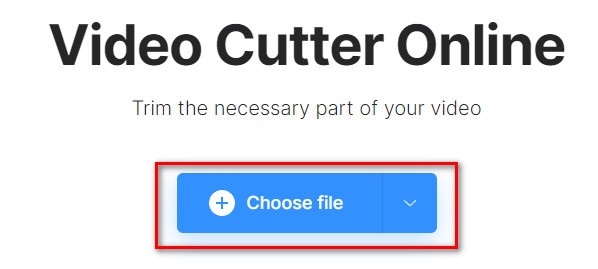
1. lépés. A használt böngészőben keresd meg a Clideo video trimmer kifejezést. A szoftver első felületén kattints a Choose File gombra. Megjelennek a számítógéped mappái, ahol kiválasztod a videót, amelyet rövidíteni szeretnél.
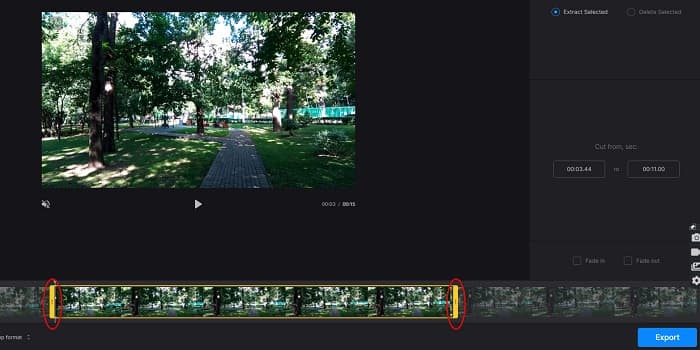
2. lépés. Mozgasd a lejátszófej gombokat arra a hosszra, amekkorára a videódat szeretnéd beállítani.
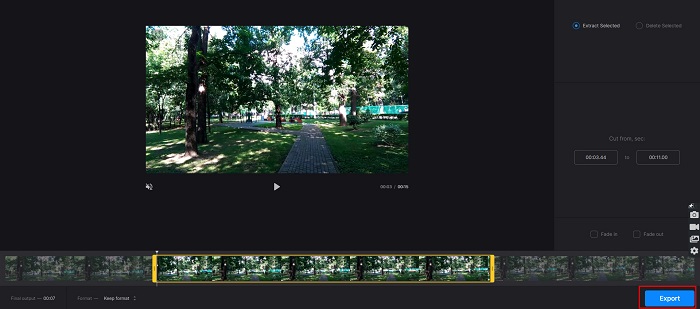
3. lépés. Az utolsó lépésként kattints az Export gombra, hogy megváltoztasd a videód hosszát.
Előnyök
- Könnyen használható felülettel rendelkezik.
- Használata biztonságos.
- Nem tartalmaz hirdetéseket.
Hátrányok
- Lassú folyamatot tapasztalhat, ha az internetkapcsolat lassú.
3. rész. GYIK a videó rövidítésével kapcsolatban
Hogyan lehet lerövidíteni a videót iPhone-on?
Először nyissa meg a Fotó alkalmazást, és válassza ki a vágni kívánt videót. Ezután érintse meg a Szerkesztés gombot. Ezután mozgassa a csúszkákat a kívánt videóhosszra, és érintse meg a Kész gombot a videó módosításainak mentéséhez.
A videó vágása befolyásolja a minőséget?
Nem. A legtöbb vágóeszköz nem befolyásolja a videó minőségét. De ha olyan eszközt szeretne biztosítani, amely nem befolyásolja a minőséget, amikor lerövidíti a videót, használja az FVC Video Converter Ultimate alkalmazást.
A videó lerövidítése befolyásolja a fájl méretét?
Igen. Minél rövidebb a videó, annál kisebb a fájlméret. Ezzel szemben, ha a videód hosszú, akkor hatalmas fájlméretet tartalmaz.
Következtetés
Ennyi a videó lerövidítéséről vágóeszköz és sebességszabályzó használatával. Az összes felsorolt eszköz kiváló eredményt nyújt, és biztosítja a legjobb teljesítményt. De ha a legjobb, sokfunkciós, széles körben ismert eszközt keresed a videóid lerövidítéséhez, akkor a FVC Video Converter Ultimate a legjobb választás számodra.
-
 Hogyan válasszuk ki és egyesítsük a dalokat online - 4 legjobb módszer, amelyet tudnunk kell
 Ha online vágni és egyesíteni akarja a dalokat, hogy egy darab zenét hozzon létre, akkor többet megtudhat a 4 legjobb online eszközről a dalok klipelésére és a cikk fájljainak egyesítésére.
-
 Fedezze fel a legjobb MP4 nyírót eljárással és információkkal
 Szeretnéd megtanulni, hogyan vágj ki olyan videókat, mint az általad nézett vloggerek? Ezután olvassa tovább ezt a bejegyzést, hogy megtudja, milyen MP4 trimmereket használhat.
-
 5 MP3 vágó bármilyen hang egyszerű vágásához [2022 frissítve]
 Szüksége van egy MP3 vágóra a hang vágásához? Ebben az esetben olvassa el ezt a cikket, mert mi biztosítjuk azokat az eszközöket, amelyekre számíthat, amelyek megkönnyítik a hangvágást.
