


 Video Converter Ultimate
 Screen Recorder
 Videó javítás
 Biztonságos letöltés
Használja az online videóforgatókat, és mondjon búcsút a fejjel lefelé fordított videóknak
A digitális korszakban a videotartalom életünk szerves részét képezi. A videók nagyszerű módja annak, hogy közvetítse üzenetét, akár egy különleges pillanatra szeretne emlékezni, akár izgalmas tartalmat szeretne készíteni a közösségi médiában vagy vállalkozása számára. De előfordulhat, hogy a videóidnak a megfelelő helyzetben kell lenniük, mert rossz helyen rögzítették őket, vagy mert vízszintesen vagy függőlegesen meg kell őket fordítani.
Ez a bejegyzés bemutatja a legjobb online videóforgatókat, amelyek segítségével a videóidat a kívánt tájolásba állíthatod. Ismerd meg őket közelebbről a cikk elolvasásával.

1. rész. A legjobb online videoforgatók
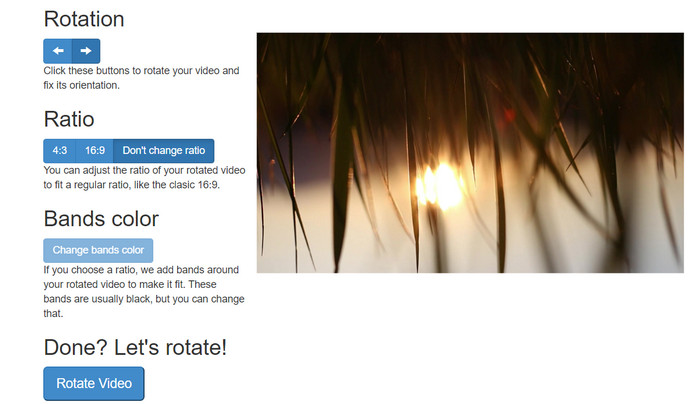
1. RotateMyVideo
A RotateMyVideo egy egyszerű és ingyenes online eszköz, amellyel bármilyen irányba elforgathatja és megfordíthatja a videókat anélkül, hogy speciális szoftverre lenne szüksége. Az eszközzel egyszerre 90 fokkal elforgathatja a videókat, és egyszerű felülettel rendelkezik, amely gyorssá és egyszerűvé teszi a folyamatot. A RotateMyVideo jó választás, ha személyes vagy üzleti okokból el kell forgatnia egy videót. Időt és erőfeszítést takaríthat meg.
Előnyök
- Forgassa el a videókat online ingyen, rejtett költségek nélkül.
- Támogatja a 90 fokos lépésekben történő elforgatást.
- Flip videók vízszintesen vagy függőlegesen.
Hátrányok
- Csak az 500 MB-nál kisebb videókat tudja elforgatni.
- A videokonverziós folyamat eltarthat egy ideig.
- Előfordulhat, hogy a felhasználói felület nem vonzó.
A videók online forgatásának lépései a RotateMyVideo segítségével:
1. lépés. Nyiss meg egy webböngészőt, és látogasd meg a RotateMyVideo weboldalát.
2. lépés. Kattints a Pick Video gombra, hogy feltöltsd a forgatni kívánt videót.
3. lépés. Ezután válaszd ki a kívánt videótájolást a megfelelő gombra kattintva. A videót balra vagy jobbra forgathatod, vízszintesen vagy függőlegesen tükrözheted, illetve meghagyhatod az eredeti tájolását.
4. lépés. Ha elégedett vagy az elforgatott videóval, kattints a Rotate video gombra a módosítások mentéséhez.
2. Clideo
A Clideo egy intuitív és sokoldalú online videószerkesztő platform, amely számos hatékony eszközt kínál a videók szerkesztéséhez, beleértve a videóforgatást is. Emellett a Clideo olyan funkciókat is biztosít, mint a videóvágás, az egyesítés, hang hozzáadása és még sok más, így átfogó videószerkesztő eszköznek számít. Más videószerkesztő szoftverekkel ellentétben a Clideo teljesen webalapú, vagyis semmit sem kell letöltened vagy telepítened.
Előnyök
- Töltsön fel videókat különböző forrásokból.
- Több videó formátummal kompatibilis.
- Felhasználóbarát felület.
Hátrányok
- Nem alkalmas haladó videószerkesztési igényekhez.
- Az ingyenes verziónak vannak korlátai.
Az álló-fekvő videó konverter lépései online:
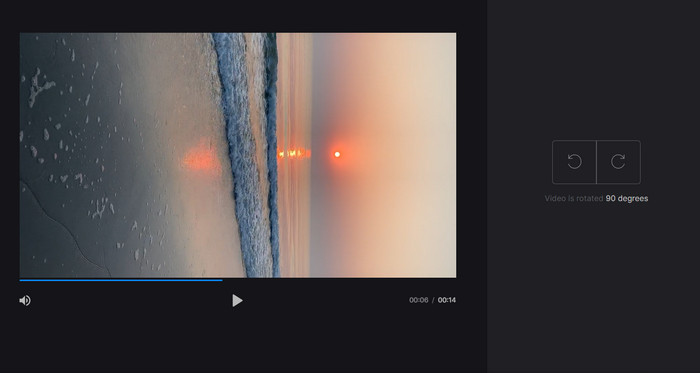
1. lépés. Böngészővel nyisd meg a Clideo weboldalát. Ezután a főoldalon jelenítsd meg az összes eszközt.
2. lépés. Most válaszd a Rotate Video opciót a menüből, majd kattints a Choose file gombra a forgatni kívánt videó feltöltéséhez. A videófájlt akár egyszerűen rá is húzhatod a weboldal felületére.
3. lépés. Kattints a Rotate gombra a lejátszó jobb oldalán. A megfelelő gombra kattintva válaszd ki a videó kívánt forgatási irányát. A videó az óramutató járásával megegyezően vagy ellentétesen, illetve vízszintesen vagy függőlegesen is elforgatható.
3. Flexclip
A Flexclip egy lenyűgöző online videószerkesztő eszköz, amellyel gond nélkül készíthet professzionális megjelenésű videókat. A Flexclip egyik legjobb tulajdonsága a sablonok kiterjedt könyvtára, amellyel gyorsan elindíthatja a videószerkesztési folyamatot. Ingyenes verziót is kínál, amely lehetővé teszi, hogy akár egy perces videókat is készítsen vízjelek nélkül.
Előnyök
- Kiterjedt sablonkönyvtár.
- Számos testreszabási lehetőséget kínál.
Hátrányok
- Az árak egyes felhasználók számára meredekek lehetnek
- A videó minőségének korlátozott szabályozása
Lépések a videók online forgatásához vízjel nélkül a Flexclip segítségével:
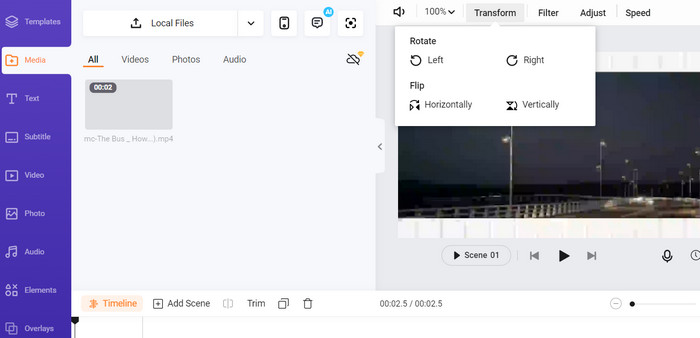
1. lépés. Lépj a Flexclip weboldalára, hozz létre egy ingyenes fiókot, vagy jelentkezz be, ha már rendelkezel vele. Bejelentkezés után kattints a Start from Scratch gombra.
2. lépés. Kattints az Upload gombra a forgatni kívánt videó feltöltéséhez. Alternatívaként a videófájlt behúzhatod közvetlenül a szerkesztőbe is.
3. lépés. Miután a videó feltöltődött, kattints a Transform gombra az előnézet felső menüsorában. A gombok segítségével forgasd a videót az óramutató járásával megegyező vagy ellentétes irányba, amíg el nem éred a kívánt tájolást.
4. Kapwing
Ez egy újabb ingyenes online eszköz, amellyel elforgathatod a videóidat. Ugyanígy támogatja a 90 fokos lépésekben történő forgatást, és lehetővé teszi a videók tükrözését is. Fejlett funkciói, mint a szöveg hozzáadása, zene és speciális effektek használata, átfogó videószerkesztő eszközzé teszik, míg felhasználóbarát felülete, valamint a bőséges eszköz- és sablonkönyvtára miatt kiváló választás kezdők számára is.
Előnyök
- Sokoldalú videószerkesztés.
- Online és felhő alapú.
Hátrányok
- Korlátozott videó hossza.
- Korlátozott fájlméret.
A videó online forgatásának lépései a Kapwing segítségével:
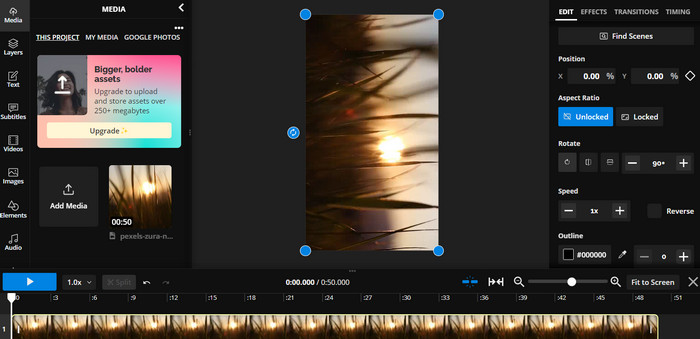
1. lépés. Látogasd meg a Kapwing weboldalt, és regisztrálj egy ingyenes felhasználói fiókot, vagy jelentkezz be, ha már rendelkezel vele. Kattints a Start Editing gombra egy új projekt indításához.
2. lépés. Kattints az Upload gombra a forgatni kívánt videó feltöltéséhez.
3. lépés. Ezután jelöld ki a médiát az idővonalon, és a szerkesztési lehetőségek megjelennek a jobb oldali menüben.
4. lépés. Válaszd a Rotate opciót, és add meg, milyen irányba szeretnéd elforgatni a videót. Írd be a kívánt fokértéket a forgatási szög meghatározásához. Ezzel készen is vagy.
5. Online Video Cutter
Ez egy ingyenes online eszköz, amellyel bármilyen irányba elforgathatod a videóidat. Feltöltheti videóját, majd a forgatás eszközzel állíthatja be a videó tájolását.
Előnyök
- Gyors és hatékony.
- Ingyenesen használható.
Hátrányok
- Internet kapcsolat szükséges.
- A videó minőségének elvesztése.
A videók online forgatásának lépései az Online Video Cutter segítségével:
1. lépés. Látogasd meg az Online Video Cutter hivatalos weboldalát.
2. lépés. Kattints az Open file gombra a szerkeszteni kívánt videó feltöltéséhez.
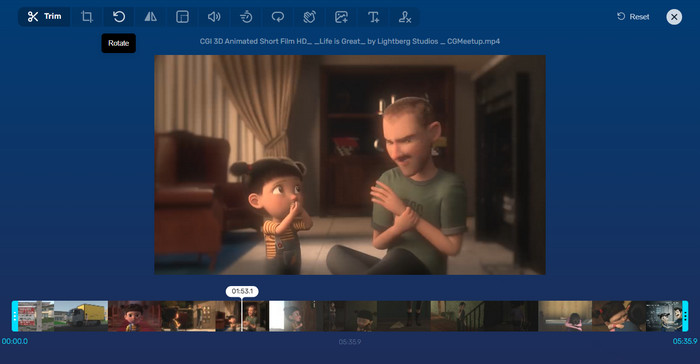
3. lépés. Amikor a videó betöltődött, a program szerkesztőfelületére kerülsz. Ekkor kattints a menüben található Rotate gombra.
4. lépés. Ha elégedett vagy a videó elforgatásával, kattints a jobb alsó sarokban lévő Save gombra.
2. rész. Alternatív eszköz: Video Rotator Offline
A FVC Video Converter Ultimate egy Windows és Mac rendszerekkel kompatibilis asztali alkalmazás. Lehetővé teszi a felhasználók számára, hogy offline módban konvertálják és forgassák a videókat. Emellett a videók 90, 180 vagy 270 fokkal, az óramutató járásával megegyező vagy ellentétes irányban forgathatók. A számos videószerkesztő eszköznek köszönhetően vághatsz, egyesíthetsz, módosíthatod a videobeállításokat és még sok minden mást is elvégezhetsz. Nézd meg, hogyan működik ez a videóforgató.
1. lépés. Szerezd be és telepítsd az eszközt
Először is szerezze be a programot úgy, hogy letölti és telepíti a számítógépére. Közvetlenül ezután azonnal indítsa el.
Ingyenes letöltésWindows 7 vagy újabb rendszerreBiztonságos letöltés
Ingyenes letöltésMacOS 10.7 vagy újabb rendszerhezBiztonságos letöltés
2. lépés. Tölts fel egy videót forgatáshoz
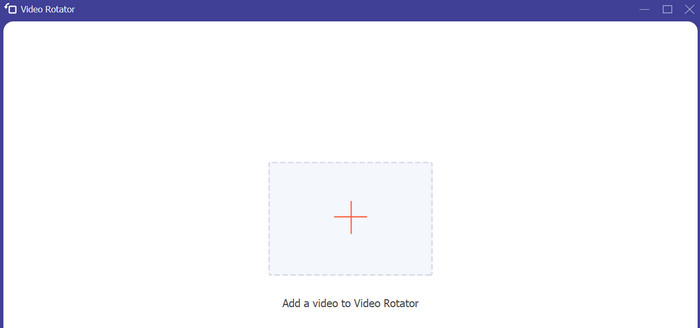
Ezután menj a Toolbox fülre, és nyisd meg a program Video Rotator opcióját. Az opcióra kattintás után a rendszer felszólít a videó feltöltésére. Most kattints a Plusz jelre a kívánt videó hozzáadásához.
3. lépés. Forgasd el a videót
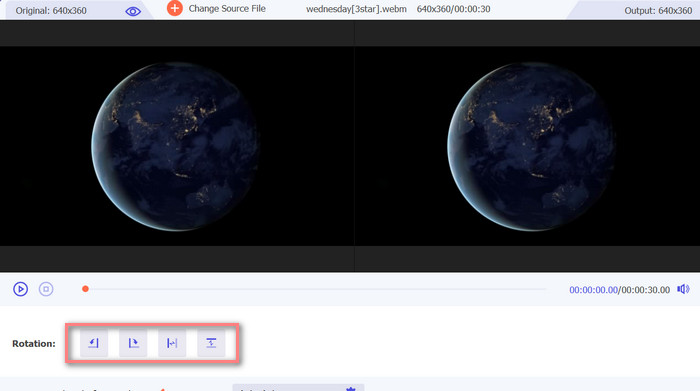
Ezen a ponton jelölje be a megfelelő forgatógombot a kívánt videótájolás eléréséhez. Az előnézet valós idejű, így gyorsan beállíthatja.
4. lépés. Szerezd meg az elforgatott videó másolatát
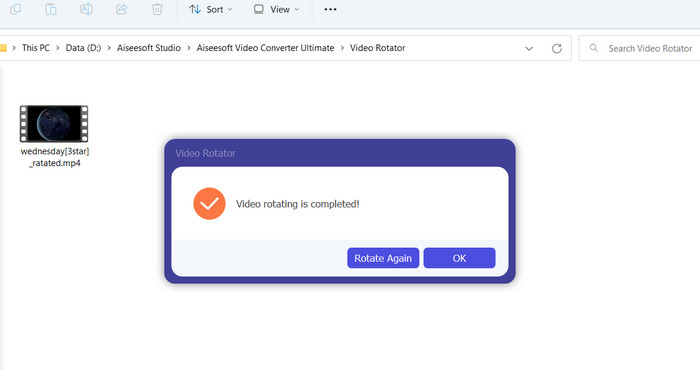
Végül kattints az Export gombra, hogy megkapd a szerkesztett videó másolatát. Ezt követően értesítés jelenik meg, és automatikusan megnyílik a mappa, ahol a videó található.
3. rész. GYIK az online videoforgatókról
Biztonságosak az online videoforgatók használata?
Az internetes videoforgatók többsége biztonságosan használható. Adatai és magánéletének védelme érdekében elengedhetetlen egy elismert és megbízható eszköz kiválasztása.
Elforgathatom a videókat az okostelefonomon?
Igen, sok online videoforgató mobilbarát, és elérhető az okostelefon webböngészőjéből.
Vannak-e korlátozások az online videoforgató használatára?
Igen, egyes online videoforgatók korlátai lehetnek, például fájlméret-korlátozások, korlátozott szerkesztési lehetőségek vagy csökkentett videóminőség.
Következtetés
Az online videóforgatók kényelmes és felhasználóbarát módot kínálnak a videók elforgatására anélkül, hogy bármilyen szoftvert le kellene töltened vagy telepítened. Bármilyen, internetkapcsolattal rendelkező eszközről elérhetők, így útközben is használhatók. Ugyanakkor korlátaik is lehetnek, például fájlméret-korlátozások vagy a videóminőség romlása. Ezért mutattunk be egy offline alternatívát is, amely megoldást kínál ezekre a korlátokra.
-
 [4 módszer] Hogyan gyorsíthatja fel könnyedén online videóit
 Szeretnéd felgyorsítani az online videózást? Olvassa el ezt a cikket, hogy többet tudjon meg a videó felgyorsításáról különböző lehetséges módokon.
-
 Kiváló módszerek a videók kényelmes online vágására
 A videó kivágása a legjobb módja a videó kiemelések létrehozásának. Tehát ez a bejegyzés bemutatja azokat a módszereket, amelyekkel könnyedén vághat online videókat. További információért olvassa el.
-
 Készítse el legjobb animált GIF-jét az Online GIF Maker segítségével [2023]
 Informatív áttekintés arról, hogyan készíthet GIF-et ezekkel az egyszerű online GIF-készítőkkel, amelyekkel már találkozik vagy nem az interneten.
