


 Video Converter Ultimate
 Perekam Layar
 Perbaikan Video
Editor Metadata MKV Terbaik untuk Menambah/Mengubah/Menghapus Metadata di MKV
There isn't a wide variety of MKV metadata editors on the market because the MKV isn't much supported. But it doesn't mean that we can't edit the tags on our MKV files, so don't look gloomy. So for you to find out what is the best metadata editor that supports MKV, you can read the full scope of this article as we review different tools. What are you waiting for? Keep the ball on a roll because this won't last more than 7 minutes to have a tag editor.

Bagian 1. Editor Tag MKV Terbaik Direkomendasikan untuk Windows & Mac: FVC Video Converter Ultimate
FVC Video Converter Ultimate is the most popular MKV metadata editor on Windows and Mac. This tool lives up to its name and expectation, so downloading the software to edit the metadata is the best choice you will make. Its powerful features and functions will easily handle the job as if it is a piece of cake. Furthermore, this tool supports other formats to upload, such as MP4, AVI, MOV, FLV, WMV, and the 1000+ media formats without re-encoding the file for a less hassle experience.
Apalagi? Misalkan Anda mengunduh alat. Anda akan memiliki alat tercepat untuk menambahkan metadata pada MKV dan GUI terindah dari editor metadata yang tidak dapat ditawarkan oleh alat lain. Jika Anda tertarik untuk menggunakan editor, lanjutkan membaca bagian 2 karena kami menjelaskan cara mengedit data file MKV.
Bagian 2. Cara Mengedit Metadata MKV dengan Editor Metadata MKV yang Direkomendasikan
Ikuti langkah-langkah yang sesuai, mulai dari mengunduh alat dan seterusnya. Jadi mari kita mulai menggunakan editor metadata MKV terbaik yang dapat Anda unduh di Windows atau macOS Anda.
Step 1. Tick the download button we present below; select which operating systems you are currently using. Install it immediately after you've downloaded the file, follow the installation process, and we promise that you wouldn't get wrong, then open it to proceed. Before we start, you'll need to get familiarized with the tool to have a smooth sailing process using the MKV tag editor.
Unduh GratisUntuk Windows 7 atau yang lebih baruUnduhan Aman
Unduh GratisUntuk MacOS 10.7 atau yang lebih baruUnduhan Aman
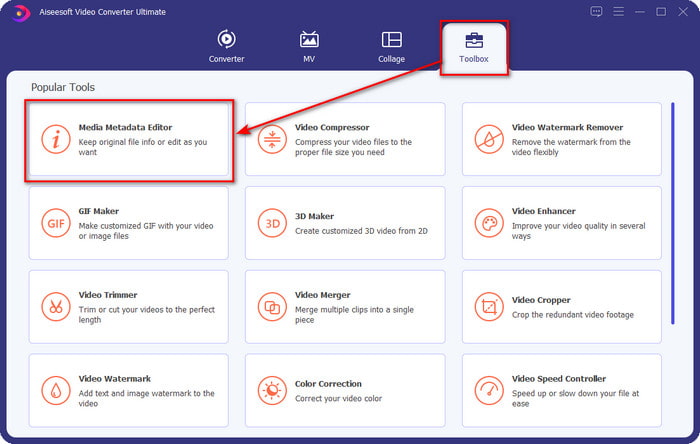
Step 2. Open the Toolbox, look for the Media Metadata Editor, and tap it to open.
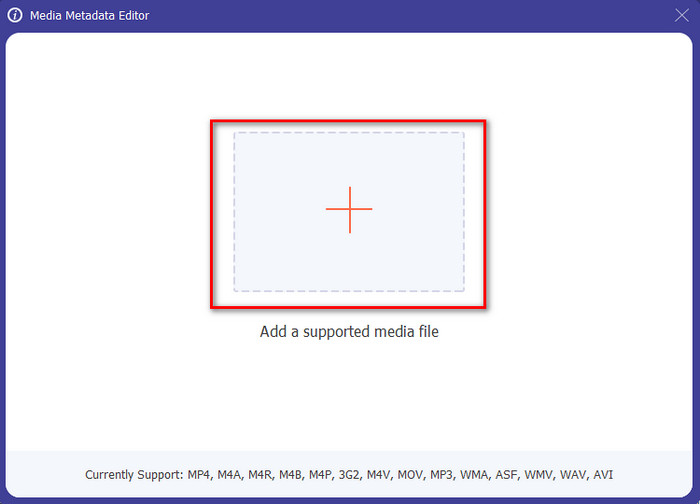
Step 3. Upload your MKV file by clicking the + icon, and a file folder will show, select the MKV file and press Open.
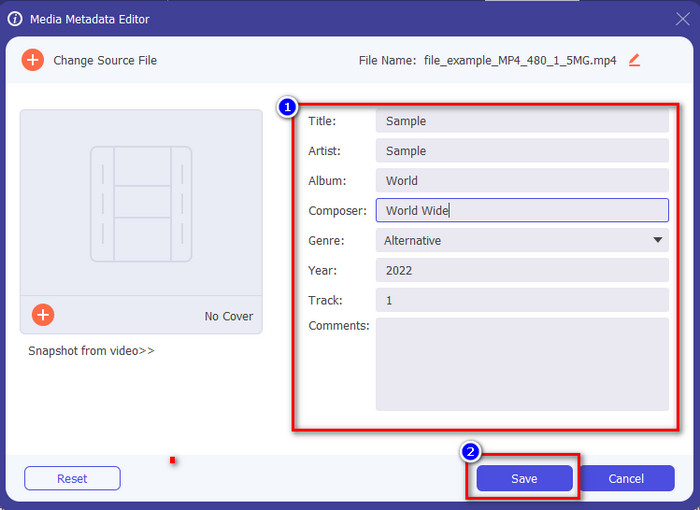
Step 4. Edit the metadata textbox; you can either fill them or remove them, do what you want to do with the metadata. After all of that, click Save to apply the change you've made earlier. With that, you have now edited the MKV tags.
Bagian 3. 3 Editor Tag MKV Gratis yang Harus Anda Ketahui Tersedia di Windows, Mac, dan Online
GROUPDOCS.Metadata [Gratis di Web]
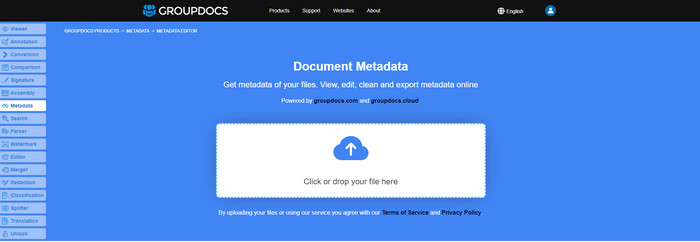
If you want to use an MKV metadata editor for free on the web, we highly suggest you try the GROUPDOCS.Metadata. It is the best choice to view and edit the metadata on your MKV as it works on all platforms, which means it is flexible and adaptable in any case. Moreover, it can easily manipulate the search and update of the tag according to the properties you will need, and if it needs to be removed, it will automatically do it. However, the tool can be challenging to handle on specific tasks, like updating the file's tags. So to get the hang of using the web tool, you will need to use it most of the time to improve your knowledge about the website functions and make it easier to handle.
Properti di Windows [Editor Bawaan di Windows]
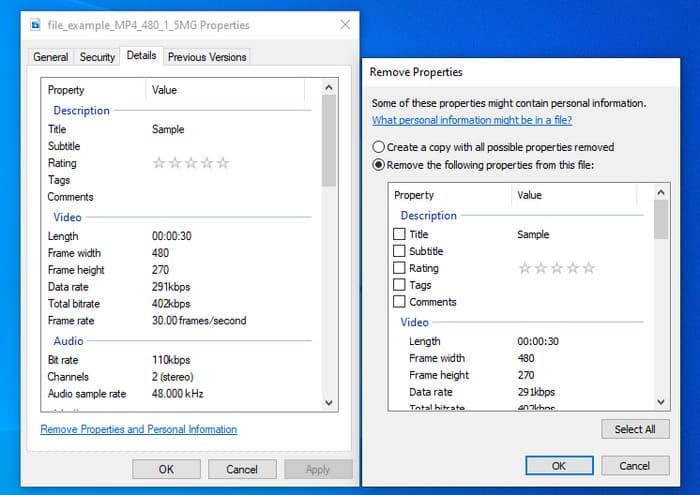
Tidak ingin mengunduh alat untuk mengubah metadata MKV dan ingin menggunakan fungsi bawaan pada Windows untuk mengedit metadata? Maka akan lebih baik jika Anda menggunakan Properties di Windows. Fungsi ini tersedia di semua PC Windows, dan Anda tidak perlu mengunduh alat atau internet apa pun untuk menggunakannya. Anda dapat dengan cepat melihat metadata dan mengeditnya dengan sukses dengan fitur gratis ini. Namun, ada beberapa laporan tentang tag yang hilang setelah mereka mencoba menggunakan fitur ini. Sesuai pengguna, itu dapat secara otomatis menghapus tag pada file Anda. Alih-alih menggunakan fitur ini, mereka bermaksud mengunduh alat yang tepat untuk menyia-nyiakan upaya pada tag yang mereka sertakan di MKV atau file media mereka. Tetapi jika Anda ingin melihat di mana fitur ini, cukup tekan klik kanan pada file, terutama di bagian bawah.
iFlicks [Untuk Mac]
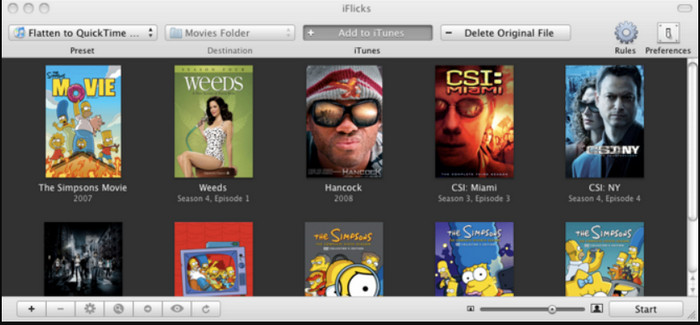
iFlicks dapat membantu Anda mengonversi MKV menjadi format yang dapat dimainkan atau mengajari Anda cara mengedit metadata MKV di Mac. Alat ini berinteraksi dengan baik dengan iTunes karena menyediakan metadata terperinci pada setiap file media. Dengan software ini, Anda dapat menambahkan berbagai informasi tentang file Anda, seperti tagline, genre, tanggal. peringkat, resolusi, dan lainnya diambil di database online. Selanjutnya, perangkat lunak ini mengkompilasi metadata di mana Anda dapat mengunduhnya dan secara otomatis menerapkannya ke file. Namun, uji coba gratis hanya dapat berlangsung selama tujuh hari, jadi jika Anda ingin menggunakan alat ini lagi, Anda harus membayar biaya berlangganannya.
Bagian 4. FAQ tentang MKV Metadata Editor
Apakah MKV dapat dimainkan di Mac?
MKV is playable on Mac if you use a third-party tool, such as the Blu-ray Player. But if you intentionally play the video on Quicktime, it won't work because it is unsupported. So, if you want to watch your MKV files on Mac, we highly recommend that you use a third-party Blu-ray Player, or you can convert the MKV format into MOV with the help of FVC Video Converter Ultimate.
Apakah saya perlu mengonversi MKV sebelum mengedit metadata?
Jika alat yang ingin Anda gunakan tidak mendukung pengunggahan format MKV, kami menyarankan Anda untuk mengonversi format terlebih dahulu ke format yang kompatibel. Tetapi dengan biaya yang kami sebutkan di atas, Anda tidak perlu mengonversi file ke format yang didukung. Namun, tidak banyak opsi atau alat untuk mengedit tag MKV karena formatnya tidak diketahui. Meskipun sulit untuk dicari, kami melakukan yang terbaik untuk mencari semua editor yang dapat Anda gunakan untuk memperbarui atau mengubah metadata yang mendukung format MKV.
Mengapa ukuran file MKV terlalu besar?
The main reason why MKV files are big is that they can contain multiple contents of a video, audio, and subtitle with different codecs and elements. And you've added metadata on that file, and the file size will become even enormous. So, the best way to save space while having an MKV file on your drive is to compress it without destroying the quality or losing the information on the file. Click this link to learn more about compressing video files.
Kesimpulan
Even though there is a limited MKV metadata editor on the market, there are still powerful tools you can depend on available on different platforms. As we reviewed different software you can use, it is always still on your hands; which do you prefer to use on changing the metadata of your MKV file. Indeed, it is a tough decision because all of the tools are awesome to use. If you haven't decided which you prefer, we suggest you use the FVC Video Converter Ultimate because it is the most flexible software and has more advanced features that anyone can use. By pressing the download button, you will attain the best tag editor you can have on Windows and Mac!
-
 5 Cara termudah untuk Menghapus Metadata di Semua File Media
 Bagaimana cara menghapus metadata? Apakah sulit untuk melakukannya? Apakah saya perlu membeli atau menggunakan alat gratis untuk menghapus tag? Semua pertanyaan ini memiliki jawaban di artikel ini.
-
 5 Editor Metadata MP4 Teratas [Diperbarui 2022]
 Bagaimana saya bisa mengubah metadata MP4 saya? Cara terbaik untuk mengubah metadata MP4 Anda adalah dengan menggunakan editor tag yang mendukung format MP4 seperti contoh yang kami cantumkan di bawah ini.
-
 5 Editor Tag Video AVI Pilihan Pengguna Teratas untuk 2022
 Apa editor tag AVI terbaik yang dapat saya gunakan? Pasar editor tag untuk file AVI terlalu luas. Maka hari ini kami akan menghadirkan lima editor paling terpilih di tahun 2022.
