


 Video Converter Ultimate
 Perekam Layar
 Perbaikan Video
Cara Mengubah Metadata File MOV di Mac dengan Langkah Mudah
Kita semua tahu bahwa MOV adalah salah satu format terbaik yang ideal digunakan untuk pemutaran video di perangkat Apple dan untuk keperluan pengeditan. Namun, apa yang membuat MOV unik? Format ini mendukung kompresi video yang umumnya digunakan oleh kalangan profesional. Meskipun dapat menyimpan beberapa elemen dalam satu file, tetap ada kemungkinan tag di dalam file MOV tercampur sehingga menimbulkan masalah. Akan sangat membantu jika Anda mengeditnya agar metadata menjadi benar sehingga masalah bisa segera diperbaiki. Dengan alat yang tepat, tugas ini menjadi sangat mudah. Jadi hari ini, kami akan memaparkan cara terbaik untuk mengedit metadata file MOV secara instan.

Bagian 1. Cara Mengedit Metadata MOV dengan Editor Tag Utama di Mac
FVC Video Converter Ultimate adalah solusi lengkap Anda untuk masalah metadata ini, yang mendukung lebih dari 1000+ format di Mac dan Windows. Dengan alat ini, Anda dapat langsung menghapus, mengedit, atau menambahkan metadata pada file MOV Anda. Apa lagi keunggulannya? Anda bisa melakukan berbagai pengeditan lain pada MOV, seperti memotong, memangkas, menggabungkan, meng-crop, dan ribuan fungsi lainnya, bahkan jika Anda bukan ahli dalam pengeditan. Memang mengesankan memiliki alat ini di sisi Anda, dan masih banyak hal lain yang dapat Anda lakukan hanya dalam beberapa klik. Namun untuk saat ini, kami sajikan panduan terperinci yang bisa Anda ikuti untuk berhasil mengedit metadata file MOV Anda.
Langkah 1. Anda bisa mendapatkan ultimate converter di Mac atau Windows dengan menekan tombol unduh di bawah ini. Lanjutkan ke proses instalasi dengan mengklik file yang sudah Anda unduh, lalu klik Start Now untuk meluncurkan alat tersebut segera.
Unduh GratisUntuk Windows 7 atau yang lebih baruUnduhan Aman
Unduh GratisUntuk MacOS 10.7 atau yang lebih baruUnduhan Aman
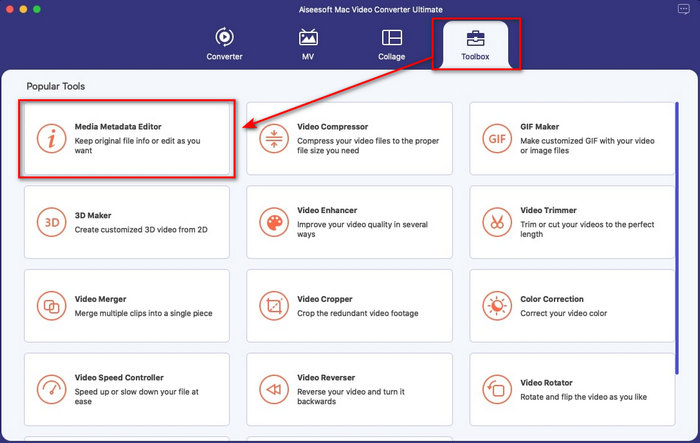
Langkah 2. Antarmuka alat akan muncul di layar Anda; pergi ke bagian Toolbox dan buka Media Metadata Editor.
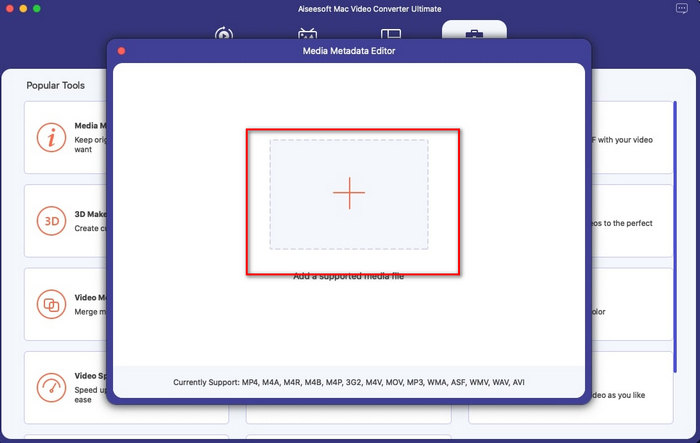
Langkah 3. Setelah Anda membuka editor, sebuah jendela mini akan muncul; ketuk tombol + untuk membuka folder tempat Anda dapat menemukan file, lalu untuk memasukkannya klik Open.
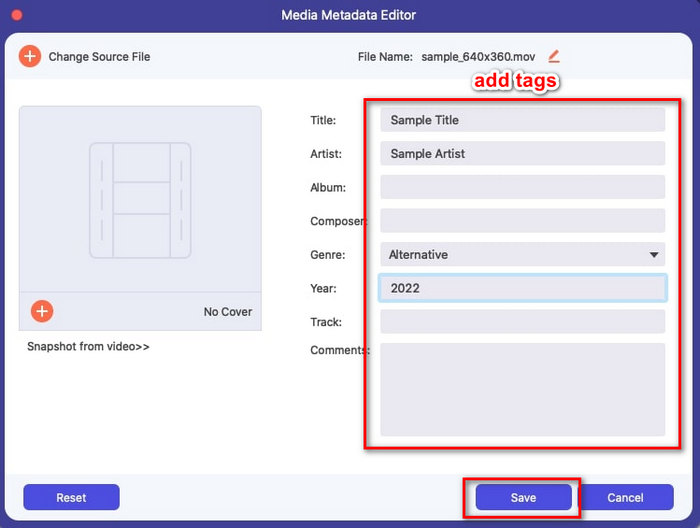
Langkah 4. Sekarang Anda dapat menambahkan, mengedit, atau menghapus tag pada file MOV Anda di dalam kotak teks. Jika sudah selesai, klik tombol Save. Metadata pada file MOV Anda kini sudah berhasil diedit secepat itu.
Terkait:
Bagian 2. 3 Editor Tag MOV Terbaik untuk Mengubah Metadata MOV
VLC Media Player
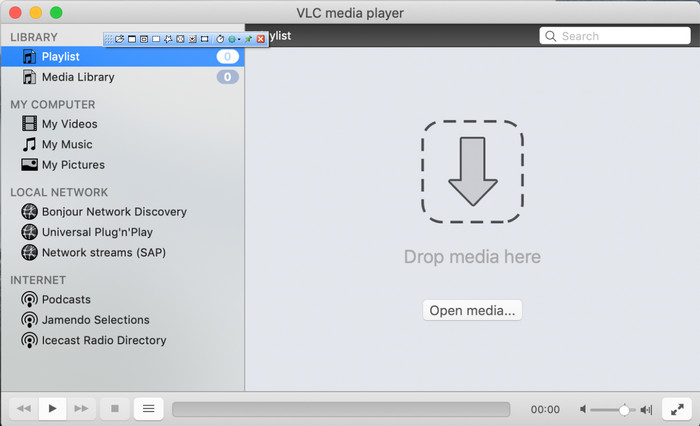
VLC Media Player adalah pemutar media terkenal yang tersedia di Mac dan Windows. Meskipun dapat memutar berbagai format video, pemutar ini juga dapat mengubah metadata file media Anda, termasuk MOV. Selain itu, jika Anda ingin melihat metadata file Anda, Anda dapat dengan mudah menggunakannya untuk menampilkannya. Namun, kemampuannya tidak seefektif editor metadata khusus lain yang bisa Anda gunakan di Mac atau Windows. Meski begitu, mengedit metadata file MOV tetap dapat dilakukan dengan pemutar media ini.
Langkah 1. Unduh pemutar media dari situs resmi VLC, lalu buka aplikasinya.
Langkah 2. Tekan Command + I pada keyboard Anda, dan informasi media akan muncul, di mana Anda bisa menambahkan atau menghapus metadata file MOV Anda.
Langkah 3. Klik Save Metadata jika Anda sudah selesai menerapkan tag pada file MOV.
iTunes
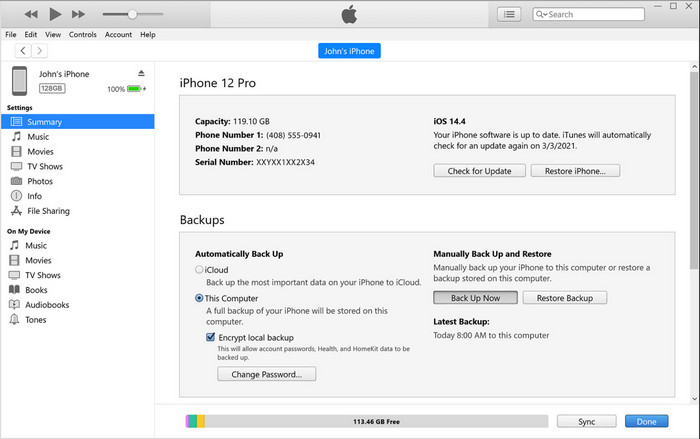
iTunes adalah aplikasi streaming bawaan terbaik yang dapat Anda akses di perangkat Apple mana pun. Alat ini sarat dengan berbagai fitur seperti pemutar musik dan toko untuk musik, film, podcast, dan banyak lagi yang dilindungi DRM untuk menghindari masalah hak cipta. Meski merupakan aplikasi bawaan yang hebat, persaingan di dunia editor metadata terlalu ketat bagi iTunes. Namun, kami tetap mempertimbangkan aplikasi ini karena iTunes masih dapat mengubah metadata MOV di Mac.
Langkah 1. Buka lalu impor file MOV ke perpustakaan iTunes.
Langkah 2. Kemudian klik kanan file .mov yang sudah Anda tambahkan dan pilih Get Info. Setelah diklik, akan muncul berbagai opsi untuk mengubah metadata seperti details, artwork, lyrics, options, sorting, dan file; sesuaikan sesuai kebutuhan Anda.
Langkah 3. Tekan OK untuk menyimpan perubahan.
MetaZ
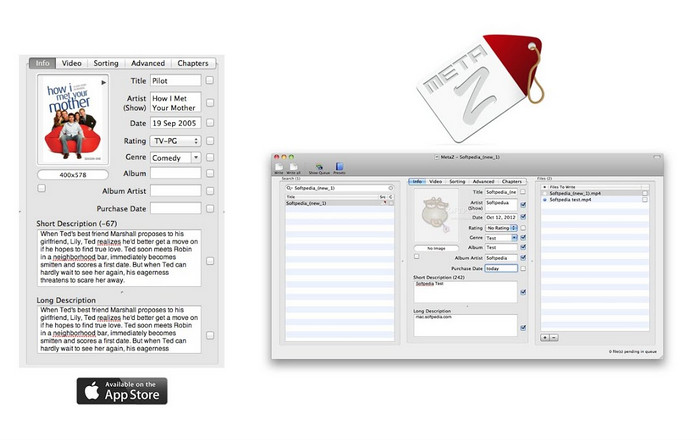
Untuk macOS X, Anda dapat dengan bebas mengunduh Metaz untuk mengubah metadata file Anda dengan mudah. Editor metadata ini dapat membantu Anda mengubah tag video dalam sebagian besar format, seperti MOV. Dengan aplikasi ini, Anda dapat melakukan trik dengan mudah dan mengatur MOV di perpustakaan Anda. Namun, banyak laporan telah terjadi akhir-akhir ini dengan aplikasi; pengguna menghadapi banyak masalah yang merepotkan saat menggunakan aplikasi. Meskipun masalah mungkin terjadi, ini masih merupakan salah satu editor metadata MOV yang paling banyak dipilih yang dapat Anda unduh di Mac Anda.
Langkah 1. Unduh aplikasi di Mac Anda, luncurkan, lalu tiga bagian antarmuka alat akan muncul di layar, yaitu tempat Anda dapat menambahkan file, mengedit tag, dan mencari tag.
Langkah 2. Seret dan jatuhkan file MOV ke sisi kiri; di sisi kirinya Anda akan melihat bahwa aplikasi akan secara otomatis mencari tag untuk file MOV Anda berdasarkan judulnya, namun Anda bisa memodifikasinya di bagian tengah jika diinginkan.
Langkah 3. Tekan Write, dan tag akan ditambahkan ke file MOV.
Bagian 3. FAQ tentang Editor Metadata MOV
Dapatkah saya menggunakan editor metadata QuickTime untuk mengubah tag?
Sayangnya, Anda tidak bisa karena alat ini hanya dapat memutar format media, mengedit video, dan merekam. Tetapi Anda dapat dengan bebas melihat metadata file Anda di Quicktime dengan mengikuti langkah-langkah sederhana ini. Pertama, buka file MOV di Quicktime dan mainkan. Anda akan melihat opsi yang berbeda di bagian atas; klik Window, dan di bawahnya, tekan View Inspector, maka jendela baru akan muncul di layar Anda untuk melihat sedikit informasi tentang file MOV Anda.
Apakah mengubah tag MOV memengaruhi kualitas?
Untungnya tidak karena Anda telah menyesuaikan tag, bukan resolusi atau kualitas file MOV. Jadi, jika Anda khawatir resolusi video akan berkurang setelah mengubah tag, kami akan mengulanginya; tidak akan.
Apakah menambahkan metadata pada MOV akan meningkatkan ukuran file?
Dalam file apa pun, setelah Anda menambahkan metadata pada file itu, Anda akan melihat perbedaan antara file yang tidak memiliki tag dan yang memiliki. Namun, tag ini tidak sebesar konten file. Jadi, jika Anda menambahkan metadata pada MOV, ukurannya akan bertambah sedikit karena Anda telah menambahkan informasi tentang file video.
Kesimpulan
Sekarang setelah kami selesai menjelaskan cara mengubah metadata file MOV, kini saatnya Anda memilih tutorial mana yang akan diikuti. Jika Anda ingin mengunduh alat gratis di Mac, Anda dapat mengunduh VLC dan Metaz untuk memperbaiki atau mengedit metadata file MOV Anda. Namun jika tidak ingin mengunduh alat tambahan, Anda bisa menggunakan iTunes untuk mengedit metadata dengan mudah. Meskipun alat-alat ini cukup bagus digunakan, tetap belum ada alat dengan fitur pengeditan metadata yang sekuat FVC Video Converter Ultimate yang dapat Anda pasang di Mac. Jadi, jika Anda masih bingung akan menggunakan yang mana, kami sangat menyarankan Anda memakai ultimate tool ini untuk tugas tersebut, karena mudah digunakan namun menawarkan paket lengkap yang Anda perlukan kapan saja.
-
 Apa Itu Meta Data: Pelajari Informasi Dasar tentang Metadata
 Apa itu Metadata? Apakah ini penting? Apa saja bagian dari metadata? Apakah Anda memiliki pertanyaan yang sama? Dalam artikel ini, Anda akan mempelajari informasi dasar tentang metadata.
-
 4 Penampil Metadata Online & Offline Terbaik [Diperbarui 2022]
 Dapatkah saya memeriksa metadata file saya? Ya, Anda bisa, dengan bantuan posting ini kami akan memperkenalkan kepada Anda berbagai metadata viewer yang dapat Anda gunakan.
-
 4 Editor Tag WMV Paling Banyak Dipilih di Desktop [Pembaruan 2022]
 Butuh editor tag WMV yang andal untuk mengedit tag WMV? Nah, artikel ini cukup memberikan pengetahuan tentang tool yang mendukung WMV.
