


 Video Converter Ultimate
 Perekam Layar
 Perbaikan Video
 Unduhan Aman
7 Cara Mudah Mengonversi HEIC ke PNG dengan Cepat dalam Detik
Ingin membuat file HEIC Anda kompatibel secara luas dengan perangkat lain? Kami punya yang Anda cari! Artikel ini menunjukkan cara terbaik untuk mengonversi file HEIC ke PNG tanpa kerepotan. Jadi bersiaplah sementara kita membahas cara terbaik untuk mengonversi HEIC ke PNG dengan mudah.

Bagian 1. Mengapa Mengonversi HEIC ke Format PNG
Format file HEIC adalah format gambar yang dibuat oleh Apple. Ini adalah format gambar yang biasa digunakan perangkat Apple. Meskipun memiliki resolusi berkualitas tinggi, ini tidak memakan terlalu banyak ruang di perangkat Anda. Namun, file HEIC tidak kompatibel dengan perangkat non-Apple. Sebaliknya, PNG, yang merupakan singkatan dari Portable Graphics Format, adalah format file gambar yang dibuat untuk menggantikan format GIF.
Ini adalah format gambar yang paling sering digunakan yang tidak terkompresi, yang berarti memiliki ukuran file yang sangat besar. Meskipun demikian, hampir semua perangkat mendukung format file gambar ini. Jadi, jika Anda ingin membuka gambar HEIC di perangkat lain selain Apple, lebih baik konversikan ke format file PNG.
Bagian 2. 5 Cara Mudah untuk Mengonversi File HEIC Anda ke File PNG Secara Online
Mencari cara terbaik untuk mengonversi HEIC ke PNG cukup sulit. Namun, kami mencari metode terbaik dan paling sederhana bagi Anda untuk mengubah HEIC ke format file PNG.
Gunakan FVC Gratis HEIC ke PNG Converter
Cara paling bagus untuk mengonversi HEIC ke PNG adalah dengan menggunakan alat konverter. Dan alat terbaik yang kami temukan di internet adalah FVC Free HEIC to PNG Converter. Konverter ini adalah alat daring yang dengan mudah mengonversi file HEIC Anda ke format file PNG. Selain itu, jika Anda ingin mengonversi banyak file HEIC ke PNG sekaligus, alat ini memiliki fitur tersebut untuk Anda.
Itu juga dapat diakses di hampir semua browser umum menjadikannya alat tanpa batas browser. Selain itu, ia memiliki antarmuka perangkat lunak yang mudah dan tidak memiliki batasan ukuran file, sehingga Anda dapat mengonversi file HEIC tanpa memikirkan ukuran file. Oleh karena itu, ikuti panduan sederhana di bawah ini jika Anda tertarik menggunakan konverter HEIC ke PNG online ini.
Langkah 1. Di peramban Anda, cari FVC Free HEIC to PNG Converter. Anda juga bisa mengeklik tautan ini untuk langsung menuju laman web mereka. Inilah tampilan antarmuka pertamanya:
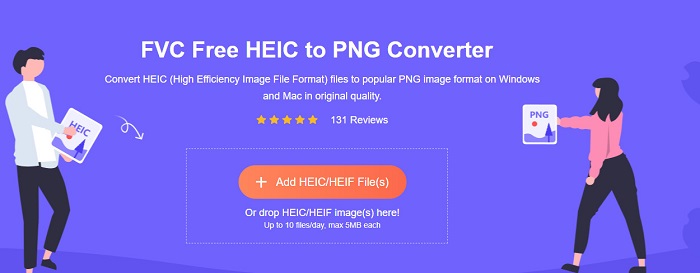
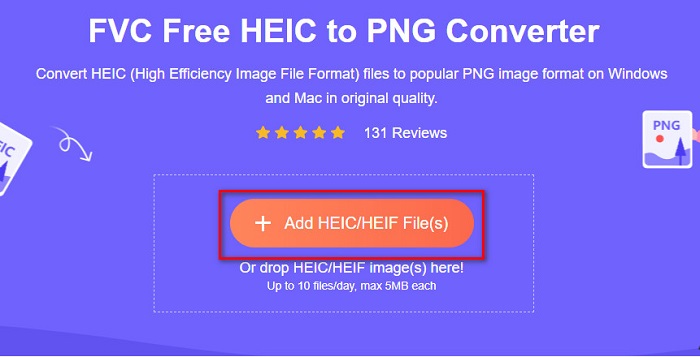
Langkah 2. Selanjutnya, klik tombol Add HEIC/HEIF File(s). Folder komputer Anda akan muncul, lalu pilih file HEIC Anda.
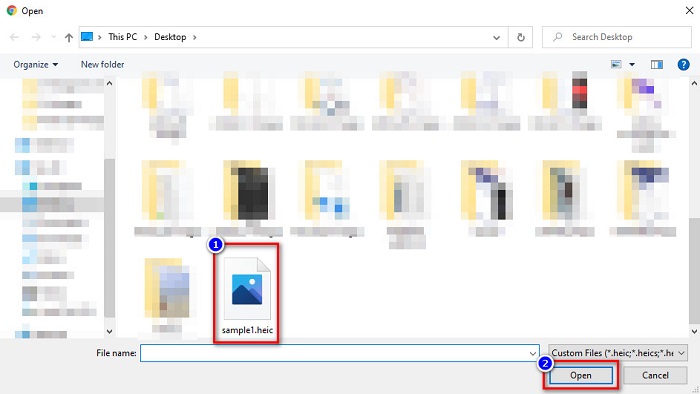
Langkah 3. Kemudian, folder komputer Anda akan muncul, lalu pilih file HEIC Anda. Tekan Open. Setelah itu, proses konversi HEIC ke PNG akan dimulai.
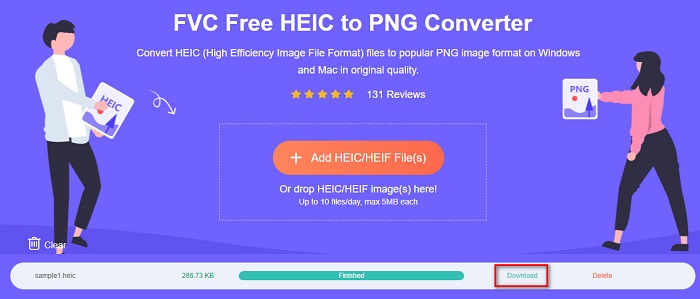
Langkah 4. Terakhir, pada antarmuka perangkat lunak, klik tombol Download untuk mengunduh file PNG Anda.
Sederhana, bukan? Anda dapat mengonversi file HEIC ke file PNG dengan mengikuti langkah-langkah mudah ini.
Gunakan Xconvert.com
Xconvert adalah konverter HEIC ke PNG daring gratis yang dengan mudah mengonversi file HEIC ke file PNG. Konverter online ini memiliki antarmuka perangkat lunak yang mudah digunakan dan bermanfaat bagi pengguna pemula. Selain itu, Anda dapat mengubah resolusi gambar saat menggunakan konverter online ini. Namun, karena ini adalah alat yang bergantung pada internet, Anda bisa saja mengalami proses konversi yang lambat ketika koneksi internet lambat. Konverter ini juga memuat iklan yang mungkin mengganggu bagi Anda.
Langkah 1. Cari Xconvert.com di peramban Anda. Di situs web mereka, klik tombol Add Files, lalu file komputer Anda akan muncul, kemudian pilih file HEIC Anda.
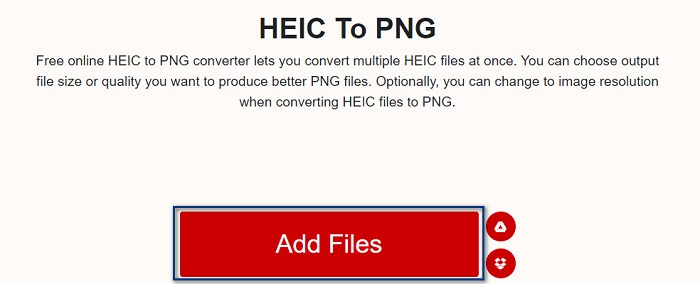
Langkah 2. Gambar Anda akan diunggah ke antarmuka perangkat lunak. Setelah pengunggahan selesai, klik tombol Convert yang terletak di sudut kanan bawah antarmuka perangkat lunak. Lalu tunggu hingga file Anda siap diunduh, kemudian lanjut ke langkah berikutnya.
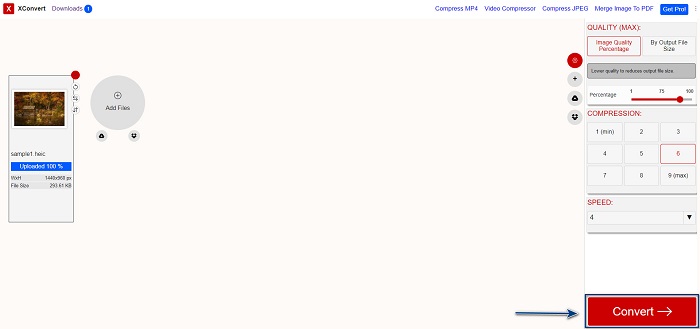
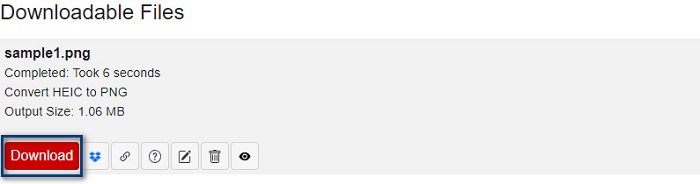
Langkah 3. Ketika file Anda sudah siap, klik tombol Download untuk mengunduh file PNG Anda; di atas tombol unduh, Anda juga akan melihat ukuran keluaran dan berapa lama proses konversi berlangsung.
Gunakan Zamzar
Cara lain untuk mengonversi HEIC ke PNG secara online adalah menggunakan konverter daring Zamzar. Anda mungkin pernah melihat konverter ini ketika mencari konverter HEIC ke PNG. Konverter ini dapat diakses di hampir semua peramban yang tersedia. Selain itu, antarmukanya sederhana sehingga menjadi alat yang ramah pengguna. Namun, file Anda bisa saja rusak jika koneksi internet terputus selama proses konversi. Meski demikian, banyak pengguna yang memakai konverter ini untuk mengubah HEIC menjadi file PNG.
Langkah 1. Di peramban yang Anda gunakan, cari Zamzar. Di situs web mereka, klik tombol Add Files. File komputer Anda akan muncul, lalu unggah gambar HEIC Anda.
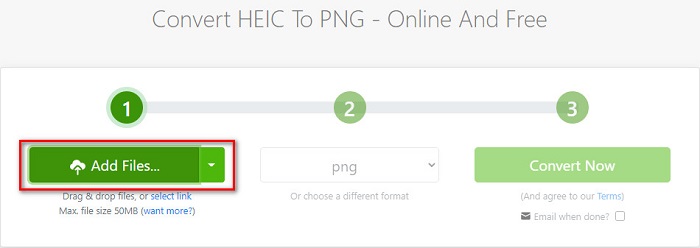
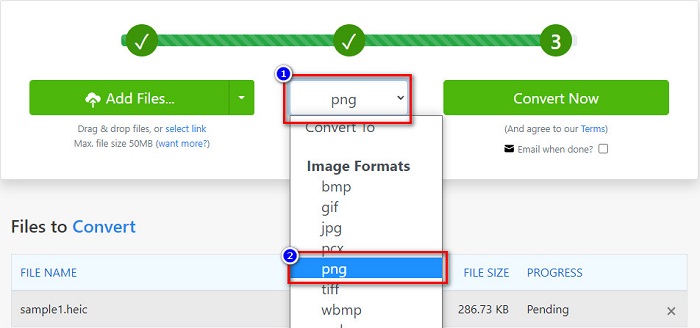
Langkah 2. Setelah mengunggah file HEIC Anda, klik tombol drop-down, lalu pilih PNG sebagai format keluaran file Anda.
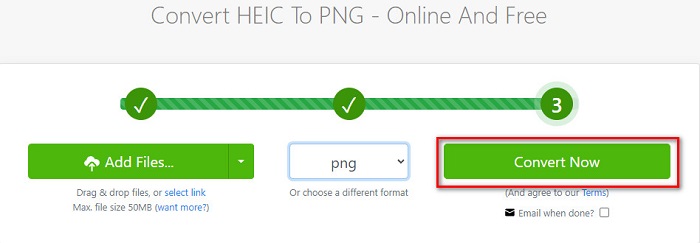
Langkah 3. Terakhir, klik tombol Convert Now untuk mengonversi file HEIC Anda ke format file PNG. Kemudian unduh file PNG Anda. Cukup tunggu beberapa detik, dan selesai!
Gunakan Alat Konversi.io
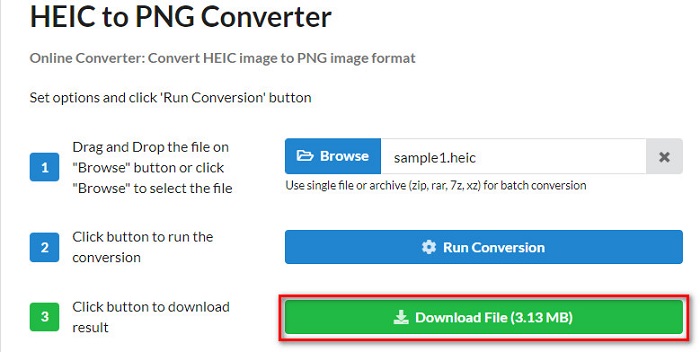
Conversion Tool adalah konverter HEIC ke PNG daring dengan antarmuka yang sederhana. Alat ini dapat mengonversi file HEIC Anda ke PNG dengan kecepatan tinggi. Selain itu, konverter ini tidak memuat terlalu banyak iklan, berbeda dengan banyak konverter online lainnya. Namun kekurangannya, Anda hanya dapat mengonversi sepuluh file per hari, dan ada batas ukuran file. Tetapi jika Anda mengonversi file yang kecil, alat ini mungkin cocok untuk Anda.
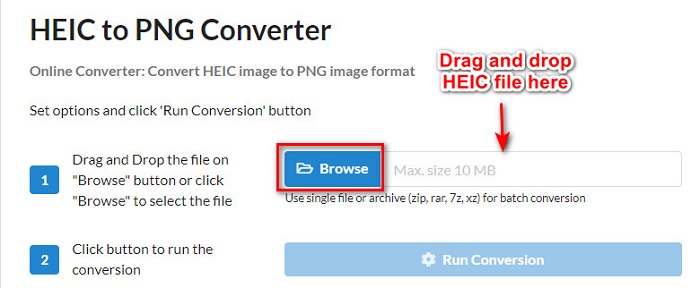
Langkah 1. Cari Conversion Tools.io di peramban Anda. Lalu, klik tombol Browse pada antarmuka utama perangkat lunak, atau seret dan jatuhkan file HEIC Anda ke tombol Browse.
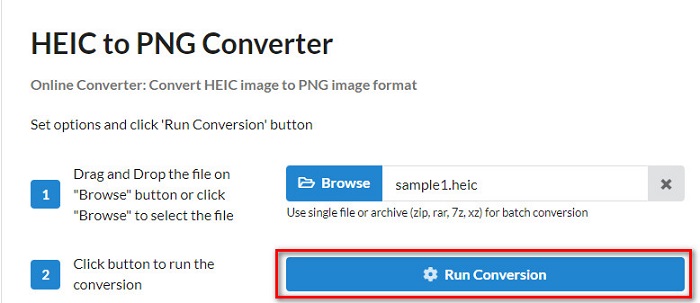
Langkah 2. Setelah itu, klik tombol Run Conversion untuk mulai mengonversi file HEIC Anda ke file PNG. Lalu tunggu hingga file gambar Anda selesai diproses, kemudian lanjut ke langkah berikutnya.
Langkah 3. Untuk mengakhiri, klik tombol Download untuk mengunduh file PNG Anda.
Gunakan CDKM
Satu alat terakhir yang akan kami perkenalkan kepada Anda adalah CDKM. Alat ini memungkinkan Anda mengonversi file HEIC ke PNG hanya dengan beberapa klik. Namun, menggunakan konverter online ini mungkin memerlukan beberapa detik untuk mengonversi, tergantung pada kecepatan internet Anda. Konverter ini juga memuat iklan yang mungkin mengganggu bagi Anda. Meski demikian, tidak ada batas ukuran file, jadi layak untuk dicoba.
Langkah 1. Di peramban Anda, cari konverter online CDKM. Pada antarmuka utama perangkat lunak, klik tombol Choose Files. Folder komputer Anda akan muncul, lalu pilih file HEIC yang akan diunggah.

Langkah 2. Selanjutnya, klik tombol Start Conversion untuk memulai proses konversi.

Langkah 3. Terakhir, gulir sedikit ke bawah dan Anda akan melihat tombol Download. Klik tombol Download untuk mengunduh file PNG Anda.

Bagian 3. Konversi HEIC ke PNG di Mac
Perangkat Apple mendukung format file HEIC, dan dengan menggunakan Mac, Anda dapat membuka file HEIC secara native. Tetapi jika Anda ingin mengonversi file HEIC ke PNG, Anda dapat mengubahnya menggunakan Aplikasi Foto di Mac. Oleh karena itu, jika Anda adalah pengguna Mac, sebaiknya baca bagian ini.
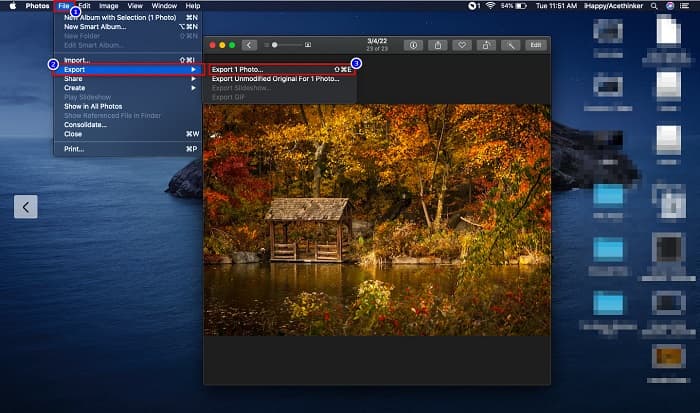
Langkah 1. Pertama, seret dan jatuhkan file HEIC Anda ke Aplikasi Foto (Photo App). Lalu, pratinjau foto HEIC Anda dan klik File > Export > Export 1 Photo.
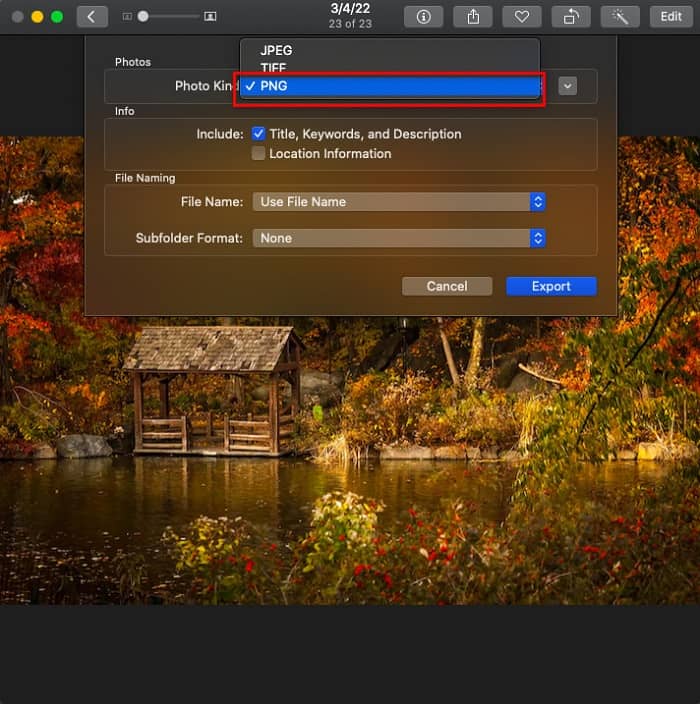
Langkah 2. Setelah itu, pada bagian Photo Kind, klik format keluaran yang Anda inginkan. Pilih format file PNG.
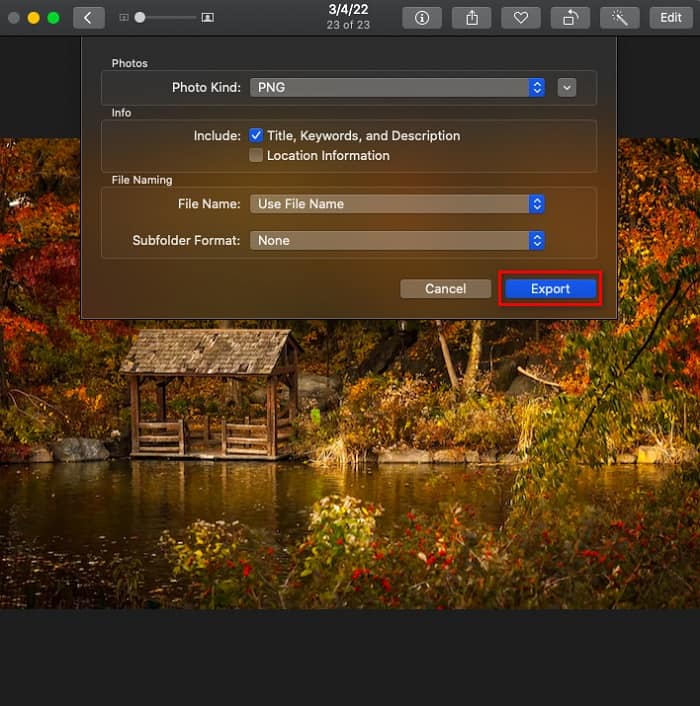
Langkah 3. Lalu, klik tombol Export, kemudian pilih lokasi penyimpanan keluaran file Anda. Anda akan melihat bahwa file HEIC Anda telah diubah menjadi format file PNG.
Bagian 4. Konversi File HEIC ke PNG di iPhone
Jika Anda menggunakan iPhone, Anda dapat membuka file HEIC di perangkat Anda. Tetapi jika Anda ingin mengonversi file HEIC Anda ke PNG menggunakan perangkat iPhone, maka kami punya cara untuk Anda. Dengan mengikuti langkah-langkah sederhana dan mudah di bawah ini, Anda dapat mengonversi HEIC ke PNG dengan mudah.
Langkah 1. Pada Aplikasi Foto (Photo App) di iPhone Anda, ketuk tombol Select yang terletak di bagian atas layar. Lalu pilih file HEIC Anda, kemudian ketuk ikon Share.
Langkah 2. Geser layar Anda ke atas; Anda akan melihat opsi Copy Photo, lalu ketuk opsi tersebut.
Langkah 3. Terakhir, buka aplikasi Files, ketuk tombol browse dan pilih lokasi keluaran yang Anda inginkan (ketuk iCloud Drive atau On my iPhone). Lalu tempel (paste) file HEIC Anda di sana.
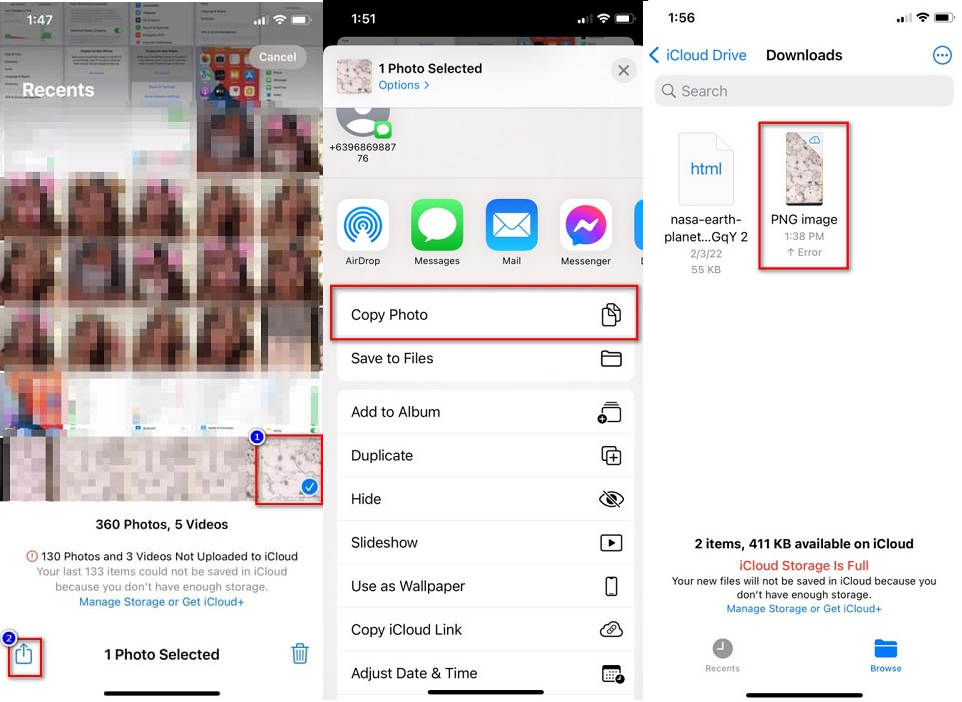
Setelah Anda menempelkan file Anda, Anda akan melihat bahwa file Anda akan secara otomatis dikonversi ke file PNG.
Bagian 5. Pengetahuan yang Diperluas tentang File HEIC dan File PNG
Jika Anda masih ragu apakah Anda ingin mengonversi file HEIC ke PNG, kami menyediakan bagan perbandingan untuk membantu Anda membedakan perbedaan antara kedua file ini. Selain itu, ini memberi Anda gambaran yang jelas tentang karakteristik HEIC dan PNG. Baca dengan seksama untuk mengetahui perbedaan antara file HEIC dan file PNG.
| HEIC | PNG | |
| Kesesuaian | Hanya perangkat Apple yang mendukung format file ini. | Hampir semua perangkat mendukung file ini, termasuk perangkat Apple. |
| Ukuran file | Ukuran file kecil. | Dapat mencapai ukuran file yang besar. |
| Kualitas gambar | Kualitas gambar tinggi. | Memiliki kualitas yang baik, tetapi tidak lebih baik dari file HEIC. |
| Terkompresi/Tidak Terkompresi | Terkompresi | Tidak terkompresi |
| Mengedit | Mempertahankan kualitas gambar saat mengedit. | Kualitas dapat menurun saat mengedit. |
Bagian 6. FAQ tentang Mengonversi HEIC ke PNG
Apakah mengonversi HEIC ke PNG akan memengaruhi ukuran file?
Ya. Saat Anda mengonversi HEIC ke PNG, itu akan meningkatkan ukuran file, meskipun tidak akan tinggi.
Bisakah Anda membuka file PNG di Adobe Photoshop?
Tentu. Anda dapat membuka file PNG di Adobe Photoshop karena Adobe Photoshop mendukung format file PNG.
Bisakah Anda membuka format file PNG di perangkat Apple secara asli?
Ya. Saat Anda mengambil tangkapan layar dari iPhone Anda, mereka akan secara otomatis disimpan di Rol Kamera Anda sebagai file PNG.
Kesimpulan
Akhirnya! Kita telah sampai di penghujung pembahasan. Artikel ini memberikan solusi terbaik untuk mengonversi file HEIC Anda ke format file PNG. Semua konverter HEIC ke PNG online yang ditampilkan di atas dapat secara efektif mengonversi file Anda dengan mudah. Selain itu, ada juga opsi lain yang bisa Anda gunakan jika Anda pengguna Mac atau iPhone. Namun jika Anda mencari konverter HEIC ke PNG terbaik dengan fitur-fitur unggulan, maka konverter FVC Free HEIC to PNG adalah pilihan terbaik untuk Anda.
-
 Cara Membuka File HEIC di Windows, Mac, dan Online
 Apakah Anda mencari cara untuk membuka file HEIC? Artikel ini memberi Anda solusi terbaik untuk membuka file HEIC di Windows, Mac, dan Online.
-
 JPG VS GIF: 3 Cara Mudah Mengonversi JPG ke GIF
 Apakah Anda ingin tahu perbedaan antara JPG dan GIF? Atau Anda ingin mengganti format animasi JPG ke GIF? Kemudian baca artikel ini untuk mendapatkan ide.
-
 5 Cara Terbaik Mengubah Gambar menjadi GIF Animasi [Diperbarui 2022]
 Butuh gambar konverter ke GIF? Artikel ini akan memberikan lima konverter terbaik yang dapat kita temukan di pasar. Jadi, mari cari tahu alat-alat ini dengan membaca artikel ini.
