


 Video Converter Ultimate
 Perekam Layar
 Perbaikan Video
 Unduhan Aman
Perekam Layar Terbaik dan Gratis untuk Windows, Mac, iPhone, dan Android Anda
Perekam layar mulai banyak bermunculan sekarang karena banyak orang ingin merekam aktivitas mereka di PC. Namun, mencari perekam layar yang benar‑benar andal cukup sulit, terutama karena sebagian perekam layar mengandung malware dan sebagian lainnya hanya untuk tujuan iklan. Karena itu, kami mencoba beberapa perekam layar terbaik secara online, offline, bahkan aplikasi seluler dengan fitur terbaik yang bisa digunakan dan 100% gratis. Jadi, baca artikel ini sampai akhir untuk mengetahui perekam layar terbaik dan gratis untuk Anda.

Bagian 1. 3 Perekam Layar Online Terbaik
Jika Anda ingin memiliki perekam layar yang tidak perlu Anda unduh, Anda mungkin mencari perekam layar online. Yakinlah bahwa perekam layar online akan memberi Anda kemudahan. Jadi, di bagian ini, Anda akan mengetahui tiga perekam layar online gratis terbaik.
Perekam Layar Gratis FVC Online
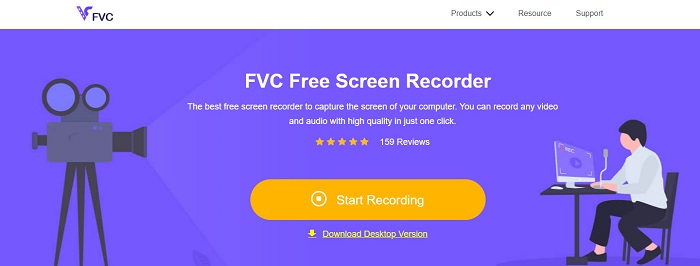
Perekam layar online terbaik yang akan Anda temukan di internet adalah FVC Free Screen Recorder Online. Perekam layar online ini dapat merekam dan menangkap aktivitas di komputer Anda. Alat ini bisa merekam layar Anda dengan video berkualitas tinggi. Dan jika Anda hanya ingin merekam area tertentu di layar, tersedia fitur untuk menyesuaikan area rekaman layar Anda.
Selain itu, ia memiliki antarmuka pengguna yang sangat sederhana, menjadikannya alat yang ramah bagi pemula. Selain itu, ia juga memiliki pengaturan lanjutan di mana Anda dapat menyesuaikan tombol pintas, memilih format output video Anda, dan menyesuaikan kecepatan bingkai dari output video Anda.
Jadi, jika Anda ingin menggunakan konverter online ini, ikuti panduan sederhana di bawah ini.
Langkah 1. Pada browser yang Anda gunakan, cari FVC Free Screen Recorder Online di browser Anda, atau cukup klik tautan ini untuk langsung menuju halaman web mereka. Lalu luncurkan aplikasinya.
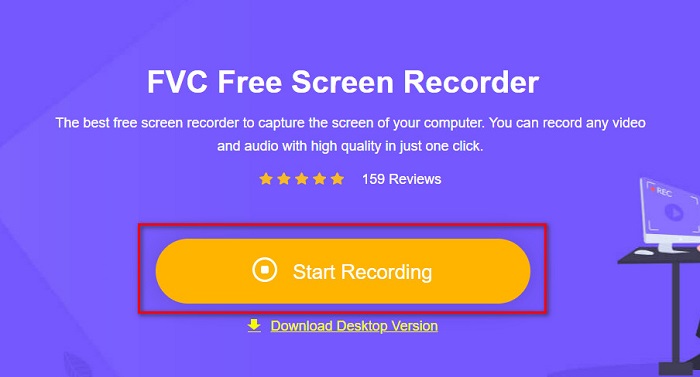
Langkah 2. Klik tombol Start Recording pada antarmuka utama perangkat lunak untuk mulai merekam layar Anda. Kemudian, bingkai yang dapat disesuaikan akan muncul.
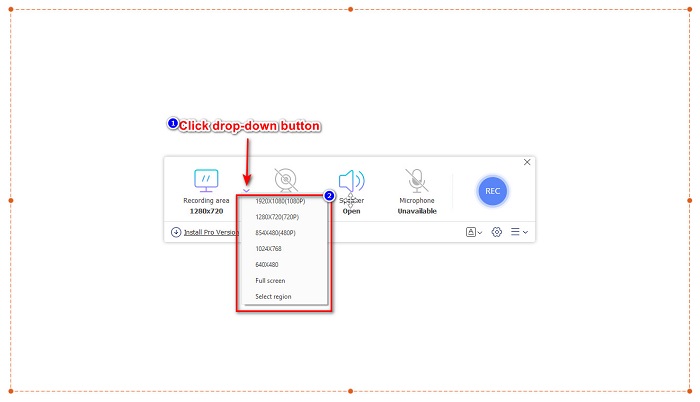
Langkah 3. Selanjutnya, pilih area yang ingin Anda rekam di layar dengan mengklik tombol drop-down pada opsi Recording Area. Anda bisa merekam seluruh layar atau memilih area tertentu yang ingin direkam.
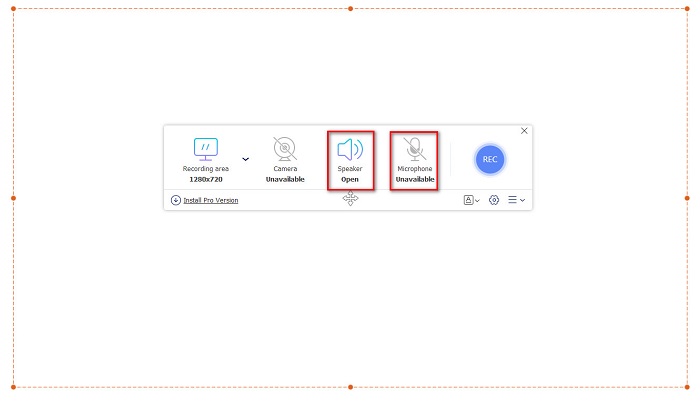
Langkah 4. Lalu, pilih perekam audio yang Anda inginkan dengan mengklik opsi speaker atau microphone.
Langkah 5. Terakhir, klik tombol RECec untuk mulai merekam. Setelah selesai merekam, klik tombol bergambar tanda stop, dan rekaman Anda akan otomatis tersimpan di antarmuka perangkat lunak.
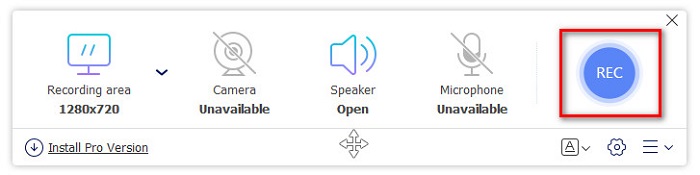
Dan itu saja! Anda dapat dengan mudah merekam aktivitas layar Anda dengan melakukan panduan sederhana di atas.
Pro
- Itu dapat merekam aktivitas layar Anda dengan output video berkualitas tinggi.
- Ini memungkinkan Anda untuk menyesuaikan kecepatan bingkai, codec, dan format output video Anda.
- Ini memiliki antarmuka perangkat lunak yang mudah digunakan.
- Dapat diakses di semua browser web, termasuk Google, Firefox, Safari, dan lainnya.
Kontra
- Anda perlu mengunduh aplikasi pro untuk mengakses fitur-fitur canggihnya.
ScreenApp.IO
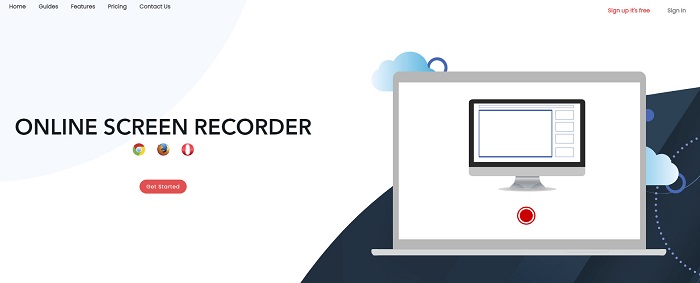
ScreenApp.IO adalah perekam layar online gratis yang memungkinkan Anda merekam aktivitas layar dengan mudah. Perekam layar komputer online ini memiliki tampilan GUI yang sederhana sehingga ramah bagi pengguna. Anda juga dapat memilih sumber audio pada alat online ini. Namun, perekam layar online ini hanya memiliki fitur yang terbatas. Meski begitu, banyak orang tetap menggunakannya karena praktis.
Pro
- Ini memiliki antarmuka perangkat lunak yang mudah dioperasikan.
- Tersedia di hampir semua browser web seperti Google dan Firefox.
- Anda dapat memilih perekam audio yang Anda inginkan.
Kontra
- Anda mungkin mengalami proses loading yang lambat.
- Anda tidak dapat memilih format file keluaran yang Anda inginkan.
ClipChamp
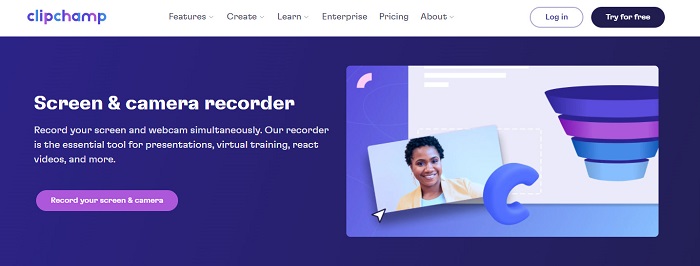
ClipChamp adalah salah satu perekam layar online paling populer yang tersedia di internet. Alat online ini memungkinkan Anda menambahkan teks pada rekaman dan memiliki fitur untuk menyesuaikan ukuran bingkai rekaman. Meskipun antarmuka perangkat lunaknya cukup sulit digunakan, alat ini tetap efektif untuk merekam presentasi dan rapat. Alat ini juga menggunakan cookie yang memungkinkan situs menyimpan data Anda.
Pro
- Itu dapat merekam layar Anda dengan nyaman.
- Ini memungkinkan Anda untuk menyesuaikan ukuran bingkai rekaman layar Anda.
Kontra
- Ini menggunakan cookie untuk situs web.
- Ketika koneksi internet Anda lambat, itu mungkin memengaruhi perekaman layar Anda.
Bagian 2. 2 Perekam Layar Terbaik untuk Desktop Anda
Apakah Anda mencari perekam layar terbaik untuk PC Anda? Jangan khawatir lagi, karena kami memiliki perekam layar terbaik untuk desktop Anda. Meskipun sulit untuk menemukan perekam layar dengan banyak fitur, kami menemukan perekam layar paling luar biasa untuk Anda gunakan secara offline.
bandika
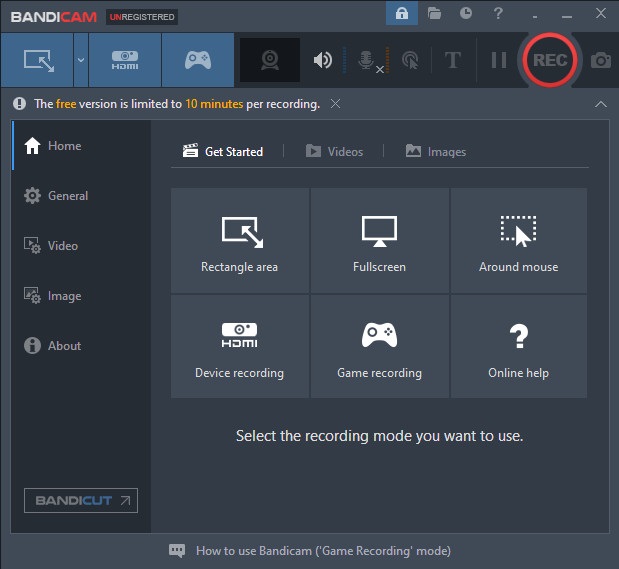
Bandicam mungkin adalah perekam layar desktop yang paling dikenal dengan beragam fitur yang dapat digunakan. Alat ini memiliki fitur canggih seperti perekaman perangkat yang memungkinkan Anda merekam perangkat video eksternal, seperti Webcam, Smartphone, Xbox, dan lainnya. Anda juga bisa merekam momen kemenangan permainan dengan mengklik opsi Game recording. Selain itu, dengan konverter ini Anda dapat menangkap gambar saat merekam layar. Namun, antarmukanya cukup sulit digunakan sehingga pengguna pemula mungkin akan merasa kesulitan.
Pro
- Ini memiliki fitur-fitur canggih seperti perekaman perangkat lebih banyak dan mode perekaman game.
- Ini memungkinkan Anda untuk mengambil gambar saat merekam.
- Tersedia di hampir semua platform lintas media, termasuk Windows dan Mac.
Kontra
- Ini memiliki antarmuka perangkat lunak yang sulit dioperasikan.
- Beli aplikasi sebelum Anda dapat menggunakan fitur khususnya.
LayarRec
Perangkat lunak perekam layar lain yang dapat Anda gunakan adalah ScreenRec. Perekam layar ini mudah digunakan dan menghasilkan rekaman layar dengan kualitas baik. Anda juga dapat menyesuaikan kualitas rekaman menjadi SD, HD, dan 4K. Selain itu, tersedia fitur untuk mengambil tangkapan layar serta merekam suara Anda saat perekaman layar. Kekurangannya, fitur yang ditawarkan lebih sedikit dibandingkan perekam layar desktop lainnya.
Pro
- Ini memiliki antarmuka pengguna yang sederhana.
- Ini gratis untuk diunduh.
- Tersedia di Windows, Mac, dan Linux.
Kontra
- Ini memiliki beberapa fitur untuk digunakan.
Bagian 3. 3 Perekam Layar Terbaik untuk iPhone dan Android
Jika perangkat iPhone atau Android Anda tidak memiliki perekam layar bawaan, itu sangat disayangkan bagi Anda, terutama ketika Anda ingin merekam layar rapat menggunakan ponsel Anda. Tapi itu bukan akhir bagi Anda jika Anda masih ingin merekam layar menggunakan perangkat iPhone atau Android Anda. Oleh karena itu, Anda akan melihat perekam layar terbaik untuk iPhone dan perangkat android lainnya di bagian ini.
Perekam Layar AZ
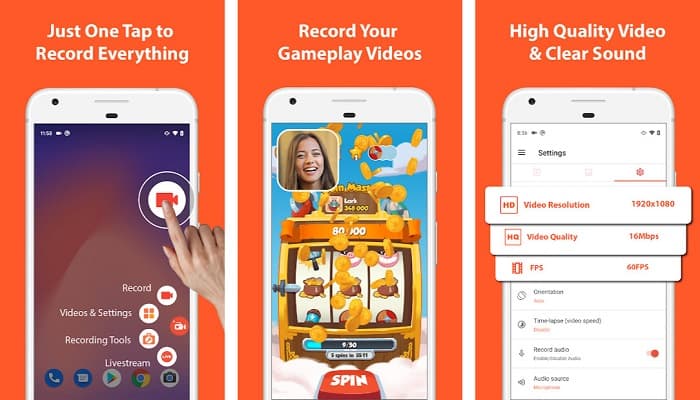
AZ Screen Recorder terbukti menjadi salah satu perekam layar terbaik untuk perangkat iPhone maupun Android Anda. Jika Anda mencari perekam layar yang dapat merekam video time‑lapse, alat ini memiliki fitur tersebut. Anda juga dapat mengubah resolusi dan bit rate video rekaman layar Anda. Selain itu, alat ini mampu menghasilkan video berkualitas tinggi tanpa sulit digunakan.
Pro
- Ini memiliki fitur-fitur canggih seperti video selang waktu, memperbaiki layar hijau, dan menambahkan teks dan logo ke video Anda.
- Ini memiliki antarmuka pengguna yang mudah.
- Gratis untuk menggunakan aplikasi.
Kontra
- Proses pemuatan yang lambat dapat terjadi pada waktu tertentu.
mobizen
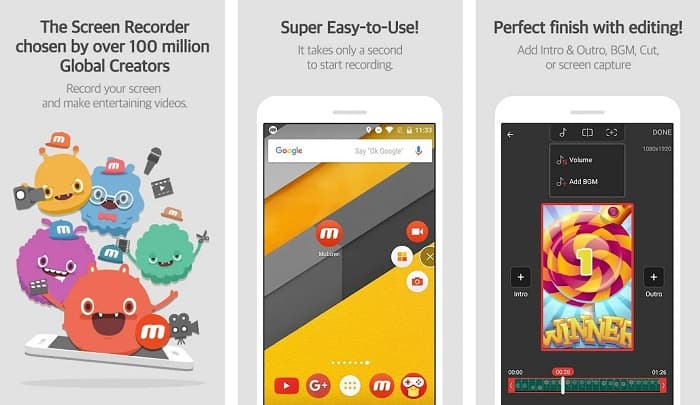
Mobizen adalah perekam layar yang tersedia di ponsel iPhone dan Android. Dibandingkan perekam layar lain untuk ponsel, alat ini memiliki tombol mengambang (floating button) untuk mengakses fitur‑fiturnya. Selain itu, Anda dapat menyesuaikan kualitas video, resolusi, dan FPS (Frame Per Second) dari rekaman layar Anda. Dengan antarmuka yang mudah dioperasikan, Anda dapat dengan mudah merekam aktivitas di layar.
Pro
- Ini memiliki tombol mengambang untuk melakukan perekaman layar dengan mudah.
- Ini memiliki fitur untuk menambahkan musik latar ke rekaman layar Anda.
Kontra
- Audio video Anda terkadang bermasalah.
V Perekam
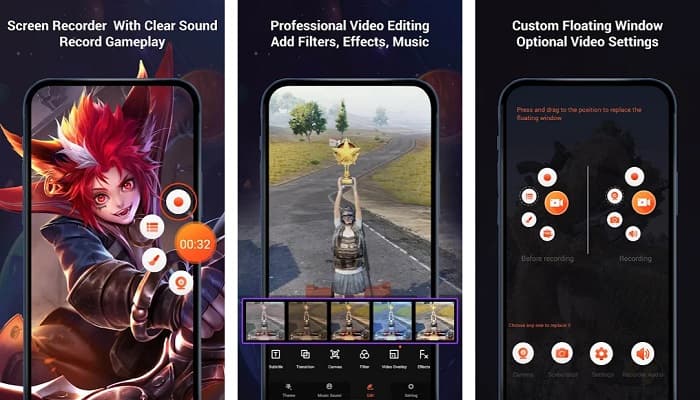
V Recorder adalah aplikasi perekam layar yang memiliki editor video bawaan. Perekam layar ini dapat menghasilkan video dengan kualitas tinggi. Selain itu, Anda dapat merekam permainan dengan mudah saat sedang bermain. Dan jika Anda ingin merekam reaksi saat bermain, alat ini memiliki perekam facecam. Namun, banyak ulasan pengguna menyebutkan bahwa aplikasi ini tidak dapat merekam audio internal maupun eksternal. Jika Anda ingin merekam audio di iPhone, klik di sini untuk mempelajari lebih lanjut.
Pro
- Ini memiliki antarmuka pengguna yang sederhana.
- Ini memungkinkan Anda untuk mengedit rekaman video Anda.
- Tersedia di perangkat iPhone dan Android.
Kontra
- Terkadang tidak merekam audio eksternal dan internal.
- Anda perlu membeli aplikasi sebelum mengakses fitur uniknya.
Bagian 4. Perekam Layar Yang Digunakan
Jika Anda masih tidak yakin perekam layar mana yang akan digunakan, kami menyediakan bagan perbandingan perekam layar terbaik online, offline, dan aplikasi seluler di bawah ini. Selanjutnya, bagian ini akan memberikan wawasan tentang fitur dan karakteristik perekam layar yang disebutkan di atas.
| FITUR | Perekam Layar Gratis FVC Online | ScreenApp.IO | ClipChamp | bandika | Rekam Layar | Perekam Layar AZ | mobizen | V Perekam |
| Antarmuka perangkat lunak yang mudah digunakan |  | |  | | | | | |
| Gratis untuk digunakan | | | | | | | | |
| Dapat mengubah pengaturan video Anda | | | | | | | | |
| Aman digunakan | | | | | | | | |
| Dapat merekam audio perangkat | | | | | | | Terkadang ada kesalahan | Terkadang tidak merekam audio internal dan eksternal |
Bagian 5. FAQ tentang Perekam Layar Terbaik
Apakah iPhone 11 memiliki perekam layar bawaan?
Semua iPhone dengan sistem iOS 11 memiliki perekam layar bawaan. Jadi, Anda tidak diharuskan mengunduh aplikasi apa pun untuk perekaman layar jika Anda adalah pengguna iPhone 11.
Berapa lama perekam layar dapat merekam?
Dalam hal perekaman layar, tidak ada batasan untuk itu. Itu tergantung pada penyimpanan yang tersedia dari perangkat Anda pada berapa lama perekaman layar Anda akan bertahan.
Apakah QuickTime memiliki perekam layar bawaan?
Ya. Pemutar media bawaan Mac, yaitu QuickTime Player, memiliki perekam layar bawaan. Klik di sini untuk mempelajari cara merekam layar dengan QuickTime Player.
Apa format file terbaik untuk perekaman layar?
Format file terbaik untuk perekaman layar adalah MPEG-1. MPEG-1 adalah file lossless, dan banyak pemutar media mendukung format file ini, termasuk Youtube. Jadi jika Anda ingin mengunggah rekaman layar Anda di platform media sosial lain, Anda mungkin ingin mempertimbangkan untuk membuat file video Anda dalam format file MPEG-1.
Kesimpulan
Secara keseluruhan, ada banyak sekali perekam layar yang dapat Anda gunakan secara online dan offline. Tetapi selalu perhatikan bahwa setiap perekam layar memiliki fitur berbeda untuk ditawarkan. Artikel ini memberi Anda perekam layar terbaik untuk PC, Mac, iPhone, dan perangkat Android Anda. Selanjutnya, sekarang di tangan Anda perekam layar apa yang akan Anda pilih.
Namun, jika Anda mencari cara yang lebih nyaman untuk merekam layar dan memiliki fitur yang Anda perlukan untuk perekam layar, gunakan FVC Free Screen Recorder Online, yang juga digunakan banyak orang.
-
 Cara Merekam Stunt, Clutch, atau Tutorial Epik di Minecraft [2021]
 Apakah Anda ingin tahu cara merekam aksi Anda di Minecraft? Kemudian baca artikel ini seperti yang kami sediakan.
-
 4 Perekam FLV Terbaik untuk Menangkap Video FLV di Berbagai Platform
 Artikel ini berisi solusi yang dapat Anda gunakan dalam merekam video FLV. Temukan daftar perekam FLV dalam ulasan artikel ini.
-
 4 Perangkat Lunak Perekaman Audio Terbaru Tersedia di Windows & Mac
 Perlu perangkat lunak perekaman audio di desktop Anda? Dalam hal ini, artikel ini penuh dengan ide-ide tentang yang terbaik dan banyak lagi. Jadi jika Anda membutuhkannya, baca artikel ini.
