


 Video Converter Ultimate
 Perekam Layar
 Perbaikan Video
 Unduhan Aman
Cara Unblur Gambar Menggunakan Aplikasi Paling Ampuh
Sangat menjengkelkan ketika mengetahui bahwa gambar yang Anda ambil ternyata buram. Foto Anda menjadi buram karena objek yang Anda potret bergerak, kamera bergoyang, atau pencahayaan di tempat tersebut kurang baik. Selain itu, Anda tidak bisa mengulang kembali momen saat mengambil foto, yang tentu sangat mengecewakan. Memperbaiki gambar tersebut tampak mustahil, tetapi sebenarnya tidak. Untungnya, ada cara-cara khusus yang dapat Anda lakukan untuk mengurangi keburaman pada gambar. Dengan aplikasi perbaikan gambar terbaik, Anda bisa memperbaiki foto yang buram. Panduan ini akan mengajarkan Anda cara menghilangkan blur pada gambar dengan mudah.

Bagian 1. Cara Unblur Gambar Online
Orang-orang lebih suka menggunakan aplikasi online untuk mengaburkan gambar karena memungkinkan mereka menghemat ruang di perangkat mereka. Selain itu, saat menggunakan alat online, Anda hanya perlu mengaksesnya di browser. Nyaman bukan? Oleh karena itu, kami mencari penambah gambar online terbaik untuk memperbaiki kekaburan foto Anda.
FVC Free Image Upscaler adalah pilihan terbaik jika Anda mencari cara untuk mengurangi blur pada gambar secara online. Selain itu, alat ini gratis dan aman digunakan. Anda juga dapat mengaksesnya di semua peramban web, termasuk Google, Firefox, dan Safari. Lebih jauh, Anda bisa meningkatkan kualitas gambar hingga 2x, 4x, 6x, dan 8x pembesaran. Selain itu, alat ini menggunakan teknologi AI (Artificial Intelligence) yang secara otomatis mendeteksi bagian gambar yang buram, lalu meningkatkan kualitasnya.
Selain itu, FVC Free Image Upscaler memungkinkan Anda memperbaiki piksel yang hilang, tekstur warna, dan detail lainnya dengan tepat. Dan meskipun merupakan aplikasi online, proses peningkatannya cepat dan tidak mengandung iklan apa pun yang dapat mengganggu Anda. Jadi, jika Anda tertarik menggunakan image upscaler gratis, ikuti panduan sederhana di bawah ini.
Cara unblur gambar menggunakan FVC Free Image Upscaler:
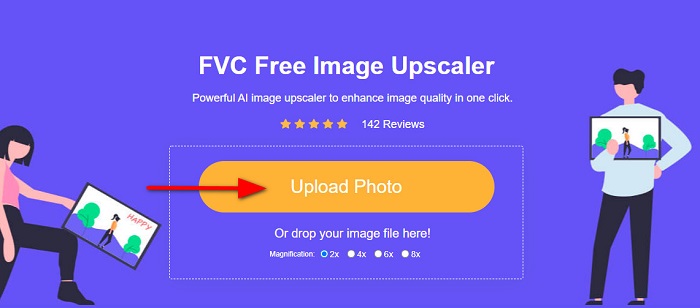
Langkah 1. Pertama, buka peramban Anda dan ketik FVC Free Image Upscaler di kotak pencarian. Anda juga dapat mengklik tautan untuk langsung menuju halaman utama. Lalu, jalankan aplikasinya dengan mengklik tombol Upload Photo. Setelah aplikasi berjalan, lanjut ke langkah berikutnya.
Langkah 2. Pada antarmuka pertama, klik tombol Upload Photo untuk mengimpor gambar yang ingin Anda hilangkan blurnya. Folder komputer Anda akan muncul dan Anda dapat mencari foto tersebut. Klik Open untuk mengunggahnya.
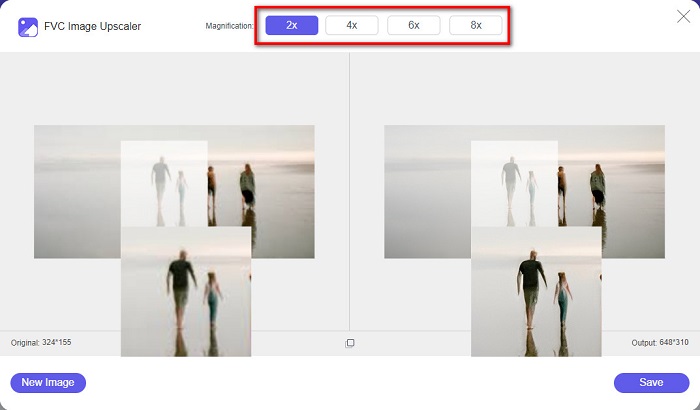
Langkah 3. Setelah mengunggah gambar, pilih preset pembesaran yang Anda inginkan. Anda dapat memilih antara pembesaran 2x, 4x, 6x, dan 8x. Lalu, Anda dapat melihat pratinjau hasil di sisi kanan untuk membandingkan dengan file asli.
Langkah 4. Terakhir, simpan hasilnya dengan mengklik tombol Save di pojok kanan bawah antarmuka.
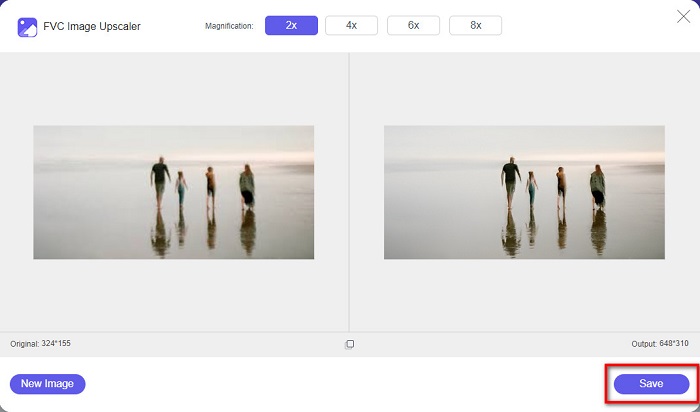
Dan itulah langkah-langkah tentang cara menghapus gambar secara online. Anda akan melihat dari hasil bagaimana image upscaler gratis ini dapat membantu Anda memperbaiki kualitas gambar Anda.
Bagian 2. Cara Unblur Gambar Offline di Desktop
Banyak profesional menggunakan komputer untuk mengedit gambar atau video. Juga, banyak aplikasi pengeditan foto hanya tersedia di desktop. Dan di bagian ini, kami akan mengajari Anda metode terbaik untuk menghilangkan keburaman gambar secara offline di desktop Anda.
Unblur Gambar Menggunakan Photoshop
Adobe Photoshop mungkin adalah aplikasi pengeditan gambar terbaik yang bisa Anda gunakan untuk mengurangi blur pada foto. Aplikasi offline ini memiliki banyak fitur dan alat pengeditan yang dapat Anda gunakan untuk meningkatkan kualitas gambar. Selain itu, Anda dapat menambahkan ketajaman pada foto jika kualitasnya kurang baik atau tampak buram. Dengan menggunakan alat pengeditan canggihnya, Anda pasti dapat menghasilkan output yang sangat baik. Selain itu, Anda bisa menghapus orang atau objek dari gambar, menggambar gambar atau objek dengan alat pensil atau pena, memanipulasi warna foto, dan lain-lain. Dengan Adobe Photoshop, Anda dapat membuat gambar fantastis hasil editan Anda. Namun, Adobe Photoshop bukanlah alat yang ramah bagi pemula. Anda memerlukan pengetahuan yang cukup mendalam tentang cara menggunakan alat-alatnya untuk mengurangi blur atau mengedit gambar. Meskipun begitu, kami akan menyediakan langkah-langkah bagi Anda untuk menggunakan Photoshop dalam mengurangi blur pada gambar. Kami juga akan menunjukkan dua cara menggunakan Photoshop untuk mengurangi keburaman pada foto Anda.
Proses deblurring gambar menggunakan Adobe Photoshop:
Langkah 1. Unduh Adobe Photoshop di desktop Anda lalu instal. Setelah diunduh dan diinstal, jalankan aplikasi tersebut di perangkat Anda.
Langkah 2. Kemudian, buka gambar yang ingin Anda kurangi blurnya di antarmuka utama. Anda juga dapat menekan CTRL + O pada keyboard untuk lebih mudah membuka gambar.
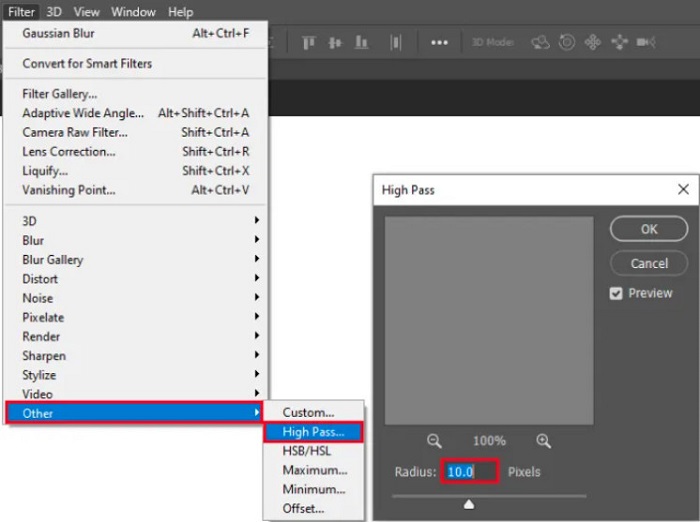
Langkah 3. Selanjutnya, duplikat background layer Anda dan pilih layer salinannya. Lalu, klik Filter > Other > High Pass. Atur High Pass ke 10%.
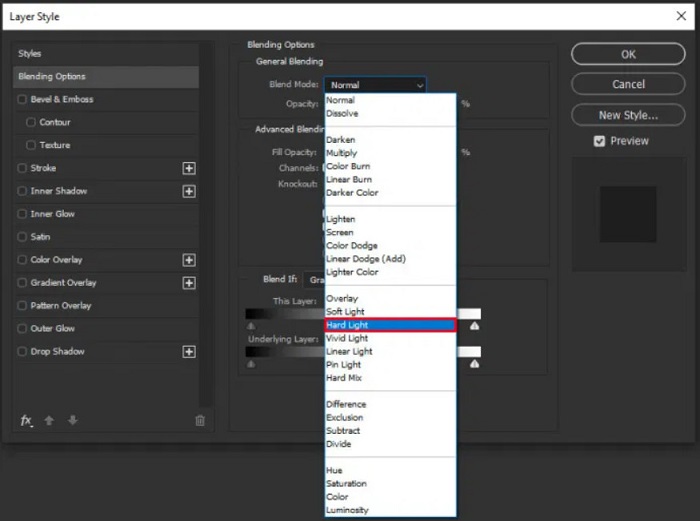
Langkah 4. Pada jendela Layer Style, ubah mode blend dari normal ke hard light, lalu ubah opacity sampai foto terlihat jelas atau meningkat kualitasnya.
Jika Anda menggunakan versi terbaru Photoshop, Anda dapat menggunakan opsi pengurangan guncangan kamera (camera shake reduction) untuk menajamkan gambar menggunakan Photoshop.
Langkah 1. Impor gambar yang ingin Anda kurangi blurnya ke Photoshop.
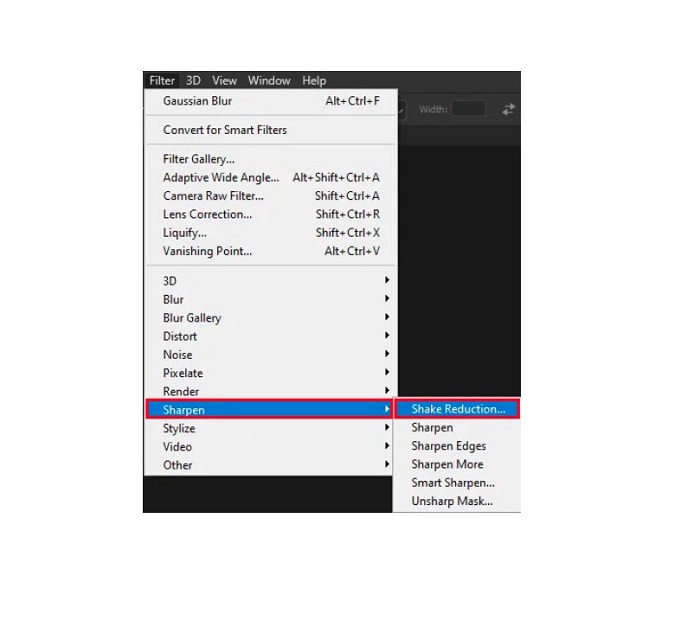
Langkah 2. Lalu, pergi ke Filter > Sharpen > Shake Reduction.
Langkah 3. Setelah itu, Photoshop akan memproses gambar Anda; kemudian Anda dapat melihat hasil akhirnya.
Unblur Gambar Menggunakan Paint.net
Perangkat lunak pengedit foto offline gratis lain yang dapat Anda gunakan adalah Paint.net. Salah satu fitur andalan aplikasi ini adalah menajamkan gambar. Dengan menggeser slider, Anda dapat menyesuaikan tingkat ketajaman pada gambar sehingga foto tampak tajam dan jernih sekaligus mengurangi blur. Selain itu, aplikasi ini lebih mudah digunakan dibanding Adobe Photoshop. Aplikasi ini juga memiliki fungsi pengeditan lain yang dapat Anda manfaatkan untuk mengedit foto. Jika Anda belum tahu cara menggunakannya, Anda bisa mengakses konsultasi online dan tutorial cara pakainya. Selain itu, Paint.net termasuk salah satu aplikasi editor gambar paling terkenal bagi pengguna Windows karena memiliki banyak fungsi koreksi untuk meningkatkan kualitas foto. Kekurangan kecil Paint.net adalah Anda tidak dapat mengoreksi teks yang telah Anda ketik setelah efek diterapkan. Namun demikian, perangkat lunak ini memungkinkan Anda membuat hasil pengeditan gambar bertingkat (multi-level).
Cara unblur gambar menggunakan Paint.net:
Langkah 1. Untuk memulai, buka gambar Anda di Paint.net dengan menekan CTRL + O pada keyboard. Anda juga bisa masuk ke menu File lalu cari opsi Open. Setelah itu, file di desktop Anda akan muncul dan Anda dapat memilih gambar lalu membukanya.
Langkah 2. Lalu, klik Effects > Picture, kemudian pilih Sharpen.
Langkah 3. Pada panel Sharpen, Anda akan melihat slider yang dapat Anda geser untuk menyesuaikan ketajaman gambar sehingga blur berkurang. Anda juga dapat menekan tombol panah atas/bawah untuk mengubah jumlah ketajaman foto.
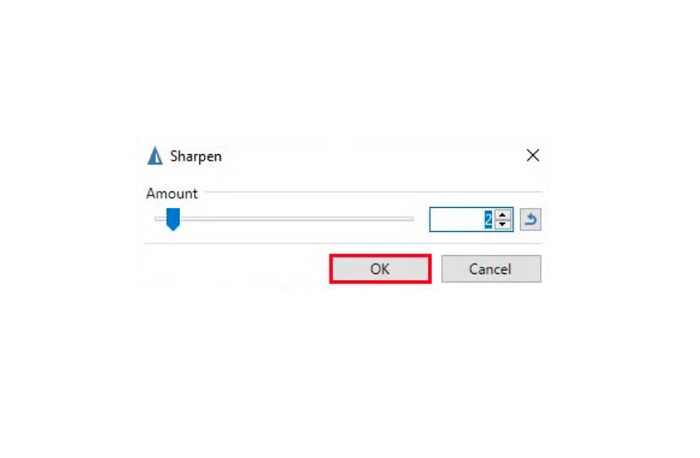
Langkah 4. Tekan tombol OK dan simpan hasilnya.
Bagian 3. Cara Unblur Gambar di iPhone
Jika Anda adalah pengguna perangkat iPhone, Anda juga dapat mengunduh beberapa aplikasi untuk mengaburkan gambar Anda. Anda dapat memilih di antara aplikasi dari App Store untuk mengaburkan gambar Anda. Namun, beberapa aplikasi dapat dibeli, mengharuskan Anda membelinya sebelum menggunakannya. Namun di bagian ini, kami akan mengajari Anda cara menghapus gambar Anda di iPhone menggunakan aplikasi gratis dan luar biasa.
Foton adalah salah satu aplikasi pengurang blur gambar yang paling sering digunakan di iPhone. Anda dapat mengunduh aplikasi ini secara gratis di AppStore. Selain itu, aplikasi ini memiliki fungsi pengeditan lain seperti kolase, potong (crop), tambah template, pisah (split), dan lainnya. Aplikasinya juga memiliki antarmuka yang mudah digunakan, sehingga cukup ramah bagi pengguna. Dengan aplikasi ini, Anda bisa mengurangi blur pada gambar dengan menyesuaikan tingkat ketajaman. Jika Anda ingin menambah kesan jernih dan tajam agar foto terlihat lebih menarik, Anda dapat menyesuaikan kontras, kejernihan (clarity), saturasi, dan dehaze pada gambar. Selain itu, aplikasi ini aman digunakan, sehingga Anda tidak perlu khawatir tentang keamanan file gambar Anda. Kekurangannya, Anda harus membeli versi pro untuk menggunakan fitur-fitur lainnya.
Cara unblur gambar di iPhone:
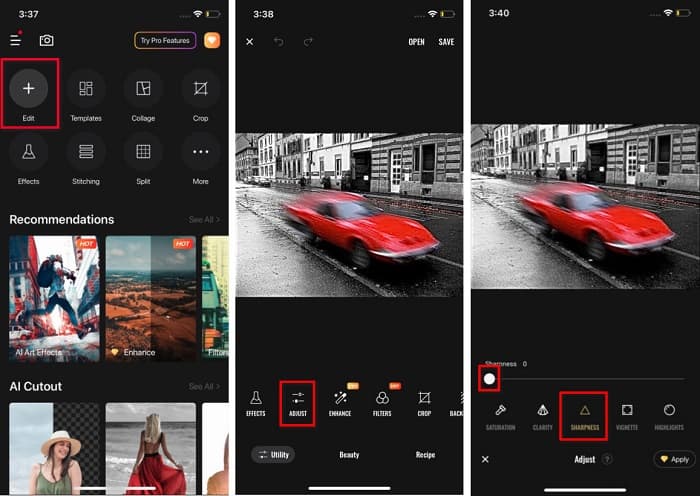
Langkah 1. Buka App Store di iPhone Anda, lalu cari Foton. Instal aplikasi tersebut di ponsel Anda, dan buka setelah selesai diinstal. Lalu, pada antarmuka utama aplikasi, ketuk opsi Edit.
Langkah 2. Pilih gambar yang ingin Anda kurangi blurnya; kemudian Anda akan diarahkan ke antarmuka lain. Ketuk opsi Adjust di bawah gambar, lalu geser ke kiri untuk menemukan fitur Sharpness.
Langkah 3. Pada panel Sharpness, geser slider ke tingkat ketajaman yang Anda inginkan hingga keburaman gambar berkurang.
Langkah 4. Terakhir, ketuk tombol Save di pojok kanan atas antarmuka untuk menyimpan hasilnya ke perangkat iPhone Anda. Klik di sini untuk mempelajari cara mengubah ukuran gambar di iPhone.
Bagian 4. Cara Unblur Gambar di Ponsel Android
Banyak orang juga memiliki perangkat Android, dan jika Anda juga menggunakannya, Anda dapat membaca bagian ini untuk mempelajari cara menghapus gambar buram di Android. Kami mencari aplikasi penghilang buram foto paling populer untuk Android dan mencobanya satu per satu. Untungnya, kami menemukan aplikasi yang terbaik untuk direkomendasikan.
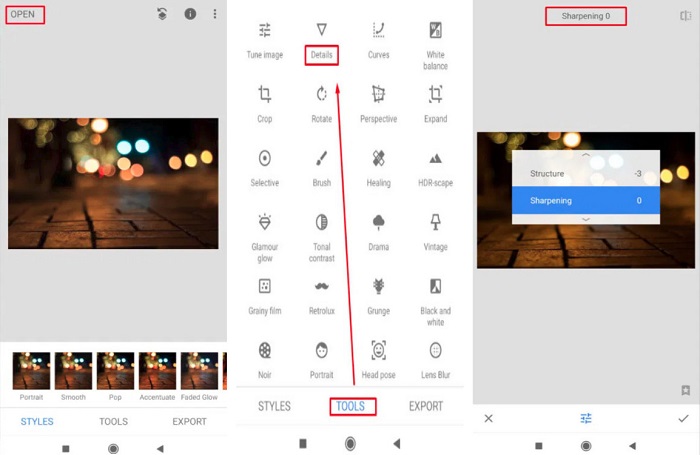
Snapseed adalah aplikasi terbaik jika Anda ingin mengurangi blur pada gambar di perangkat Android. Dengan fitur sharpen dan structure, Anda dapat menambahkan ketajaman pada gambar untuk menghilangkan bagian yang buram. Selain itu, aplikasi ini memiliki banyak fitur pengeditan yang dapat membantu Anda meningkatkan kualitas gambar. Sama seperti alat lain yang disebutkan di atas, Snapseed memiliki antarmuka yang sederhana. Jadi, jika Anda pemula, Anda dapat menggunakan aplikasi ini untuk mengurangi blur pada gambar. Namun, Anda tetap perlu menyalakan WiFi sebelum menggunakan aplikasi ini.
Cara menghapus gambar di Android menggunakan Snapseed:
Langkah 1. Unduh aplikasinya di perangkat Android Anda, lalu buka. Setelah dibuka, masukkan gambar Anda ke dalam aplikasi.
Langkah 2. Kemudian, pada panel Tools, pilih opsi Details.
Langkah 3. Selanjutnya, pilih Sharpen atau Structure pada gambar untuk mengubah tampilan foto yang buram. Dengan menyesuaikan kedua opsi ini, Anda akan mengurangi keburaman gambar.
Bagian 5. FAQ tentang Cara Menghilangkan Blur Gambar
Apakah ukuran file akan bertambah saat Anda menghapus gambar yang buram?
Ya. Saat Anda menghapus keburaman gambar, PPInya akan meningkat, menyebabkan ukuran file menjadi lebih besar dari aslinya.
Mengapa gambar saya menjadi buram ketika saya membuatnya lebih besar?
Mungkin karena masalah kompresi. Saat Anda mencoba mengubah ukuran gambar, Anda juga memperbesar piksel foto Anda. Jadi, mengompresi gambar dapat memengaruhi kualitas gambar Anda.
Bisakah saya menghapus gambar JPG di Adobe?
Tentu saja! Anda dapat menggunakan Adobe Photoshop jika Anda ingin menghapus gambar JPG. Adobe Photoshop mendukung format gambar standar, seperti PNG, JPG, dan JPEG
Kesimpulan
Sekarang setelah Anda tahu cara menghilangkan blur pada gambar dengan metode yang paling mudah, Anda dapat memperbaiki foto-foto Anda. Semua cara yang telah kami tunjukkan di atas pasti akan membantu Anda mencapai hasil yang diinginkan. Namun, jika Anda ingin menghemat ruang pada perangkat, kami menyarankan menggunakan FVC Free Image Upscaler, yang dapat Anda akses secara gratis dan online.
-
 Cara Mengubah Ukuran Gambar di PowerPoint [Cara Tercepat untuk Mengubah Ukuran]
 Mempelajari cara mengubah ukuran gambar di PowerPoint sangat penting terutama jika Anda ingin menggunakannya dalam presentasi Anda. Baca artikel ini untuk mengetahui cara melakukannya.
-
 Gambar 1440p – Semua Informasi Inklusif yang Anda Butuhkan [2022 Diperbarui]
 Apakah Anda ingin tahu tentang gambar 1440p? Atau di mana Anda bisa mendapatkannya? Ubah gambar Anda menjadi 1440p? Baca ini untuk mengetahui semuanya.
-
 Tutorial Unpixelate Gambar Menggunakan 3 Unpixelator Foto Terbaik
 Apakah Anda mengalami masalah dalam menangani gambar berpiksel? Hari ini, kami telah memecahkan masalah, dan Anda dapat menggunakan alat yang kami tambahkan di sini.
