


 Video Converter Ultimate
 Perekam Layar
 Perbaikan Video
Pahami Detail tentang Menggunakan QuickTime untuk Memutar Video Gerakan Lambat
Beberapa pemutar media hanya mendukung format video terbatas. Pemutar media sumber terbuka lain menggunakan kerangka kerja QuickTime untuk menyediakan fungsionalitas yang tidak terdapat pada penerapan bawaan QuickTime Player. WAV dan AIFF hanyalah beberapa format audio yang dapat diekspor oleh iTunes. Itu adalah beberapa contoh masalah yang dialami sejumlah pemutar media, dan ini menjadi masalah besar bagi sebagian pengguna yang ingin memutar video mereka dalam gerak lambat di QuickTime. Bacalah artikel ini untuk mengetahui lebih banyak tentang keunggulan menggunakan QuickTime dalam membuat video gerak lambat.

Bagian 1. Bagaimana Memainkan Gerakan Lambat Menggunakan QuickTime?
Dikembangkan oleh Apple Inc., QuickTime adalah kerangka kerja multimedia yang dapat diperluas, mampu menangani berbagai format media digital, termasuk video, audio, gambar panorama, dan elemen interaktif seperti teks dan grafik. Perangkat ini juga tersedia di Windows dan Mac. Selain itu, pemutar media ini memiliki alat yang dapat memperbaiki beberapa sistem yang bermasalah dan menyesuaikan pengaturan seperti kecepatan pemutaran video. Ada berbagai cara untuk mengontrol kecepatan pemutaran video Anda di pemutar media QuickTime, dan beberapa di antaranya memiliki langkah prosedur yang berbeda untuk diakses. Ada juga yang hanya membutuhkan tombol pintas untuk menjalankan penyesuaian yang Anda inginkan. Berikut cara termudah dan terbaik untuk membuat gerak lambat.
Langkah 1. Buka QuickTime Player dan putar video yang kecepatan pemutarannya ingin Anda atur.
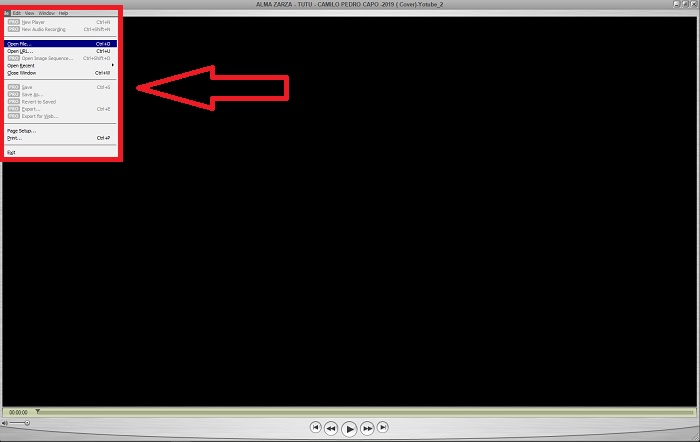
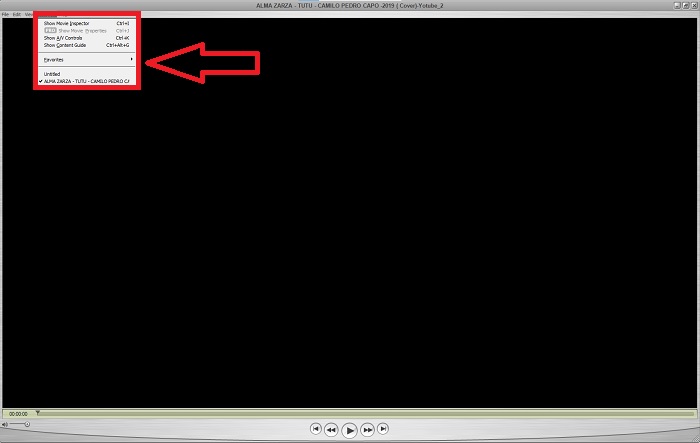
Langkah 2. Saat video sedang diputar, jeda terlebih dahulu lalu pilih Windows dari sudut atas antarmuka tempat Anda dapat melihat semua tab menu, kemudian lanjutkan dengan menekan Show A/V Controls atau cukup tekan CTRL + K di Windows atau CMD + K di Mac untuk memunculkan A/V Controls.
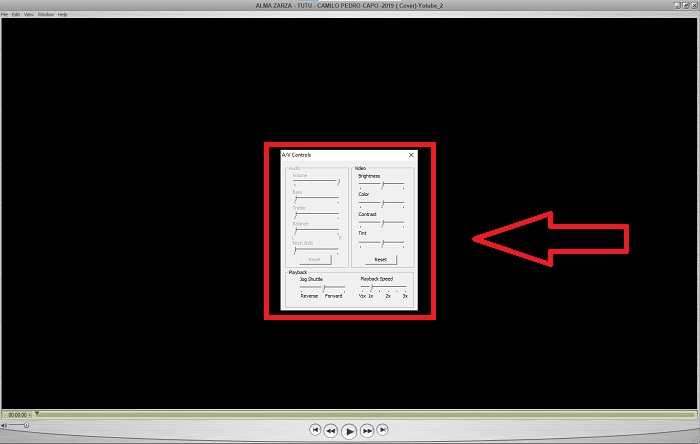
Langkah 3. Setelah itu, jendela atau antarmuka baru akan muncul. Dari antarmuka tersebut, Anda sekarang dapat menyesuaikan kecepatan pemutaran video dengan menyeret Slider. Tutup A/V Controls setelah Anda puas dengan kecepatan pemutaran yang baru dan yakin bahwa video sudah berjalan dalam gerak lambat.
Bagian 2. Cara Efektif Lain untuk Memutar Video dalam Gerakan Lambat
Metode 1. Gunakan Video Converter Ultimate
Kebanyakan pemutar media hanya memiliki dukungan format yang terbatas untuk mengonversi video; karena itu kami menyarankan menggunakan Video Converter Ultimate. Perangkat lunak ini dapat menyelesaikan masalah Anda dalam mengedit video dengan berbagai alat yang disediakannya. Ini juga merupakan alternatif terbaik untuk pemutar media QuickTime untuk mengubah video berkecepatan normal menjadi gerak lambat. Dengan menggunakan Video Speed Controller, alat yang mudah digunakan untuk menyesuaikan kecepatan pemutaran, Anda dapat menghasilkan video berkualitas tinggi meskipun mengubah kecepatan video. Sekarang Anda sudah mengetahui tentang perangkat lunaknya, langkah-langkah berikut akan membantu Anda mempelajari cara menggunakannya.
Langkah 1. Unduh Video Converter Ultimate dengan mengklik Free Download. Setelah selesai mengunduh, instal di desktop Anda dan tekan Finish jika sudah selesai.
Unduh GratisUntuk Windows 7 atau yang lebih baruUnduhan Aman
Unduh GratisUntuk MacOS 10.7 atau yang lebih baruUnduhan Aman
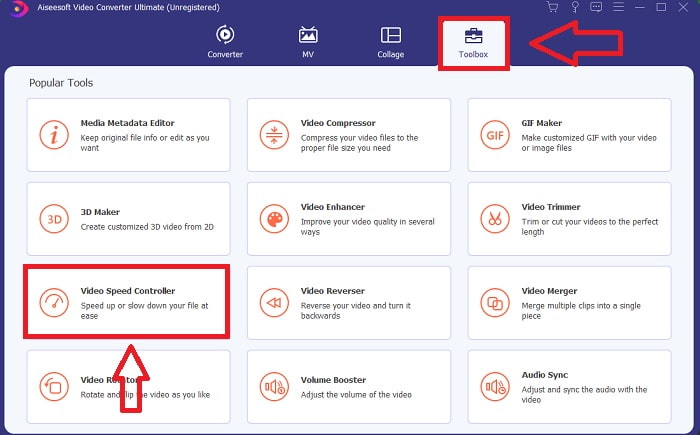
Langkah 2. Setelah Anda menginstal perangkat lunak di desktop, lanjutkan dengan menjalankannya. Setelah Anda membuka perangkat lunak, antarmukanya akan muncul. Klik tab Toolbox lalu lanjutkan dengan mengklik Video Speed Controller.
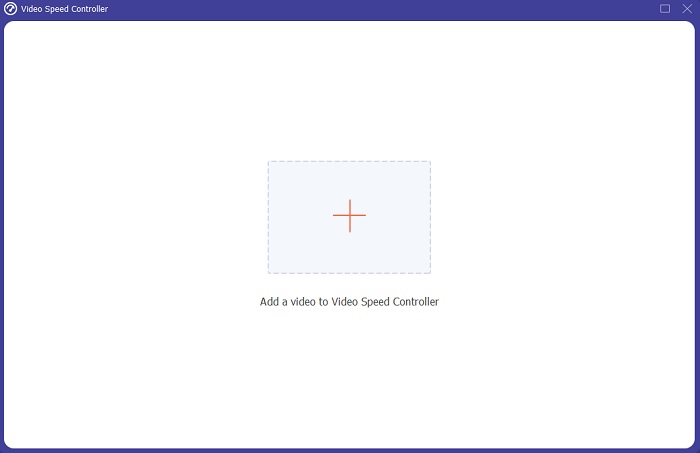
Langkah 3. Untuk mengedit kecepatan pemutaran klip video Anda, cukup seret atau klik tombol + untuk mengimpor file dari komputer Anda.
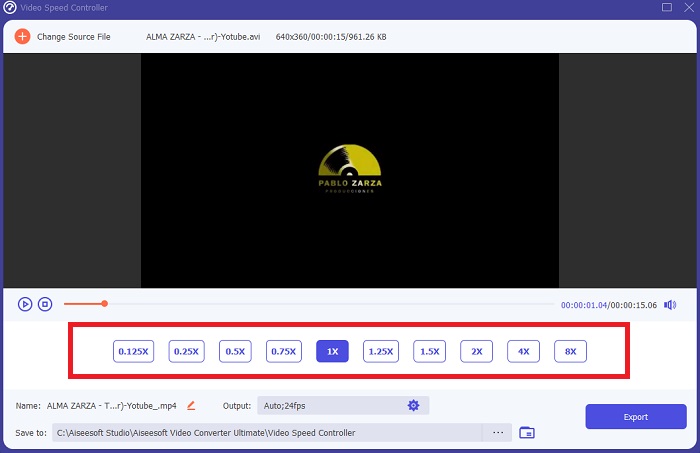
Langkah 4. Mulailah mengedit kecepatan pemutaran klip video Anda atau buat video gerak lambat dari video berkecepatan normal dengan memilih jenis kecepatan yang akan Anda terapkan.
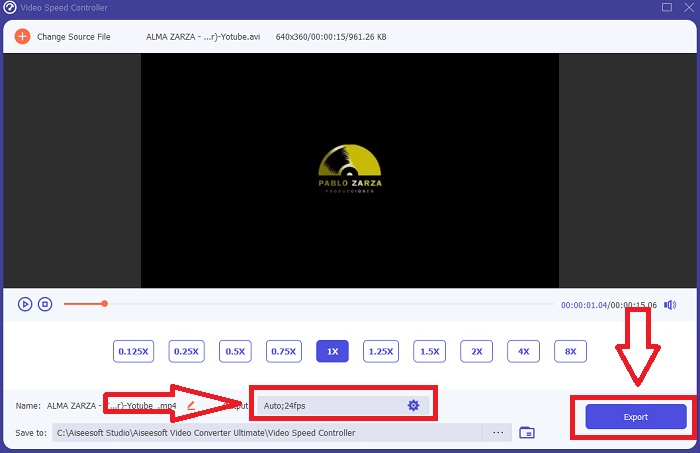
Langkah 5. Setelah itu, Anda dapat menyesuaikan kualitas keluaran video dengan mengubah resolusi, frame rate, format, dan sebagainya. Terakhir, jika semuanya sudah sesuai, klik Export untuk memindahkan file yang telah dikonversi ke desktop Anda.
Metode 2. Gunakan Ezgif
Ezgif.com adalah seperangkat alat gratis dan mudah digunakan untuk membuat dan mengedit GIF animasi. Namun, alat daring ini juga mendukung pengeditan dan konversi untuk banyak format gambar lain, termasuk WebP animasi, PNG, MNG, dan FLIF, serta beberapa pengeditan video dasar. Alat daring populer yang tersedia antara lain GIF maker, pengonversi video ke GIF, dan pengatur kecepatan video. Video Speed adalah salah satu alat terbaiknya karena dapat dengan mudah menyesuaikan kecepatan pemutaran video. Berbeda dengan alat daring lainnya, dengan menggunakan Ezgif, Anda dapat menyesuaikan kecepatan video hingga mendapatkan kecepatan yang diinginkan. Ini juga menjadi keunggulan alat daring tersebut dibanding sebagian alat daring lain di internet karena mendukung berbagai format. Untuk mengetahui lebih lanjut tentang detail aplikasinya, berikut langkah-langkah yang harus diikuti:
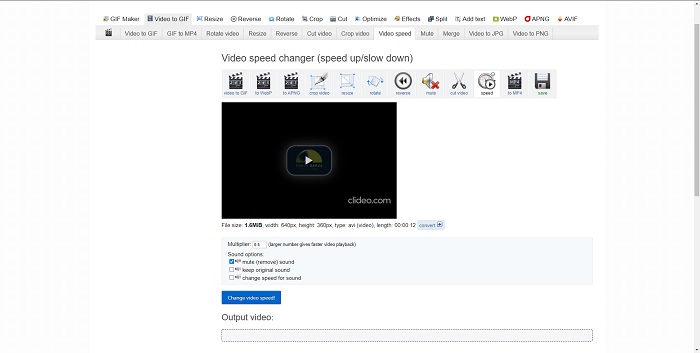
Langkah 1. Buka peramban pencarian Anda dan cari ezgif. Lalu, untuk memulai, pilih tab menu di sudut atas antarmuka dan pilih Video Speed. Setelah itu, untuk mengimpor file, Anda dapat memilih file video dari komputer atau menempelkan tautan video dari media sosial atau situs web lain yang kecepatannya ingin Anda atur. Lanjutkan dengan mengklik Upload Video untuk memulai tahap pengeditan.
Langkah 2. Sekarang Anda dapat menyesuaikan kecepatan dengan memasukkan nilai kecepatan yang akan diterapkan pada video. Semakin besar angka yang Anda masukkan, semakin cepat video tersebut. Lalu, Anda akan diberi pilihan untuk membisukan atau menghapus video, mempertahankan suara asli dan mengubah kecepatannya.
Langkah 3. Untuk mengunggah video, klik Change video speed!
Bagian 3. FAQ tentang Slow Motion di QuickTime
Apa itu QuickTime Media Player?
QuickTime adalah kerangka kerja multimedia yang dapat diperluas dari Apple Inc. yang dapat menangani video, gambar, suara, dan gambar panorama. MacOS dilengkapi dengan QuickTime yang sudah diinstal sebelumnya. Sebelum iTunes 10.5, QuickTime disertakan dalam iTunes Apple sebagai unduhan gratis. Namun, QuickTime untuk Windows tidak lagi didukung, dan akibatnya lubang keamanan tidak akan diperbaiki lagi.
Bagaimana cara memperlambat video QuickTime di Mac?
QuickTime Player mendukung rendering video gerakan lambat. Tekan dan tahan tombol putar/jeda selama sekitar 5 detik untuk membuka menu untuk mengubah laju sampel. Dengan demikian, kecepatan pemutaran video dapat diperlambat tanpa mempengaruhi kualitas video.
Bagaimana cara mematikan gerakan lambat di QuickTime?
Selama pemutaran, Anda dapat membatalkan efek gerakan lambat dengan menyeret penanda titik keluar ke awal file video. Untuk memindahkan penanda titik ke akhir file, pilih dan seret ke sana. Ini menyimpan pengaturan pemutar Anda yang dimodifikasi dalam file sespan video AAE untuk digunakan nanti.
Kesimpulan
Sebagai rangkuman, QuickTime adalah salah satu pemutar media yang andal untuk mengubah video berkecepatan normal menjadi gerak lambat. QuickTime menawarkan banyak alat sebagaimana Video Converter Ultimate. Namun, perangkat lunak ini lebih direkomendasikan karena dapat mendukung ukuran file dan format video yang lebih besar daripada pemutar media QuickTime. Selain itu, dalam hal alat untuk membuat gerak lambat, keduanya memiliki alat yang sama untuk mewujudkannya, tetapi Video Converter Ultimate jauh lebih mudah digunakan dan dapat menghasilkan keluaran video dengan kualitas tinggi.
-
 Pendekatan Terbukti untuk Membuat Video Slow Motion di Sony Vegas
 Sony Vegas Pro 10 adalah salah satu editor video populer yang dapat menghasilkan video luar biasa seperti video gerakan lambat, tetapi mungkin tampak rumit bagi pengguna pemula. Baca artikel ini untuk mengetahui informasi lebih lanjut.
-
 Bukti Kuat untuk Melakukan Video Gerakan Lambat Menggunakan After Effects
 Pikiran atau perasaan apa pun dapat dihasilkan atau ditingkatkan dengan menonton sesuatu dalam gerakan lambat. Baca artikel ini untuk mengetahui cara membuat gerakan lambat di After Effects.
-
 Pendekatan Terbukti untuk Membuat Video Slow-Motion di Adobe Premiere
 Salah satu software terbaik dari Adobe adalah Premiere; itu berfungsi lebih untuk meningkatkan video ke tingkat berikutnya, seperti membuat video gerakan lambat. Baca artikel ini untuk mengetahui lebih lanjut tentang Adobe Premiere dan fitur-fiturnya yang bermanfaat.
