


 Video Converter Ultimate
 Screen Recorder
 Riparazione video
 Download sicuro
Guida su come velocizzare facilmente un video su Instagram
Con Instagram possiamo caricare o pubblicare un video facilmente e senza particolari limitazioni, per tutto il tempo che vogliamo. Anche se puoi condividere i tuoi momenti su Instagram, l’app richiede che tu rispetti una durata standard per i video oppure che li tagli. Se però vuoi condividere il video nella sua versione integrale senza tagliarlo, ti consigliamo di velocizzarlo. Modificando la riproduzione normale in una riproduzione accelerata, potrai condividere l’intero video senza doverlo tagliare, perché la sua durata diventerà più breve di prima. Qui ti spiegheremo come accelerare un video su Instagram come un professionista. Tieni il passo leggendo questo articolo per scoprire come ridurre la durata del tuo video.

Parte 1. Come velocizzare un video su Instagram usando Reel
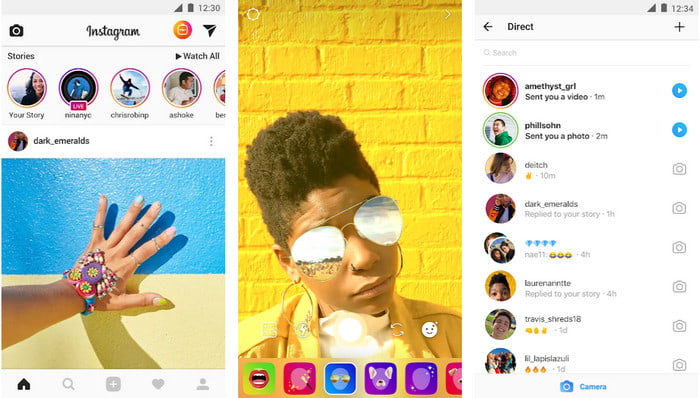
La funzione Reel può velocizzare i video per Instagram gratuitamente. Questa funzione è disponibile su dispositivi iOS e Android per acquisire un video in movimento ad alta velocità fino a 3x. Sebbene possa girare un video accelerato, ha anche altre funzionalità come l'aggiunta di musica, l'impostazione della durata del video, il timer, ecc. Per sapere come utilizzare questa funzione, devi seguire i passaggi che aggiungiamo di seguito per accelerare il video che voglio girare su Instagram come un professionista.
Passaggio 1. Dopo aver scaricato Instagram sul tuo dispositivo, aprilo.
Passaggio 2. Scorri verso sinistra e cerca la voce REEL.
Passaggio 3. Ora puoi toccare l’opzione velocità in quest’area e impostarla alla velocità che desideri. Così semplice: puoi subito registrare in modalità ad alta velocità.
Parte 2. I 3 migliori software per velocizzare i video per Instagram online e offline
FVC Video Converter Ultimate
FVC Video Converter Ultimate è il software desktop più fenomenale che puoi usare per velocizzare all’istante i video per Instagram. Offre agli utenti molte funzioni straordinarie per migliorare ulteriormente il video quando viene convertito in movimento accelerato. In pochi clic puoi facilmente cambiare la velocità di un video normale senza preoccuparti della qualità e della fluidità del filmato. Sorprendente, vero? Questo strumento ti permette anche di rallentare il video in modo rapido; in entrambi i casi, il programma offre prestazioni eccellenti.
Voglio di più? Questo software supporta oltre 1000 formati video, quindi non devi preoccuparti se pensi che il formato video non sia supportato perché è qui. Inoltre, ci sono funzionalità di modifica aggiuntive che potresti voler utilizzare, soprattutto se vuoi impressionare le persone che lo vedranno. Seguendo i passaggi indicati in meno di un minuto, puoi modificare con successo la velocità del video.
Passaggio 1. Scarica e installa l’ultimate converter sul tuo disco, scegliendo il sistema operativo che stai utilizzando. Dopodiché aprilo e prenditi un momento per familiarizzare con l’interfaccia del programma. In questo modo potrai seguire facilmente i passaggi successivi.
Download gratuitoPer Windows 7 o versioni successiveDownload sicuro
Download gratuitoPer MacOS 10.7 o versioni successiveDownload sicuro
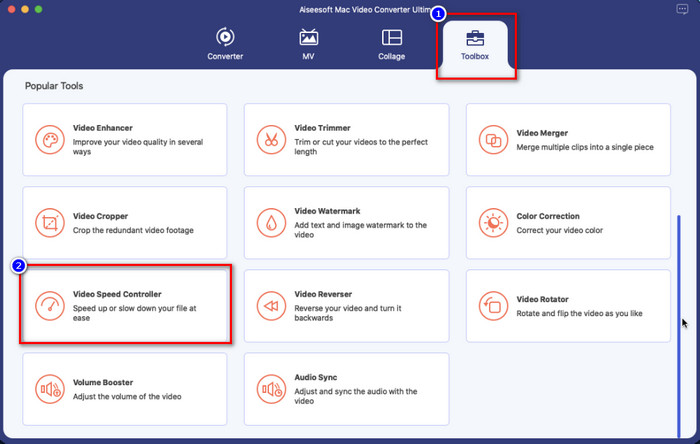
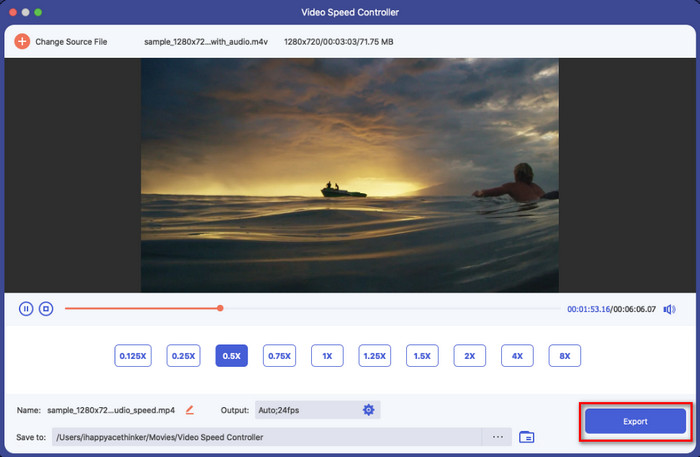
Passaggio 2. Clicca sulla sezione Toolbox per aprirla: qui troverai un elenco di funzioni e strumenti che puoi usare; fai clic su Video Speed Controller per modificare la velocità del video che desideri.
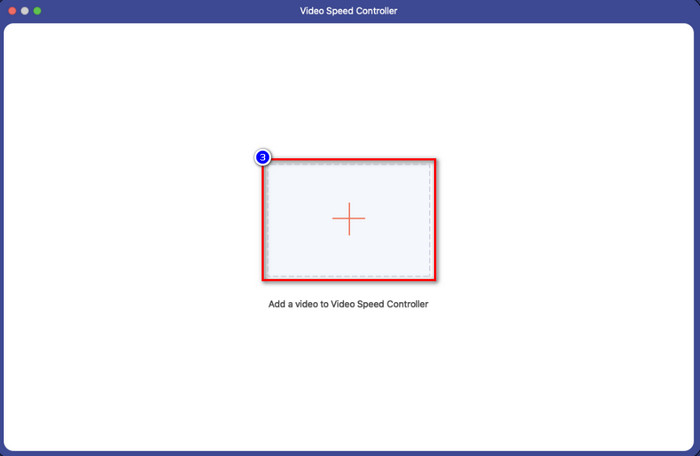
Passaggio 3. Clicca l’icona + e si aprirà la cartella del tuo computer. Trova il video che vuoi velocizzare e fai clic su Apri per importarlo.
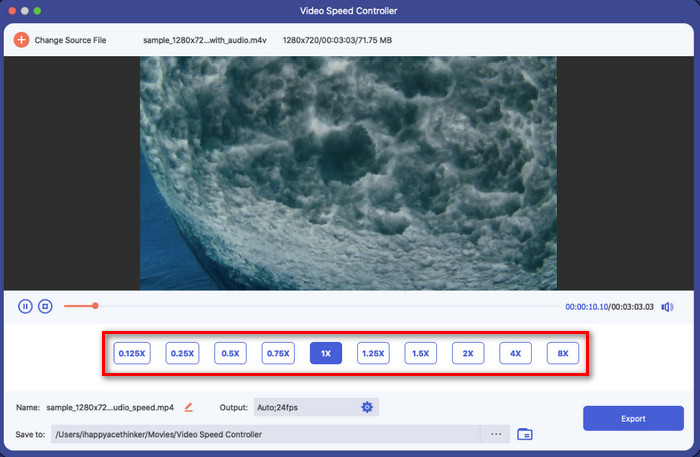
Passaggio 4. Una volta caricato il video, scegli la velocità che vuoi applicare tra le opzioni disponibili in questa sezione. Cliccale singolarmente e controlla l’anteprima per verificare se è la velocità che vuoi ottenere per il video che intendi pubblicare su Instagram.
Passaggio 5. Infine, per salvare il video a cui hai cambiato la velocità, fai clic su Export: la conversione del movimento del video inizierà subito. Al termine della conversione, sullo schermo si aprirà una cartella: il video contenuto al suo interno è quello di cui hai modificato la velocità.
iMovie
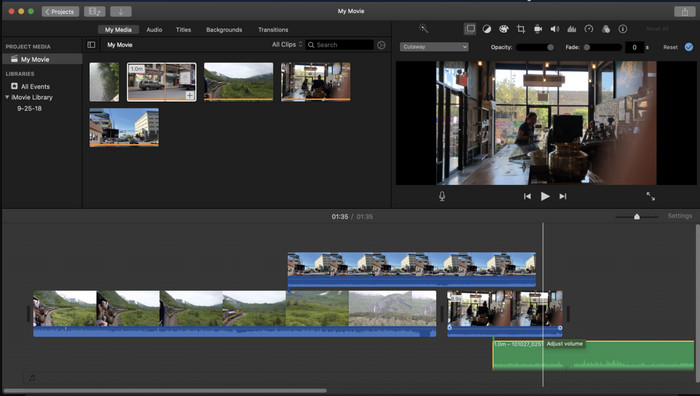
Per i dispositivi Mac non è necessario scaricare nulla, soprattutto se hai già iMovie. Questo editor video integrato può aiutarti a cambiare la velocità del video che vuoi caricare o condividere su Instagram. Quindi, se vuoi velocizzare un video e utilizzi un Mac, ti consigliamo di provare questo editor video, perché è gratuito. Sebbene il software sia gratuito, alcuni utenti lo trovano un po’ rigido da usare, perché richiede una certa esperienza nella gestione di questo tipo di editor. Se dunque stai cercando come velocizzare un video su Instagram prima di pubblicarlo, segui i passaggi qui sotto.
Passaggio 1. Apri iMovie sul tuo Mac, quindi aggiungi il video che desideri nella Timeline.
Passaggio 2. Clicca sulla clip che hai caricato e comparirà un’icona a forma di tachimetro.
Passaggio 3. Scegli nel menu della velocità il valore che vuoi applicare al video. Infine esporta il file per salvare sul Mac il video che hai velocizzato.
Clideo
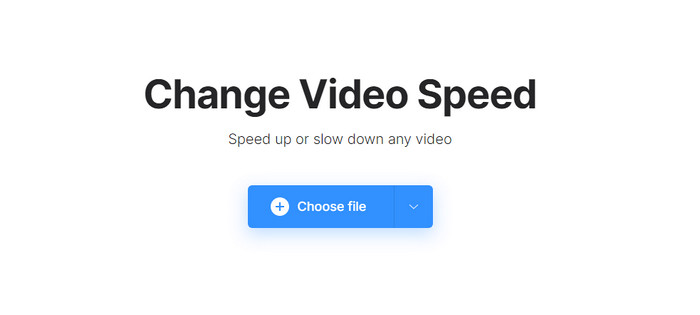
Uno dei migliori editor video a cui puoi accedere è Clideo. Questo strumento web è una soluzione completa se non vuoi installare un editor video sul computer per risparmiare spazio. Anche se non è necessario scaricare nulla, avrai comunque bisogno di una connessione Internet stabile per usare questo strumento online e velocizzare il video che ti interessa. Se provi a usarlo per cambiare la velocità di un video, potrai aspettarti di portare a termine il lavoro in pochi minuti. Questo strumento online è sicuramente ottimo per velocizzare i video online, ma non è potente quanto gli altri due editor. Per sapere come usare lo strumento per accelerare un video da pubblicare su Instagram, leggi e segui i passaggi.
Passaggio 1. Apri il browser web, cerca Clideo e apri il suo strumento per la regolazione della velocità. Clicca su Choose File per aggiungere il video che vuoi velocizzare.
Passaggio 2. In questa sezione puoi trascinare il cursore verso sinistra per accelerare il video oppure scegliere un valore di velocità tra le opzioni disponibili. In ogni caso, entrambe le modalità svolgono la stessa funzione.
Passaggio 3. Dopo aver scelto la velocità desiderata, fai clic su Export.
Parte 3. Domande frequenti su come velocizzare i video per Instagram
Qual è la durata standard del video su Instagram?
Puoi caricare un video a partire da 3 secondi a 10 minuti. Non è molto, ma è comunque buono. Se il video che vuoi girare è lungo, prova a velocizzarlo un po' per risparmiare tempo sulla durata del video per pubblicare l'intero video su Instagram in meno di 10 minuti.
Quanto può accelerare Hyperlapse il mio video su Instagram?
Puoi utilizzare Hyperlapse per girare un video in fast motion su Instagram a partire da 1 fino a 12x di velocità. Oltre al controllo della velocità, supporta anche la stabilizzazione per rendere il tuo video più stabile e ridurre le vibrazioni del video che stai catturando.
Posso esportare il video che velocizzo su Instagram?
Sì, puoi salvare il video che acceleri su Instagram sul tuo telefono; dopo aver girato, puoi toccare il salvataggio dal dispositivo per salvare il video sulla versione accelerata che scegli. Individua il video che acceleri su Foto, la tua libreria per tutte le immagini, le immagini live e i file video.
Conclusione
Questo articolo fornisce una solida spiegazione e i passaggi per gestire i video accelerati per Instagram. Poiché abbiamo risolto il tuo problema con la modifica della velocità su Instagram, ora puoi gestirlo in modo indipendente. Segui i passaggi che aggiungiamo sopra per aumentare la velocità o convertire il video a velocità normale in una velocità utilizzando lo strumento definitivo. Quale modo sceglieresti? Qualunque sia la tua decisione, otterrai la velocità che desideri prima di pubblicarla o condividerla sul tuo Instagram.
-
 Come velocizzare un video con i 5 migliori software [Windows/Mac/Linux]
 Vuoi sapere come velocizzare facilmente i video? Quindi leggi questo articolo mentre spieghiamo come accelerare efficacemente su Windows, Mac e Linux.
-
 I modi più semplici su come velocizzare un video sui tuoi dispositivi Android [2021]
 Sapevi che puoi velocizzare un video sul tuo Android? Quindi, se vuoi sapere come velocizzare un video sul tuo telefono Android, leggi questo articolo.
-
 Come velocizzare i video in Premiere Pro e con le sue alternative
 Vuoi sapere come utilizzare Premiere Pro per velocizzare un video? Allora sei nell'articolo giusto in quanto forniamo passaggi e altre alternative convenienti.
