


 Video Converter Ultimate
 Screen Recorder
 Riparazione video
 Download sicuro
6 Il modo più efficace per ridimensionare un'immagine sul Web e sul desktop
Con miliardi di fotografie prestigiose che possiamo scaricare, la maggior parte di noi scatta bellissime immagini, ma ci sono casi in cui le loro dimensioni non sono quelle che preferiamo di più. Gli utenti hanno provato a ridimensionare l'immagine che avevano regolando l'altezza, la larghezza e le proporzioni dell'immagine utilizzando l'editor, che ha modificato il PPI dell'immagine. Il risultato non è quello che tutti si aspettavano; le immagini ad alta definizione diventano pixelate.
Perché? Perché l’editor che è stato usato per ridimensionare non è in grado di creare o riempire i pixel mancanti nella versione ridimensionata. Di conseguenza, le domande su questo argomento sono diventate popolari, e siamo qui per aiutarti a risolvere il problema. In questo articolo del blog ti faremo fare pratica concreta su come ridimensionare un’immagine senza lasciare distorsioni nel risultato finale.

Parte 1. I migliori ridimensionatori di foto a cui puoi accedere sul Web per ridimensionare l'immagine online [3 strumenti gratuiti]
Questi strumenti online che aggiungiamo qui sono disponibili su diversi browser web che hai sul tuo dispositivo. Inoltre, questi sono gratuiti, ma c'è uno strumento che dovrai acquistare per utilizzare senza limitazioni. Tuttavia, questi sono strumenti online efficaci a cui puoi accedere per iniziare a ridimensionare l'immagine che hai. Leggi i passaggi per sapere come usarli.
1. Upscaler di immagini gratuito FVC - Miglior ridimensionatore di immagini sul Web [Opzione favorevole]
FVC Free Image Upscaler Online è uno strumento web basato sull’intelligenza artificiale che può ridimensionare rapidamente le immagini senza perdita di qualità. Infatti, lo strumento ridimensiona automaticamente ogni file immagine che carichi qui. Nonostante sia uno strumento online, le sue prestazioni nel ridimensionamento sono rapide ed efficaci. Ogni immagine che carichi viene eliminata automaticamente dal server una volta che l’hai ridimensionata. Inoltre, offre il resizer più pulito e versatile di cui potresti aver bisogno; anche se utilizzi dispositivi diversi, puoi accedere a questo strumento web purché tu abbia una connessione a Internet. Vuoi vedere come si comporta questo software in questo compito? Se sì, leggi i passaggi qui sotto e seguili per cambiare rapidamente ed efficacemente la dimensione dell’immagine.
Come ridimensionare un’immagine con FVC Free Image Upscaler:
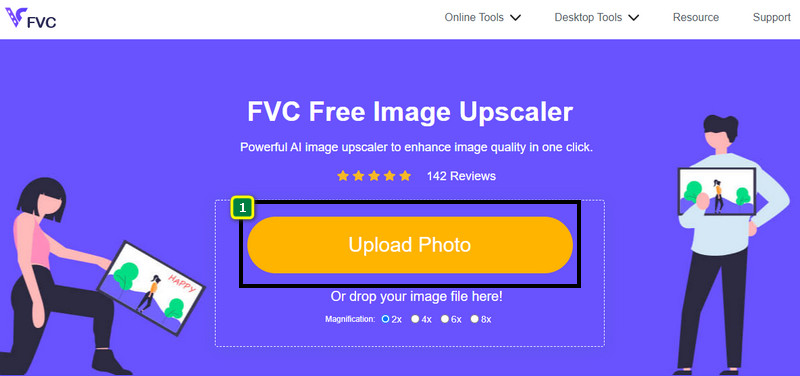
Passaggio 1. Per accedere allo strumento web, puoi fare clic su questo link, che ti porterà automaticamente al sito ufficiale del resizer.
Passaggio 2. Clicca su Add Image in modo che venga visualizzata una cartella sullo schermo, seleziona il file immagine che vuoi caricare e premi Open.
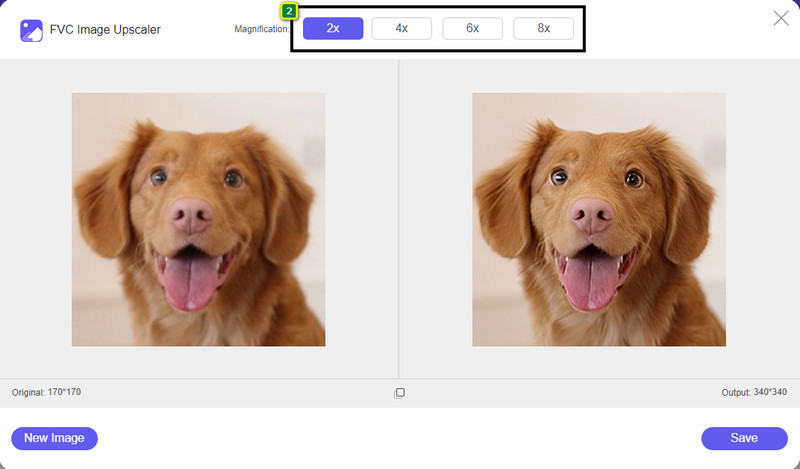
Passaggio 3. Per cambiare la dimensione dell’immagine, devi selezionare il tipo di ingrandimento da applicare. Vedrai che le dimensioni complessive dell’immagine cambiano quando provi a cliccare 2x, 4x, 6x e 8x.
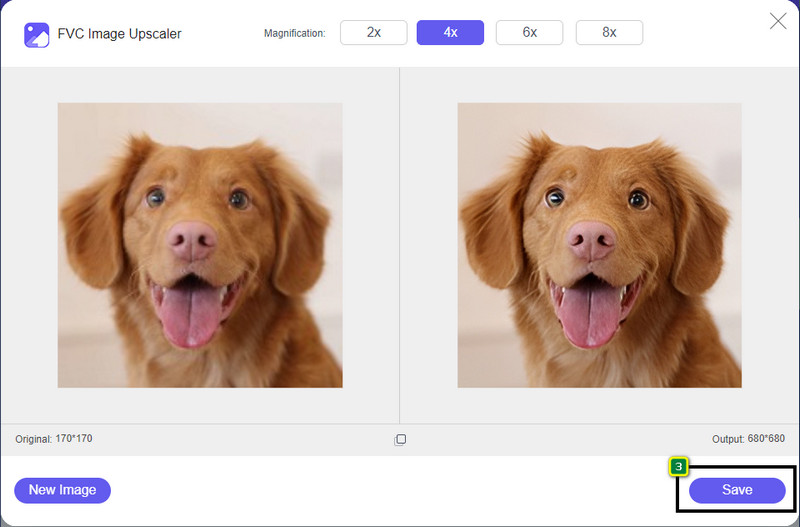
Passaggio 4. Dopo aver selezionato l’ingrandimento che vuoi applicare, voilà, puoi ora premere Save per scaricare la versione ridimensionata sul disco del tuo computer.
2. Sii funky - Editor di foto [gratuito e a pagamento]
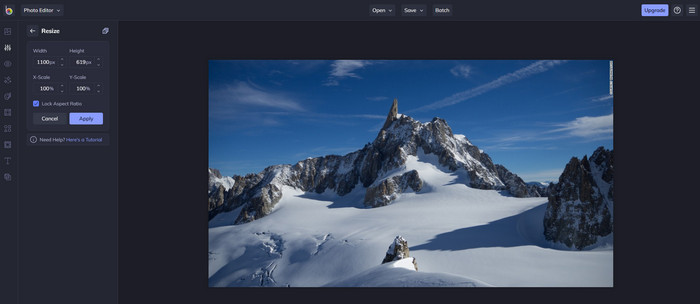
Be Funky - Photo Editor è una piattaforma creativa che puoi usare per realizzare cose straordinarie con le tue immagini. Può ridimensionare i BMP senza perdere qualità. Questo strumento è considerato uno dei migliori editor di immagini accessibili online. Sebbene abbia un’interfaccia grafica simile a Photoshop, le funzioni che offre sono semplici e facili da capire, quindi possiamo dire che è anche intuitivo. Se vuoi provare a usare questo strumento online per ridimensionare facilmente la tua immagine, segui i passaggi che includiamo qui.
Come ridimensionare un’immagine con Be Funky:
Passaggio 1. Cerca il suo nome nel browser, quindi clicca su Get Started and Edit Photo.
Passaggio 2. Premi Open per caricare il BMP o qualsiasi immagine che vuoi ridimensionare qui.
Passaggio 3. Vai su Edit e premi l’opzione Resize.
Passaggio 4. Qui puoi liberamente cambiare la larghezza e l’altezza o la scala x e y dell’immagine. Poi premi Apply per vedere come appare la versione ridimensionata.
3. Simple Image Resizer [gratuito]
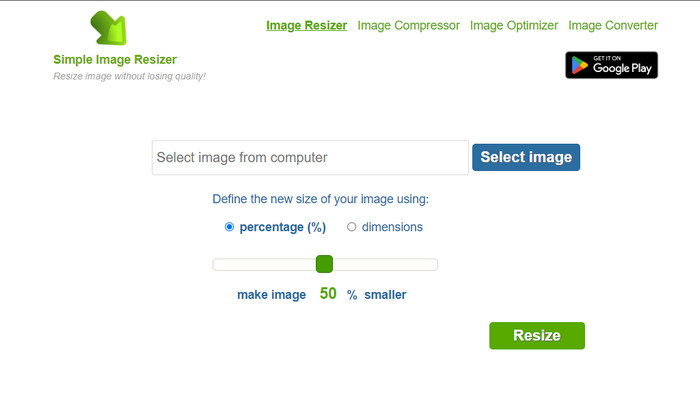
Simple Image Resizer ti permette di ridimensionare un’immagine definendo la nuova dimensione tramite la modifica della percentuale o della misura. È l’ultimo resizer che abbiamo aggiunto a questo articolo. La sua interfaccia semplice e la facilità d’uso sono stati i fattori principali per cui lo abbiamo incluso. Oltre alla funzione di ridimensionamento, puoi ottimizzare, comprimere e convertire gratuitamente la tua immagine, anche se il sito presenta fastidiosi annunci. Se vuoi provare a usare questo resizer online, segui i passaggi qui sotto.
Come ridimensionare un’immagine con Simple Image Resizer:
Passaggio 1. Usando il browser, cerca il suo nome per iniziare a utilizzare questo resizer online.
Passaggio 2. Premi Select Image per aggiungere la foto che vuoi ridimensionare.
Passaggio 3. Scegli se usare la percentuale o una misura fissa per il ridimensionamento e modificala in base alle tue preferenze. In entrambi i casi, l’effetto è lo stesso.
Passaggio 4. Clicca su Resize per salvare il risultato finale sul tuo computer.
Parte 2. Come ridimensionare un'immagine su Windows e Mac [Offline a pagamento e gratuito]
A differenza del primo strumento online menzionato in 3, i prossimi strumenti che abbiamo introdotto non dipendono da Internet, il che significa che anche se non hai Internet, puoi usarli senza problemi. Perché sono scaricabili o già preinstallati sul desktop. Scopri come usarli oggi leggendo le informazioni che aggiungiamo a ciascuno di essi.
1. Adobe Photoshop [Windows e Mac]
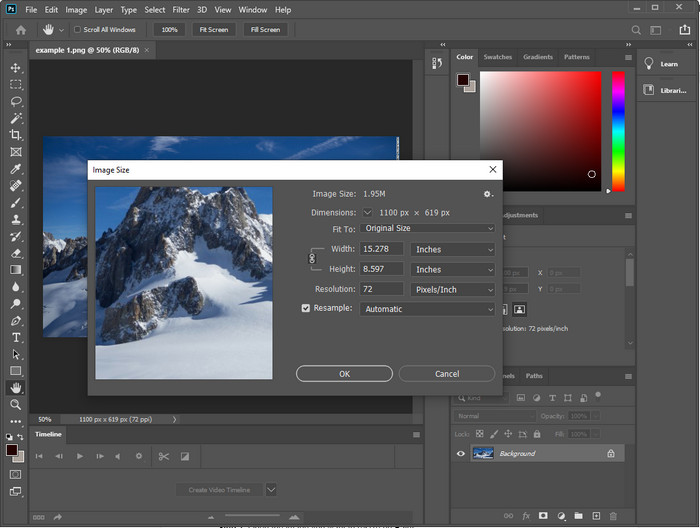
Il nostro primo resizer di immagini offline che puoi scaricare sul tuo dispositivo è Adobe Photoshop. Perché? Perché quando ridimensioni crea nuovi dati di pixel e evita di ottenere un risultato finale di bassa qualità. Inoltre, questo software è noto per essere un editor di immagini professionale in grado di elaborare facilmente immagini raster e vettoriali. Sebbene il software sia uno strumento professionale, può risultare un po’ costoso se intendi usarlo solo per il ridimensionamento. Ma se ti interessa sapere come ridimensionare un’immagine in Photoshop, continua a leggere.
Come ridimensionare un’immagine con Adobe Photoshop:
Passaggio 1. Scarica e installa il software sul tuo computer visitando il sito ufficiale.
Passaggio 2. Clicca su File, quindi individua l’immagine nella cartella dopo aver cliccato su Open.
Passaggio 3. Premi il menu Image in alto, quindi seleziona Image Size.
Passaggio 4. Modifica le misure di larghezza e altezza secondo le tue preferenze, quindi clicca su OK per applicare le modifiche.
Passaggio 5. Torna su File e salva l’immagine sul tuo computer.
2. Dipingi [App predefinita su Windows]
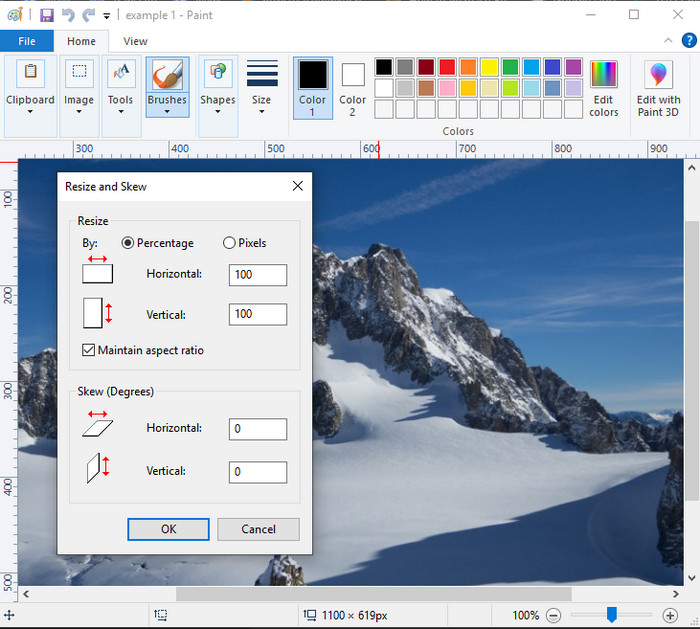
Paint è noto per essere un’applicazione che ti permette di disegnare su una tela bianca. Molti utenti Windows lo usano normalmente per creare contenuti su una pagina vuota, aggiungere dettagli alle immagini e ridimensionarle. Anche se non è un editor dedicato, può comunque ridimensionare qualsiasi immagine raster presente nel tuo disco locale. Il vantaggio di usarlo è che non devi scaricare il software su Windows, perché è preinstallato. Se vuoi sapere come ridimensionare immagini a bassa risoluzione con questa app, leggi il tutorial che riportiamo di seguito.
Come ridimensionare un’immagine con Paint:
Passaggio 1. Apri in Paint l’immagine che vuoi ridimensionare.
Passaggio 2. Dopo aver aperto l’immagine, fai clic sull’icona con due quadrati per iniziare a ridimensionare l’immagine aperta.
Passaggio 3. Per ridimensionare l’immagine, puoi modificare la dimensione in percentuale o in pixel. Dopo aver cambiato i valori, premi OK per applicare le modifiche.
Passaggio 4. Premi l’icona di salvataggio per esportare l’immagine che hai ridimensionato.
3. Anteprima [App predefinita su Mac]
Preview è un’app dedicata su cui puoi fare affidamento e che ti guida su come ridimensionare un’immagine su Mac. Se non vuoi scaricare un’applicazione sul tuo macOS, è meglio usare questa app. È una soluzione sottovalutata, ma è in grado di ridimensionare le foto sul tuo computer. Imparare a usarla può essere un grande vantaggio per sfruttare al massimo il potenziale di questo software. Se sei interessato a capire come funziona questo strumento, passa alle informazioni che riportiamo di seguito.
Come ridimensionare un’immagine con Preview:
Passaggio 1. Fai clic con il tasto destro sull’immagine sul tuo Mac, clicca su Open with e premi Preview.
Passaggio 2. Nella parte superiore, clicca su Tools, quindi seleziona Adjust Size.
Passaggio 3. Cambia le dimensioni dell’immagine in base alle tue esigenze, quindi premi OK per salvare le modifiche apportate.
Parte 3. Aggiuntivo: il miglior ridimensionatore di immagini che puoi scaricare su Android e iPhone
1. Ridimensionatore di foto e immagini [Android]
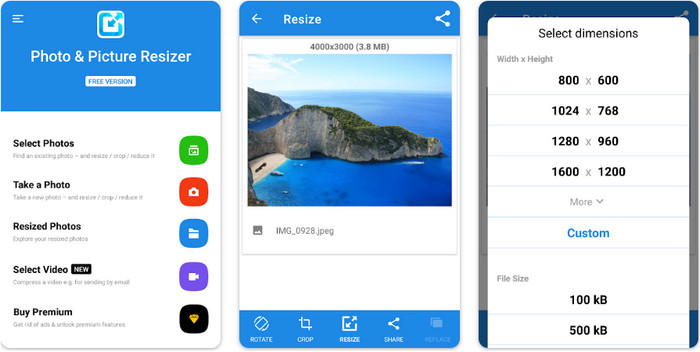
Photo & Picture Resizer è uno dei modi più veloci e semplici per ridimensionare le immagini presenti sul tuo dispositivo Android. Anche gli utenti alle prime armi che vogliono ridimensionare possono scaricarlo e usarlo come resizer di immagini. L’app è gratuita, ma se vuoi usare le funzioni aggiuntive dovrai effettuare un acquisto. Nel complesso, le sue funzioni di ridimensionamento sono ottime e puoi padroneggiarle già al primo utilizzo.
2. Image Resizer gratuito [iPhone]
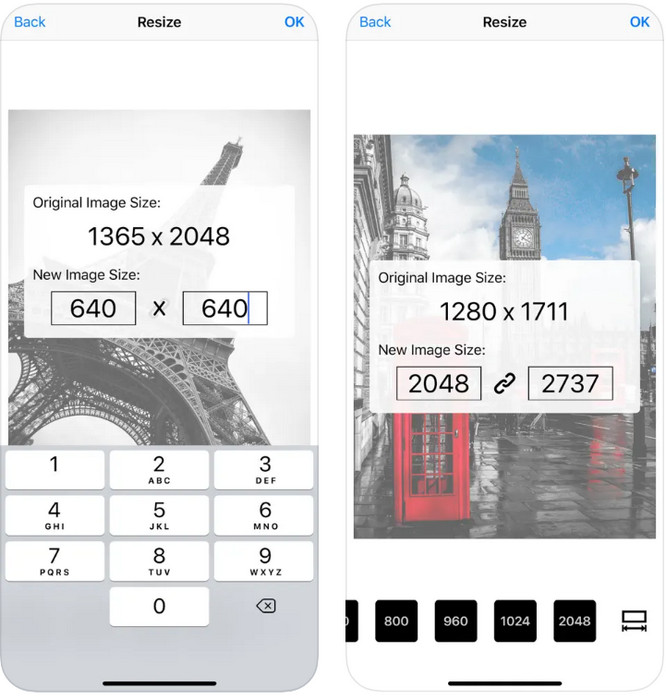
Image Resizer Free è un’applicazione per iOS che puoi scaricare su dispositivi con iOS 7.0 o versioni successive. Questa applicazione è un resizer di immagini mirato, usato da molti utenti iOS. Non offre funzioni aggiuntive oltre alla sua funzione principale, il ridimensionamento. Sebbene lo strumento sia intuitivo, molti utenti si lamentano del fatto che non può sovrascrivere l’immagine originale con la versione ridimensionata.
Parte 4. Domande frequenti su come ridimensionare l'immagine
Quale formato è meglio ridimensionare, raster o vettoriale?
I formati raster sono costituiti da minuscoli pixel per creare l'aspetto dell'immagine e, quando ne modifichi le dimensioni o le dimensioni, questi pixel si allungano, diventando visibili. A differenza del ridimensionamento dell'immagine vettoriale, è creato appositamente per ridimensionare e aumentare l'immagine senza creare confusione.
Posso ridimensionare BMP online?
Sì, puoi ridimensionare il BMP utilizzando la soluzione online che aggiungiamo qui. Tuttavia, quando ingrandisci l'immagine, BMP tende a diventare pixelato perché sono immagini raster. Quindi, se vuoi evitare il problema del ridimensionamento del file BMP, è meglio scegliere FVC Free Image Upscaler Online, perché non lascia pixel sull'output finale del BMP ridimensionato.
La dimensione del file aumenta dopo aver ridimensionato l'immagine?
Sì, lo fa. Principalmente perché l'immagine che hai ridimensionato aggiunge dati pixel aggiuntivi sull'output effettivo. Tuttavia, la dimensione del file non differisce molto dalla dimensione del file originale.
Conclusione
Quale tecnica di ridimensionamento dell’immagine pensi faccia più al caso tuo? Scegli tra i resizer che abbiamo presentato qui. Se hai problemi con la connessione a Internet, ti consigliamo vivamente di usare FVC Free Image Upscaler Online per le sue prestazioni nel ridimensionamento. Non ci sono difficoltà nel ridimensionare se utilizzi questo resizer sul web.
-
 Immagine 1440p: tutte le informazioni incluse di cui avrai bisogno [Aggiornato 2022]
 Vuoi conoscere le immagini a 1440p? O dove puoi trovarlo? Trasformare l'immagine a 1440p? Leggi questo per conoscerli tutti.
-
 Tutorial per rimuovere unpixel un'immagine utilizzando i 3 migliori unpixel per foto
 Hai problemi a gestire le immagini pixelate? Oggi abbiamo risolto il problema e puoi utilizzare gli strumenti che aggiungiamo qui.
-
 Come aumentare la nitidezza dell'immagine nella foto utilizzando 3 modi [Tutorial rapido]
 Problemi con l'immagine non nitida? Qui, introdurremo come rendere più nitide le immagini in Photoshop usando i tre modi che aggiungiamo.
