


 Video Converter Ultimate
 Screen Recorder
 Riparazione video
 Download sicuro
4 modi più semplici per modificare la velocità di riproduzione del video su desktop, Web e telefoni
La maggior parte degli utenti trova un modo efficace per guardare un video di un’ora in meno di un’ora. L’unica soluzione che può realmente risolvere questo problema è modificare la velocità di riproduzione del video che stai guardando. La maggior parte dei video editor disponibili sul mercato può aiutarti a portare a termine il compito, ma la domanda è: sono affidabili? Analizzandoli uno per uno, abbiamo scoperto che puoi cambiare la velocità del video su computer desktop, online, su dispositivi iOS e Android. Se vuoi sapere come fare, continua a leggere questo blog: includiamo strumenti e app che possono aiutarti.

Parte 1. Il modo migliore consigliato per modificare la velocità del video su Windows e Mac senza sforzo
Per cambiare facilmente la velocità del video, devi scegliere il miglior strumento che offra risultati eccellenti anche con pochi, semplici clic: ti presentiamo FVC Video Converter Ultimate. Questo strumento modifica in modo efficace la velocità del video che possiedi, in qualsiasi momento e ovunque. Inoltre, puoi cambiare la velocità del video anche se i formati sono MP4, MOV, AVI, FLV, TS, RMVB e oltre 1000 altri formati; caricare qui il tuo file è rapido e semplice. Che tu sia un utente Windows o Mac, scaricare il software su quel sistema operativo ti aiuterà a completare il cambio di velocità di riproduzione in pochi clic.
Oltre alla funzione di controllo della velocità video, lo strumento ha anche una cassetta degli attrezzi orgogliosamente multifunzionale che potrebbe aiutare altre attività. Come l'aggiunta di metadati, la creazione di una GIF, la rimozione di filigrane e molto altro. Sebbene lo strumento sia scaricabile, noterai durante l'utilizzo che non avrai bisogno di molta esperienza nella modifica, poiché è facile da usare. Ci sono funzioni e caratteristiche che non abbiamo ancora scritto che metteranno in evidenza questo prodotto. Ma se vuoi imparare a cambiare la velocità di un video, leggi i dettagli per sapere come fare.
Vantaggi dell'utilizzo del software definitivo come variatore di velocità video:
◆ Interfaccia intuitiva, così impareranno come usarla in pochi minuti.
◆ Carica oltre 1000 video per velocizzare la riproduzione.
◆ Facile da usare per aiutare gli utenti a sperimentarlo al meglio.
◆ Altre funzioni sono su Toolbox, come l'editing video di base e avanzato.
◆ È la prima scelta di quasi un milione di utenti che lo scaricano.
◆ Disponibile su Windows e Mac per scaricare lo strumento senza sforzo.
Passaggi su come modificare la velocità del video utilizzando il software definitivo:
Passaggio 1. Puoi ottenere questo software completo sia su Windows che su Mac facendo clic sul pulsante di download. Completa il processo di installazione dopo aver fatto clic sul file scaricato, quindi avvia il software per procedere.
Download gratuitoPer Windows 7 o versioni successiveDownload sicuro
Download gratuitoPer MacOS 10.7 o versioni successiveDownload sicuro
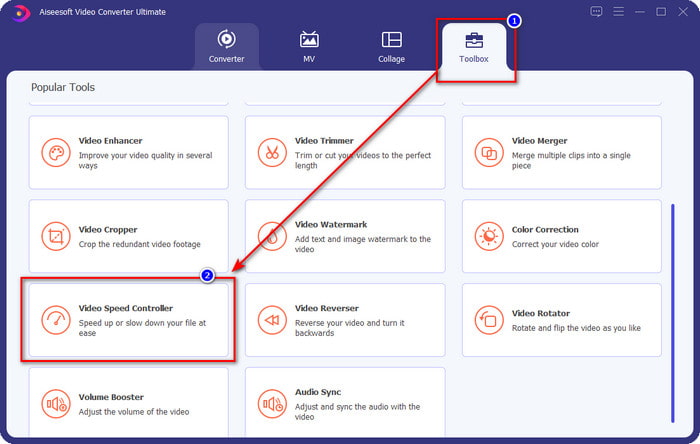
Passaggio 2. Una volta aperto il software, vai alla sezione Toolbox e, al suo interno, apri Video Speed Controller. Non preoccuparti: non dovrai scaricare risorse aggiuntive per usare questo strumento.
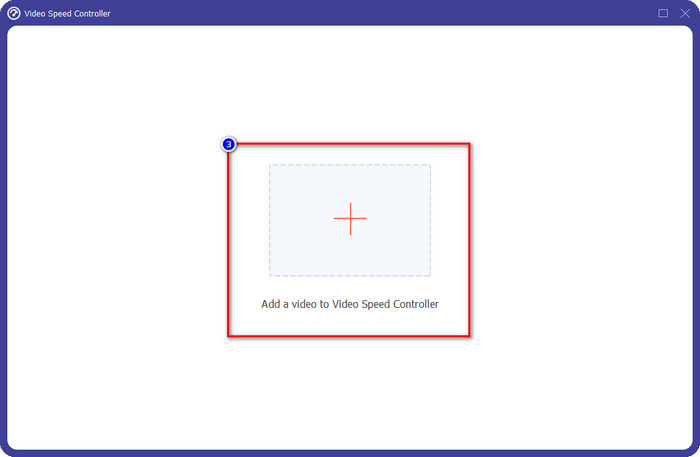
Passaggio 3. Premi l’icona +, aggiungi il file che hai nella cartella, selezionalo e fai clic su Open per caricare il video.
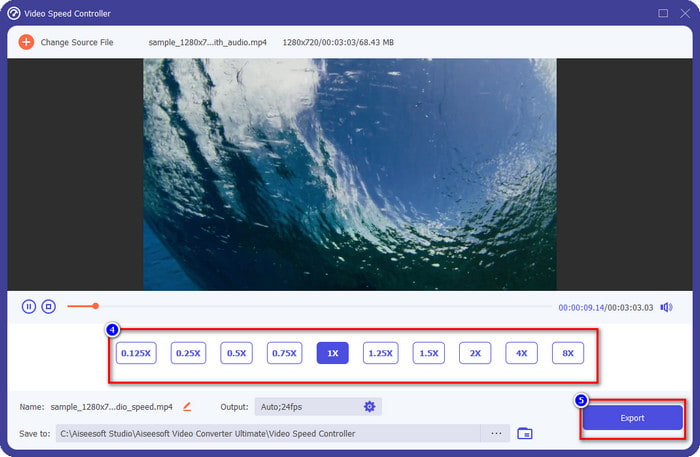
Passaggio 4. Scegli dall’elenco la velocità di riproduzione che vuoi ottenere: tutti abbiamo esigenze diverse di playback. Fai clic su Export per salvare il risultato finale del video di cui hai cambiato la velocità. In meno di un minuto avrai già modificato la velocità del video. Ora puoi goderti la visione in meno tempo.
Parte 2. Il miglior modo gratuito per modificare la velocità del video sul Web
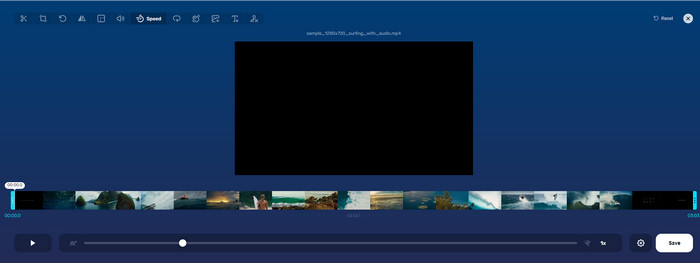
Con l’aiuto di Online Video Cutter, puoi cambiare la velocità del video online gratuitamente. A differenza del primo strumento, non devi scaricare risorse aggiuntive o un programma di installazione sul tuo computer per usare lo strumento web. Oltre alla funzione di modifica della velocità, puoi usare questo strumento anche per alcune semplici operazioni di montaggio. Anche se lo strumento è valido, non puoi caricare tutti i formati che possiedi, perché i formati supportati sono limitati. Per usarlo, segui i passaggi qui sotto.
Passaggio 1. Apri il browser che vuoi usare e cerca lo strumento web.
Passaggio 2. Apri lo strumento web, fai clic su Open File, trova il video che possiedi e caricalo.
Passaggio 3. Trascina i cursori a sinistra o a destra per cambiare la velocità; fai clic sul pulsante Save se sei soddisfatto della nuova velocità.
Parte 3. Miglior editor video su iOS per modificare la velocità video gratuitamente
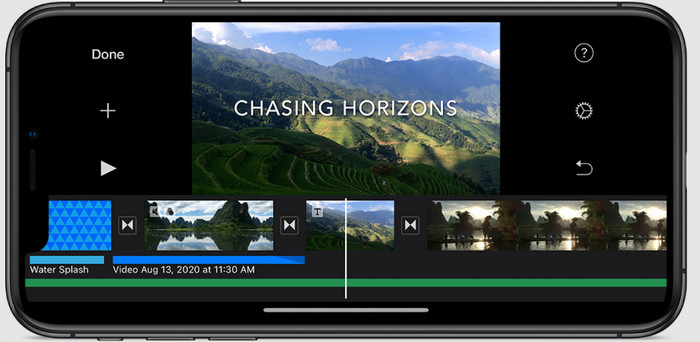
Per gli utenti iOS, puoi utilizzare iMovie per imparare a modificare gratuitamente la velocità video su iPhone. Anche se lo strumento è un editor video nativo su Mac, hai ancora la possibilità di scaricare l'app sul tuo dispositivo o meno. Questa scelta dimostra che gli utenti iOS possono mantenere o meno l'editor, per risparmiare spazio nella loro memoria. Ma se hai l'app sul tuo iPhone, puoi seguire i passaggi che aggiungiamo di seguito per sapere come funziona questo strumento.
Passaggio 1. Scarica quindi apri l’app sul tuo iPhone, vai su Project, fai clic sul segno +, quindi fai clic su Movie.
Passaggio 2. Tocca il video che vuoi velocizzare, poi in basso sullo schermo tocca Create Movie per caricarlo sulla timeline.
Passaggio 3. Dopo aver toccato il filmato che hai caricato, fai clic sull’icona del controllo velocità e regola la velocità del video trascinando i cursori sul tuo iPhone. Fai clic su Done per salvarlo, quindi esportalo se lo desideri.
Parte 4. Il modo migliore per modificare la riproduzione della velocità video su dispositivi Android utilizzando l'editor integrato

Il download di un'app non è il caso se sei un utente Android; cambia la velocità del video sul tuo telefono con l'editor video integrato. Con questo editor, puoi eseguire le modifiche di base necessarie al tuo video per renderlo migliore di prima. Puoi trovare questo editor nella Galleria o nell'Album sul tuo Android. Se vuoi sapere come usarlo, le seguenti informazioni ti aiuteranno.
Passaggio 1. Apri la tua Galleria o Album, quindi tocca il video di cui vuoi modificare la velocità.
Passaggio 2. Fai clic su Edit per procedere.
Passaggio 3. Tocca la sezione Playback Speed, quindi modifica la velocità in base alle tue esigenze.
Parte 5. Domande frequenti sulla modifica della velocità del video
Posso cambiare la velocità su YouTube?
Assolutamente si, puoi modificare la riproduzione del video su YouTube anche se non scarichi il software per farlo. Segui i passaggi per sapere come modificare la velocità del video su YouTube. Per prima cosa apri YouTube, trova il video che desideri guardare con un movimento modificato, fai clic sull'icona a forma di ingranaggio e sotto di essa, la velocità di riproduzione, scegli la velocità che desideri raggiungere e divertiti.
La modifica della velocità riduce la durata del video?
Dipende da come modifichi la velocità; se rallenti il video, aspettati che la sua durata si estenda perché lo riproduci in modalità lenta. Ma se modifichi la velocità su alta, la durata del video che stai riproducendo sarà più breve dell'originale. Per saperne di più sulla modifica della velocità del video, devi leggere i seguenti dettagli che aggiungiamo sopra.
Dopo aver modificato la velocità, la qualità avrà effetto?
A seconda della velocità video impostata, la qualità potrebbe diminuire o rimanere. Se riproduci un video otto volte o più, aspettati il video che riproduci. Tuttavia, non noteresti molte differenze a parte la riproduzione, dal punto di vista della qualità, rimarrà la stessa.
Conclusione
Ora che sappiamo come cambiare la velocità del video su computer, online e su smartphone, è il momento di decidere quale metodo usare. Se non vuoi scaricare software sul tuo computer per risparmiare spazio e passaggi di installazione, allora devi leggere la seconda parte di questo articolo. Ma se sei un utente iOS o Android, le parti tre e quattro fanno al caso tuo. Se vuoi usare il miglior video editor su Windows e Mac, devi scaricare FVC Video Converter Ultimate. È il miglior controllore di velocità video per modificare in modo semplice la velocità di riproduzione dei video che hai sul tuo desktop. Cosa aspetti? Scaricalo subito e approfitta della nostra promozione pensata solo per te!
-
 Come velocizzare i video in Premiere Pro e con le sue alternative
 Vuoi sapere come utilizzare Premiere Pro per velocizzare un video? Allora sei nell'articolo giusto in quanto forniamo passaggi e altre alternative convenienti.
-
 2 modi semplici per velocizzare un video su TikTok
 Vuoi conoscere il segreto su come velocizzare i video su TikTok? Quindi leggi questo articolo per avere un'idea su come farlo e sapere quali sono gli altri 2 strumenti che ti aiuteranno.
-
 Suggerimenti eccellenti del 2021: come velocizzare un video su iMovie
 Il tuo amico suggerisce iMovie per aiutarti con il tuo problema su come velocizzare un video usando il sistema operativo iOS, ma non sai cosa fare? Scopri di più su questo mentre leggi di più in questo articolo.
