


 ビデオコンバーター究極
 スクリーンレコーダー
 ビデオ修復
ビデオ修復
 安全なダウンロード
ループGIF:無限ループGIFを作成するための最良の方法[ガイド]
これまでに、どこから始まりどこで終わるのか分からないほどなめらかなGIFを見たことはありますか? それこそが、完璧にループされたGIFの魔法です。35年以上の歴史のなかで、GIFは強力なビジュアルツールへと進化してきました。現在では、ウェブデザイン、ソーシャルメディア、オンライン記事、さらにはプロ向けのプレゼンテーションにまで広く使われており、静的なコンテンツに動きを与え、注目を集めるユニークな手段となっています。
ループGIFを作る理由、そしてあなたもループGIFを作るべき理由を知りたいなら、上手に作られたループGIFはブランドのデジタルアイデンティティを高め、コンテンツをより魅力的にし、さらにはわずか数秒でストーリーを伝えることさえできます。そこでこのガイドでは、優れたループGIFの作り方から、オンラインで利用できる最高のGIFルーパーの使い方まで、ループGIFを作成するために必要なすべての情報を解説します。

パート1. 完璧なループGIFを作成するためのヒント
ループGIFを作るのは難しいように思えるかもしれませんが、すべては適切なアプローチ、そして何よりも重要な適切なツールから始まります。ループGIFの作成をお考えの方は、以下に完璧なループGIFを実現するためのヒントをご紹介します。
ヒント1. 適切なGIFルーパーツールを選択する
フレームタイミングの調整、ループのプレビュー、GIF形式でのエクスポートなど、初心者でも使いやすいオプションが多数用意されています。以下のセクションでそれぞれ詳しく説明します。
ヒント2. 適切なクリップまたはアニメーションを選択する
波、回転する物体、点滅するライトなど、自然なループモーションが既に備わっているクリップを使用します。これにより、シームレスなトランジションを作成しやすくなります。
ヒント3. 短く簡潔に
短いループGIFはより効果的で、視覚的にも美しく、読み込みが速く、スムーズにループし、注目を集めやすくなります。
ヒント4. 最初と最後のフレームを一致させる
完璧なループGIFを作成するための黄金律の一つは、クリップの最後をスムーズにループさせて先頭に戻すことです。一部のGIFルーパーツールは、フレームを視覚的に整列させ、この作業を容易にします。
ヒント5. リバースやクロスフェードなどのループテクニックを使う
逆ループ (ピンポンまたはクロスフェード トランジションとも呼ばれます) を提供するツールを使用すると、特にモーションが自然に完全に戻らない場合に、ループをより自然に感じさせることができます。
ヒント6. フレームタイミングを微調整して滑らかさを追求
各フレームのタイミングを見逃さないでください。特定のフレームを遅くしたり速くしたりすることで、ループがより滑らかに感じられるようになります。
ヒント7. プレビューと調整
エクスポートする前に、必ずGIFを繰り返しプレビューしてください。フレームのトリミングやカットの位置の変更といった細かい調整が、大きな違いを生むことがあります。
ヒント8. GIF形式でエクスポートする
最後に、ループさせたクリップをGIFファイルとして書き出します。この形式は共有が簡単で、ほとんどのプラットフォームで動作し、ループをなめらかかつ軽量に保てます。
パート2. 無限ループGIFの作り方
方法1. ビデオをGIFループにプロフェッショナルに変換する方法
動画をプロ品質のGIFループに変換したい場合、もっとも良い方法は信頼できるGIFルーパー(GIFループ作成)ツールを使うことです。FVC Video Converter Ultimateはよく知られた動画変換ツールです。優れた動画・音声変換機能に加えて、便利な機能が詰まったツールボックスも備えており、そのひとつにGIFメーカーがあります。
この内蔵GIFメーカーを使えば、動画クリップを簡単に滑らかで高品質なループGIFに変換できます。動画を正確にトリミングしたり、フレームレートや解像度を調整したり、テキストや画像を重ねてGIFをカスタマイズすることも可能です。1000種類以上の動画形式に対応しているので、互換性を気にする必要はありません。
ステップ1.まずはお使いのコンピューターにFVC Video Converter Ultimateをダウンロードしてインストールします。WindowsとmacOSの両方に対応している点に注意してください。
無料ダウンロードWindows 7 以降に対応安全なダウンロード
無料ダウンロードMacOS 10.7 以降に対応安全なダウンロード
ステップ2.ツールを起動し、ツールボックスタブをクリックして、そこからGIFメーカーを選択します。
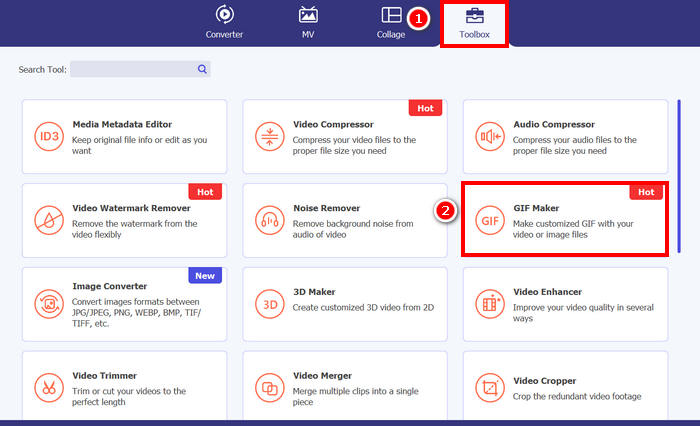
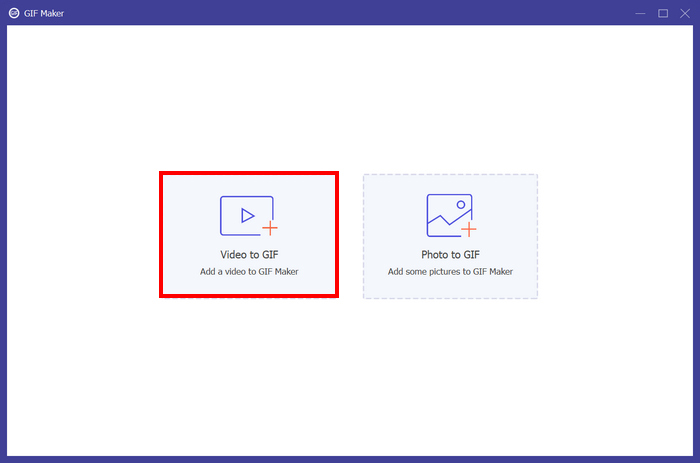
ステップ3.続いて、動画からGIFを選び、ループGIFに変換したい動画をアップロードします。
ステップ4.ここで、トリミングやフレームレート、解像度の調整など、動画を編集できます。編集が完了したらGIFを生成をクリックします。GIFファイルはコンピューターに直接保存されます。
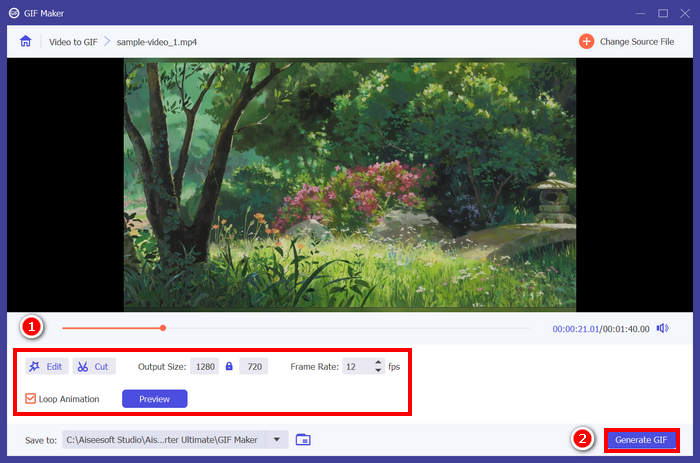
注意: 動画から無限ループGIFを作成するには、下にあるループのチェックを入れるのを忘れないでください。また、GIFが完璧にループしているか確認するために、生成前にプレビュー再生してチェックできます。
方法2. PowerPointでループGIFを作成する方法
ループGIFを作成するもう一つの方法は、PowerPointを使うことです。Microsoft PowerPointは、プレゼンテーション、オブジェクト、アニメーションなどを作成できることで知られています。PowerPointを使うと、アニメーションやエクスポートオプションなどの機能を活用できます。それでは、PowerPointでループGIFを作成する方法をご紹介します。
ステップ1.コンピューターでPowerPointを開き、空白のスライドを作成します。
ステップ2.次に、ループGIFにしたい写真や図形などを挿入します。
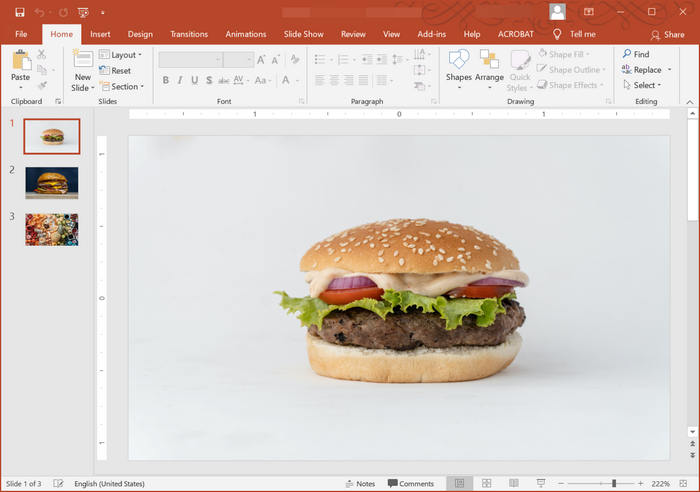
ステップ3.続いてアニメーションを追加して動きをつけます。その際、開始時と終了時の状態が同じになるようにアニメーションを設定してください。
ステップ4.最後に、ファイルタブに移動してエクスポートを選択し、そこでアニメーションGIFの作成を選びます。
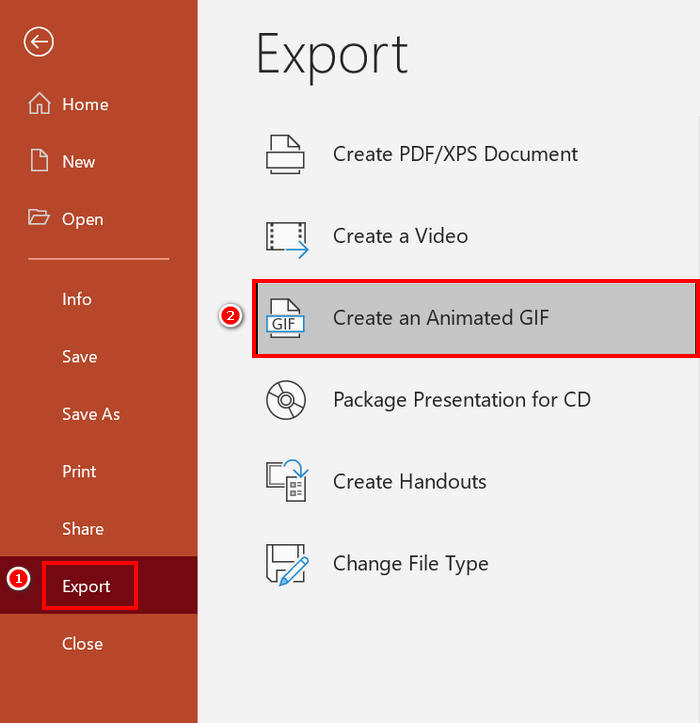
PowerPointでループGIFを作成することは可能ですが、主にスライドベースのアニメーションに限定されており、実際のビデオクリップをGIFに変換することはできません。そのため、動画コンテンツを扱う場合は、より専門的なツールが必要になります。
方法3. After EffectsでループGIFをエクスポートする方法
After Effectsは、強力なモーショングラフィックスと視覚効果機能で知られており、高品質なアニメーションを制作するプロフェッショナルにとって最適な選択肢となっています。After EffectsでループGIFを作成するのは比較的簡単です。しかし、アニメーションをGIFとして書き出す際に課題が生じます。After EffectsにはGIFを直接書き出すオプションがないためです。そこで、After EffectsでループGIFを書き出す手順を以下にご紹介します。
ステップ1.最初に行うべきことはGifGunをインストールすることです。After Effectsは標準ではGIFを書き出せないため、このプラグインが必要になります。
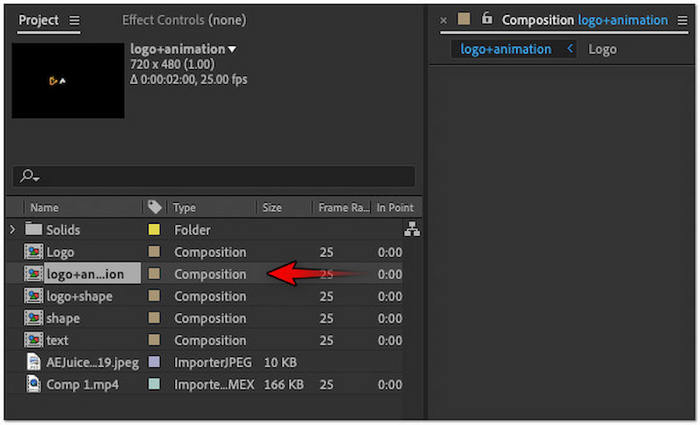
ステップ2.インストールが完了したら、次にプロジェクトパネル内でGIFとして書き出したいコンポジションを選択します。
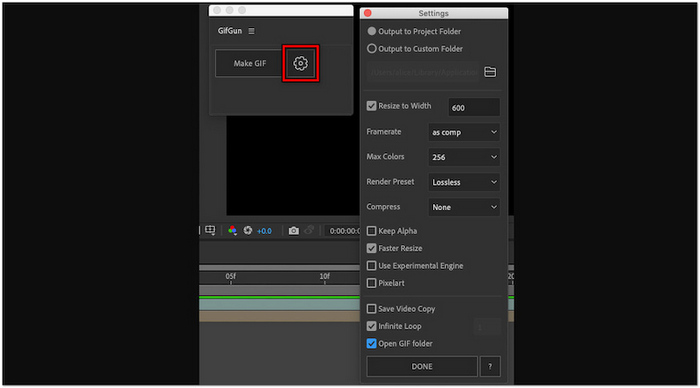
ステップ3.続いて、上部メニューの[ウィンドウ]タブに切り替え、GifGunプラグインを選びます。そこから歯車ボタンをクリックして出力パラメーターを設定します。
ステップ4.Make GIFをクリックしてループGIFの書き出しを開始します。
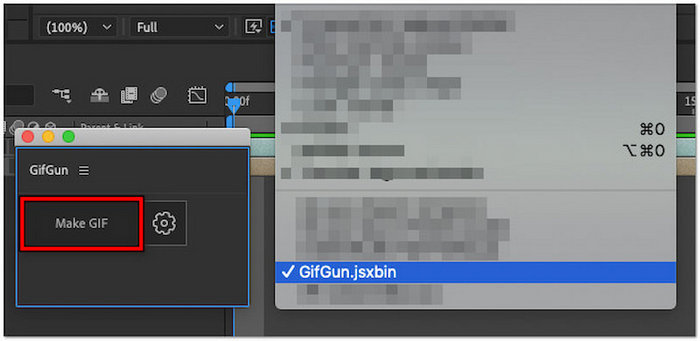
注意: 書き出す前に、アニメーションが途切れなくループするようにデザインされていることを確認してください。完璧なループにするには、コンポジションの最初のフレームと最後のフレームがスムーズに一致している必要があります。さらに、GifGunでは画質、解像度、ループ設定を調整できるので、最良の結果を得るためにこれらのオプションをしっかり微調整しておきましょう。
必要に応じて、GIFトリミングツールの詳細はこちらをクリックしてご覧ください。
パート3. ループGIFの作成方法に関するよくある質問
GIF のループを停止するにはどうすればいいですか?
GIFのループを止めるには、専用のGIFメーカーやエディターを使うのが最適です。FVC Video Converter UltimateのGIFメーカーのようなツールを使うのも良いでしょう。ツールでGIFファイルを開いたら、ループを無効にしてループを止めることができます。
アニメーション GIF ループをオンラインで無料で作成する方法は?
無料でオンラインでアニメーションGIFループを作成するには、Ezgifなどのツールが使えます。このオンラインプラットフォームでは、動画または画像シーケンスをアップロードし、トリミング、クロッピング、エフェクトの追加、そして最も重要なループ回数の設定など、ループ設定をカスタマイズするだけです。その後、「GIFを作成」をクリックして、完成したループアニメーションをダウンロードしてください。
GIF ループ用の美しい背景はどこで見つけられますか?
Unsplash、Pexels、Pixabayなどのロイヤリティフリーの画像・動画サイトでは、GIFループ用の高品質で美しい背景素材を見つけることができます。GIFの自然な流れを保つために、空、波、アニメーショングラデーションなど、視覚的にシームレスでループに適した背景を選ぶようにしてください。
ループ GIF の理想的な長さはどれくらいですか?
ループGIFの理想的な長さは通常2~6秒です。短いほど、スムーズな再生、読み込み時間の短縮、ループの連続性が向上します。また、短い時間で繰り返しや煩わしさを感じさせずに、視聴者の注目を集めることができます。
結論
完璧なループGIFの作成は、一見すると些細なことのように思えるかもしれませんが、実際には大きな効果をもたらします。適切なツールといくつかの実践的なコツさえあれば、誰でもスムーズで魅力的なループGIFを作成し、あらゆるコンテンツに命を吹き込みながら視線を引きつけることができます。FVC Video Converter Ultimateのようなプロ向けツール、PowerPoint、After Effectsのいずれを使うにしても、重要なのはシームレスなトランジションと意図的なデザインにこだわることです。作り方が分かった今こそ、あなたのクリエイティビティを動きとして形にするときです。
-
 最高のGIFコンバイナーをオフラインとオンラインで使用してGIFを結合する
 ソーシャル メディアの投稿やマーケティング キャンペーンにスパイスを加えてみませんか?最高のオンラインとオフラインの GIF コンバイナー以上のものを探す必要はありません!
-
 ビデオをGIFに変換して人目を引くGIFを作成する方法
 厳選されたビデオから GIF へのコンバーターと、わかりやすいビデオから GIF へのプロセスを使用して、ビデオを魅力的な GIF に簡単に変換する方法を発見してください。
-
 画像をアニメーションGIFに変換する5つのベストな方法【2025年更新】
 画像からGIFへのコンバーターが必要ですか?この記事では、市場で見つけられる最高のコンバーターを 5 つ紹介します。使用するこれらのツールについて読んでください。
