


 ビデオコンバーター究極
 スクリーンレコーダー
 ビデオ修復
ビデオ修復
 安全なダウンロード
WindowsおよびMac用のWebMメタデータを編集する方法に関するガイドライン
WebM のコンテンツについて追加情報を付与するタグを含める必要があることは、本形式のメタデータを編集する理由の 1 つです。ユーザーやシステム、アプリケーションから見えるようにするため、すぐに修正しなければならない場合もあります。つまり、そのファイルにどのようなコンテンツが含まれているのかを特定するためです。したがって、データをオンラインで転送する前に、WebM のメタデータを編集する方法を把握しておくことが重要です。以下の記事を読んで、事前に情報を得て、やり方を学びましょう。

パート1。WindowsとMacでWebMメタデータを編集する最も簡単な方法[簡単なバージョン]
FVC Video Converter Ultimate は、利用者や顧客が手間なく簡単にメタデータを編集できるツールです。このメタデータエディターを使えば、WebM、MOV、TS、RMVB をはじめ、このツールがサポートする 1000 以上の形式のタグを、プロのように素早く調整したり削除したりできます。その名のとおりユーザーの期待に応えるツールなので、初心者にも上級者にも最適なソフトウェアを探しているなら、このツールを選ぶべきです。他のソフトとは異なり、このソフトなら WebM のメタデータを手動で追加して、正確な情報に更新することができます。
もっと欲しい?このツールは、ビデオとオーディオの問題を解決するためのメタデータやその他のフィールドの編集に優れています。カット、トリミング、編集、GIFの作成、ビデオの高速化など、ツールを1分以内で実行できます。そして、ソフトウェアが名前とパフォーマンスにおいて究極であることをあなたに証明するために。以下の書面によるデモンストレーションでは、この問題にあまり労力をかけずにWebMメタデータを編集する方法を説明します。
FVC Video Converter Ultimateを使用してWebMタグを編集する方法の手順:
ステップ 1. 究極のソフトウェアを入手するには、下のダウンロードボタンをクリックし、現在使用しているオペレーティングシステムを選択します。ダウンロードしたファイルをクリックしてインストール手順に従い、その後「今すぐ開始」をクリックしてツールを起動します。
無料ダウンロードWindows 7 以降に対応安全なダウンロード
無料ダウンロードMacOS 10.7 以降に対応安全なダウンロード
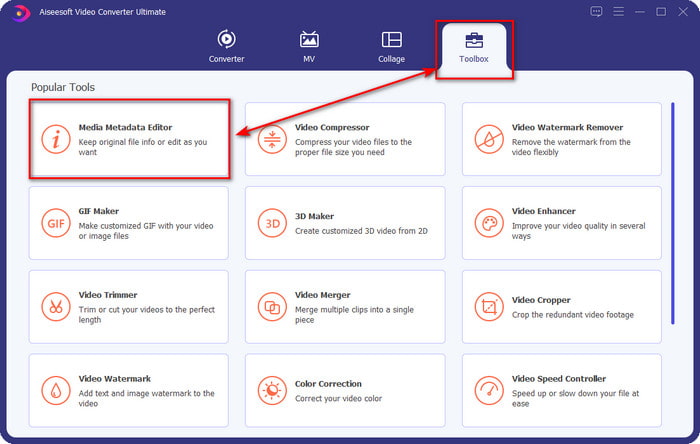
ステップ 2. ツールボックス セクションを開き、表示される一覧の中から メディアメタデータエディター を探します。
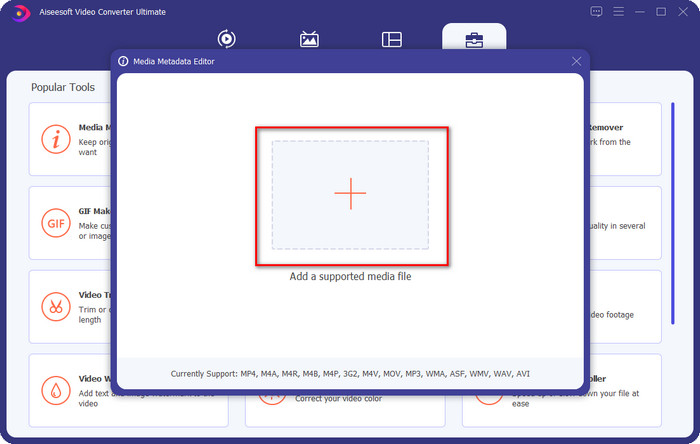
ステップ 3. + ボタンをクリックして WebM ファイルを追加し、フォルダマネージャーから目的のファイルを探して 開く をクリックし、続行します。
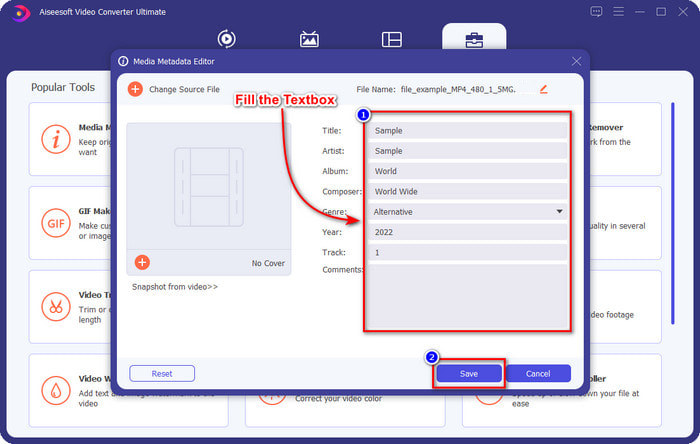
ステップ 4. それぞれのテキストボックスに、WebM にタグとして追加したい情報を入力します。すべての情報をタグとして入力し終えたら、[保存]をクリックします。簡単ですよね? 以上が、Windows と Mac の両方で使えるこの究極のソリューションを使って WebM にメタデータを追加する方法です。
パート2。デスクトップでコマンドラインソフトウェアを使用してWEBMメタデータを編集する方法
FFmpeg
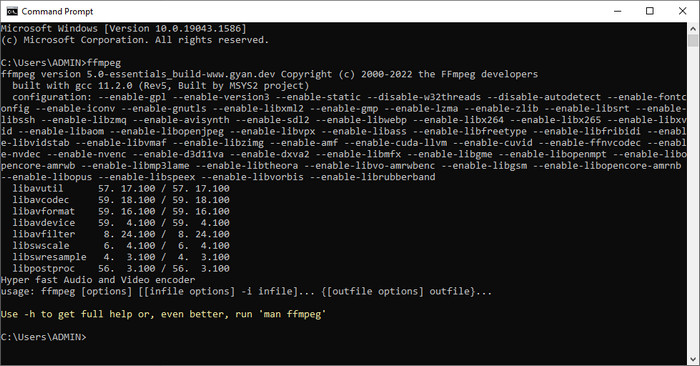
FFmpeg は、メタデータの修正など、あらゆるメディア関連の問題に対応できることで知られているソリューションです。最初のツールとは異なり、このソフトでは特定の作業を行うために、ファイルのメタデータを手動で編集するコマンドなど、特定のコードを使用する必要があります。このオープンソースソフトウェアは、一部のユーザーには理解しづらい技術的な要素を扱いますが、それでもこのエディターが持つ機能は評価に値します。以下を読み進めて、一覧に挙げたコマンドラインソフトの 1 つを使って WebM のメタデータを編集する方法を確認しましょう。
FFmpeg で WebM のタグを編集する手順:
ステップ 1. デスクトップにソフトウェアをダウンロードしてインストールします。WebM ファイルの保存場所を確認し、そのファイル名をコピーします。
ステップ 2. Windows をクリックし、検索欄に コマンドプロンプト と入力して起動します。次に、コード ffmpeg -i fileexample.webm -metadata title='samplemetadata' -c copy fileexample.webm をコピーしてプロンプトに貼り付けます。
注:filexample.webmは、このタスクに使用するwebmファイルの名前です。ファイルの正確な名前に従って、そのファイル名を追加します。
ステップ 3. Enter キーを押して処理を開始し、ソフトウェアに元のファイルを上書きさせます。
EXIFツール
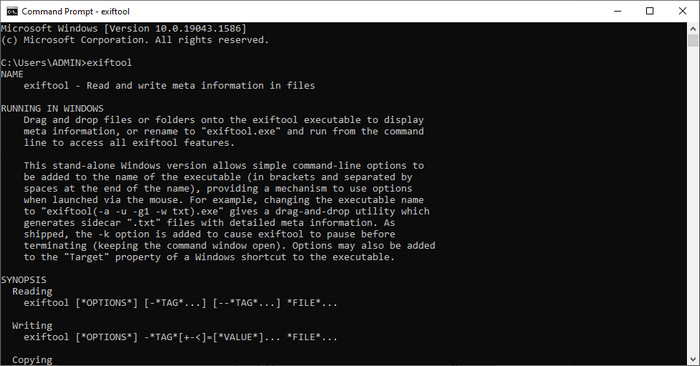
FFmpeg と同様に、EXIF Tool もほとんどすべてのデスクトップ OS にダウンロードできるコマンドラインの無料ソフトウェアです。このソフトを使えば、他のメディアファイルでは完全には行えないような、既存ファイルのメタデータの読み取り・編集・作成が可能です。動画・音声・画像・PDF ファイルのタグを編集し、情報を正確なものにできます。先ほど FFmpeg と同じだと説明しましたが、それは事実です。ただし使用するコードは異なるため、このツールを使いたい場合は、FFmpeg とは別のコードセットを学ぶ必要があります。難しそうでしょうか? 幸いなことに、このツールを使って WebM のメタデータを編集するための、分かりやすい手順を以下に用意しました。
EXIF Tool で WebM のタグを編集する手順:
ステップ 1. 公式サイトからソフトウェアをダウンロードし、続けてインストールを行って次のステップに進みます。
ステップ 2. ファイルマネージャーを開き、ファイルを選択してその名前をコピーします。続いて CMD を開き、コード exiftool –common fileexample.webm を入力して、WebM ファイルに関する基本情報を確認します。
注:CMDはコマンドプロンプトと同じです。それらをウィンドウで見つけて、CDMと入力できます。
ステップ 3. 次のコードをプロンプトに追加してファイルを変更します: exiftool -filename='metadtasample' fileexample.mkv。その後、Enter キーを押してメタデータ追加の処理を開始します。
パート3。WebMメタデータエディタに関するFAQ
WebM形式がHTML5Webサイトで人気があるのはなぜですか?
WebM形式は、HTML5ビデオおよびオーディオ要素を含む最も急速に成長している代替ロイヤリティ形式の1つです。この形式は、WebMプロジェクトが開発した2つの異なるコーデック、VP8とVP9を使用します。
WebMファイルをマージできますか?
メタデータを追加する前に、一連の WebM ファイルを結合することもできます。複数の WebM ファイルを簡単に結合する方法を知りたい場合は、このリンクをクリックして詳細を確認してください。
どちらが良いですか? WebMまたはMP4?
どちらの形式も動画ファイルの保存には最適ですが、それぞれ目的が異なります。WebM はオンライン共有に適した形式の 1 つですが、依然として一部のデバイスとの互換性に問題があるという懸念があります。もし WebM ファイルで同じ問題があるなら、MP4 形式に変換することをおすすめします。すぐに使えるツールを手に入れるには、このリンクをクリックして、記事内の内容をご覧ください。
結論
WebM のメタデータを編集する方法や必要な情報が分かったところで、どの方法が自分に合っているかを選ぶ段階です。コマンドラインツールを試してみたいのであれば、FFmpeg と EXIF Tool は WebM ファイルのメタデータを修正するための最適なソリューションです。本記事で紹介したチュートリアルに従えば、この作業をすばやく完了できます。一方、よりシンプルな方法で WebM のメタデータを編集したい場合は、FVC Video Converter Ultimate が必携ツールです。まだ迷いがあるなら、まずはデスクトップにダウンロードして実際に試してみることをおすすめします。
-
 WindowsPCおよびMac用の上位4つのファイル日付チェンジャー[2022年更新]
 ファイルの時刻タグと日付タグの変更に問題がありますか?あなたがそれをする方法を知りたいならば、あなたは知るためにこの記事を読み続けることができます。
-
 ファイルにタグを簡単に追加する方法に関する簡単なヒントとコツ
 ファイルにタグを簡単に追加したいですか?次に、この記事では、このタスクにすばやく依存できる最善かつ最も簡単な方法を提供します。
-
 MacとWindowsのトップ3FLACメタデータエディタ[2022年更新]
 FLACメタデータを変更しますか?この場合、使用できる最新のFLACメタデータエディタに関する十分な知識を提供しているため、この記事を読む必要があります。
