


 ビデオコンバーター究極
 スクリーンレコーダー
 ビデオ修復
ビデオ修復
 安全なダウンロード
デスクトップ、Web、および電話でのビデオ速度の再生を変更する4つの最も簡単な方法
ほとんどのユーザーは、1時間の動画を実際の1時間より短い時間で視聴する効果的な方法を見つけています。この問題を解決できる唯一の方法は、現在視聴している動画の再生速度を変更することです。市場に出回っている多くの動画編集ソフトはこの作業を手助けしてくれますが、問題は「本当に信頼できるのか」という点です。それぞれを調査した結果、デスクトップ版、オンライン版、iOS版、Android版のいずれでも動画の速度を変更できることがわかりました。やり方を知りたい場合は、このブログを読み進めてください。役立つツールやアプリを紹介しています。

パート1。WindowsとMacで簡単にビデオ速度を変更するための最良の推奨方法
簡単に動画の速度を変更するには、少ないクリック数でも優れた機能を発揮する最適なツールを選ぶ必要があります。そこでご紹介するのがFVC Video Converter Ultimateです。このツールを使えば、いつでもどこでもお持ちの動画の速度を自在に調整できます。また、MP4、MOV、AVI、FLV、TS、RMVB など、1000種類以上の形式に対応しているため、どの形式の動画であっても速度変更が可能で、ファイルのアップロードもスムーズです。Windows ユーザーでも Mac ユーザーでも、このソフトをOSにインストールすれば、数回のクリックだけで再生速度の変更作業を完了できます。
そのビデオスピードコントローラー機能に加えて、ツールは他のタスクを助けることができる誇らしげに多機能なツールボックスも持っています。メタデータの追加、GIFの作成、透かしの削除など。このツールはダウンロード可能ですが、ユーザーフレンドリーであるため、使用中に編集の経験があまり必要ないことに気付くでしょう。この製品を際立たせる、まだ作成していない機能や機能があります。ただし、ビデオの速度を変更する方法を知りたい場合は、詳細を読んでノウハウを確認してください。
究極のソフトウェアをビデオスピードチェンジャーとして使用する利点:
◆直感的なインターフェースなので、数分で使い方を学びます。
◆1000以上の動画をアップロードして、再生速度を上げます。
◆ユーザーフレンドリーで、ユーザーがそのほとんどを体験できるようにします。
◆基本および高度なビデオ編集など、その他の機能はToolboxにあります。
◆これは、ダウンロードするほぼ100万人のユーザーの最初の選択肢です。
◆WindowsとMacで利用でき、ツールを簡単にダウンロードできます。
究極のソフトウェアを使用してビデオ速度を変更する方法の手順:
ステップ1. ダウンロードボタンをクリックして、Windows と Mac のどちらのシステムでもこの究極のソフトウェアを入手できます。ダウンロードしたファイルをクリックしてインストールを完了し、その後ソフトを起動して作業を進めてください。
無料ダウンロードWindows 7 以降に対応安全なダウンロード
無料ダウンロードMacOS 10.7 以降に対応安全なダウンロード
ステップ2. ソフトを開いたら、ツールボックスタブに進み、その中の動画スピードコントローラーを開きます。このツールを使うために、追加のリソースをダウンロードする必要はありません。
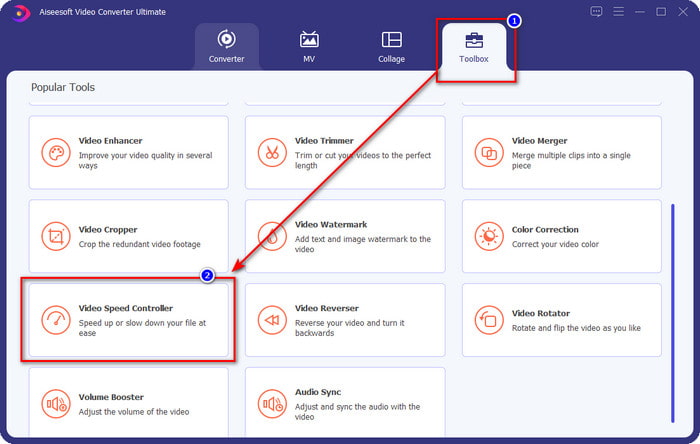
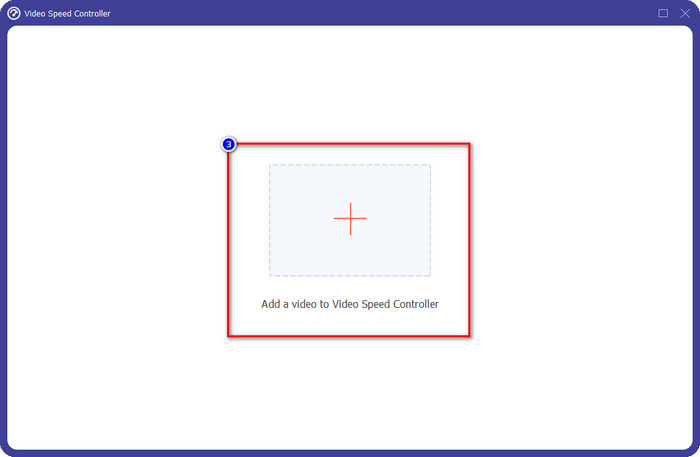
ステップ3. + アイコンを押してフォルダ内のファイルを追加し、ファイルをクリックして開くを押し、動画ファイルをアップロードします。
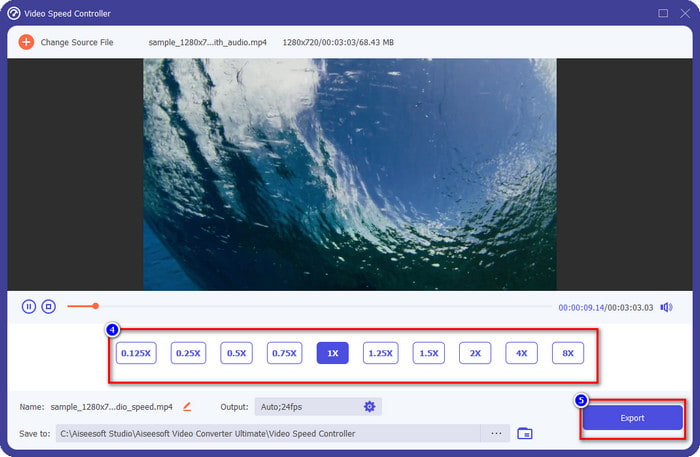
ステップ4. 一覧から希望する再生速度を選択します。人によって希望する再生速度は異なります。選択後、書き出しをクリックして、速度を変更した動画の最終出力を保存します。1分もかからずに動画の速度変更が完了し、より短い時間で視聴を楽しめるようになります。
パート2。Web上のビデオ速度を変更するための最良の無料の方法
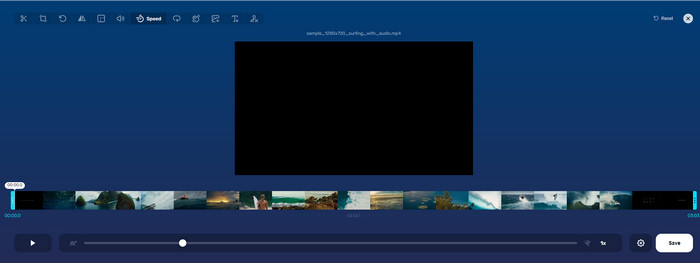
Online Video Cutterを使えば、無料でオンライン上で動画の再生速度を変更できます。最初に紹介したツールと異なり、このウェブツールを使うためにデスクトップに追加のリソースやインストーラーをダウンロードする必要はありません。速度変更機能に加え、簡単な編集作業もこのツールで行えます。ただし便利なツールではあるものの、対応している動画形式が限られているため、すべての形式をアップロードできるわけではありません。利用方法は以下のとおりです。
ステップ1. 使用したいブラウザを開き、ウェブツールを検索します。
ステップ2. ウェブツールを開き、Open Fileをクリックして、手元の動画ファイルを探してアップロードします。
ステップ3. スライダーを左または右にドラッグして速度を変更し、満足のいく速度になったら[保存]ボタンをクリックします。
パート3。無料でビデオ速度を変更するiOSの最高のビデオエディタ
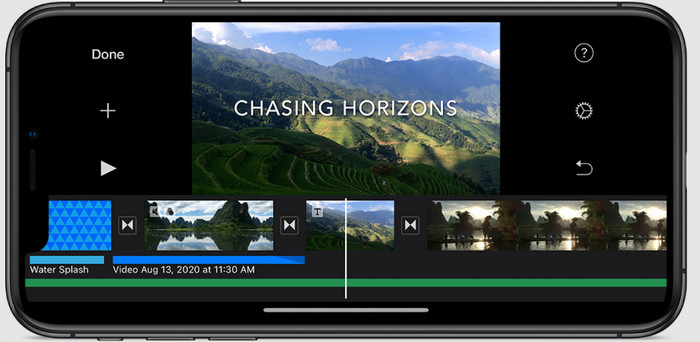
iOSユーザーの場合、iMovieを使用して、iPhoneでビデオ速度を無料で変更する方法を学ぶことができます。ツールはMacのネイティブビデオエディタですが、デバイスにアプリをダウンロードするかどうかを選択できます。この選択は、iOSユーザーがエディターを保持できるかどうかを証明して、ストレージのスペースを節約します。ただし、iPhoneにアプリがある場合は、以下に追加する手順に従って、このツールがどのように機能するかを知ることができます。
ステップ1. iPhone にアプリをダウンロードして開き、プロジェクト画面で+ボタンをタップし、ムービーを選択します。
ステップ2. 速度を上げたい動画をタップし、画面下部のムービーを作成をタップしてタイムラインに追加します。
ステップ3. 取り込んだ映像をタップし、スピードコントローラーのアイコンを押します。iPhone 上でスライダーをドラッグして動画の速度を調整し、完了をタップして保存します。必要であれば書き出してください。
パート4。組み込みのエディターを使用してAndroidデバイスでビデオ速度の再生を変更するための最良の方法

Androidユーザーの場合、アプリのダウンロードは当てはまりません。内蔵のビデオエディタを使用して、携帯電話のビデオ速度を変更します。このエディタを使用すると、ビデオに必要な基本的な編集を行って、以前よりも見栄えを良くすることができます。このエディターは、Androidのギャラリーまたはアルバムにあります。使い方を知りたい方は、以下の情報が参考になります。
ステップ1. ギャラリーまたはアルバムを開き、速度を変更したい動画をタップします。
ステップ2. 編集をタップして次に進みます。
ステップ3. 再生速度の項目をタップし、用途に合わせて速度を変更します。
パート5。ビデオ速度の変更に関するFAQ
YouTubeで速度を変更できますか?
もちろん、ソフトウェアをダウンロードしなくても、YouTubeでの動画の再生を変更できます。手順に従って、YouTubeの動画の速度を変更する方法を確認してください。まず、YouTubeを開き、修正したモーションで見たいビデオを見つけ、歯車のアイコンをクリックし、その下の再生速度で、達成したい速度を選択してお楽しみください。
速度を変更すると、ビデオの長さが短くなりますか?
速度をどのように変更するかによって異なります。ビデオの速度を落とす場合は、低速モードで再生するため、ビデオの長さが長くなることを期待してください。ただし、速度を高速に変更すると、再生しているビデオの長さは元のビデオよりも短くなります。ビデオ速度の変更について詳しく知るには、上記で追加した次の詳細を読む必要があります。
速度を変更した後、品質に影響はありますか?
設定したビデオ速度によっては、品質が低下したり、残ったりする場合があります。動画を8回以上再生する場合は、再生する動画を期待してください。ただし、再生以外の違いはあまり気になりません。品質的には同じです。
結論
ここまでで、デスクトップ、オンライン、スマートフォンで動画の速度を変更する方法を理解できました。ここからは、どの方法を使うべきかを選ぶ段階です。もし、インストール作業や容量節約のためにデスクトップへソフトウェアをダウンロードしたくないなら、本記事のパート2をお読みください。一方、iOS または Android ユーザーであれば、パート3とパート4が参考になります。Windows と Mac で最高の動画編集ソフトを使いたいなら、FVC Video Converter Ultimateをダウンロードすべきです。これは、デスクトップ上の動画の再生速度を手軽に変えられる最良の動画スピードコントローラーです。今すぐダウンロードして、あなただけの特別プロモーションをお得にご利用ください。
-
 PremiereProとその代替でビデオを高速化する方法
 Premiere Proを使用してビデオを高速化する方法を知りたいですか?次に、手順やその他の手頃な代替案を提供するので、正しい記事になります。
-
 TikTokでビデオをスピードアップする方法に関する2つの簡単な方法
 TikTokでビデオを高速化する方法の秘密を知りたいですか?次に、この記事を読んで、それを行う方法についてのアイデアを持ち、あなたを助ける他の2つのツールが何であるかを知ってください。
-
 2021年の優れたヒント:iMovieでビデオを高速化する方法
 あなたの友人は、iOSオペレーティングシステムを使用してビデオを高速化する方法の問題を解決するためにiMovieを提案していますが、どうしたらよいかわかりませんか?この記事を読んで、これについてもっと見てください。
