


 ビデオコンバーター究極
 スクリーンレコーダー
 ビデオ修復
ビデオ修復
 安全なダウンロード
最高のゲームレコーディングソフトウェアの包括的なレビュー
急成長しているゲームコミュニティでは、誰もが24時間年中無休でゲームに無制限にアクセスできることがわかります。ほとんどのゲーマーは、リアルタイムストラテジー、RPG、シミュレーション、アクションアドベンチャー、マルチプレイヤーなどから始めて、PCを使用してゲームをプレイします。若者でも大人でも、ゲームはすべての人に人気があるため、人気が高まっています。ゲームをプレイしている間、コミュニティの他のゲーマーとあなたの経験を共有するためにストリーミングすることもできます。おそらく、TwitchまたはFacebookライブでストリーミングを試すことを考えていたので、これは良い選択です。ただし、ゲーム中にストリーミングしているときは、それが運ぶ帯域幅が重いため、接続に多少の遅延や中断が発生する可能性があることを覚えておく必要があります。
ラグのある回線でプレイしながら配信したい人はいるでしょうか。こうした状況がどれほどストレスになるか、私たちはよくわかっています。だからこそ、ラグいインターネット環境で無理にライブ配信をするのではなく、まずはゲームを録画して、YouTube などの別の動画共有プラットフォームにアップし、そのうえで配信するという方法をおすすめします。同じ考えであれば、ここでは Windows と Mac で使える、プロ仕様のゲーム録画ソフトを5つ厳選してご紹介します。

パート1。なぜゲームレコーダーが必要なのですか
私たちがゲームをしているとき、時々ゲームレコーダーを使ってレコーディングをすることを考えます。私たちが行っている素晴らしいトリック、ハイライト、モンタージュなどをキャプチャしたいので、これを使用します。また、画面記録ツールの需要に伴い、ゲーム中に起こっていることを記録するのに役立つ記録ソフトウェアが組み込まれているゲームもあれば、そうでないゲームもあります。
一部のゲームは録音に役立ちますが、品質はそれほど良くありません。したがって、キャプチャしたビデオをプレビューすると、ビデオの品質が悪いことに気付くでしょう。幸いなことに、ゲームレコーダーを使用すると、画面の品質に影響を与えることなく、画面で何が起こっているかをリアルタイムでキャプチャできます。ゲームレコーダーを選択する前に、3つのことを覚えておく必要があります。それらを個別に簡単に強調できるように、箇条書きとしてリストしています。
◆ビデオゲームレコーダーが高品質の録画をサポートしていることを確認します。HD解像度が必要な場合は、少なくとも720または1080をサポートします。
◆ゲームによっては30分以上かかる場合がありますので、使用するソフトウェアは長時間録画できる必要があります。
◆スムーズな録画が必要な場合、レコーダーは高いFPSをサポートする必要があります。 FPSが高いほど、録音がスムーズになります。
ゲームの画面記録で知っておくべき3つのことを理解したので、記録を行うために使用できるソフトウェアに進む必要があります。まださまざまな好みがありますが、ゲーマーが持つべき大多数のために、そのうちの3つだけを含めています。これらは、ゲーマーが私たちが進むにつれてそのようなタスクを実行するために持っていなければならない宝石です。ゲーム中にスクリーンレコーダーをテストした経験を共有しながら、ボールを転がし続けます。
パート2。ゲーマーが知っておくべきトップ5のプロのゲームレコーダー
Aiseeesoftスクリーンレコーダー
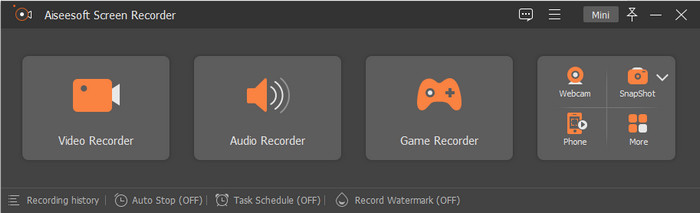
Aiseeesoft Screen Recorder は、ゲーマーなら入れておきたい高性能かつプロフェッショナルなゲーム画面録画ソフトです。このツールを使えば、最大60FPSでゲームプレイを録画でき、プレイ中のあらゆるアクションをしっかりとキャプチャできます。また、他の録画ソフトと比べても機能・性能の両面で優れており、信頼できるゲームレコーダーといえます。ウェブカメラやマイクの音声とあわせて画面録画を行い、最高品質で保存したい場合にも最適です。
60FPSで最高品質のゲームレコーダーを10分間試してみた経験に基づいています。録音中にバグやクラッシュが発生していないことがわかりました。また、開始する前に、3秒のカウントダウンがあります。また、録音をエクスポートすると、ファイルサイズは1.3 GBで、試した他のレコーダーよりも小さくなりますが、品質は同じです。それに加えて、最大1時間の録音を試みました。それでも、使用中に問題が発生することはなく、感動します。レコーダーがどれほど優れているかは驚くべきことではありませんか?他の機能を知りたい場合は、以下を読む必要があります。ダウンロードボタンは、必要に応じて以下に表示されます。

Aiseesoftスクリーンレコーダー
4,988,518++ダウンロード- ゲームレコーダーを使用して、ゲーム中にノンストップで録画できます。
- 最高品質のビデオ出力で60FPSの記録をサポートします。
- それはプロのようにウェブカメラとマイクであなたのスクリーンを記録することができます。
- 必要に応じて、オーディオとビデオに特定の形式を設定できます。
- 今すぐWindowsとMacにダウンロードしてください。
無料ダウンロードWindows 7 以降に対応安全なダウンロード
無料ダウンロードMacOS 10.7 以降に対応安全なダウンロード
Bandicam
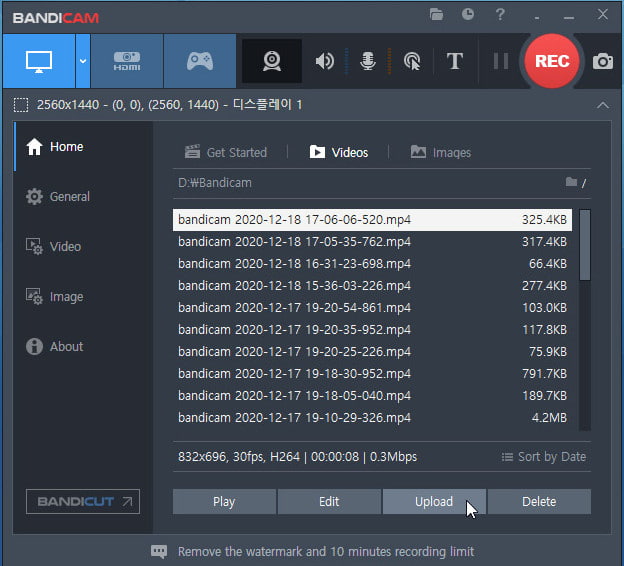
多くのユーザーがすでにBandicamを利用しているのは、これが Windows 向けゲーム録画ソフトの中でも特に人気が高いからでしょう。このレコーダーなら、ゲーム中であっても画面全体を余すところなく録画できます。また、このツールは最大480fpsに対応しており、プレイ中のアクションを一つひとつしっかりと捉えられるようになっています。性能や機能面に疑いの余地はありませんが、無料版ではこの480fps録画は利用できない点には注意が必要です。
このスクリーンレコーダーを使用していると、録画を開始しなくてもクラッシュが発生することがよくあります。レコーディングやゲームをしていると煩わしくなるので、レコーディング開始時は不快です。また、タイマーのようにいつ録音が始まるかはわかりません。 FPSを30に設定しても、レコーダーの使用中にこの問題が発生するのは依然として厄介です。したがって、このツールを使用して10分を超えて記録することはできず、主に無料バージョンを使用する場合は透かしが表示されます。しかし、明るい面として、10分間のゲーム録画のファイルサイズは1.10GBのみです。これは、この記事の最小のファイルサイズです。
アクション!
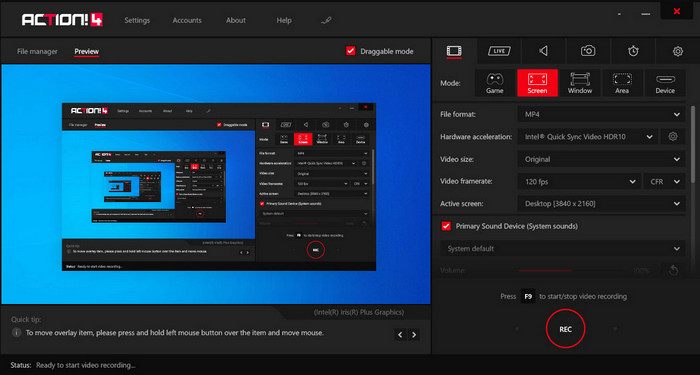
Action! は、Windows 10 用として信頼できる、デスクトップ向けゲーム録画ソフトのひとつです。このツールでは最大120FPSで録画でき、ほかの多くの画面録画ソフトよりも高フレームレートで記録できます。このリストにある他のレコーダーとは異なり、ダウンロードして起動すると、プロフェッショナルな印象のGUIが表示され、画面上からさまざまなオプションを調整可能です。見た目や操作感は本格的ですが、録画したゲーム動画を書き出す際に選べる形式は MP4 か AVI のみとなっています。
ソフトウェアをテストしているので、ゲームを起動してもすぐに録音が開始されないため、ツールを使用するのは難しいと感じています。したがって、録画する場合は、ビデオゲームを開き、F9キーを押して録画を開始する必要があります。 10分が記録に達したら停止します。 60 FPSを設定すると、画面記録のファイルサイズは2.19 GBになります。これは、この記事で最大のファイルサイズの2番目です。また、エクスポートされた画面記録には透かしがあります。しかし、全体的な経験として、このツールは画面の記録に優れており、使用しようとしたときにクラッシュやバグはありませんでした。
Loilo
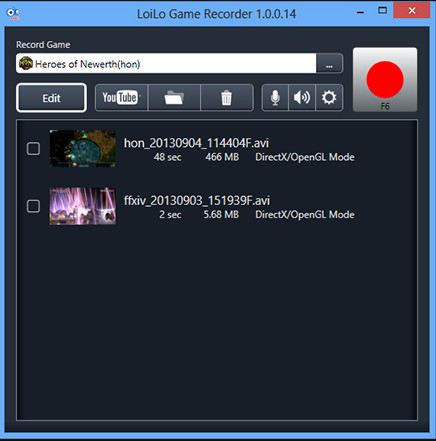
Loilo は、Windows で使える無料ゲーム録画ソフトの中でも評価の高い一本です。シンプルな画面ながら、高解像度かつ30FPSでの画面録画に対応しており、先に紹介した3つのゲーミングレコーダーよりフレームレートは低いものの、実用的な録画が可能です。実際に使ってみると、GUI はそれほど凝ったものではありませんが、無料で使えるゲーム画面録画としては十分と感じられるはずです。さらに、基本的な編集機能も搭載しており、シンプルではあるものの、録画後の動画を簡単に編集するのにも役立ちます。
スクリーンレコーダーを使って試してみると、システム上で実行している間はほとんど何も起こりません。ただし、録音する前に、録音のターゲットを設定する必要があります。 30 FPSで10分間の記録を終了した後、保存記録のファイルサイズは4.6GBであることがわかりました。これは、スクリーンレコーダーがこの記事で持っている最大のファイルサイズです。 FPSは2番目に低いものですが、スクリーンレコーダーはストレージに適していないと思います。したがって、このソフトウェアを使用して1時間の録音を行う場合は、ファイルが膨大になることを期待してください。
FVCスクリーンレコーダーオンライン
FVC Screen Recorder Online は、追加のファイルをダウンロードすることなく、ブラウザ上から直接使えるゲーム録画用のオンラインツールです。先に紹介したレコーダーとは異なり、このツールはゲームプレイを含め、画面上で起きているあらゆる動きを録画できます。ただし、オンラインレコーダーとしてゲーム録画に利用はできるものの、対応フレームレートは24FPSにとどまるため、画面上の一つひとつのアクションを細かく記録したい場合にはやや物足りないかもしれません。
このウェブレコーダーを使用していると、インターネット接続に依存するため、故障することがあります。ハイグラフィックゲームに最適なスクリーンレコーダーではありませんが、それでも使用できます。無料でアクセスできます。 10分間のゲームを記録してエクスポートした後、記録のファイルサイズはわずか1.2 GBで、他のサイズより2番目に小さいサイズです。したがって、より小さなサイズで無料で録音したい場合は、これが使用したいWebツールです。
パート3。最高のゲームレコーダーに関するFAQ
Minecraftを記録するのに最適なスクリーンレコーダーは何ですか?
この記事で紹介したもの以外にも、市場には数多くの画面録画ソフトがあります。しかし、ここで解説したチュートリアルとツールを使えば、今すぐにでも Minecraft の録画を始められます。詳しく知りたい場合は、このリンクをクリックしてください。
CamtasiaとSnagitのどちらが優れたスクリーンレコーダーですか?
このリンクをクリックすると、Camtasia と Snagit の比較について、より詳しい情報を確認できます。どちらの画面録画ソフトについても十分に理解できるよう、記事全体を通してじっくりお読みください。
スクリーンレコーダーがスムーズなビデオゲームをキャプチャしないのはなぜですか?
ハイグラフィックゲームでゲームをプレイするには、記録をスムーズにするために、1秒あたりのフレーム数を60以上に拡張する必要があります。録画のFPSが高いほど、ビデオはスムーズになりますが、ファイルサイズははるかに重要になります。
結論
ここまでで、5つのおすすめゲーム録画ソフトを確認してきました。あとはあなたがどれを選ぶかという段階です。ゲーマーの皆さん、自分のプレイを録画し、ハイライトシーンをアップロードして腕前をアピールするチャンスです。強力なインターネット回線があれば配信もよいですが、全員が高速回線を持っているわけではありません。そんな場合でも、ゲームプレイを録画して共有することは十分可能です。最高のゲーム画面録画ソフトを手軽に使いたいなら、Aiseeesoft Screen Recorder をダウンロードしてみてください。頼れるゲームレコーダーとして最適な一本です。「本当に自分に合ったツールなのか不安」という方は、まずはダウンロードボタンをクリックして試してみてください。きっと、ゲーム録画のニーズに最も応えてくれるソフトだと実感できるはずです。
-
 Minecraft で壮大なスタント、クラッチ、チュートリアルを録画する方法 [2025]
 Minecraftでスタントを記録する方法を知りたいですか?次に、私たちが提供するこの記事を読んでください。
-
 iPhoneでオーディオを録音する方法に関する3つのベストテクニック
 iPhoneで適切に録音できないために問題がありますか?次に、この記事を読んで、iPhoneでオーディオを録音する方法と、使用可能なツールを確認してください。
-
 すべてのプラットフォームでアクセス可能な7つの壮大なボイスレコーダー
 オーディオ録音の方法を学びたいですか?次に、この記事にアクセスして、ニーズに合う最高のオーディオレコーダーについて説明します。
