


 ビデオコンバーター究極
 スクリーンレコーダー
 ビデオ修復
ビデオ修復
 安全なダウンロード
MP4をOGG無料&オンラインに変換する方法
MP4は、ビデオ、オーディオ、字幕を保存するデジタルマルチメディアコンテナです。 OGGは、効率的なストリーミングとファイル圧縮のための無料のオープンコンテナ形式です。一部のオーディオプレーヤーで再生するには、MP4をOGG形式に変換する必要がある場合があります。この投稿では、3つの無料のMP4からOGGへのコンバーターを共有して、手間をかけずにMP4をOGGに変換します。

パート1。無料でMP4をOGGに変換する専門的な方法
最高のMP4からOGGへのコンバーターを探しているなら、FVC Free FLV to MP4 Converter を試してみてください。これは、WindowsとMac向けの無料で使いやすい動画変換ソフトです。MP4、FLV、MOV、MKV、MTS、M2TS など、さまざまな動画を簡単にOGGに変換できます。さらに、冒頭や末尾にテーマを追加したり、作者名、時間、提供者情報を調整したりできる編集機能も備えています。

- MP4、MKV、AVI、MOV、MP3、AAC、AIFFなどのビデオをOGGに変換します。
- ワンクリックでMP4ファイルからOGGビデオとロスレスオーディオファイルをエクスポートします。
- ユーザーがプロバイダー、タイトル、作成者、時間を編集し、テーマを追加できるようにします。
- 一部のポータブルオーディオプレーヤーで再生するために、MP4をOGGにバッチ変換します。
無料ダウンロードWindows 7 以降に対応安全なダウンロード
無料ダウンロードMacOS 10.7 以降に対応安全なダウンロード
ステップ1. ダウンロード後、FVC Free FLV to MP4 Converter をWindowsまたはMacにインストールして起動します。Add Files ボタンをクリックして、パソコンからMP4ファイルを読み込みます。複数のMP4ファイルを同時に変換したい場合は、まとめてアップロードしてください。
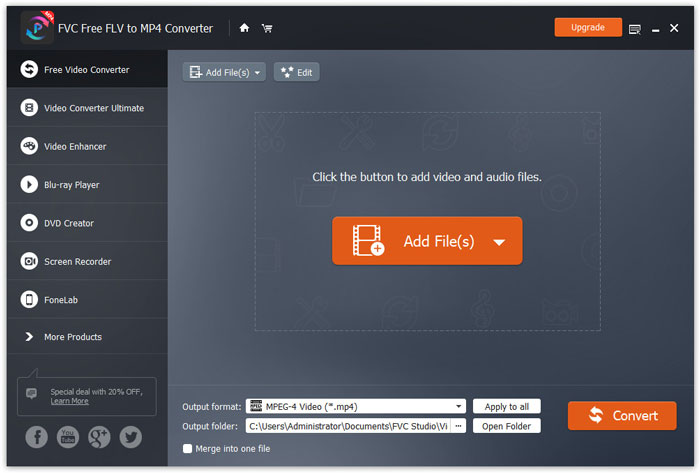
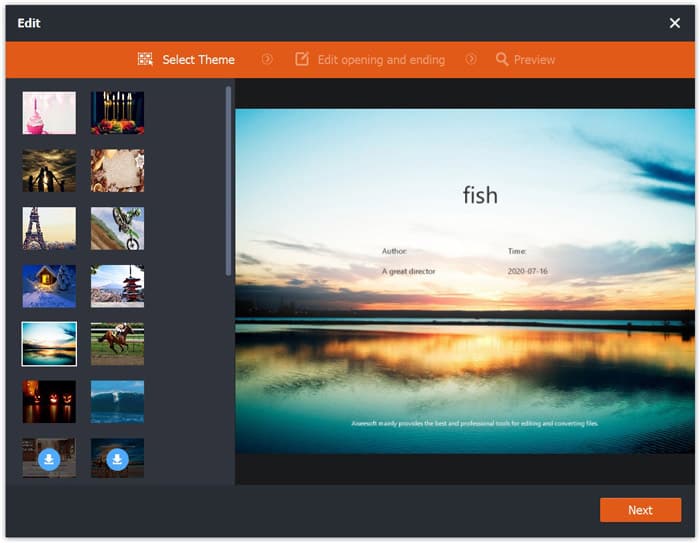
ステップ2. MP4ファイルをクリックし、編集ボタンをクリックします。MP4ファイルにテーマを追加したり、オープニングとエンディングの内容を編集したりできます。その後、次へをクリックしてプレビューし、変更を保存します。
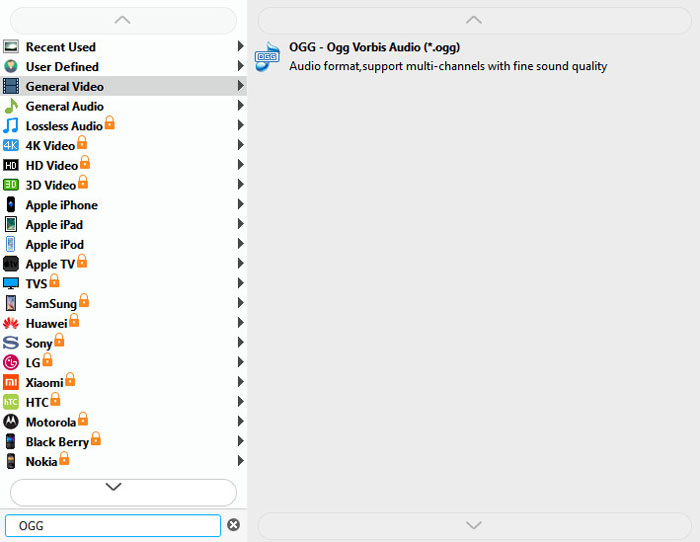
ステップ3. 画面下部のドロップダウンの Output format ボタンをクリックし、一覧からOGG形式を検索します。出力形式として「OGG - Ogg Vorbis Audio (*.ogg)」を選択できます。
ステップ4. パソコン上で出力先フォルダーを指定し、Convert ボタンをクリックしてMP4からOGGへの変換を開始します。
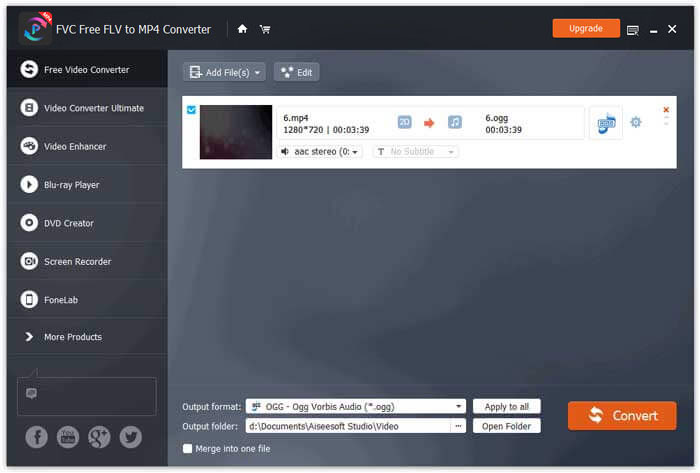
FVC Free FLV to MP4 Converter を使えば、複数のMP4ファイルを1つに結合することもできます。
パート2。MP4をOGGオンラインに変更する方法
デスクトップコンバーターと比較して、オンラインコンバーターを使用することはMP4をOGGに変換するための時間節約の方法です。あなたが選ぶことができる多くのオンラインMP4からOGGへのコンバーターがあります。このパートでは、2つのMP4からOGGへのコンバーターを共有して、MP4ファイルをオンラインで無料でOGGに変換します。
1.ザムザール
Zamzarは、ビデオコンバーター、オーディオコンバーター、画像コンバーター、eBookコンバーター用の多機能オンラインプラットフォームです。 Zamzarを使用すると、MP4をOGGなどの他のさまざまな形式に簡単に変換できます。 ZamzarオンラインでMP4をOGGに変換する簡単な手順は次のとおりです。
ステップ1. www.zamzar.com/convert/mp4-to-ogg/ にアクセスし、Add Files ボタンをクリックしてMP4ファイルをアップロードします。
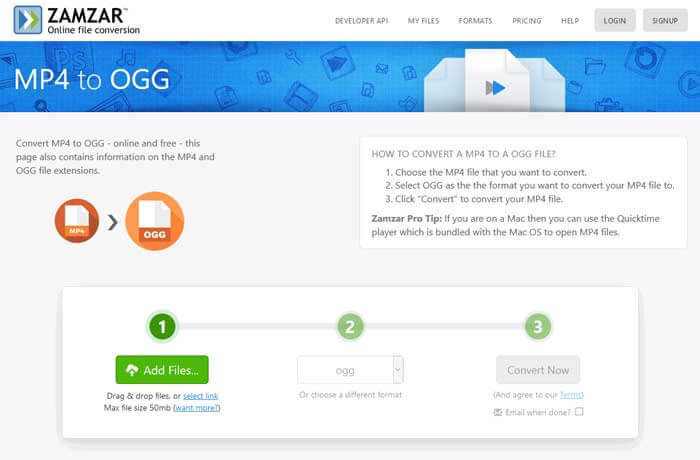
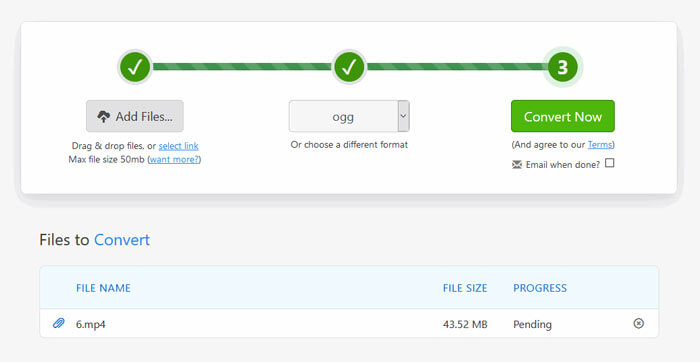
ステップ2. 既定の出力形式はすでにoggに設定されています。Convert Now ボタンをクリックして、MP4からOGGへの変換を開始します。
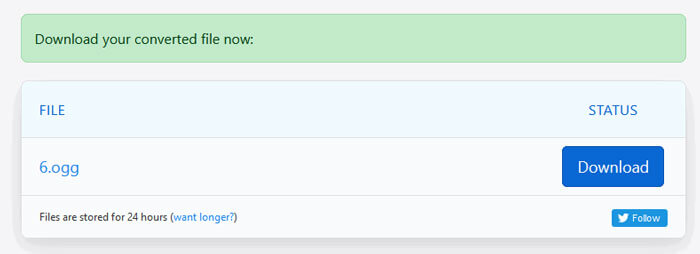
ステップ3. その後、別のページに移動します。Download ボタンをクリックして、変換されたOGGファイルをパソコンに保存します。
大容量のMP4ファイルを変換するとき、Zamzarでは変換が途中で止まってしまう場合があります。その際はページを更新して、再度変換する必要があります。スムーズに変換したい場合は、FVC Free FLV to MP4 Converter が大いに役立ちます。(そのほかのMP4プレーヤーはこちらをご覧ください)
2. Convertio
Convertioは、ドキュメント、画像、スプレッドシート、電子書籍、オーディオ、ビデオファイルを変換する簡単なツールです。 Convertioを使用すると、MP4ファイルを優れた精度でMP3に変換できます。 Convertioを使用してMP4からOGGをエクスポートするには、以下の手順に従います。
ステップ1. Convertio MP4 to OGG Converter(convertio.co/mp4-ogg/)にアクセスします。Choose Files ボタンをクリックしてMP4ファイルをアップロードします。Dropbox や Google Drive から追加したり、URLをコピーして指定することもできます。
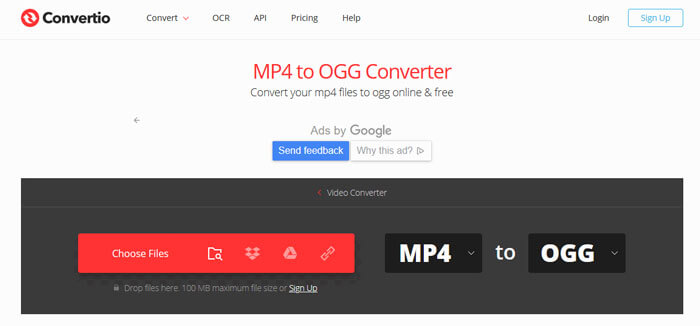
ステップ2. ドロップダウンアイコンから OGG を選択し、歯車アイコンをクリックしてコーデック、品質、オーディオチャンネル、周波数、音量を設定します。MP4ファイルを必要な部分だけにカットすることもできます。
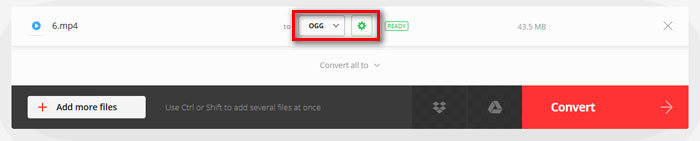
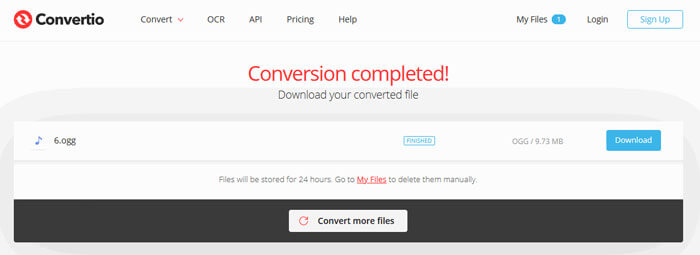
ステップ3. すべての設定が完了したら、Convert ボタンをクリックしてMP4からOGGへの変換を行います。変換後、Download ボタンをクリックして、変換済みのOGGファイルをパソコンに保存します。
パート3。MP4をOGGに変換するためのFAQ
1. OGGビデオフォーマットとは何ですか?
OGGは、音楽、ビデオ、字幕などのテキスト、メタデータを含めることができる無料のオープンコンテナ形式です。
2.どのプレイヤーがOGGファイルを再生できますか?
VLC、Windows Media Player、Adobe Audition、Audials、MPlayerなどのOGGファイルを再生できるポータブルプレーヤーはたくさんあります。
3. MP4をMP3に変換するにはどうすればよいですか?
FVC Free Online Video Converter を利用すれば、オンラインで簡単にMP4をMP3に変換できます。このオンラインサイトにアクセスし、「Add Files to Convert」ボタンをクリックしてランチャーをインストールします。その後、パソコンからMP4ファイルを選択し、出力形式としてMP3にチェックを入れます。最後に「Convert」ボタンをクリックして、MP4をMP3に変換します。
結論
オンラインとオフラインでMP4をOGGファイルに変換するために、主に3つのMP4からOGGへの変換を導入しました。デスクトップのFVCFree FLV to MP4 Converterを使用すると、MP4からオープンソースのOGGファイルを簡単にエクスポートできます。より良い解決策があれば、遠慮なくコメントを残してください。
-
 WebMからMP4へ| WebMをMP4に無料で変換
 WebブラウザなしでWebMファイルを視聴する方法は? WebMをMP4に変換する必要があります。これは、オンラインおよびMacとWindowsコンピューターでWebMをMP4に変更するための無料のWebMからMP4へのコンバータートップ10です。
-
 MP4からFLV |トップ3無料コンバーター
 この投稿は、MP4からFLVへの変換の詳細なガイドです。上位3つの無料コンバーターを使用して、WindowsまたはMacコンピューターでMP4をFLVにオンラインで簡単に変更できます。
-
 Windows / Mac / OnlineでMP4ファイルを組み合わせるトップ6の方法
 プロジェクトの生のMP4ファイルをマージしたいですか?この投稿では、Windows、Mac、およびオンラインでMP4ビデオを簡単に組み合わせるのに役立つ上位6つの方法を集めています。
