


 ビデオコンバーター究極
 スクリーンレコーダー
 ビデオ修復
ビデオ修復
 安全なダウンロード
Renderforestのエクスポートされたビデオから透かしを最終的に削除する方法
Renderforestは、イントロ、アウトロ、タイトル、広告などの優れたアニメーションテンプレートの完全な協定です。ゼロから始めるか、ここで利用可能なテンプレートを使用できます。あなたはビデオ編集の専門家ではありませんが、このWebプラットフォームを使用することでそれを克服することができます。その使用法と最適な利点により、多くのユーザーは、サブスクリプションを利用する場合、高品質、効率的、互換性、および信頼性の高い設計を作成するためにこのプラットフォームを選択しました。
したがって、ここで編集した動画は、サインアップすれば無料でダウンロードできますが、ウォーターマーク(透かし)が入ります。すでにここから動画を書き出してしまった人や、このツールの有料プランを利用できない人にとって、このウォーターマークは大きな問題となります。以下では、調査の過程で厳選した最も有用なツールを使って、Renderforest からウォーターマークを削除する方法のチュートリアルを紹介します。この記事の次のパートを読み進めていただければ、それらの方法を共有します。

パート1。レンダーフォレストビデオから透かしを削除する方法に関する3つの効果的な方法
FVCビデオコンバーターアルティメット
FVC Video Converter Ultimate は、Renderforest のウォーターマーク削除方法を一通り案内してくれる、非常に優れた動画用ウォーターマークリムーバーです。このツールを使えば、動画内のウォーターマークを手間なく取り除くことができます。他のツールと比較すると、この究極ツールは AI 技術のサポートにより、動画内のウォーターマークを強力に削除できる点が特徴です。さらに、どの形式の動画をアップロードしても、ウォーターマークを取り除くのに最適なツールです。このツールを優秀たらしめているのは、使うのに専門的な知識が要らないことです。下記の簡単なガイドと手順に従うだけで、Renderforest が動画に付加したウォーターマークを削除できます。
ステップ 1. お使いのデスクトップに合ったダウンロードボタンをクリックしてソフトウェアをダウンロードしてください。ダウンロードしたファイルをクリックしてインストールし、「今すぐ開始」を押してソフトウェアをすぐに起動します。
無料ダウンロードWindows 7 以降に対応安全なダウンロード
無料ダウンロードMacOS 10.7 以降に対応安全なダウンロード
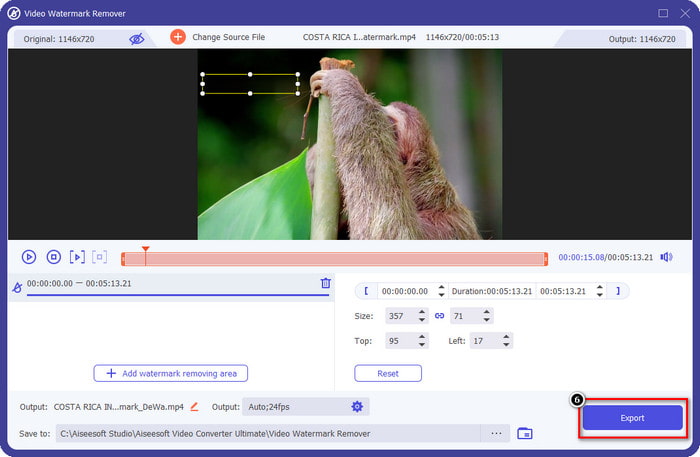
ステップ 2. ソフトウェアを起動したら、ツールボックス を開き、その中の Video Watermark Remover(動画ウォーターマークリムーバー)をクリックします。
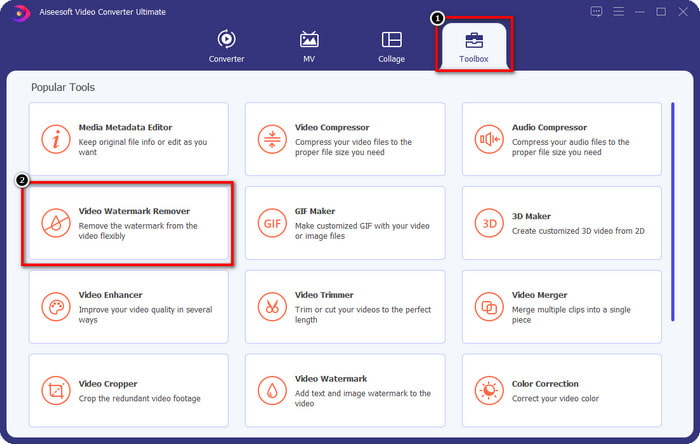
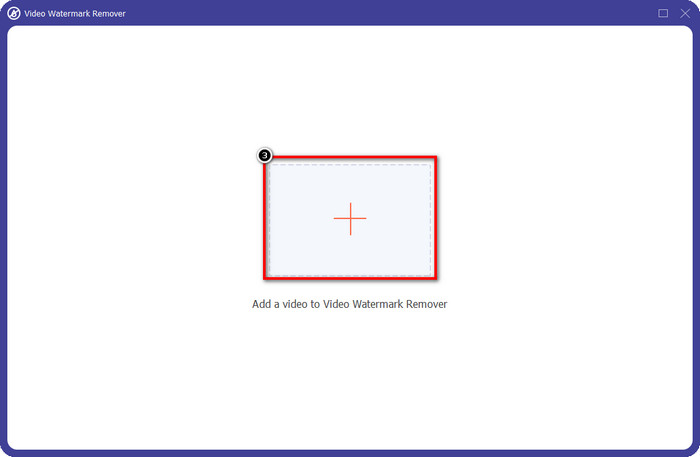
ステップ 3. 画面上の + アイコンをクリックし、ウォーターマーク付きで書き出した Renderforest の動画をアップロードします。
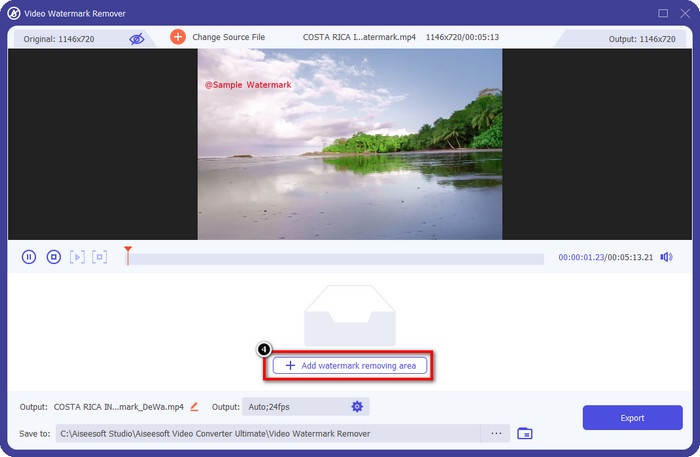
ステップ 4. Add Removing Watermark Area(ウォーターマーク削除エリアを追加)を押して、Renderforest のウォーターマーク削除を開始します。
ステップ 5. 画面に表示される新しいウィンドウ上で、選択ボックス をドラッグしてウォーターマークにぴったり合うように調整します。必要に応じて、この選択ボックスは自由に調整できます。
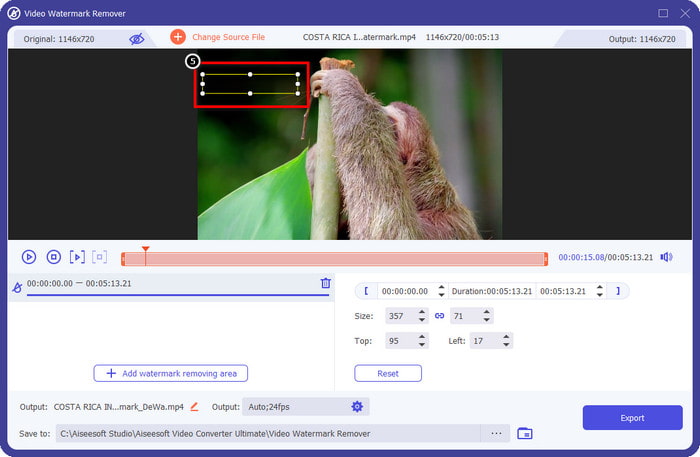
ステップ 6. 選択ボックスが動画内のウォーターマークを検出したら、Export(エクスポート)をクリックして、ウォーターマークなしの動画を保存・書き出します。動画は短時間で処理され、煩わしいウォーターマークのない動画をすぐに使用できるようになります。
関連記事:
今すぐロゴを削除
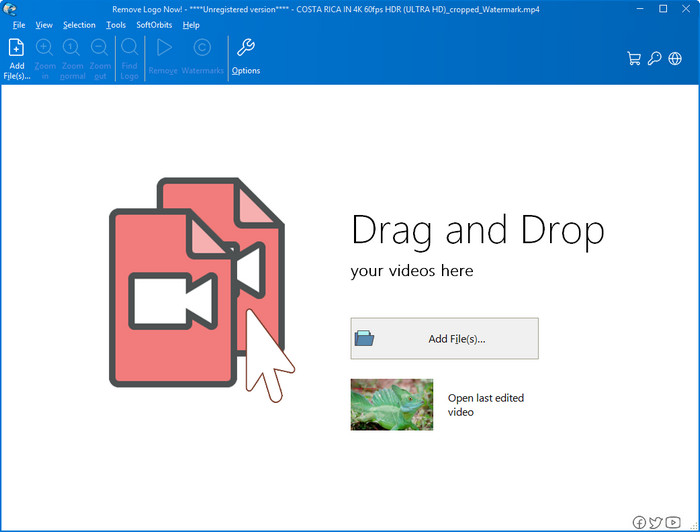
次に紹介する Remove Logo Now は、Windows 上で重ねて表示されているウォーターマークを削除できるツールとして高い評価を得ています。このツールを使えば、PC で Renderforest のウォーターマークを削除する方法について専門知識は不要です。ウォーターマークを削除した後、よく目を凝らして見ると、ウォーターマークがあった箇所にわずかな痕跡が残ることがあります。しかし、注意深く見なければ、書き出した動画上でウォーターマークやその残り痕に気付くことはほとんどありません。以下のチュートリアルでは、Windows デバイス上の動画からウォーターマークを削除する手順を解説します。
ステップ 1. Remove Logo Now をデスクトップにダウンロードしてインストールし、画面の指示に従ってセットアップを行います。
ステップ 2. ソフトウェアを起動し、Add Files(ファイルを追加)をクリックして動画をアップロードします。より効率的にアップロードしたい場合は、動画をここにドラッグ&ドロップすることもできます。
ステップ 3. ウォーターマークをマークするために使用したいツールを選択します。ツールを選んだら、ウォーターマーク部分をハイライトし、Remove(削除)をクリックします。
ステップ 4. Start(開始)をクリックして、このツールによるウォーターマーク削除プロセスを始めます。
ビデオ透かしリムーバーオンライン

デスクトップにソフトウェアをダウンロードしたくないが、それでも Renderforest のウォーターマーク削除方法を知りたい場合は、Video Watermark Remover Online を試してみてください。この全自動のウォーターマークリムーバーを使えば、デスクトップにインストールすることなく、動画内のウォーターマークを無料で除去できます。前述のツールと同様に、動画編集やウォーターマーク削除の初心者でも、数分で使い方をマスターできるはずです。使い方を知るには、以下のチュートリアルに従ってください。
ステップ 1. お好みのウェブブラウザで検索して、オンライン版のウォーターマークリムーバーを開きます。
ステップ 2. メインサイト上の クラウドへのアップロード アイコンをクリックし、Renderforest から書き出した動画を挿入します。
ステップ 3. アップロード処理が完了するまで待ちます。このツールは動画内のウォーターマークを自動的に削除してくれるので、その後 Download(ダウンロード)をクリックして、ウォーターマークなしの動画を取得します。
パート2。Renderforst透かしを削除する方法に関するFAQ
Renderforestのサブスクリプション料金はいくらですか?
Renderforestは、利用できる3種類の価格設定をサポートしています。毎月、Liteの場合は$ 14.99、Proの場合は$24.99、Businessの場合は$29.99です。この価格設定には、互いに異なる目的があります。メインのWebサイトにアクセスして、利用したいサブスクリプションで利用可能な参加者を確認できます。
ツールなしでRenderforestVideoから透かしを削除することは可能ですか?
はい、ツールを使用せずにRenderforestの透かしを削除できます。その方法は、ソフトウェアで月額または年額の料金を購入することです。そのため、ビデオファイルをエクスポートするときに、透かしが追加されることはありません。
Renderforestの最良の計画はどれですか。月次または年次?
ツールを数回使用する場合は月額サブスクリプションが適していますが、ソフトウェアを長期間使用する場合は、更新よりも費用がかからないため、年間プランを利用することをお勧めします。毎月。ただし、利用する前に、ここにアカウントを記録してRenderforestを無料で使用し、無料で提供されている他のテンプレートを使用してみてください。
結論
実際、この記事は、使用できる3つの最も役立つ透かしリムーバーを使用してRenderforest透かしを無料で削除するための強力な証拠を提供します。 Windowsユーザーで、デスクトップの透かしを削除したい場合は、[今すぐロゴを削除]を使用してみてください。ただし、ソフトウェアのダウンロードが気に入らない場合は、Video Watermark Remover Onlineを使用してみてください。このツールを使用すると、透かしを効果的に削除できます。
しかし、効果的な透かし除去剤が必要なWindowsまたはMacユーザーの場合、間違いなく、使用できる最高の透かし除去剤はFVC VideoConverterUltimateです。これは、Renderforestビデオを効率的かつ専門的に悩ませている透かしを削除するために使用できる究極の透かし除去剤です。
-
 WindowsとMacでVSDC透かしをすばやく削除する2つの方法
 動画のVSDC透かしを削除する方法をお探しですか?この記事では、透かしを取り除くために使用できるツールを提供します。
-
 動画のAnimoto透かしを簡単かつ効果的に削除する
 ビデオのAnimoto透かしを削除するにはどうすればよいですか?それを行う方法についての完全なチュートリアルを提供したので、この記事を読み続けてください。
-
 FinalCutProを使用してビデオから透かしを削除する方法[完全ガイド]
 ビデオの透かしに問題がありますか? FinalCutProを使用してビデオから透かしを削除する方法についてのチュートリアルを提供したためです。
