


 ビデオコンバーター究極
 スクリーンレコーダー
 ビデオ修復
ビデオ修復
 安全なダウンロード
簡単な方法でビデオのAnimotica透かしを削除します
Animotica is a popular Windows video editor everyone loves to use for it provides a spectacular output once you use it. With its user-friendly interface and function, even if you are an amateur in video editing, you can create a fantastic output like what professionals can do on their videos. We can’t argue why the name of this tool has been among the top video editors you can use on Windows. Regardless of how good it is, many users still encounter a problem while using it, and the watermark left on the video is the major concern of many. Instead of worrying, why don’t you read this article to remove the Animotica watermark? Did we catch your attention? Then read the details below to learn more about how to do it effectively.

パート1。知っておくべき3つの方法を使用してAnimoticaビデオから透かしを削除する方法
FVCビデオコンバーターアルティメット[最も推奨されるビデオ透かし除去剤]
The FVC Video Converter Ultimate provides the best output for removing the watermark on your video. Even though you aren’t as good as the other video editor, you can still have a fantastic output once you get the hang of it—no need to worry because you can be a pro user of this tool in no time. This performance is incomparable compared to another watermark remover you can download or use on the internet. So, if you want to see how to remove the watermark from the Animotica video using this tool, you can follow the tutorial we added below for you to follow.
Step 1. First, download the software on your desktop, and choose which version suits your OS. Then, follow the installation process, and open the tool to proceed.
無料ダウンロードWindows 7 以降に対応安全なダウンロード
無料ダウンロードMacOS 10.7 以降に対応安全なダウンロード
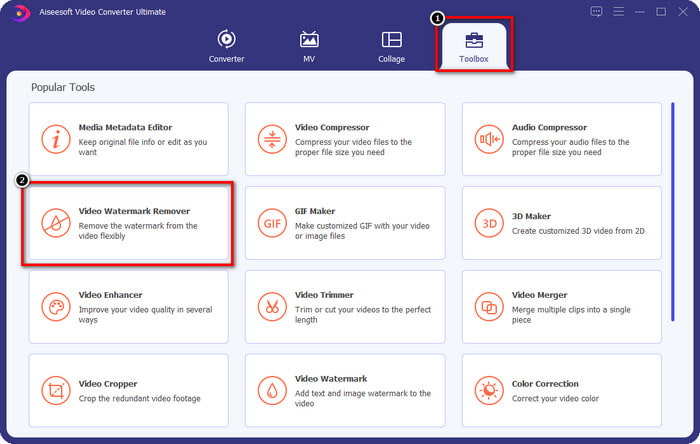
Step 2. Once you’ve opened the app, go to the Toolbox and open the Video Watermark Remover. There are more features and functions you can use under the Toolbox; you can check them out later if you want to.
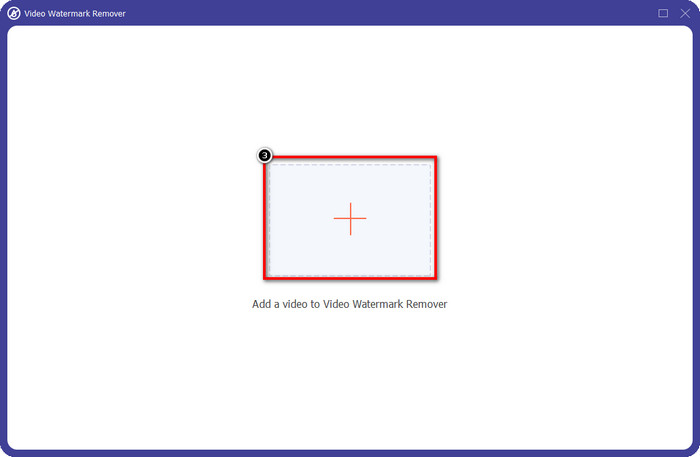
Step 3. Click the + icon to upload the video you edit on Animotica. Find the video file you export with a watermark on the folder that will show on your screen, then click Open to upload it.
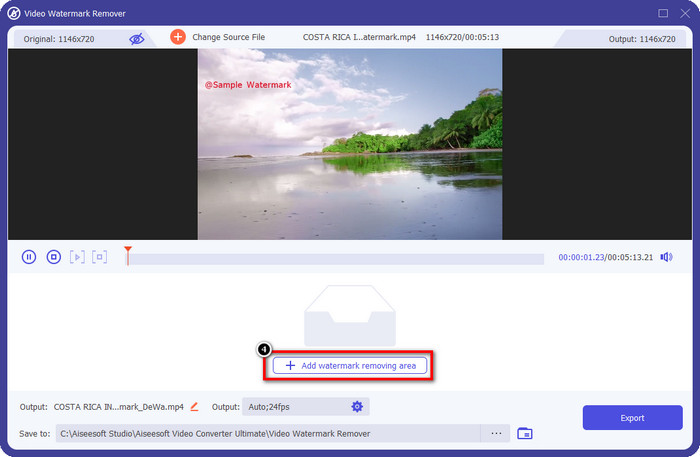
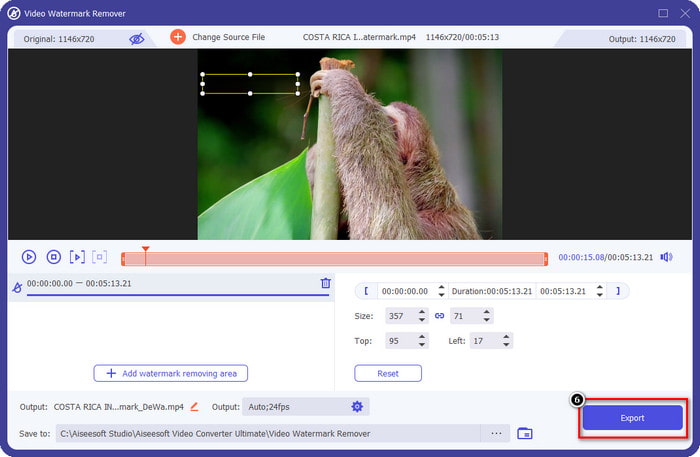
Step 4. On the window that will show, click Add Watermark Removing Area to launch another window where you will trace the watermark.
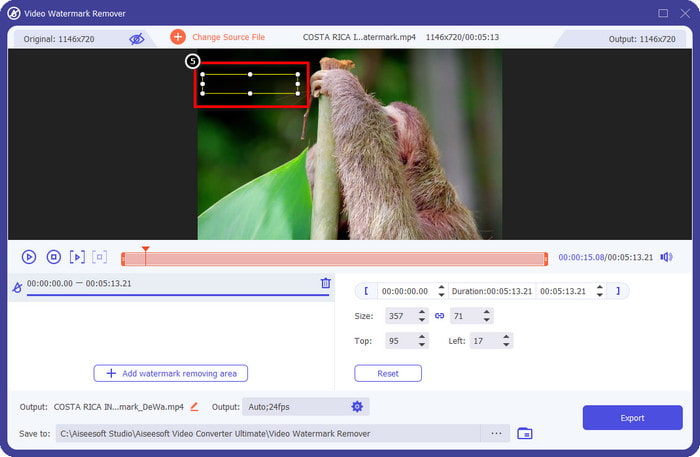
Step 5. Here, place the rectangular to the watermark to cover it, and ensure that the watermark is covered. You can simply resize the selection box if it is small or big on the watermark.
Step 6. You can now save the video on Animoto without a watermark by clicking the Export button near the lower right side of the interface.
関連記事:
UkeySoftビデオ透かしリムーバー
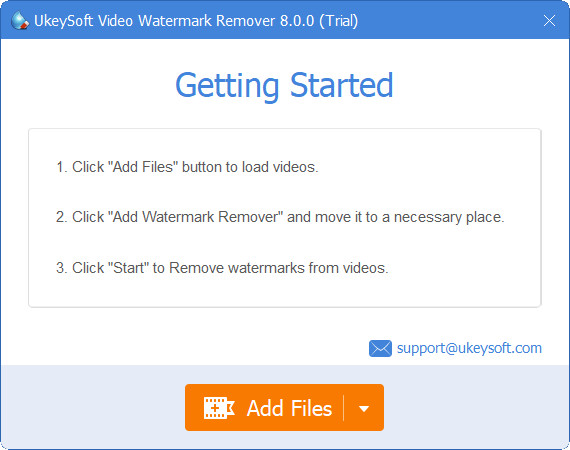
You can download for free the UkeySoft Video Watermark Remover to cancel out the watermark in your video. This tool is available on Windows, meaning if you are a Windows user, you can freely download and use the advantages of this tool to remove the watermark. Like other watermark removers, this tool provides the best output and doesn’t lower the quality of the imported video once it is exported.
ただし、このツールのアクセス可能なバージョンを使用する場合、無料で1分以上ここにビデオをアップロードできないなど、いくつかの制限により、妨げになる可能性があります。 Animotica透かしを無料で削除するための完全なガイドは次のとおりです。
Step 1. To download the software on your desktop, go to its official website and click the download button to have it on your Windows.
Step 2. Open the watermark remover, then click Add Files to upload the video that has a watermark.
Step 3. Click Add Watermark Remover and place the selection box to the watermark. Then click the check icon to start removing the watermark on your video.
Step 4. To save the changes you’ve made and the Animotica no watermark, click Next.
Apowesoftウォーターマークリムーバーオンライン
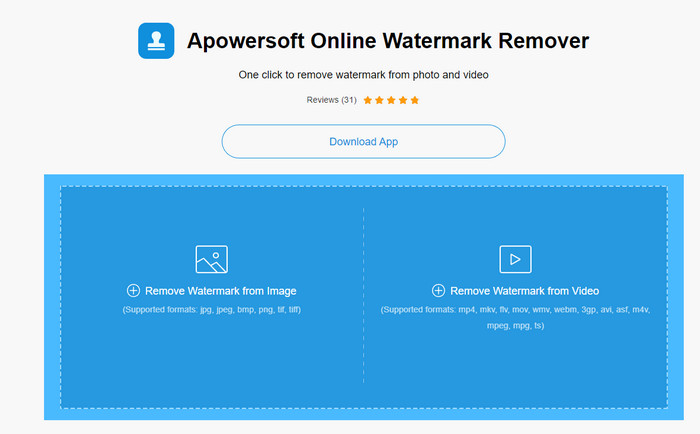
Apowersoft Watermark Remover Online is a dedicated watermark remover you can access online if you don’t like to download a watermark remover software on your device. Because it is accessible on the web, the tool's compatibility is far the most compatible on different OS. However, the tool is accessible online, and its performance is still as good as the other watermark remover you can use or download on your computer. Like other great tools, this tool has a drawback, like the limited supported video format, internet dependence, and more.
ただし、このツールに注目した場合は、オンラインツールを使用してビデオ内のAnimotica透かしをすばやく削除するためのチュートリアルを以下に示します。
Step 1. To access the online watermark remover, you can search over the tool on your web browser, then open it.
Step 2. Press Remove Watermark From Video, then select the video file that has a watermark on video. Wait for the uploading process because it will take a lot of time, especially if you have a slow internet connection.
Step 3. After uploading the video file, place the rectangular shape on the watermark to cover the watermark on the video.
Step 4. Now that the target watermark is selected, click Erase to remove the watermark inside the rectangular area.
パート2。Animotica透かしを削除する方法に関するFAQ
アニモティカライトはいくらですか?
AnimoticaLightの価格は$6.99です。価格は引き続きMicrosoftStoreリージョンによって異なります。トータルHD出力、透かしなし、すべてのトランジション、無制限のフレームレートなど、無料バージョンには含まれていない使用可能ないくつかのマイナーな機能が含まれています。
Animotica Proを利用するのは素晴らしい選択ですか?
$15.99の場合、このツールは、特別な機能を提供する基本的な編集を行いたい初心者に適しています。プロバージョンでは、60 FPS、完全な編集機能などを備えた最大2160(4k)品質のビデオをエクスポートできます。
Animoticaの透かしがぼやけるのはなぜですか?
ほとんどのツールは、ビデオの透かしをぼかして見えなくします。ただし、長く見ると、視覚を悪化させる可能性のある残留物が残っていることに気付くでしょう。したがって、FVC Video Converter Ultimateが生成するように、エクスポート後に透かしをぼかさない透かしリムーバーを使用します。
結論
実際、この記事で言及するすべてのツールには、Animotica透かしを削除する際の長所と短所が異なります。この記事を終了する前に、透かし除去ツールとしてどのツールを使用しますか?何を使用するかまだ決めていないとします。その場合、究極の透かし除去ツールを選択することをお勧めします。これは、任意のビデオの透かしを削除し、1回のダウンロードで複数のタスクを実行するための最も強力なツールだからです。この記事であなたの質問に答えることを願っています。上記のチュートリアルは、透かしなしで高品質のビデオを楽しむことができるように、ビデオの透かしを削除するのに役立ちます。
-
 Movavi透かしを無料で削除する方法を学ぶ[必須!]
 Movaviでビデオまたは画像をエクスポートすると透かしが残りますが、それを削除することは可能ですか?透かしを無料で削除する方法を教えるには、これを読んでください。
-
 WindowsとMacでFiverr透かしを削除する3つの簡単な方法
 あなたがFiverr透かしを削除することができるアプリを探しているなら、あなたは正しいページにいます。この投稿を読んで、Fiverr透かしを簡単に削除する方法を確認してください。
-
 これらの素晴らしいツールを使用してLomotif透かしを削除する方法
 ビデオからLomotif透かしを削除する方法を学びたいですか?この記事を読んで、オンラインとオフラインで削除するための最も優れた方法を知ってください。
