


 ビデオコンバーター究極
 スクリーンレコーダー
 ビデオ修復
ビデオ修復
 安全なダウンロード
これらの素晴らしいツールを使用して、シュートプルーフ透かしを専門的に削除します
Shootproof is a client photo gallery and a portfolio website. If you search for wonderful images online, Shootproof might help you with that. This website offers tons of beautiful images that sellers produce. Shootproof is a known gallery-sharing business for photographers. Additionally, it allows photographers to create an online store for their photos. But, many sellers add watermarks to their images so that others will not easily own the image. Hence, if you are one of the users searching for how to remove the Shootproof watermark, continue reading this post.

パート1.2シュートプルーフ透かしを簡単に削除する方法
適切な透かしリムーバーがあれば、シュートプルーフ透かしを削除するのは難しくありません。そして、あなたが最高の透かし除去剤を選ぶのを助けるために、私たちはオンラインで最も使用されている無料の透かし除去剤を検索しました。このツールを知るには、この部分をすべて包括的に読んでください。
FVCフリーウォーターマーク削除
FVC Free Watermark Remover is among the known online watermark removers. This online application is free and safe to use. In addition, it is accessible on all web browsers, like Google, Firefox, and Safari. It supports standard image formats, including PNG, JPEG, JPG, BMP, and more. And in its watermark remover feature, you can choose from different selection tools to remove the watermark on your image.
さらに、この透かし除去剤は使いやすいため、多くの初心者が使用できます。また、画像をエクスポートすると、元のファイル形式になります。このツールでは、サインインや登録も必要ありません。
FVC Free Watermark Removerを使用して耐射透かしを削除する方法:
Step 1. First, open your browser and search the FVC Free Watermark Remover on the search box.
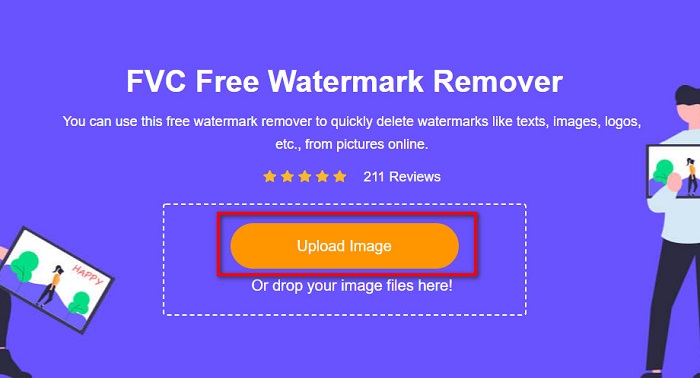
Step 2. Then, click the Upload Image button on the main user interface to upload the image you want to remove the watermark.
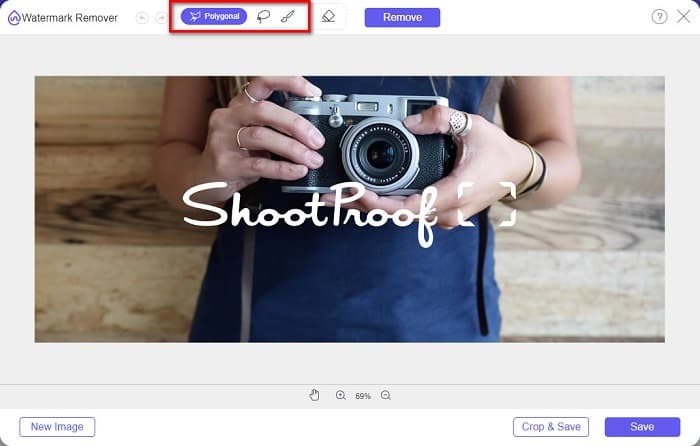
Step 3. Next, choose the selection tool that you want to use to remove the watermark on your image. You can choose between Polygonal, Lasso, and Brush.
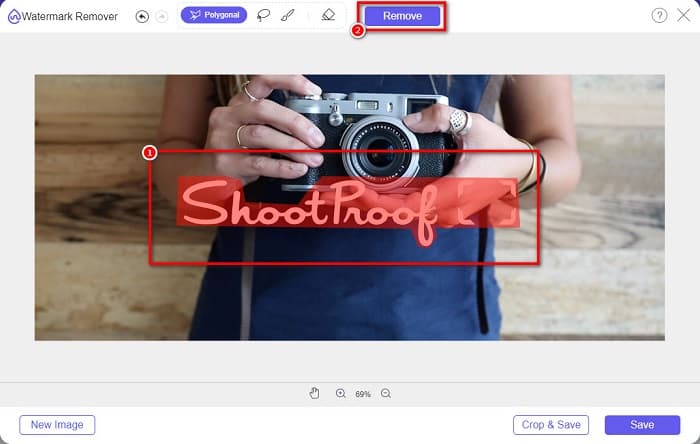
Step 4. And then, trace the area of the watermark on your image. Then, click the Remove button once it is selected. You will see that the watermark is now gone.
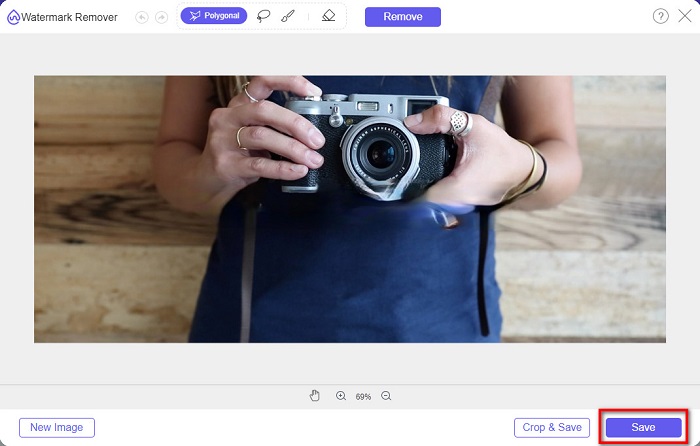
Step 5. Lastly, click the Save button to save your output on your device. And that’s it! With those simple steps, you can have a watermark-free Shootproof image.
Apowersoftオンライン透かしリムーバー
Apowersoft Online Watermark Remover is a known online app to remove any watermarks on your image. It is a user-friendly online application because it has an intuitive user interface. Additionally, it supports the most standard image formats, such as PNG and JPG. You also do not need to be anxious about the safety of your files because this online tool is safe to use. It also has a function where you can remove watermarks on videos. However, when your internet connectivity is slow, you may experience a slow uploading and exporting process.
Apowersoft Online Watermark Removerを使用して耐射透かしを削除する方法:
Step 1. Search Apowersoft Online Watermark Remover on your browser, then go to their main page. And on the main interface, click the Remove Watermark From Image option.
Step 2. Then, on the next interface, you will see a watermark remover box and place it on the watermark area.

Step 3. To remove the watermark on your image, click the Erase button.
パート2。シュートプルーフ透かし機能の使用に関するヒント
シュートプルーフの透かし機能を使用すると、画像に透かしを追加および削除できます。他のユーザーがあなたの写真を所有するのを防ぎたい場合は、透かしとして機能するテキストを画像に追加できます。
シュートプルーフに透かしを追加する方法:
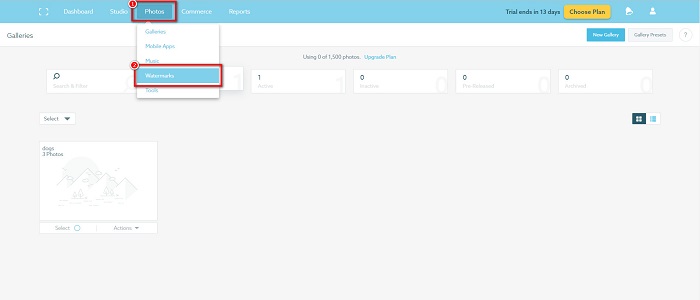
Step 1. Go to Photos, then click the Watermarks option.
Step 2. And then, choose between text or image watermark.
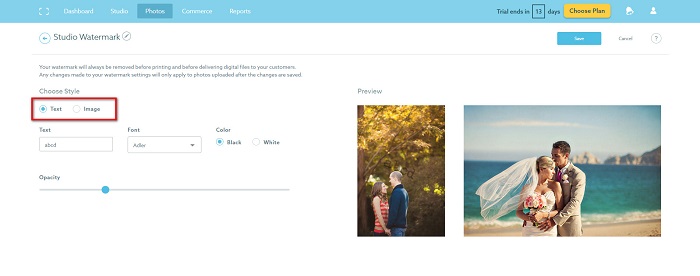
画像の透かしを使用する場合は、背景が透明な高解像度のPNGファイルをアップロードすることをお勧めします。 JPGファイルを使用することもできます。
Step 3. Next, adjust the Watermark Settings. In the Watermark Settings, you can select the position of the watermark on your photo. You can also adjust the size and opacity of your watermark.
Step 4. Finally, click the Save button to change the settings that you made.
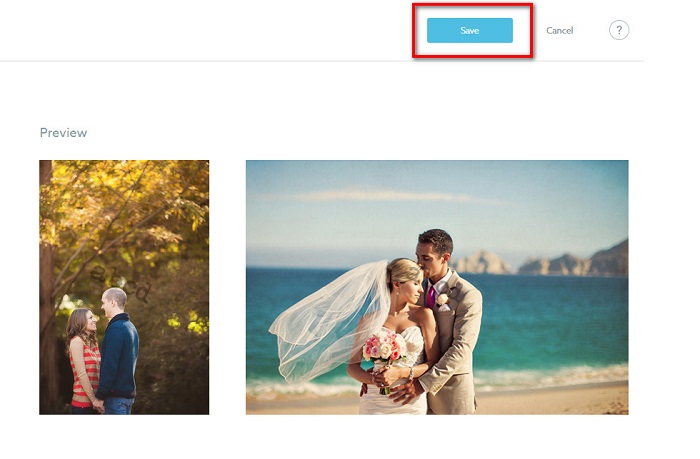
アップロードする画像に透かしを入れます。
[透かし]ページで、デフォルトの透かしを選択できます。今後のすべてのアップロードで透かしをオンにすることもできます。新しい画像をアップロードする前に、これを変更できます。
また、Webベースのアップローダーまたはデスクトップアップローダーを使用してギャラリーに新しい写真をアップロードする場合、アップロード画面で使用する透かしを選択できます。
シュートプルーフで透かしを削除する方法
既存の透かしを編集または追加すると、将来のアップロードにのみ影響することを常に覚えておいてください。行った変更は、ギャラリーにすでにある画像には影響しません。ただし、透かしを変更したり、シュートプルーフ透かしを削除したりする場合は、透かしを更新してギャラリーで更新できます。シュートプルーフ透かしを削除または変更する方法は次のとおりです。
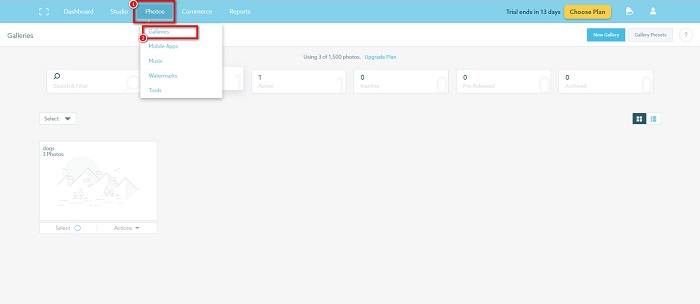
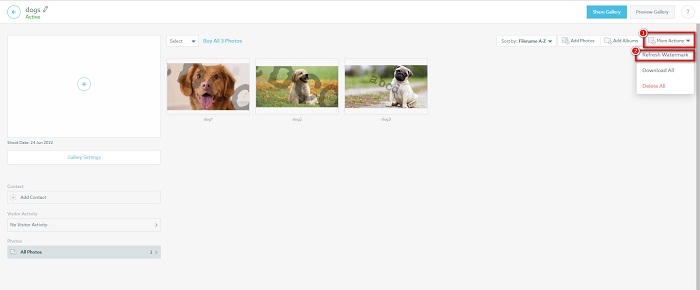
Step 1. Go to the Photos > Galleries, then click your gallery.
Step 2. In the gallery, click the More Actions button at the interface's top right corner.
Step 3. And then, select the Refresh Watermark to remove the watermarks in every image you upload.
Step 4. To remove the watermark, turn the slider bar off. And if you just want to change the watermark, select the New Watermark.
Step 5. Finally, click Apply Change to save the changes that you made.
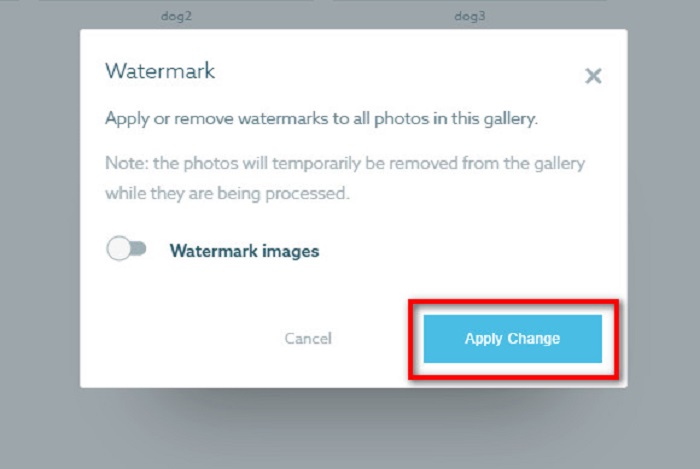
写真が処理中に自動的に表示されることがわかります。変更が適用されると、画像がギャラリーに戻ることがわかります。
関連記事:
Outstanding Arnold Maya Watermark Removers You Must Not Miss
123rf Watermark Removers – Thorough Review of the Ultimate Tools
パート3。シュートプルーフ透かしの削除に関するFAQ
電子透かしを削除できますか?
目に見えない電子透かしを削除するのは難しいです。たとえば、DigimarcPhotoshopプラグインによって埋め込まれたものは削除するのが困難です。トリミング、サイズ変更、ノイズの追加、および適度なぼかしは、電子透かしでは機能しない場合があります。
ビデオからロゴ透かしを削除できますか?
はい。ビデオのロゴ透かしを削除することが可能です。多くの透かしリムーバーを使用すると、ビデオのロゴを削除できます。ビデオのロゴを削除する場合は、VideoConverterUltimateを使用してください。
スクリーンショットを撮ると、Shootproofは表示されますか?
シュートプルーフは、販売者の写真を保護するためにいくつかの対策を講じています。ただし、Shootproofは、ギャラリーで他の人があなたの画像のスクリーンショットを撮るのを防ぐことはできません。
結論
And that is all! Following the above mentioned methods, you can now remove the Shootproof watermark from your image. Although it is free to remove the watermark on Shootproof, following the process may be quite hard. So, if you want to remove the Shootproof watermark on your image easily, use FVC Free Watermark Remover.
-
 オンラインおよびオフラインで優れたPhotobucketウォーターマークリムーバー
 これらの素晴らしいPhotobucket透かしリムーバーを使用して写真からPhotobucket透かしを削除する方法を学びます。方法を学ぶためにこの記事を読んでください。
-
 簡単な手順でPDFから透かしを簡単に削除
 これらの簡単な手順に従って、PDFから透かしを削除します。これらのすばらしいツールを使用して、PDFファイルから透かしを簡単に削除する方法を学びます。
-
 卒業写真から透かしを削除する簡単な方法
 卒業写真から透かしを削除するための最良の方法を知りたいですか?この記事を読むことで、卒業生の写真の透かしを簡単に削除する方法を知ることができます。
