


 ビデオコンバーター究極
 スクリーンレコーダー
 ビデオ修復
ビデオ修復
 安全なダウンロード
手順を使用してビデオと画像のiStock透かしを効果的に削除する方法
ライセンス付きのビジュアルメディアファイルが必要なときは、iStock にアクセスしてファイルをダウンロードできます。ただし、誰でも無料でこのサイトを利用できるわけではなく、画像を入手するには実際にお金を払って購入する必要があります。ここから無料でファイルをダウンロードすることもできますが、その場合はダウンロードしたファイルにウォーターマーク(透かし)が入ります。デフォルトでウォーターマークを付けることで、このファイルが iStock に属するものであるとサイト側が主張しているのです。そのウォーターマーク、うっとうしいと思いませんか?もし同じ気持ちなら、インターネット上で見つけた解決策を紹介しますので、このブログを最後まで読んでください。また、iStock で利用できるプランの内容と、それぞれでiStock のウォーターマークを削除する方法についても説明します。

パート1.3つの役立つ方法でiStockWatermarkonのビデオと画像を削除する方法
第一の方法。 iStockでクレジットを購入する
iStockでクレジットを購入することから始めましょう。 iStockのクレジットは通貨です。このウェブサイトはあなたのお金に等しいクレジットを認識します。クレジットを使用して、特定の金額のファイルを購入できます。クレジットを購入すると、透かしなしでiStock画像を保存できます。それを行う方法を知るために、あなたはそれを行う方法を助けるために以下に追加するステップを完全に読むことができます。
ステップ1: 公式サイトを開き、このサイトの自分のアカウントにログインします。まだアカウントを作成していない場合は、必要なクレジットを購入する前にアカウントを作成してください。
ステップ2: サイト上でPricing(料金)をクリックし、このツールが対応しているプランを確認します。
ステップ3: 購入可能なクレジットの一覧が表示されるので、購入したいクレジット数を選択し、Purchase Credits(クレジットを購入)をクリックします。
ステップ4: ここで、クレジットを購入する際に使用する情報と請求先情報を入力します。
2番目の方法。 FVC VideoConverterUltimateを使用してビデオのiStock透かしを削除する
動画の iStock ウォーターマークを削除するには、究極のウォーターマーク削除ソフトであるFVC Video Converter Ultimateを使用する必要があります。これは、動画のウォーターマーク削除を手間なく行える、最も選ばれているウォーターマークリムーバーです。このツールは動画のフレームごとにウォーターマークを取り除き、書き出し後に痕跡を残しません。デスクトップでこのソフトを使用するのであれば、あっという間にウォーターマークのない動画を手に入れられると断言できます。このソフトを使ってみたいですか?そうであれば、iStock から保存した動画のウォーターマークを削除するために、以下に挙げる手順に従ってください。
ステップ1: 下に用意したダウンロードボタンをクリックして、プログラムをデスクトップに入手します。自分の OS に合ったバージョンを選択してください。ダウンロード後、ツールをインストールしてセットアップし、Start Now をクリックしてソフトを起動し、使用を開始します。
無料ダウンロードWindows 7 以降に対応安全なダウンロード
無料ダウンロードMacOS 10.7 以降に対応安全なダウンロード
ステップ2: iStock ウォーターマークリムーバーを入手したら、Toolbox(ツールボックス)に移動します。そこでVideo Watermark Remover(動画ウォーターマーク削除)を探してこの機能を使います。
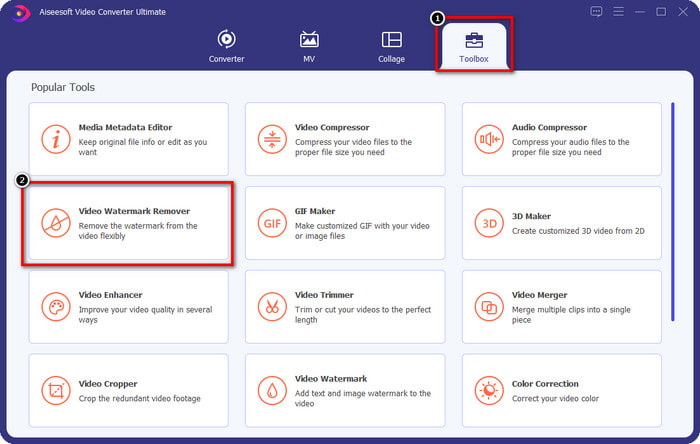
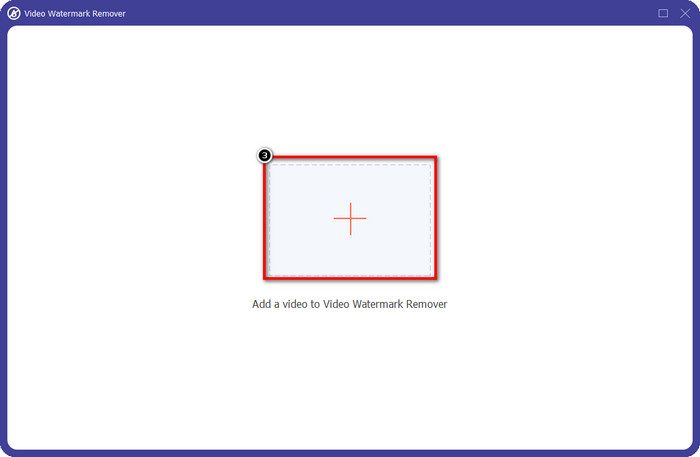
ステップ3: +ボタンを押して、iStock からダウンロードしたウォーターマーク付きの動画ファイルをアップロードします。表示されたファイルエクスプローラーから動画ファイルを見つけ、Openを押して読み込みます。
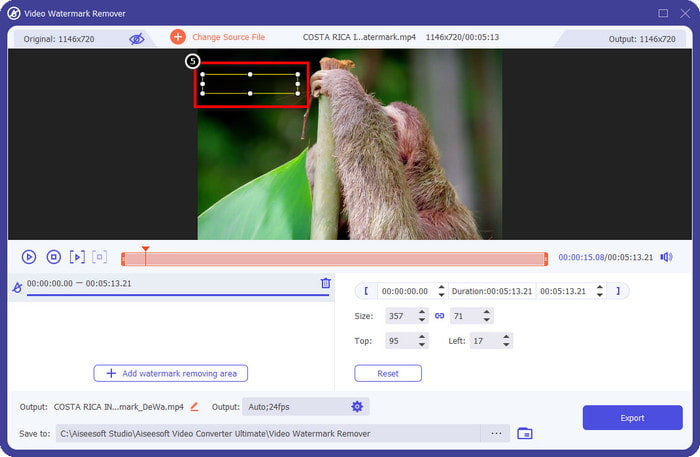
ステップ4: 新しいウィンドウで、Add Watermark Removing Area(ウォーターマーク削除エリアを追加)を選択し、アップロードした動画上のウォーターマーク部分を指定します。
![[領域の削除]をクリックします](/images/2022/07/click-removing-area.jpg)
ステップ5: 画面中央上部にある長方形の枠を調整し、ウォーターマークがある位置に正確に重ねて指定します。
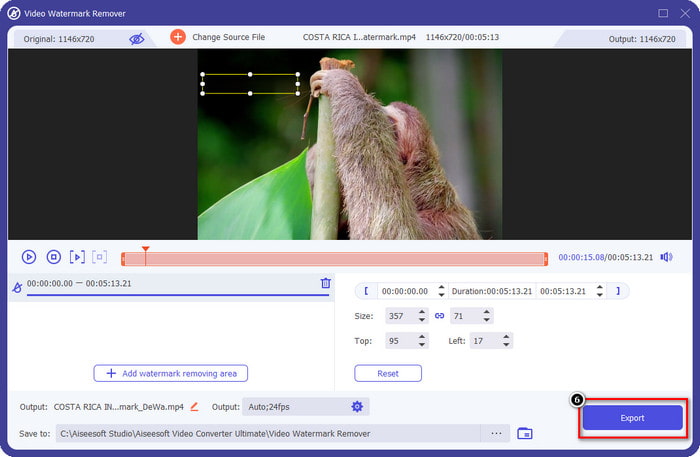
ステップ6: ここまでの手順が完了したら、Exportボタンを押してファイルの書き出しを開始します。これで、究極のツールを使って動画のウォーターマーク削除が完了します。
第三の道。 FVC無料透かしリムーバーを使用して画像上のiStock透かしを削除します
画像のウォーターマークに対処する場合は、FVC Free Watermark Removerを使用する必要があります。これは、デバイスに何もインストールすることなく、画像のウォーターマークを効率的に削除できる便利なオンライン版 iStock ウォーターマークリムーバーです。さらに、ここでは何かを購入したり契約したりする必要はなく、完全に無料で使えます。オンラインツールでありながら、そのウォーターマーク除去性能は、他の画像用ウォーターマークリムーバーと比べても抜群です。そうは言っても信じられないという方もいるかもしれません。性能の良さを証明する方法はただ一つ、ここで紹介する手順に従って実際に使ってみることです。
ステップ1: 画像用オンラインウォーターマークリムーバーをすぐに使うには、このリンクをクリックしてください。
ステップ2: Upload Imageを押し、ウォーターマーク入りの画像を選択して、アップロードが完了するまで待ちます。
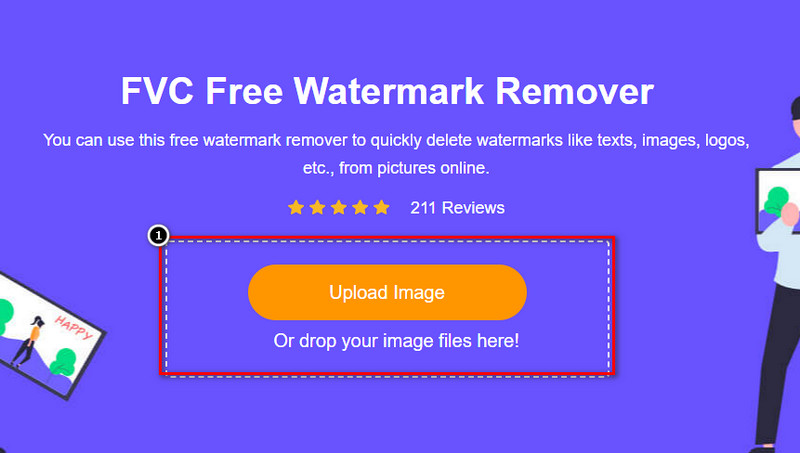
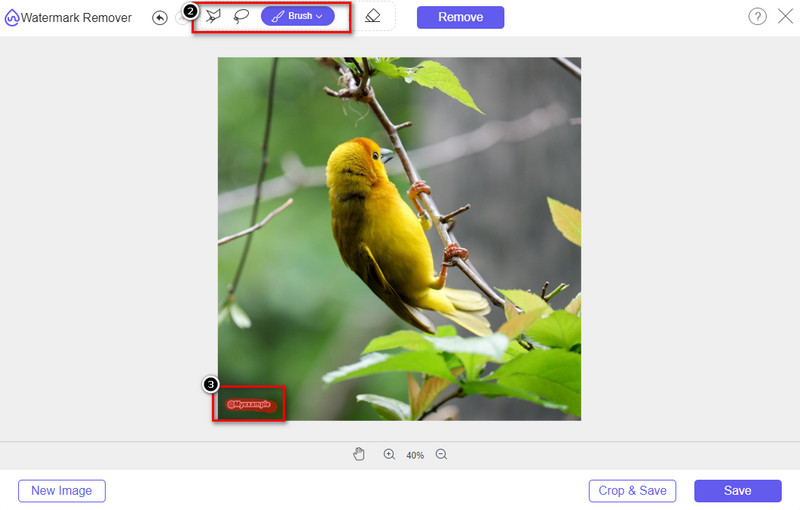
ステップ3: ここにあるツールを使ってウォーターマーク部分をDraw(なぞる)し、強調表示します。
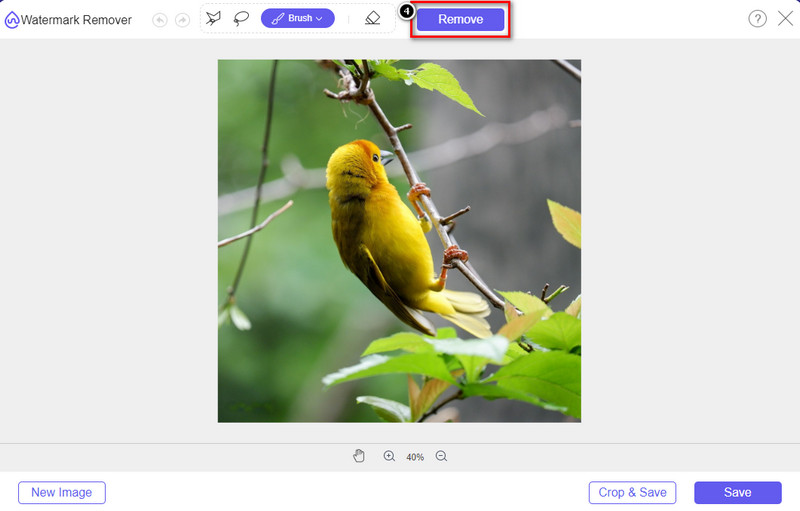
ステップ4: Removeをクリックして、ウォーターマークを削除した場合にどのように表示されるかを確認します。
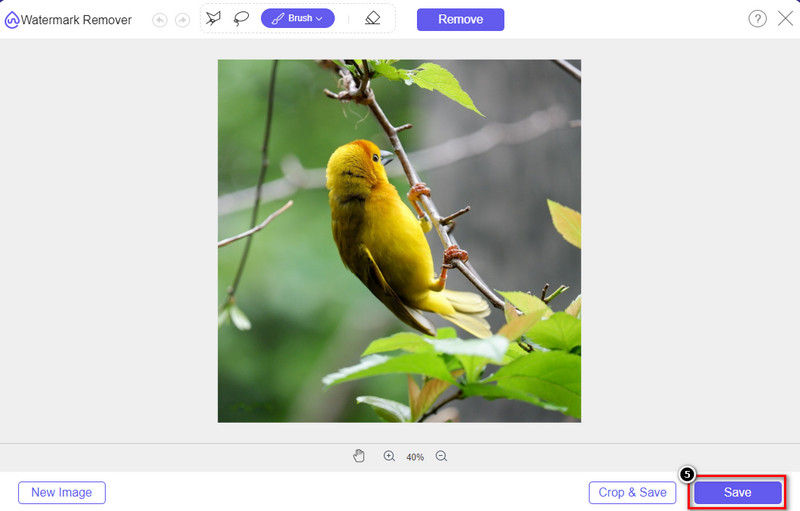
ステップ5: 最後に、画像ファイルを保存するにはSaveをクリックし、iStock のウォーターマークが除去された画像をエクスポートします。
関連記事:
Renderforest で書き出した動画からウォーターマークを削除する方法
VivaVideo のウォーターマークを動画から削除する方法
パート2。iStock透かしを削除する方法に関するFAQ
透かしのないiStock画像を無料でダウンロードするにはどうすればよいですか?
すぐにiStockに画像をダウンロードする場合は、ウェブサイトが画像に透かしを適用します。このウェブサイトは、著作権の問題や特定の画像の過度の使用を避けるために、すべてのファイルを保護します。透かしのない画像をダウンロードする場合は、クレジットを購入する必要があります。その方法については、上記で追加した手順に従うことができます。
iStockの1クレジットの価格はいくらですか?
iStockの1クレジットの価格は$12の価値があります。クレジットを使用して、ここでメディアファイルを購入し、必要なビジュアルメディアに透かしなしでダウンロードできます。購入するクレジットが多いほど、クレジットごとに割引が適用されます。あなたが好きかもしれない利用可能なクレジットをチェックすることができます。
iStockでファイルを購入するのは高くつきませんか?
同じサービスを提供する他のWebサイトと比較して、ライセンスファイルの購入に使用できる最も安価なWebサイトの1つです。ここでファイルを購入すると、他のファイルとは異なり、無制限に使用できます。一度購入すると、ファイルの使用には制限があります。
結論
ビデオや画像のiStock透かしを効果的に削除する方法がわかったので、作業は完了したと言えます。それで、あなたはどちらの方法が最も好きですか?透かしなしでファイルを準備するためにクレジットを購入しますか?または、画像やビデオの透かしを処理できる、ここに追加したツールを使用しますか?どちらを選択しても、透かしを乱すことなくファイルを完璧に使用できるようになります。
-
 詳細な手順でPixlrを使用して透かしを削除する方法[効果的]
 Pixlrで透かしを削除する方法を知りたいですか?もしそうなら、それを行う方法とあなたが使用できる代替案を知るために以下を読み続けてください。
-
 3つの実証済みの方法でエクスポートされたビデオのAnimotica透かしを削除します
 エクスポートしたビデオのAnimotica透かしを削除できるかどうか疑問に思ったことはありますか?この記事では、その方法を説明します。
-
 ビデオのVideoShop透かしを削除する無料の方法[楽に]
 VideoShopの透かしを削除するには、デバイスに透かし除去機能が必要です。これらが何であるかを知るために、この記事を読んでください。
