


 ビデオコンバーター究極
 スクリーンレコーダー
 ビデオ修復
ビデオ修復
 安全なダウンロード
あなたが試さなければならないCamtasia 9から透かしを削除する素晴らしい方法
Camtasia 9のウォーターマークを削除するための、簡単かつ最適な方法を探しているなら、ここが最適な場所です。私たちが視聴したい優れた動画はたくさんありますが、その中には大きなウォーターマークが入っていて、煩わしいだけでなく、動画そのものの内容を十分に楽しめないものもあります。さらに、こうした不要なオブジェクトのせいで、動画の一部が見えなくなってしまい、視聴者をがっかりさせてしまうこともあります。幸いなことに、動画からウォーターマークを取り除けるウォーターマーク除去機能付きのソフトウェアがいくつかあり、それらを使えば、お気に入りの動画を邪魔されずに楽しめます。動画のウォーターマークを素早く消す方法を詳しく知りたい場合は、この記事を最初から最後までお読みください。

パート 1: Camtasia から透かしを削除する最良の方法
Video Converter Ultimate の使用
信頼性が高く優れたウォーターマーク除去ツール付きアプリケーションを探しているなら、Video Converter Ultimateは非常に優秀なソフトとして活用できます。このアプリケーションを使えば、動画のウォーターマークを削除できます。また、Camtasiaなど他のアプリで入ったウォーターマークがある動画にも利用可能です。さらに、操作が簡単でシンプルなので、初心者にも適しています。加えて、Video Compressor、Video Enhancer、Video Trimmer、Audio Compressor、Video Reverser、Video Rotatorなど、さまざまな編集ツールも備わっており、楽しみながら利用できます。この記事では、Video Converter Ultimateを使って動画からウォーターマークを削除する2つの方法をご紹介します。
1.ビデオウォーターマークリムーバーの使用
ステップ1: デスクトップにVideo Converter Ultimateをダウンロードします。その後、インストール作業に進みます。
無料ダウンロードWindows 7 以降に対応安全なダウンロード
無料ダウンロードMacOS 10.7 以降に対応安全なダウンロード
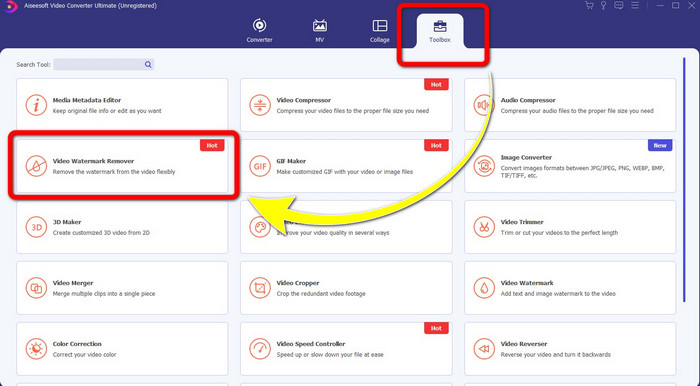
ステップ2: インストールが完了したら、アプリケーションを開き、Toolbox > Video Watermark Removerを選択します。すると、別の画面が表示されます。
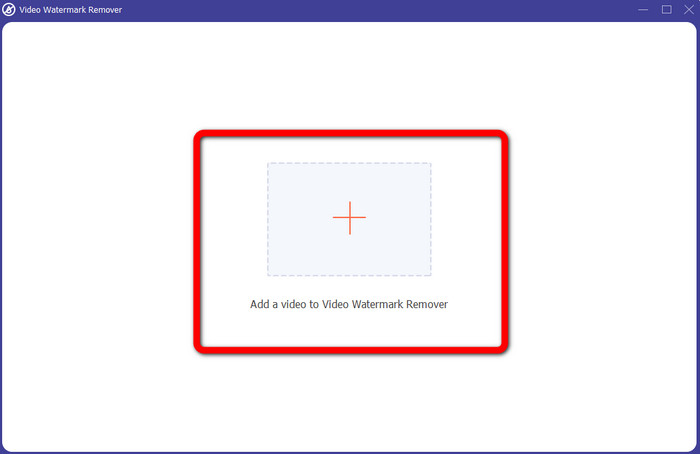
ステップ3: 別のインターフェースが表示されたら、プラスアイコンをクリックして、ウォーターマーク付きの動画を追加します。
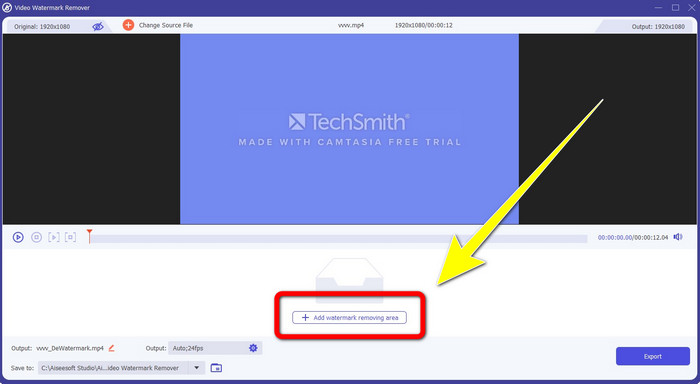
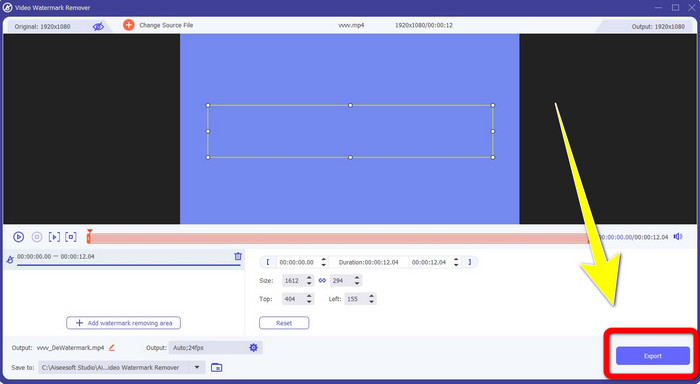
ステップ4: ウォーターマーク付きの動画を追加したら、Add Watermark Removing Areaをクリックします。
ステップ5: 画面上にボックス型の枠が表示されます。そのボックスを使って、動画上のウォーターマークを覆います。
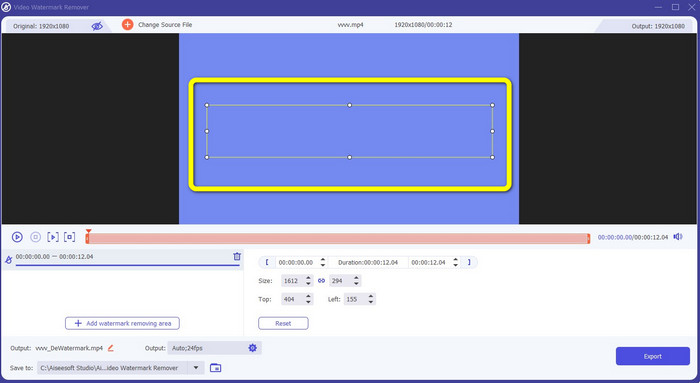
ステップ6: ウォーターマークがボックスで覆われると、動画からウォーターマークが消えます。Exportをクリックして動画を保存します。こうすることで、Camtasiaのウォーターマーク入り動画を取り除くことができます。
2.クロップ機能の使用
もう1つの方法として、Video Converter Ultimateのクロッピング機能を試すこともできます。特にウォーターマークが動画の隅や端にある場合、ウォーターマークを消す最も簡単な方法の1つです。動画をトリミングすることで、不要なオブジェクトを素早く削除できます。クロップツールを使ってウォーターマークを削除する手順は次のとおりです。
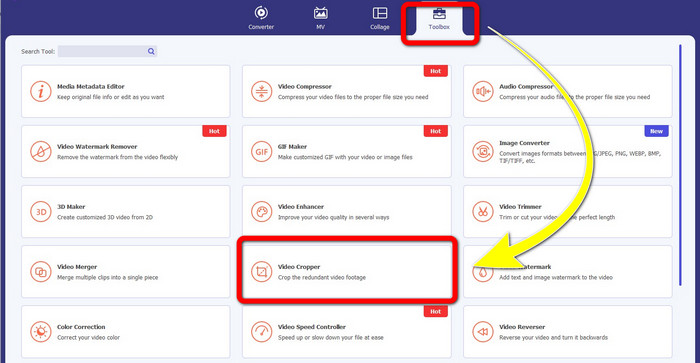
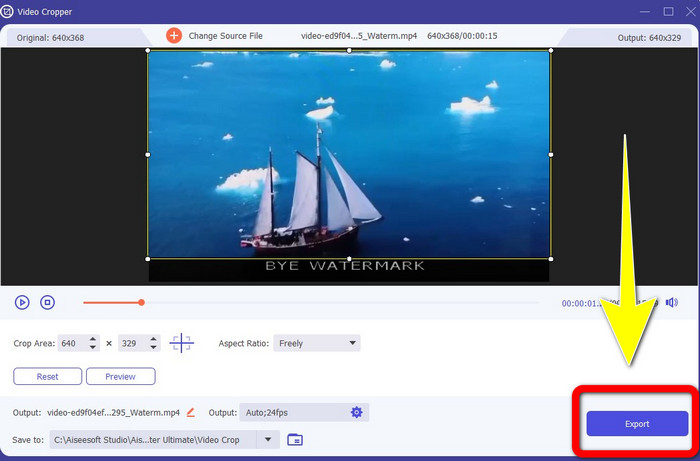
ステップ1: Video Converter Ultimateを開きます。Toolbox > Video Cropperをクリックします。すると、別のインターフェースが表示されます。
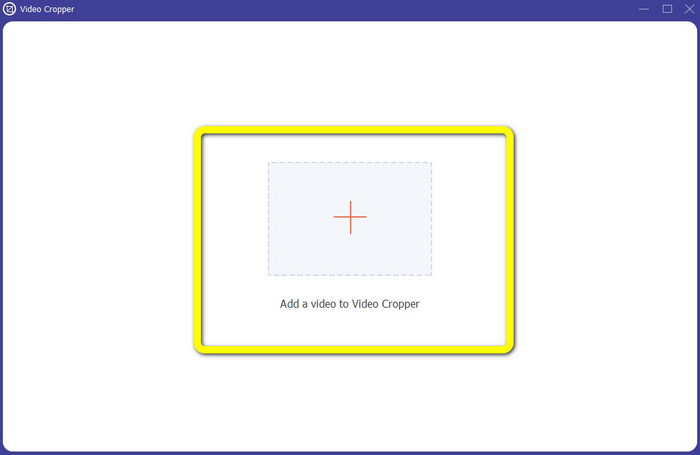
ステップ2: プラスアイコンをクリックし、削除したいウォーターマークが付いている動画を追加します。
ステップ3: ウォーターマーク付きの動画を追加したら、ウォーターマークがある部分に合わせて動画の端をクロップします。これにより、ウォーターマークを取り除くことができます。
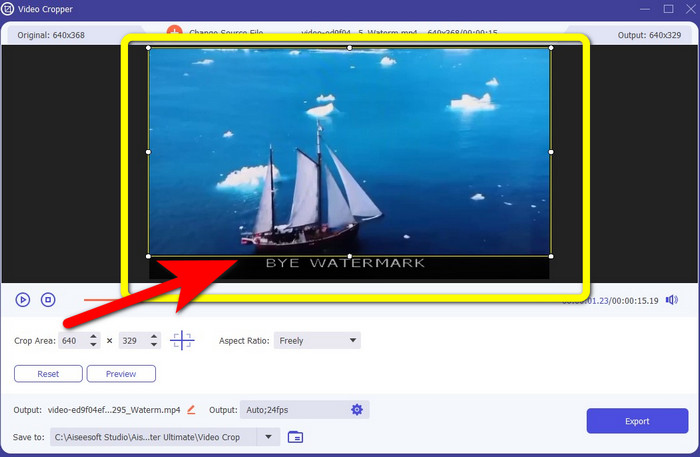
ステップ4: 動画をクロップしてウォーターマークが消えていることを確認したら、Exportをクリックして編集済み動画を保存します。これで、画面上にウォーターマークのない動画を楽しめます。
パート 2: Camtasia で透かしのないビデオを作成する方法
ウォーターマークのないCamtasia動画を作成する方法を知りたいですか。まず、Camtasiaとは何かを定義しましょう。Camtasiaは、誰でも使いやすく便利な編集ツールです。さらに、画面録画ソフトとしても利用できます。加えて、注釈、トランジション、アニメーション、オーディオエフェクト、ビデオエフェクトなど、さまざまな編集機能を備えています。また、このアプリケーションでスライドショーを作成することも可能です。
このアプリケーションの助けを借りて、ビデオをより魅力的で視聴者にとってユニークなものにすることができます. Camtasia では、楽しめる美しいビデオを作成できます。ただし、アプリケーションを購入しない限り、ビデオをエクスポートすると、このアプリケーションには透かしが入ります。以下の簡単な手順に従って、このアプリケーションの多くのことを学び、特に Camtasia でビデオを作成してください。
このアプリケーションの助けを借りて、ビデオをより魅力的で視聴者にとってユニークなものにすることができます. Camtasia では、楽しめる美しいビデオを作成できます。ただし、アプリケーションを購入しない限り、ビデオをエクスポートすると、このアプリケーションには透かしが入ります。以下の簡単な手順に従って、このアプリケーションの多くのことを学び、特に Camtasia でビデオを作成してください。
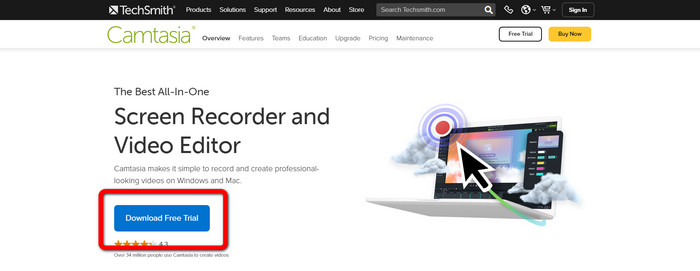
ステップ1: WindowsにCamtasiaをダウンロードする必要があります。Download Free Trialボタンをクリックしてアプリケーションを入手し、インストール後にアプリケーションを開きます。
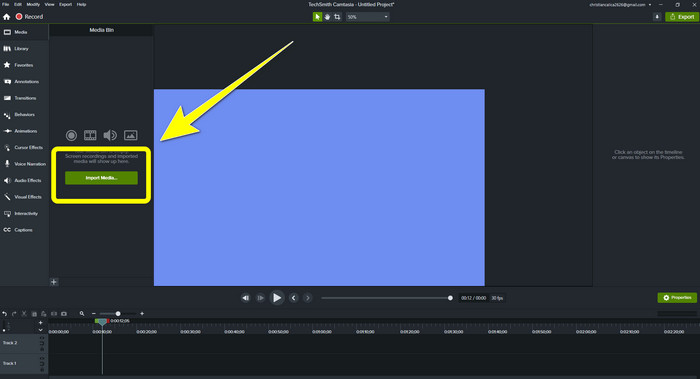
ステップ2: アプリケーションを起動したら、Import Mediaボタンをクリックして、編集したいファイルを追加します。
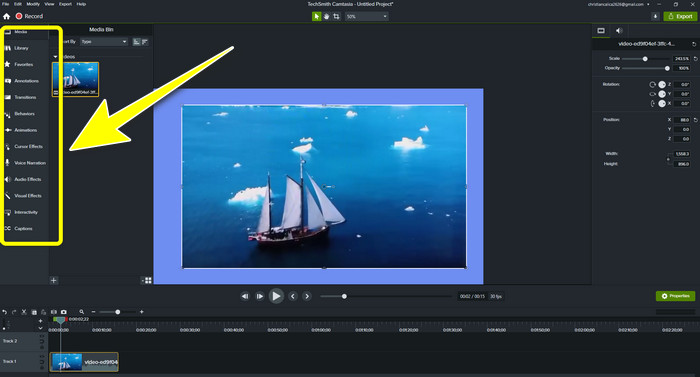
ステップ3: このアプリケーションでは、キャプション、トランジション、アニメーション、注釈、ビヘイビアなどの編集ツールを使って、ファイルを編集できます。
ステップ4: 動画の編集が完了し、仕上がりに満足したら、Export > Local Fileボタンをクリックして成果物を保存します。
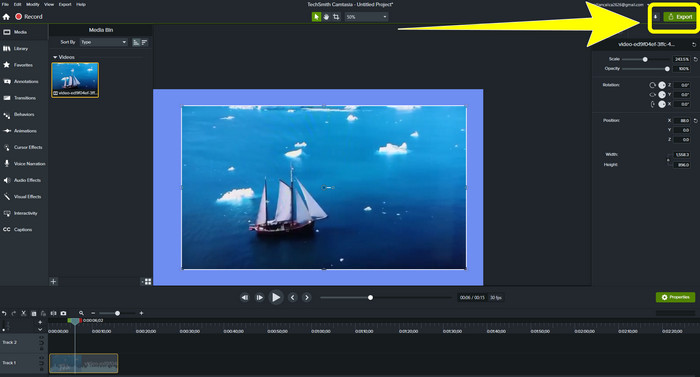
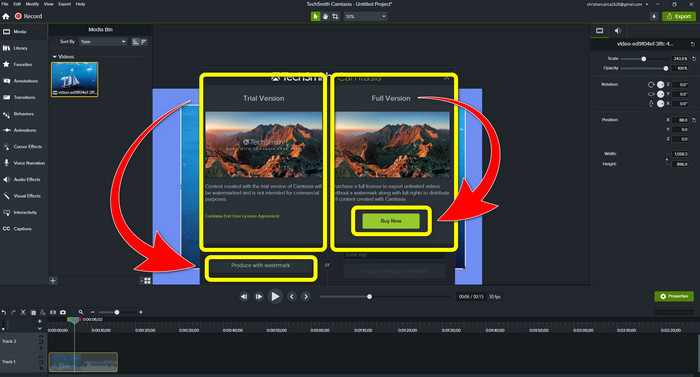
ステップ5: Export > Local Fileボタンをクリックすると、別の画面が表示されます。ウォーターマークのないCamtasia動画を作成したい場合は、購入ボタン(Buy)をクリックしてアプリケーションを購入してください。ただし、無料体験版のみを利用している場合は、エクスポートおよび保存後の動画にウォーターマークが入ります。
関連記事:
Filmoraのウォーターマークを動画やプロジェクトから無料で削除する方法
動画からAdobe Stockのウォーターマークを削除する最速のコツ[チュートリアル]
パート 3: 透かしの削除に関するよくある質問
Mac で使用できる優れた透かし除去ツールはありますか?
結論として、答えは「はい」です。Video Converter Ultimateのようなウォーターマーク除去機能付きのアプリケーションを使えます。このアプリケーションは動画のウォーターマークを削除することが可能です。さらに、WindowsとMacの両方で利用できるため、非常に便利です。
写真から透かしを削除する方法はありますか?
はいぜったいに!デバイスで多くのアプリケーションを使用して、写真から透かしを削除できます。あなたがしなければならない最善のことは、ブラウザで透かし除去ツールについて検索し、結果ページで上位 10 件の結果を探すことです。
携帯電話を使用して透かしを削除できますか?
はい、できます!透かしリムーバーを備えたアプリケーションの一部は、Mac、Windows、および Android フォンや iPhone などの携帯電話でアクセスできるようになりました。
トリミング ツールを使用して透かしを削除するにはどうすればよいですか?
トリミング ツールを使用して写真やビデオの透かしを削除するのは、特に透かしが画像の端にある場合は簡単です。あなたがする必要があるのは、それを切り取り、透かしを取り除くことだけです。
結論
ご覧のように、この記事ではCamtasia 9のウォーターマークを削除するための最適な方法を紹介しました。また、動画から不要なオブジェクトを取り除く2つの方法を備えた、優れた信頼性の高いアプリケーションについても説明しました。そのアプリケーションがVideo Converter Ultimateです。
-
 プロの方法でビデオから透かしを削除する 5 つの方法
 ビデオから透かしを削除して、プロフェッショナルに見せる必要がありますか?それを行う方法についてのチュートリアルを追加するので、この記事を読んでください!
-
 あなたが必要とする最新のShutterstockウォーターマークリムーバーの3つ
 エクスポートされたビデオに添付された Shutterstock 透かしが気に入らない? Shutterstock 透かしリムーバーを使用して効果的に消去できます。
-
 写真から透かしを削除する最も簡単な方法
 写真の透かしにイライラしていますか?心配しないでください!この記事では、写真から透かしを削除するためのシンプルで簡単な方法を紹介します
