


 ビデオコンバーター究極
 スクリーンレコーダー
 ビデオ修復
ビデオ修復
 安全なダウンロード
最高のビデオ トリマー アプリを使用して Android でビデオをカットする方法
スマートフォンを常に持ち歩いていれば、印象的な映像や画面だけを簡単に録画できます。かつては Android スマホでそのような動画を編集するのは難しいものでしたが、今ではそうではありません。ここでは、Android デバイスで動画をトリミングする簡単な方法について解説します。いくつかの動画編集アプリ/プログラムを使い、効果的に編集できるようにしていきます。さらに、パソコンを使って動画をカットすることも可能です。本ガイドでは、パソコンを使って動画の長さを短くする、もっともわかりやすい方法も紹介します。Android とパソコンで動画の一部をカットするすべての方法を知りたい場合は、今すぐ記事を読み進めてください。

パート 1. Android で動画をトリミングする方法
このパートでは、Android を使用してビデオをカットする 2 つの効果的な方法を紹介します。最初のアプリケーションはビルド済みのアプリケーションで、もう 1 つはダウンロード可能なアプリケーションです。したがって、ビデオをトリミングするときに何を使用するかについてのオプションを提供します。これ以上苦労することなく、これらの方法の発見を始めましょう。
ギャラリーの使用
Play ストアからアプリケーションをダウンロードしたくない場合は、ギャラリー アプリを使用してください。このビルド済みアプリは、画像や動画を表示できるだけではありません。想像以上に多くの機能を提供します。このアプリを使用してビデオをカットする予定がある場合は、それを行うことができます。ギャラリーには、ビデオを簡単かつ瞬時にカット/トリミングできるカット ツールがあります。また、直感的なインターフェイスを備えているため、すべての Android ユーザーに適しています。さらに、動画をカットする以外にも、このアプリはさらに多くのことができます。ビデオ速度調整ツールを使用して、ビデオ速度を調整することもできます。ただし、ギャラリー アプリは基本的な編集にのみ適しています。ビデオを強化し、トリミングされたすべてのビデオを結合する場合は、必要なアプリケーションではありません。目的の結果を得るには、より高度なビデオ編集ソフトウェアを探す必要があります。このアプリケーションを使用して Android でビデオ クリップをカットする方法を知りたい場合は、以下の手順を参照してください。
ステップ 1. Android デバイスを開き、ギャラリーアプリを起動します。その後、カット/トリミングしたい動画を探して表示します。
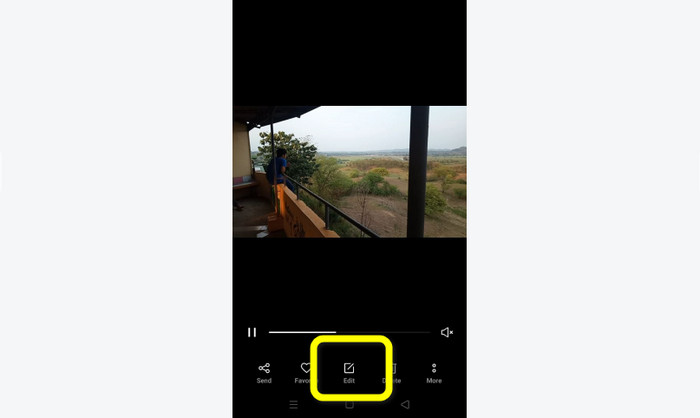
ステップ 2. トリミング/カットしたい動画を開いたら、下部にあるオプションに移動します。編集をタップして次の操作に進みます。
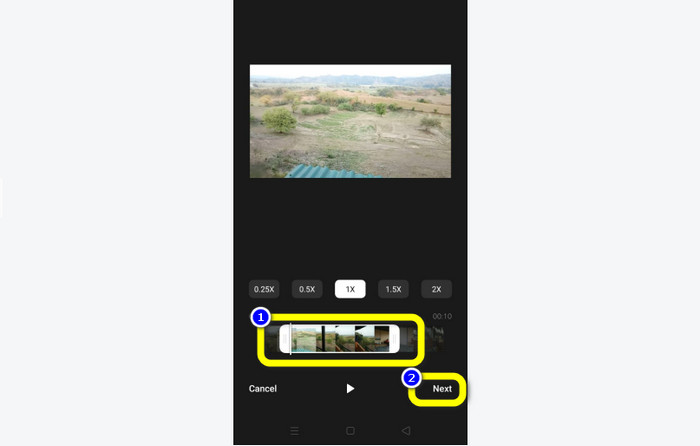
ステップ 3. その後、Android 上で動画のトリミングを開始できます。動画(バー)の端をドラッグします。両端をドラッグして動画をトリミングしてください。トリミングし終えたら、画面左下にある次へをタップします。
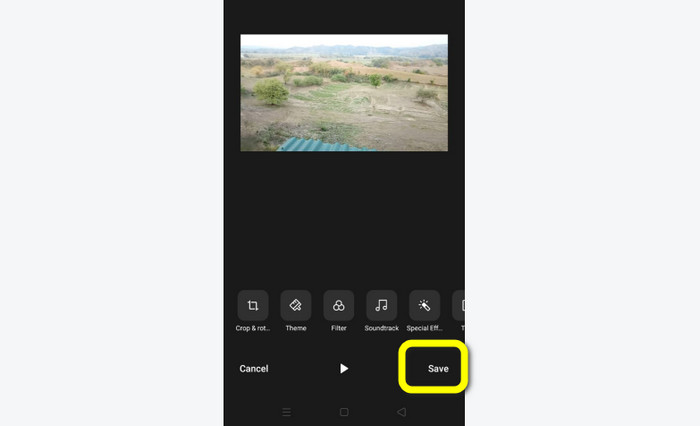
ステップ 4. 次に、保存ボタンをタップして編集した動画をスマホに保存します。また、さらに編集したい場合は、クロップ(切り抜き)、回転、フィルター追加など、さまざまな編集も行えます。
Vid.Fun の使用
ギャラリーアプリ以外にも、Android で動画をカットするためのダウンロード型アプリを使うことができます。Vid.Fun アプリをダウンロードすれば、Android で動画をカットできます。Vid.Fun は無料でダウンロードできるアプリです。さらに、シンプルなインターフェースと基本的な編集操作を備えています。そのため、プロでないユーザーでも気軽に利用できます。加えて、Vid.Fun にはカット以外にもさまざまな機能があります。動画にテキストを入れたい場合にも利用できますし、音量ブースター機能で動画の音量を調整することも可能です。さらに、ウォーターマークを削除したり、動画速度を変更したり、スタンプを追加したり、動画を回転させたりといった操作も行えます。ただし、Vid.Fun にはいくつかの欠点もあります。書き出し処理が遅く、ユーザーにとって時間がかかる点や、アプリがうまく動作しないことがある点です。以下の手順を参考に、Vid.Fun アプリで動画をカットしてみましょう。
ステップ 1. Google Play ストアを開き、Vid.Fun アプリを検索します。その後、アプリを Android スマホにインストールします。インストールが完了したらアプリを起動します。
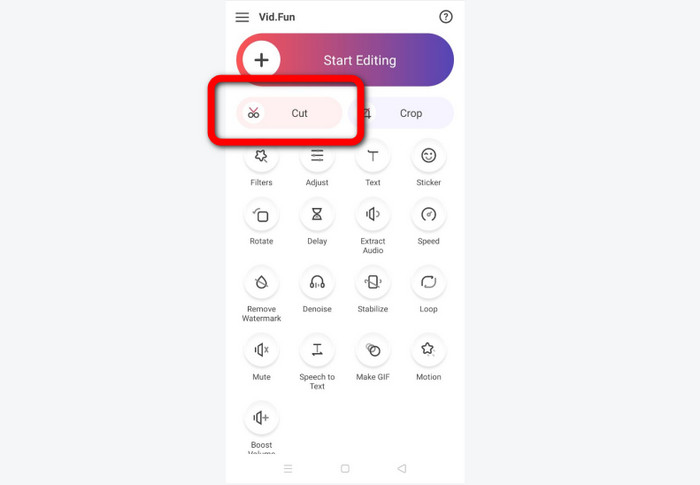
ステップ 2. アプリのインターフェースが表示されたら、カットオプションを選択します。すると、端末内のファイルが画面に表示されます。カットしたい動画をタップし、はいボタンを押します。
ステップ 3. その後、トリミング作業に進むことができます。動画の端をドラッグします。開始と終了オプションを使ってトリミングすることも可能です。
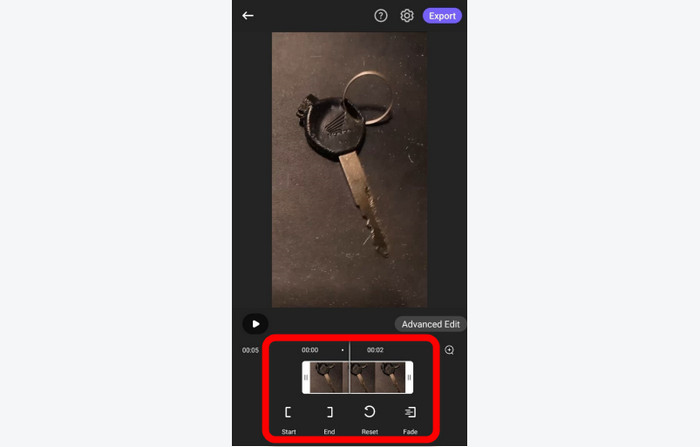
ステップ 4. 動画のトリミング/カットが終わったら、書き出しボタンをタップします。書き出し処理が完了するまで待ち、その動画を Android デバイスに保存します。
![[エクスポート] [保存] をクリックします](/images/2023/03/click-eport-save.jpg)
パート 2. PC で Android 動画をカットする方法
前のパートでは、Android デバイスを使って動画をカットする方法を学びました。このパートでは、パソコンを使って動画をカットする方法を紹介します。デスクトップで動画編集、特にカットやトリミングを行いたい場合は、Video Converter Ultimate を利用してください。このオフラインプログラムは直感的なインターフェースを備えており、各種オプションをすぐに理解できます。トリミング手順もシンプルで、数回のクリックだけで動画をカット/トリミング可能です。さらに、書き出し処理が高速なため、すべてのユーザーにとって使い勝手が良いのも特徴です。操作が簡単なプログラムなので、プロ・初心者を問わず利用できます。加えて、最終的な出力をさまざまな形式で保存できます。AVI、FLV、MOV、MP4 などに対応しています。そのほか、Video Converter Ultimate は無料でダウンロードでき、Mac と Windows の両方に対応しています。さらにこのプログラムでは、動画の解像度、画質、フレームレート、エンコーダーを変更できます。また、音声のサンプルレートやビットレートを変更することも可能です。これにより、このオフラインプログラムを使って最良の結果を得ることができます。以下の簡単な手順に従って、PC で Android の動画をカットする方法を確認しましょう。
ステップ 1. Mac または Windows パソコンにVideo Converter Ultimateをダウンロードします。下のダウンロードボタンをクリックしてプログラムにアクセスしてください。Windows 版と Mac 版の両方が用意されています。インストールが完了したら、プログラムを起動します。
無料ダウンロードWindows 7 以降に対応安全なダウンロード
無料ダウンロードMacOS 10.7 以降に対応安全なダウンロード
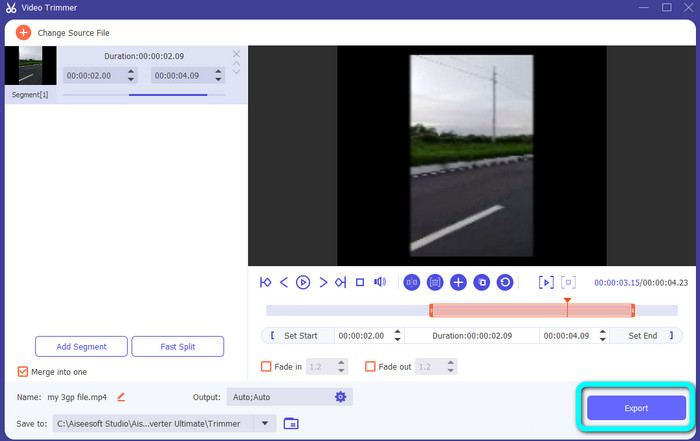
ステップ 2. プログラムのインターフェースが表示されたら、上部のツールボックスに移動し、ビデオトリマーツールを選択します。
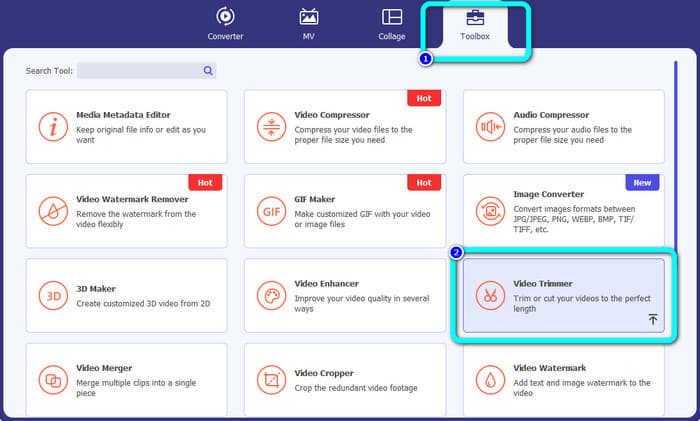
ステップ 3. ビデオトリマーツールをクリックすると、別の画面が表示されます。プラスアイコンをクリックして Android の動画を読み込みます。なお、プログラムを使用する前に、Android の動画はすでにパソコンへ転送しておく必要があります。
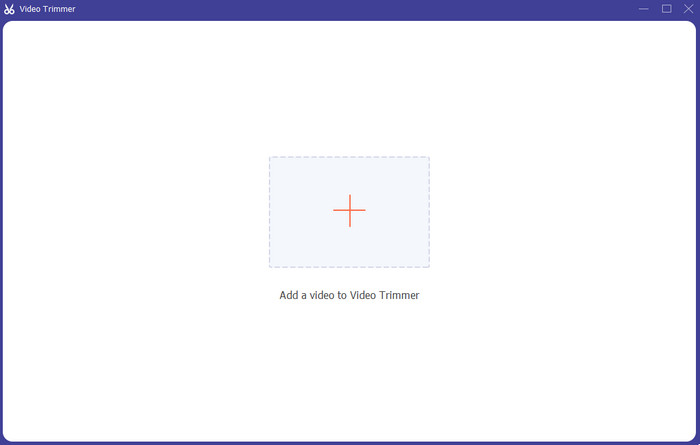
ステップ 4. ここからトリミング作業に入ります。動画をトリミングするには、動画の両端を調整します。開始位置側と終了位置側の端をそれぞれ調整してください。
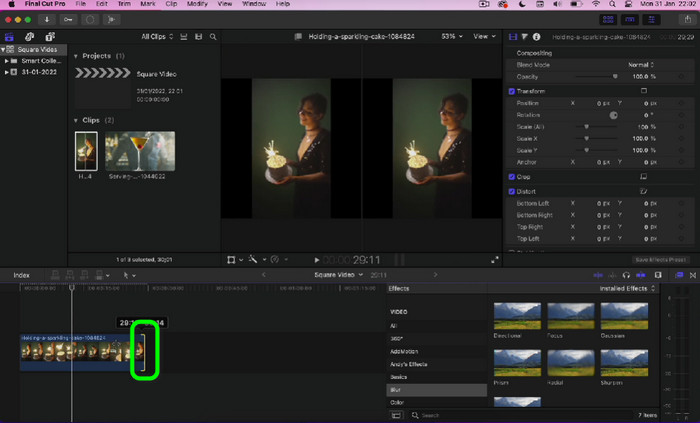
ステップ 5. 作業が終わったら、書き出しボタンをクリックして編集した動画を保存します。書き出しが完了したら、編集した動画を再生できるようになります。
パート 3. Android で動画をトリミングする方法に関するよくある質問
Androidでビデオの途中をカットする方法は?
Android デバイスを使用して動画の中間部分をトリミングする場合は、上記で紹介したアプリケーションを引き続き使用できます。同じ手順に従って、ビデオの中間部分をカットできます。
Androidでトリミングされたビデオを復元する方法?
ギャラリー アプリに移動します。次に、[アルバム オプション] をクリックします。その後、ゴミ箱オプションをクリックします。削除されたビデオが表示され、[復元] ボタンをクリックします。
Android で iMovie を使用してビデオをトリミングできますか?
絶対違う。 iMovie は、iPhone、iPad、Mac などの Apple デバイスとのみ互換性があります。
結論
以上です。これで、Android とパソコンの両方で動画をトリミングする方法を習得できました。Android ユーザーであれば、上で紹介した手順に従って操作してください。また、Android の動画をパソコンでカット/トリミングしたい場合は、Video Converter Ultimate を利用しましょう。このオフラインプログラムを使えば、Android の動画を簡単かつ素早くカット/トリミングできます。
-
 ビデオをオンラインで便利にカットする優れた方法
 ビデオのカットは、ビデオのハイライトを作成する最良の方法です。したがって、この投稿では、ビデオをオンラインで簡単にトリミングする方法を紹介します。詳細については、こちらをご覧ください。
-
 iPhoneでビデオを短くする方法[詳細なチュートリアル]
 あなたは iPhone ユーザーで、ビデオをトリミングしたいですか?もう心配する必要はありません。このガイドポストでは、iPhone および iPad でビデオをカットする方法について詳しく説明します。
-
 Android デバイスで動画を高速化する最も簡単な方法 [2023]
 Androidでビデオを高速化できることをご存知ですか?したがって、Androidスマートフォンでビデオを高速化する方法を知りたい場合は、この記事を読んでください。
