


 ビデオコンバーター究極
 スクリーンレコーダー
 ビデオ修復
ビデオ修復FaceTimeビデオ通話を録画する方法【クイックガイド】
FaceTimeのビデオ通話を、直接簡単に録画できたらいいのに、と願っている方もいらっしゃるかもしれません。残念ながら、FaceTimeには通話を録画できる機能が内蔵されていません。しかし、これはFaceTimeだけにあるわけではありません。なぜなら、こうした機能がネイティブで利用できないのには、ちゃんとした理由があるからです。Appleはユーザーのプライバシーを最優先に考えているため、通話の録画はデフォルトではオプションとして設定されていないのです。しかし、だからといって完全に使えないというわけではありません。
この簡単なガイドでは、iPhone、iPad、またはMacに搭載されている標準の画面録画機能を使って、FaceTimeのビデオ通話を録画する方法を紹介します。さらに、FaceTime通話をより簡単かつ効率的に録画できる新しいツールもあわせて解説します。気になりますか?それでは、詳しく見ていきましょう!

パート 1. FaceTime ビデオ通話を録画できますか?
「FaceTimeビデオ通話を録画できますか?」と疑問に思う方もいるかもしれません。実は、FaceTimeには録画機能が内蔵されていません。Appleはユーザーのプライバシーとセキュリティを保護し、個人的な会話の機密性を保つために、このように設計しました。
それでも、FaceTime通話の録音には法的および倫理的な配慮が伴うことを理解することが重要です。多くの国では、録音する前に相手に通知するか、同意を得ることが義務付けられています。これにより、プライバシーの侵害を回避し、通話が録音されていることを全員が認識できるようになります。
次のパートでは、品質やセキュリティを損なうことなく、iPhone、iPad、または Mac で FaceTime ビデオ通話を録画する方法を紹介します。
パート2. iPhoneまたはiPadでFaceTime通話を録音する方法
iPhoneまたはiPadでFaceTime通話を録画するには、内蔵ツールと外部ツールを利用できます。FaceTimeには直接録画機能は搭載されていませんが、iOSデバイスにはFaceTimeビデオ通話を録画できる画面録画機能が内蔵されています。
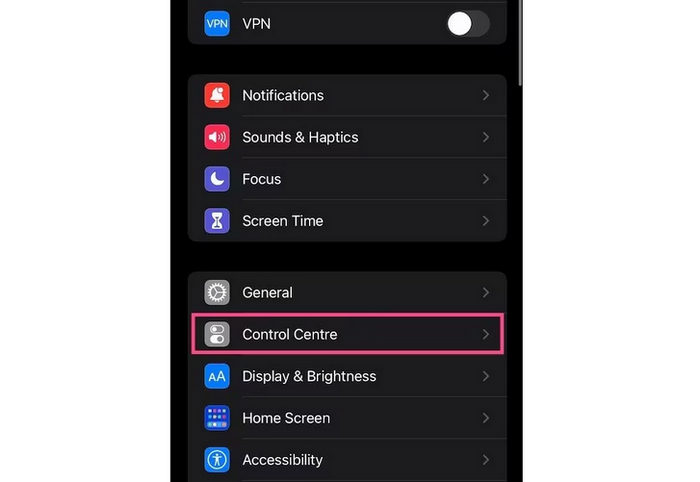
ステップ1.設定アプリを開き、コントロールセンターをタップします。
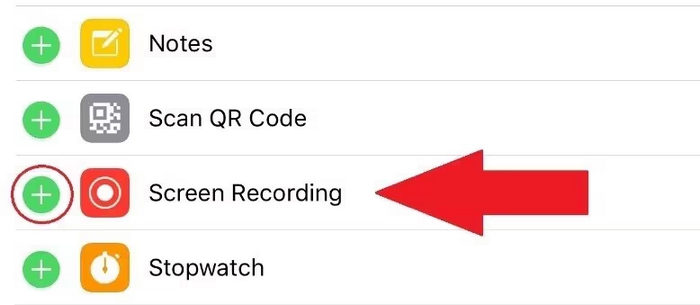
ステップ2.画面収録が「含まれているコントロール」に表示されているか確認します。表示されていない場合は、横の「+」アイコンをタップして追加します。
ステップ3.画面右上から下にスワイプ、または古いiPhoneの場合は画面下から上にスワイプして、コントロールセンターを開きます。
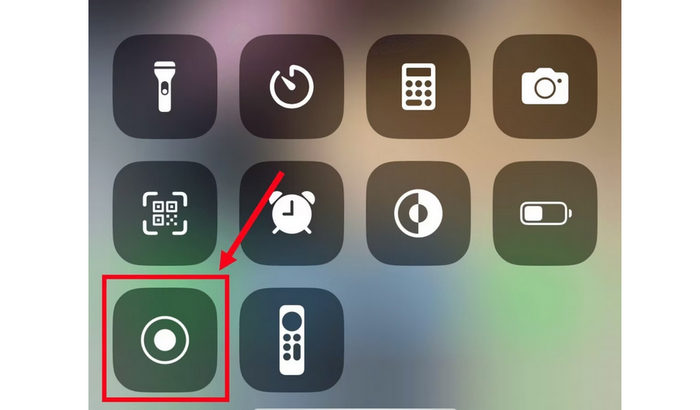
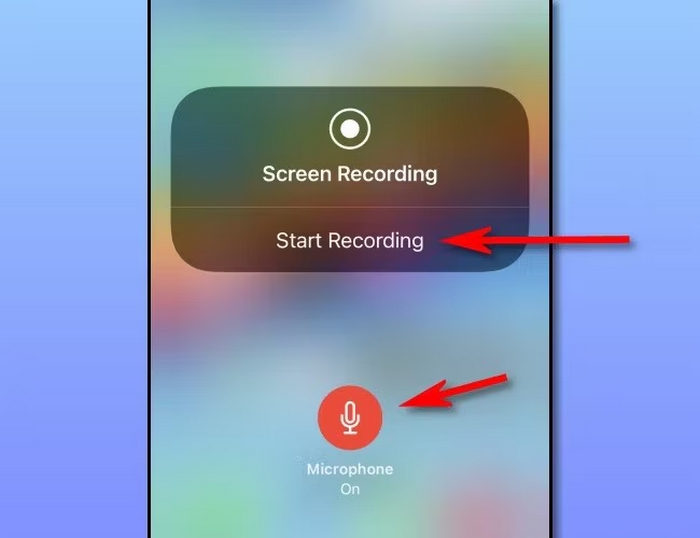
ステップ4.画面収録アイコンを長押しし、マイクをタップしてオンにします。これでFaceTimeの音声も一緒に録音できるようになります。
ステップ5.最後に、収録を開始をタップし、その後FaceTimeを開いて通話を始めます。これで会話中の映像と音声の両方がiPhoneに録画されます。
iPadでFaceTimeビデオ通話を録画する場合も同様です。さらに、この方法を使えば、サードパーティ製のアプリを必要とせずに、デバイスから直接画面と音声の両方をキャプチャできます。FaceTime通話の音声も録画するには、録画を開始する前にマイクがオンになっていることを確認してください。ただし、これらのデバイスの画面録画機能でも録画できない場合があります。それでも、これはFaceTime通話を録画する最も簡単で最良な方法です。
パート3. MacでFaceTimeビデオ通話を録画する方法
MacでFaceTimeビデオ通話を録画するのは、iPhoneやiPadと同じくらい簡単です。macOSには画面録画機能が組み込まれており、追加のソフトウェアをインストールすることなく、FaceTime通話を含む画面全体を録画できます。MacでFaceTimeビデオ通話を音声付きで直接録画する方法は次のとおりです。
ステップ1.まず、FaceTimeアプリを開き、通話を始める準備をします。
ステップ2.次に、キーボードでCommand + Shift + 5を押して、macOSの画面収録ツールバーを表示します。
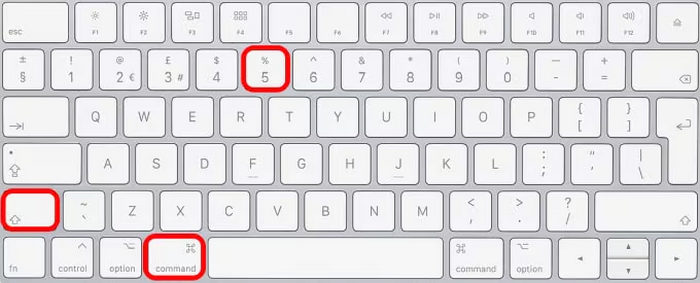
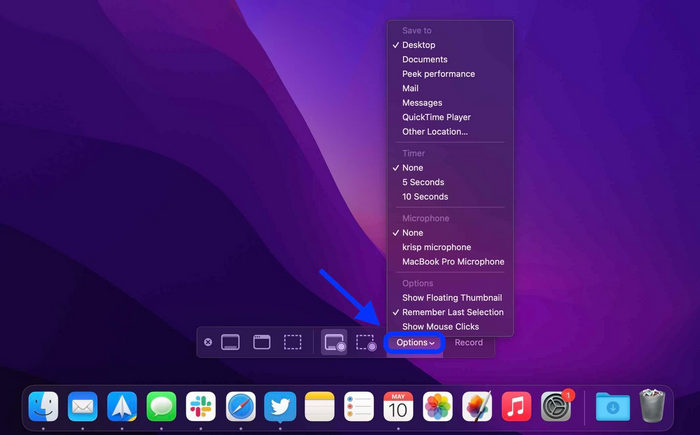
ステップ3.続いて、オプションをクリックし、FaceTime通話中の音声を録音するためのマイクを選択します。必要に応じて、その他の録画設定も調整できます。
ステップ4.画面全体を収録を選択し、FaceTimeのウィンドウが画面上に表示されていることを確認します。
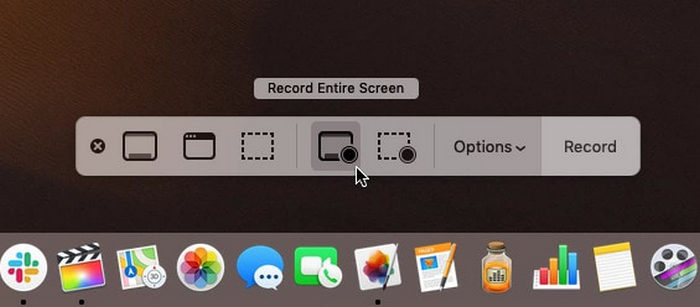
ステップ5.最後に、収録ボタンをクリックして、音声付きのFaceTimeビデオ通話の録画を開始します。録画を終了するときは、Command + Control + Escapeを押します。録画した動画は自動的にMacに保存されます。
MacでFaceTime通話を録画するのは簡単で確実です。内蔵のスクリーンレコーダーを使えば、追加のアプリを使わずに動画と音声の両方をキャプチャできます。ただし、基本的な録画機能のみに制限されているため、後で動画を編集したり加工したりするには別のツールが必要になります。
パート4. ボーナス: FaceTimeビデオ通話を内部および外部オーディオで録画するオンラインツール
内部音声と外部音声の両方を含めてFaceTimeビデオ通話を録画できるオンラインツールを探しているなら、最適なのがFVC Free Screen Recorderです。ブラウザ上で動作するウェブベースの画面録画ツールで、FaceTimeのビデオ通話をそのままブラウザから録画できます。FVC Freeを使えば、内部音声であるシステムサウンドと、外部音声であるマイク音声を同時に録音することが可能です。これにより、会話内容をクリアかつ完全な形で残すことができます。操作はシンプルで、どのデバイスからでもアクセスでき、柔軟性と高品質を一つのツールで求める方にぴったりです。
主な特徴:
• 画面全体、特定のウィンドウ、または選択したカスタム領域を記録できます。
• インストールせずにWebブラウザから直接使用できます。
• ビデオ通話、会議、ゲームプレイ、オンライン授業の録画に最適です。
• 録画中にテキスト、図形、ハイライト、注釈を追加できます。
• システムサウンドとマイクの音声を同時にキャプチャします。
• 柔軟性のために複数のビデオおよびオーディオ出力形式をサポートします。
• 高解像度 (HD) 品質でビデオを録画します。
• Windows と macOS の両方のプラットフォームでシームレスに動作します。
FVC無料スクリーンレコーダーでFaceTimeビデオ通話を録画する手順:
ステップ1.まず、ブラウザでFVC Free Screen Recorderを検索して開きます。WindowsとmacOSのどちらでも利用できることに注意してください。
ステップ2.次に、FaceTimeアプリを開いて通話を開始します。その後、ツールのメイン画面でStart Recordingをクリックします。
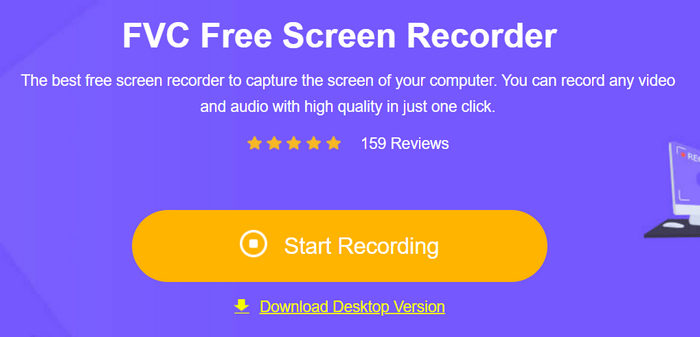
ステップ3.最後に、録画を本格的に始めるためにRecordボタンをクリックします。
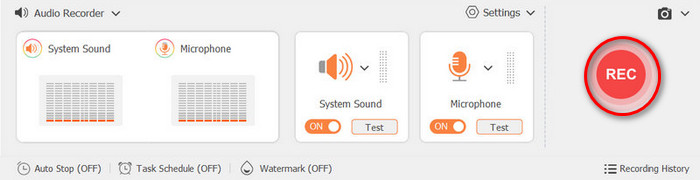
FVC Free Screen Recorderが、内蔵の録画機能よりもFaceTimeビデオ通話の録画に適している理由は、より細かいコントロールと柔軟性を提供してくれる点にあります。基本的な機能しか使えない標準の画面録画とは異なり、このオンラインツールでは、内部音声と外部音声の両方を録音し、録画範囲を自由に指定し、FaceTimeのスクリーンショットを撮影したり、録画中にリアルタイムで注釈を追加したりできます。さらに、複数の動画形式と高画質出力に対応しているため、FaceTimeの録画を保存・共有・編集するのにも理想的です。
パート5. FaceTimeビデオ通話の録画に関するよくある質問
録画した FaceTime ビデオはどこに保存されますか?
iPhoneとiPadでは、録画は自動的に写真アプリに保存されます。Macでは、録画設定で保存場所を変更しない限り、ファイルは通常デスクトップに保存されます。
FaceTime 録画で音声がキャプチャされないのはなぜですか?
録画に音声がない場合は、開始前にマイクがオフになっている可能性があります。画面録画アイコンを長押しし、「マイクオーディオ」オプションをオンにして、映像と音声の両方を録画してください。
FaceTime ビデオ通話を録画した場合、相手にそれがわかりますか?
いいえ、FaceTimeは録画を開始しても相手に通知しません。ただし、プライバシーを尊重し、法的ガイドラインに従うために、録画する前に必ず相手の許可を得ることをお勧めします。
結論
FaceTime自体には、FaceTimeビデオ通話を直接録画する機能はありませんが、録画する方法は存在します。ただし、録画する際は必ず相手方の許可を得ることが重要です。また、内蔵の画面録画機能がうまく動作しない場合や物足りなく感じる場合は、FVC Free Screen Recorderを試してみてください。さあ、デバイスを手に取って、FaceTimeビデオ通話の録画を始めてみましょう。
-
 Mac から外部オーディオを録音する 2 つの推奨方法
 Mac から外部オーディオを録音する方法がわからない場合は、この記事を読んで、簡単に使用できる 2 つの高品質オーディオ録音ツールを参考にしてください。
-
 iPhoneでオーディオを録音する方法に関する3つのベストテクニック
 iPhoneで音声を適切に録音できずに困っていませんか?次に、この記事を読んで手順と利用可能なツールを学びます。
-
 QuickTimeスクリーンレコーディング–MacとPCでオーディオ付きのビデオを録画する
 Macで音声付きの録音画面が便利です。内蔵プレーヤーであるQuickTimePlayerがそれを実行できます。彼の投稿を読んで、MacとPCで音声付きの画面をキャプチャする方法を知ってください。
