


 ビデオコンバーター究極
 スクリーンレコーダー
 ビデオ修復
ビデオ修復PS4でMKVファイルを再生する方法を発見する
映画を再生できるのは Xbox One S だけではありません。現在 PS4 もこの流れに追いつこうとしています。USB ケーブルの使用や DLNA 経由により、PS4 は MKV、MP4、AVI など多くの形式を再生できるようになりました。つまり、MKV も再生可能なファイルの一つということです。対応している形式の一覧については、PS4 の公式サイトを確認してください。さらに言えば、もしあなたが PS4 で MKV ファイルを再生することに興味がなければ、この記事を読み続けてはいないはずです。このまま読み進めていけば、PS4 で MKV を再生するための方法が分かるでしょう。

パート1。すべてのMKVファイルをPS4で再生できますか?
PS4でMKVファイルを再生できますか?きっとできます。 MKVファイル形式はPS4でサポートされています。ただし、すべてのMKVファイルが正しく再生できるわけではありません。再生に失敗する場合があります。これは、PS4で設定された基準を満たす必要があるためです。ほとんどの場合、H.264 / MPEG-4AVCがサポートされています。 USBドライブからMKVファイルを再生する場合も、同じルールが適用されます。一方、オーディオMP3、AAC LC、AC-3がサポートされています。それらのフォーマットのほとんどはドルビーデジタルフォーマットです。基準を満たしていると思われる場合は、PS4でMKVを直接プレイする方法の手順に進むことができます。
ステップ 1. DivX Media Server をダウンロードしてインストールし、プレーヤーを起動します。その後、PC 側で共有を有効にします。
ステップ 2. サーバーに MKV ファイルをアップロード(またはインポート)します。
ステップ 3. 次のステップに進む前に、PC と PS4 の両方が同じ Wi-Fi ネットワークに接続されていることを確認してください。次に、PS4 に DivX メディアプレーヤーをダウンロードしてインストールします。その後、PS4 のメディアプレーヤーアプリを開き、表示されるデバイス一覧から DivX メディアサーバーを選択します。
ステップ 4. 最後に「ビデオ」を探し、再生したい動画にチェックを入れてストリーミングを開始します。
パート2。USBからPS4でMKVを再生する方法に関するステップバイステップガイド
一方、USBストレージを使用している場合は、FATまたはexFAT形式のいずれかであることを確認してください。そうでない場合、検出されません。準備ができており、フラッシュドライブに互換性があると思われる場合は、以下のステップバイステップガイドを確認してください。
ステップ 1. PS4 の電源を入れて USB を挿します。メインメニューに移動します。そこでビデオを選択し、USB ドライブの名前を探します。
ステップ 2. ファイル名の一覧が表示されたら、すべて表示をクリックして、USB に保存したファイルをすべて表示します。ファイルをコピーして PS4 に転送します。
ステップ 3. 最後に、転送を完了するのに十分な空き容量が PS4 に残っているか確認してください。
パート3。プレックスサーバーを介してPS4でMKVを再生する別の方法
DivX 以外にも、PS4 で MKV を再生するために使える別のプレーヤーがあります。Plex という名前のストリーミングメディアサーバーです。このメディアサーバーを使えば、PC から高画質な動画、音楽、テレビ番組、ポッドキャストをストリーミングできます。一部の MKV ファイルで再生トラブルが起こることもありますが、それでも代替手段として利用可能です。一方で、どうしても Plex を使って互換性のないファイルを再生したい場合は、動画の変換を検討すべきです。一部のコンバーターは MKV ファイルを Plex 対応形式に変換することができます。動画コーデック、フレームレート、ビットレート、その他のパラメータを調整することで実現可能です。そのようなことができるツールはあるのでしょうか。はい、あります。Video Converter Ultimate を試してみてください。そう、このツールならそれが可能です。この問題を解決するために使ってみてください。
ステップ 1. PC に Video Converter Ultimate をダウンロードしてインストールします。
無料ダウンロードWindows 7 以降に対応安全なダウンロード
無料ダウンロードMacOS 10.7 以降に対応安全なダウンロード
ステップ 2. ファイルを追加をクリックするか、インターフェース上にファイルをドラッグ&ドロップして、変換したいファイルを追加します。
ステップ 3. その後、すべてを変換のドロップダウンをクリックして、Plex がサポートする形式を選択します。
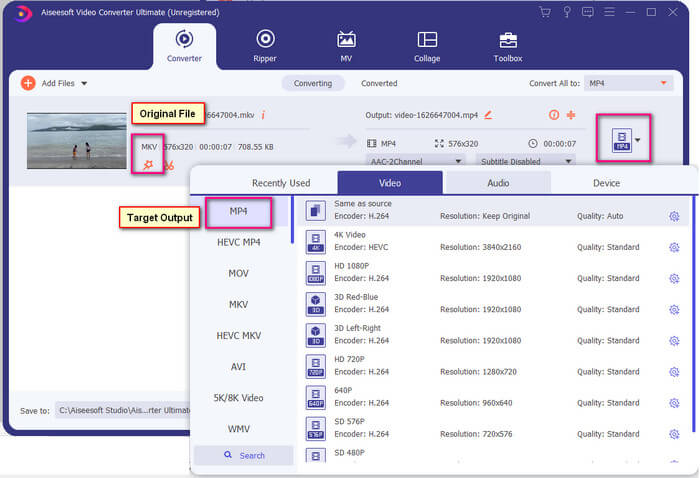
ステップ 4. 形式を設定したら、すべて変換ボタンをクリックして変換処理を開始します。変換が完了すると、ファイルが保存されているフォルダーが自動的に開きます。
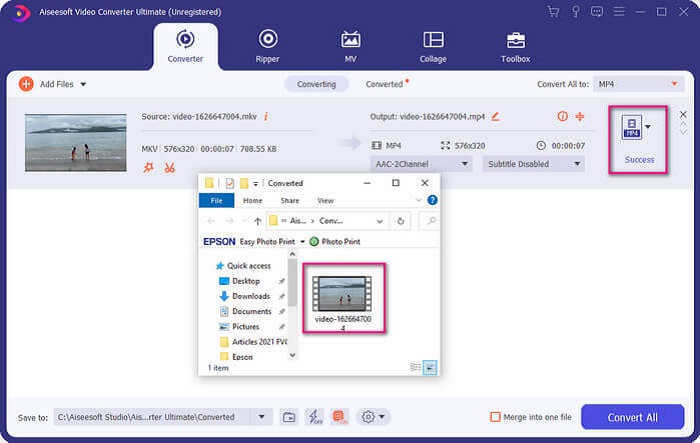
Ultimateビデオコンバーターにはさらに多くのものがあります。以下の長所と短所のリストをチェックして、それが提供する他の優れた機能を知ることができます。
●このツールは3秒の速さで変換します。
●変換されたファイルを拡張できる高速化テクノロジーを備えています。
●HD品質に対応しています。
●フィルターや基本的なエフェクトの追加などの編集機能があります。
●字幕や音声トラックを調整できます。
もし無料コンバーターを探しているなら、FVC Free Online Video Converter を検討することもできます。Ultimate Video Converter ほど高機能ではないかもしれませんが、それでも十分追いつけるレベルです。確実にファイルを変換して、Plex や DivX で再生可能な形式にしてくれます。やるべきことは…
ステップ 1. 記事内のリンクから公式ページにアクセスしてツールを起動します。
ステップ 2. 変換するファイルを追加をクリックして動画をアップロードします。

ステップ 3. 下に表示されている丸印を選択して形式を変更します。
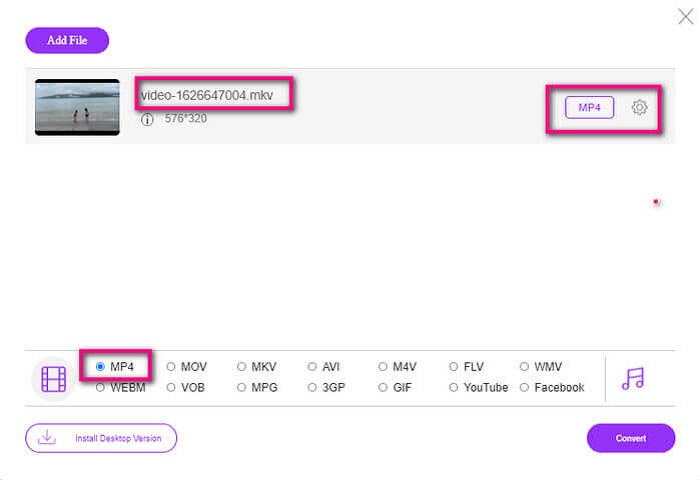
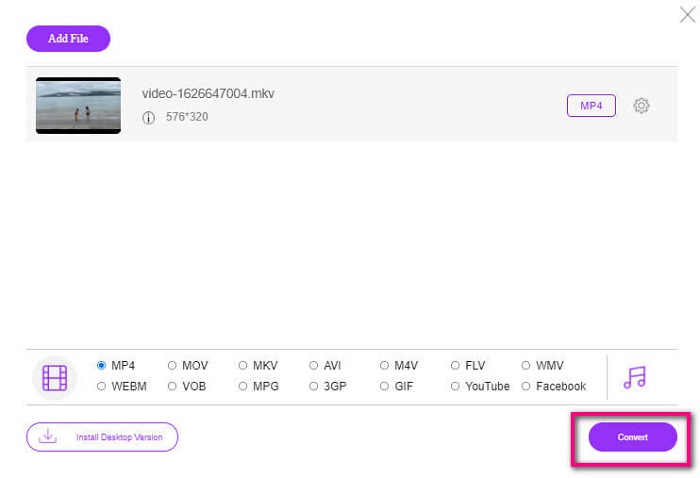
ステップ 4. 最後に変換ボタンをクリックし、ファイルの保存先を指定します。そこでOKをクリックします。フォルダーアイコンをクリックすると、変換後のファイルを確認できます。
関連記事
Windows Media Player で MKV を再生する
パート4。PS4でのMKVファイルの再生に関する詳細情報
PS4の価格はいくらですか?
市場小売価格は、米国では399.99米ドル、カナダでは399.99カナダドルです。価格はお住まいの国の小売価格によって異なる場合があります。
PS4でCCまたはクローズドキャプションMKVをプレイする可能性はありますか?
はい、あります。これはアクセシビリティ設定の中にあります。手順は、PS4 の設定からアクセシビリティへ進み、クローズドキャプションを表示を選択します。そこでオプションをクリックしてクローズドキャプションを有効にします。
PS4がMKVをサポートしている場合、ファイルが再生されないのはなぜですか?
上記のように、MKVファイルが使用しているプレーヤーの基準を満たしていることを確認する必要があります。 PS4または他のメディアストリーミングサーバーの要件を確認する必要があります。ほとんどのメディアサーバーには、MKVファイルを再生するための分類もあります。
PS4でサポートされているフォーマットは何ですか?
PS4がサポートするいくつかのファイル形式があります。ただし、ほとんどの形式は圧縮されておらず、大きなファイルを保持していることに気付くでしょう。それはまたMp4のような非圧縮のものをサポートしていますが。一方、私たちが話しているフォーマットのリストは次のとおりです。MKV、AVI、MPEG-2 PS、MPEG-2 TS、AVCHD、XAVCおよびMP4。
結論
結論として、PS4でMKVファイルを直接または間接的に再生する方法はたくさんあります。リストされているのは、最も一般的に使用される媒体です。 DivX Stream ServerとPlexは、使用できる代替手段のほんの一部です。面倒でプロセスが多すぎるのを避けるために、代わりにファイルを変換することを強くお勧めします。
-
 [解決済み] VLCプレーヤーがMKVを再生しない、修正方法
 VLCプレーヤーはMKVファイルをサポートしていますか? VLCがMKVを再生しないのはなぜですか?この投稿では、VLCプレーヤーがMKVファイルを再生しない問題を修正するための4つの便利なヒントを共有しています。
-
 iPad 2025でMKVファイルを再生する方法
 iPad 2でMKVファイルを再生する方法は? iPad Pro / Air / 2で再生するためにMKVをMP4に変換できますか?この投稿では、iPadでMKVをプレイする2つの簡単な方法を共有しています。
-
 スムーズな再生のためにWindowsMediaPlayerでMKVコーデックをダウンロードする方法
 Windows Media PlayerでMKVビデオを再生できませんか? Windows MediaPlayer用のMKVコーデックを無料でダウンロードできます。反対に、MKVを変換してWindows MediaPlayerで再生できるようにします。
