


 ビデオコンバーター究極
 スクリーンレコーダー
 ビデオ修復
ビデオ修復WindowsとMacでビデオをリバースするために使用できるトップ6リバーサーソフトウェア
動画を逆にすると、視聴者に考えさせたり驚かせたりする新しいメッセージを作成できます。このビデオ効果は、ビデオを面白くし、別の方法でメッセージを配信するために使用されています。 AljtのBreezeblockのような多くのミュージックビデオがリバースビデオでYouTubeにアップロードされています。したがって、ビデオをリバースする方法の詳細については、このガイドに従ってください。それはあなたがこれまで以上に簡単にビデオの反転を行うのに役立ちます。

パート1。トップ1と2のオフラインソフトウェアとWindowsとMacでビデオをリバースする方法を学ぶ
トップ1。ビデオコンバーターアルティメット
多くの動画編集ソフトが「覇権」を目指して乱立していますが、圧倒的なコンバーターとして今なおベストな選択肢となっているのが、驚異的な性能を誇るVideo Converter Ultimateです。すでに数多くのユーザーがこのソフトを利用し、動画を逆再生する方法などの悩みを解決してきました。このツールを使えば、自分で編集しながらもプロの仕上がりに近づけることができます。編集経験がまったくない方でも使いやすく、もちろん経験者にとっても頼れる一本です。また、多くの編集ソフトには搭載されていない高度な機能を備えているのも特徴です。では、このソフトについてもっと知りたい方のために、以下の手順を確認しながら、正しく操作していきましょう。
手順1. まずソフトをPCのハードドライブにダウンロードし、インストールしてセットアップ手順に従ってください。
無料ダウンロードWindows 7 以降に対応安全なダウンロード
無料ダウンロードMacOS 10.7 以降に対応安全なダウンロード
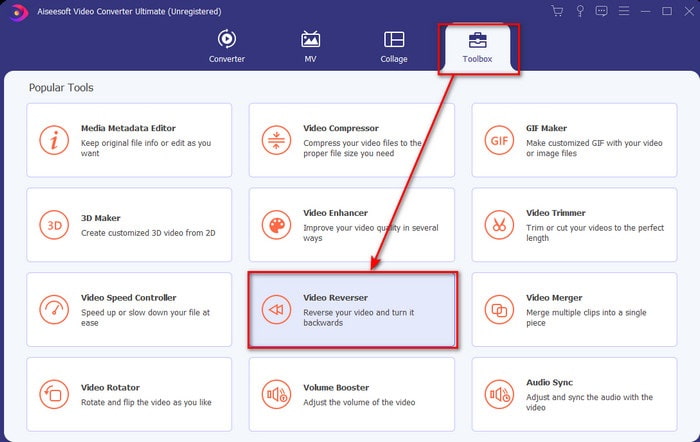
手順2. その後ツールを起動し、ツールボックス内からビデオリバーサー(Video Reverser)を探して選択します。
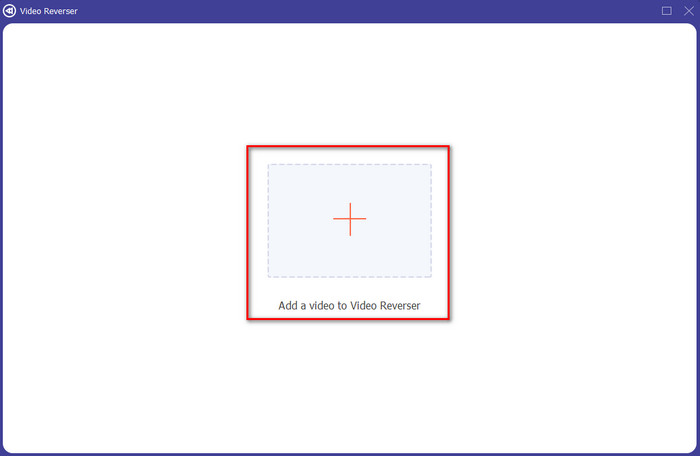
手順3. +ボタンをクリックし、逆再生したい動画ファイルをフォルダーから選びます。選択したら開くをクリックして次のステップへ進みます。
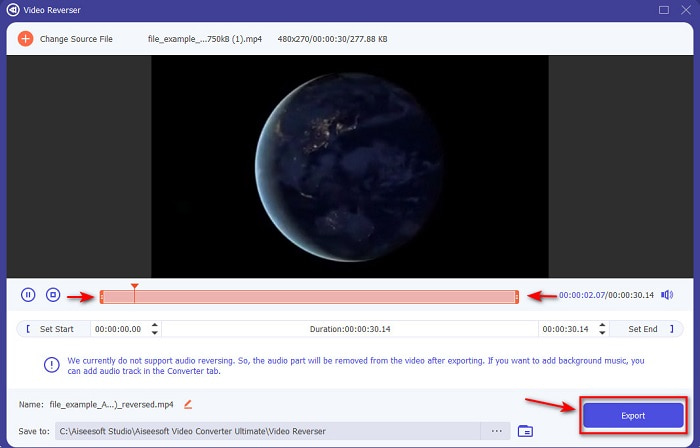
手順4. 次に、再生範囲のイン/アウトをドラッグして動画の長さを調整します。逆再生動画をダウンロードするには、書き出し(Export)をクリックします。
手順5. 数秒ほど書き出し処理が終わるのを待ちます。完了したら、フォルダー内に生成された逆再生ファイルをクリックして再生し、Ultimate Converter Ultimate が実現する遅延のないスムーズな逆再生を楽しみましょう。
長所
- このツールを使用すると、プロフェッショナルな最終出力を簡単に実行できます。
- それはあなたのビデオを驚異的にするためにたくさんの驚くべき機能を持っています。
- このツールでは、無制限の反転を実行できます。
短所
- 使用する前に、まずダウンロードする必要があります。
- 無料ではありませんが、この驚異的なプロツールを購入すれば価値があります。
関連記事:
動画を結合する方法
トップ2。簡単なビデオメーカー
Easy Video Makerは、必要十分な中級レベルの動画編集機能を備えた便利なツールです。トランジションやエフェクト、結合などの機能に対応しており、動画の見栄えを向上させることができます。ただし、インターフェースはかなり古めかしく、まるで90年代のソフトのような見た目です。また、動画の作成や編集操作はやや難しいものの、パフォーマンス自体は優れています。出力形式としてサポートされているのはMP4です。このツールを使いたい場合は、以下の手順に従ってください。
手順1. 公式サイトから Easy Video Maker をダウンロードします。
手順2. ツールを起動したら、追加ボタンをクリックし、Import/ Add Videoを選択します。ファイルをタイムラインにドラッグし、動画を右クリックします。そこでReverse Playback(逆再生)をクリックして動画を逆再生に設定します。
![ツールを起動し、[追加]をクリックします](/images/2021/10/launch-the-tool-click-the-add.jpg)
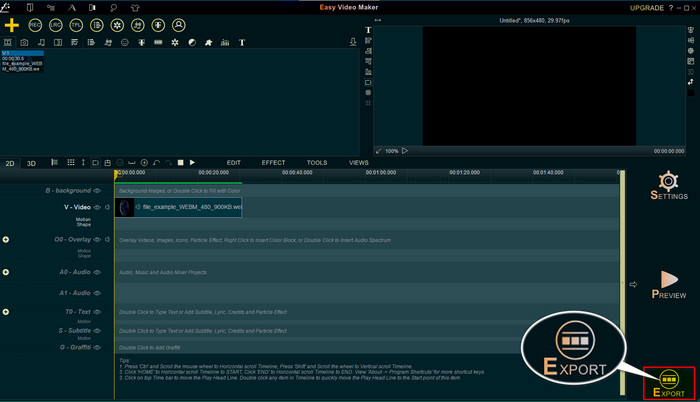
手順3. Exportを押して、ファイルをドライブに保存します。
長所
- ツールは無料でダウンロードできます。
- それはあなたが必要とする中レベルの編集をサポートします。
- これを使用する方法を学ぶには少し時間がかかりますが、あなたはそれに慣れるでしょう。
短所
- ツールを起動すると、予想よりもはるかに長くロードされ、ツールのインターフェイスが古すぎるように見えます。レトロな感じではなく、文字通り古い感じです。
- 5分を超えるビデオを無料バージョンにエクスポートすることはできません。
パート2。ビデオをリバースするためのトップ3&4オンラインツール
トップ3。Ezgif
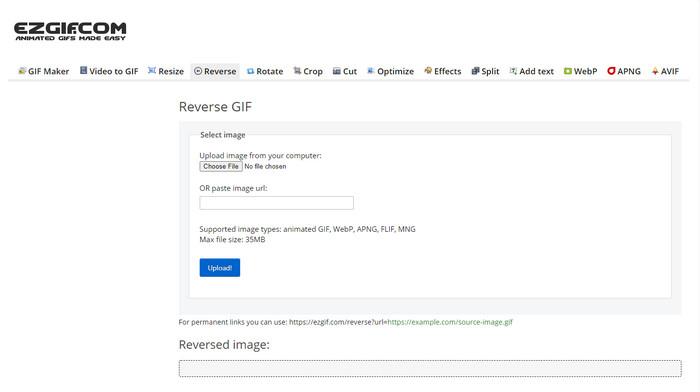
Ezgifには、オンラインで無料でクリップを逆再生できる機能があります。そのほかにも、GIF作成、リサイズ、トリミング、最適化などの編集機能を備えています。しかし、35MBを超えるファイルをアップロードしようとすると、サイズが大きすぎるため逆再生処理が行えません。そのため、長尺の動画を逆再生したい場合には適したツールとはいえません。ただし、クリップ程度の短い動画を無料で逆再生する用途であれば、リバーサーとしての性能は十分優れています。
長所
- デスクトップにダウンロードする必要はありません。
- 柔軟で効率的。
- 使いやすい。
短所
- それはあなたの逆転を35mbだけに制限します。これは使用するのに非常に小さいです。
- リバースファイルをドライブにダウンロードするには、予想よりもはるかに時間がかかります。
トップ4。クリデオ
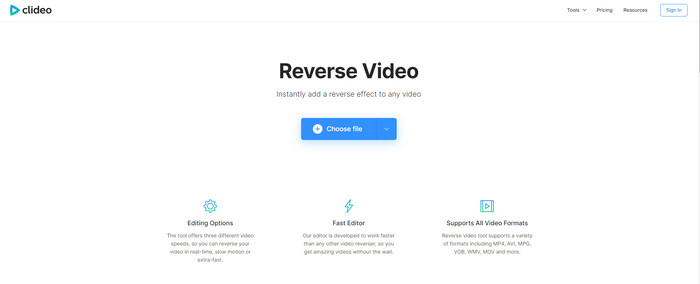
もうひとつのオンラインツールとして、動画を巻き戻し(逆再生)できるのがClideoです。見た目は非常にミニマルながら洗練されており、Ezgif よりもすっきりとしたプロフェッショナルな印象を与えます。ただし、見た目に惑わされてはいけません。40MBを超えるファイルをアップロードする場合、読み込みが非常に遅くなるため、十分な時間と忍耐が必要です。その一方で、動画をより良く仕上げるためのさまざまな編集機能を無料で利用できる点は魅力です。
長所
- インターネットに接続している人なら誰でも無料で使用できます。
- Webユーザーインターフェイスは一般的に優れています。
- すばらしい編集機能が利用できます。
短所
- 動画をアップロードしてダウンロードして元に戻すには、予想よりも時間がかかります。
- リバースビデオをエクスポートすると、巨大な透かしが含まれます。
パート3。iPhone/ Androidでビデオをリバースするためのトップ5&6アプリ
トップ5.リバースビデオ:4+再生
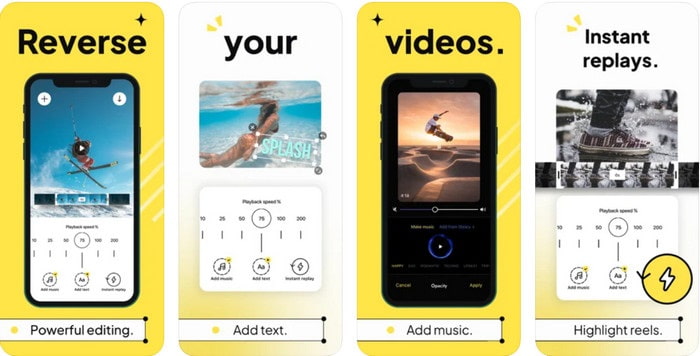
Reverse Video: Play Backwards 4+は逆再生動画の編集に使える、iOSユーザー専用のアプリです。インターフェースはシンプルでわかりやすく、テキストや音楽を背景に追加することもできます。しかし、アプリ自体は無料でダウンロードできるものの、多くのレビューでは「課金を促す詐欺的なアプリだ」という声が上がっています。また、機能にアクセスするために無理やり星5のレビューを書かされるといった体験談も見られます。それでも自分で試してみたい場合は、過度な期待はせずに利用したほうがよいでしょう。逆再生用のアプリとして最適とはいえません。
長所
- すでに4.5つ星の評価を獲得しています。
- ここで反転するビデオを使用するのは良いことです。
短所
- ここのレビューのほとんどはアプリについて話していません。そして、ほとんどはナンセンスについて話す繰り返しです。
- 1つのファイルをロードするだけで永遠にかかります。
- 無料でエクスポートされたビデオの品質が悪い。
トップ6.リバースムービーFX-マジックビデオ
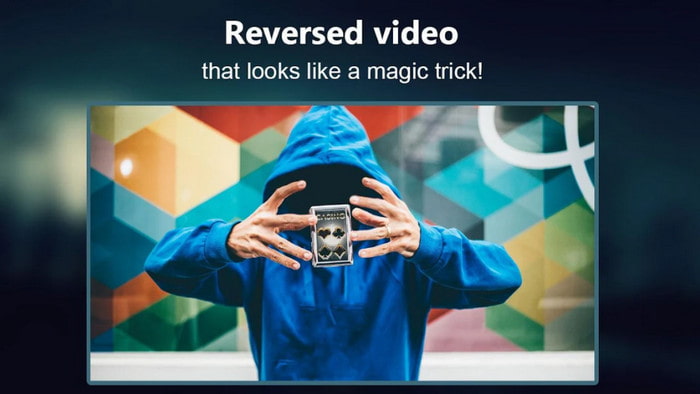
逆再生ムービーを作りたいAndroidユーザーには、PlayストアからダウンロードできるReverse Movie FX - magic videoアプリがあります。逆再生動画作りが好きな多くのユーザーにすでに使われており、ループ再生やBGMの追加にも対応しています。一見すると欠点がないように見えますが、出力動画の画質が元より落ちてしまう点には注意が必要です。たとえば、1080pの動画を逆再生すると、720p以下に下がってしまう場合があります。また、アプリ内には広告が含まれており、不意にポップアップ表示されることもあります。とはいえ、逆再生のしやすさという点では、「Reverse Video: Play Backwards 4+」よりも扱いやすく優れています。
長所
- お使いの携帯電話でリバースクリップ、フィルム、またはビデオを作成するのは素晴らしいことです。
- わかりやすいユーザーインターフェース。
- アプリレビューで4.5つ星。
短所
- アプリにはどこからともなくたくさんのポップ広告があります。
- マイナーおよびメジャーのバグはまだアプリにあります。たとえば、動画を反転しようとすると、エラーが表示されることがあります。
パート4。リバースビデオに関するFAQ
反転と反転の違いは何ですか?
何かを別の側または他の位置に変えることに焦点を逆にします。それは逆さままたは裏返しである可能性があります。たとえば、数値12を反転すると、結果は21になります。反転中は、ある方向から元の方向に戻ります。たとえば、時計が逆になっている場合は、12、11、10、9、8、7、6などにカウントされます。
巻き戻しビデオエフェクトをトランジションとして使用できますか?
はい、古き良きアニメーショントランジションを使用する代わりに、ビデオの巻き戻しの技術を試してみませんか。リバースを追加するだけで、特にビデオの編集にそれほど経験がない場合に非常に効果的です。そして、これをトランジションとして使用するだけで、他の人を驚かせる素晴らしいビデオを作成できます。次に、最後の仕上げとしてバックグラウンドで音楽を追加して、よりすばらしいものにします。
VLCでビデオを逆に見ることはできますか?
はい、VLCでリバースクリップ、フィルム、またはあらゆるタイプのビデオをすでに視聴できます。しかし、それが事前に作成されていない場合、またはそこでプレイしたときにまだ逆になっていないと言うべきである場合。それから、それが逆にビデオを再生することをサポートしないと言うのは悲しいです。したがって、VLCで再生する前に、リスト内のツールを使用して反転します。
結論
本記事で紹介した動画を逆再生する方法を、ここまで根気よく読み、手順に沿って実践していただいたことで、自分自身で動画の逆再生を行うための知識とスキルが身についたはずです。あとは、動画をより魅力的に仕上げるために、最適なリバーサーソフトを選ぶだけです。そして、この一覧の中で最高の逆再生ソフトといえるのは、やはり圧倒的な存在感を放つVideo Converter Ultimateです。今こそ、このソフトをダウンロードして実際に試し、自分の手で逆再生エフェクトをかけてみましょう。
無料ダウンロードWindows 7 以降に対応安全なダウンロード
無料ダウンロードMacOS 10.7 以降に対応安全なダウンロード
-
 WindowsおよびMacでDVDからVOBビデオに参加する方法
 WindowsとMacでDVDからVOBビデオに参加するにはどうすればよいですか?抽出されたVOBファイルを結合してDVDから直接マージする2つの効率的な方法を次に示します。
-
 6つの最高のAVI合併:WindowsとMacでAVIビデオファイルを結合する方法
 DVD用のAVIビデオに参加したい場合は、無料のオンラインツールやデスクトッププログラムなど、上位6つのAVIジョイナーの機能について記事から学ぶことができます。
-
 [ガイド] SonyX70のMXFビデオに参加するための2つの究極の方法
 Sony X70からMXFビデオをいくつか撮影した場合、MXFファイルを結合するための最良の方法は何ですか?ビデオを高品質で組み合わせるための2つの効率的な方法を次に示します。
