ユーザーガイド

MP3変換ソリューション

はじめに

FVC Free FLV Converterは、その名前が示すとおりに機能する優れた無料メディアソフトウェアで知られています。 FLVビデオをMP4、AVI、MOV、MP3、またはその他の一般的なビデオおよびオーディオ形式に変換できます。一方、テーマの追加、ファイルのマージなど、変換前にビデオを編集できます。
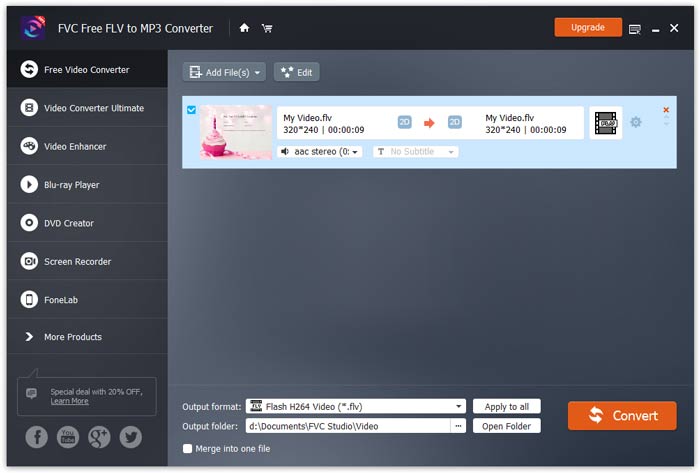
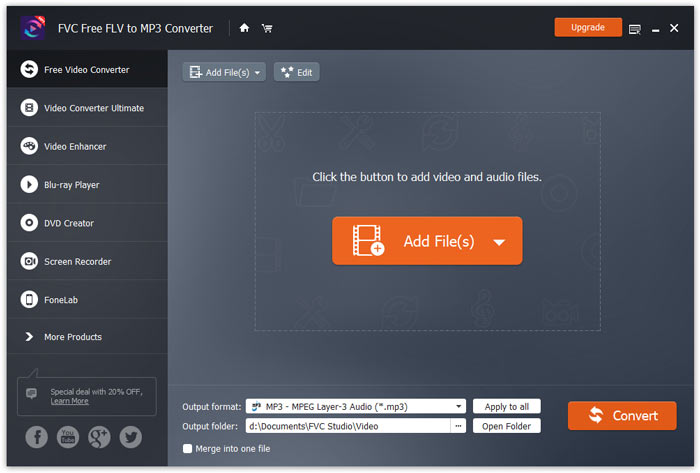
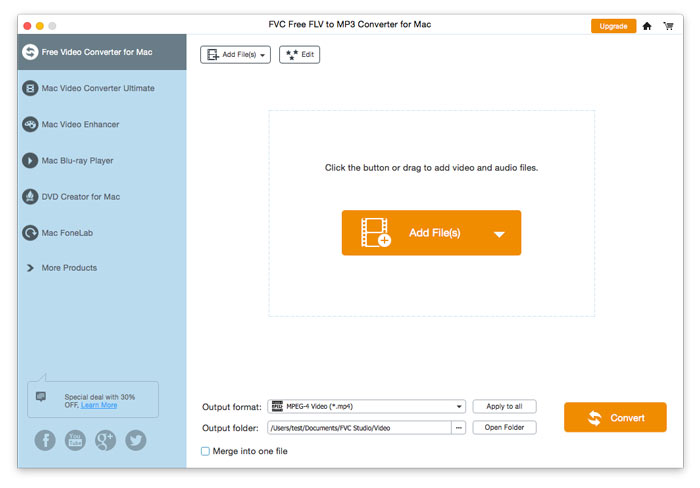
メインインターフェース

ダウンロードしてインストール

FVC Webサイトから無料のFLVからMP3へのコンバーターをダウンロードし、コンピューターにインストールします。この便利なフリーウェアは、ビデオファイルをFLVからMP3に非常に高速に変更できます。 FLVファイルからオーディオを抽出し、MP3、AAC、OGG、またはその他の一般的なオーディオ形式として保存することもできます。

環境設定

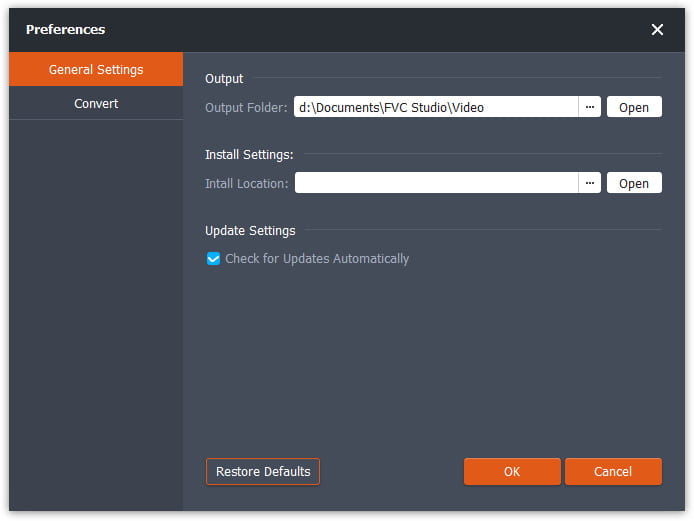
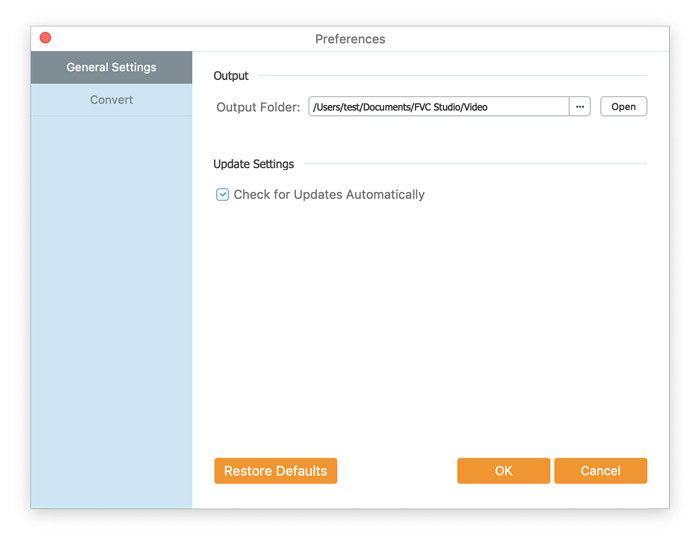
In Preferences window, you can define the output folder, choose the CPU affinity, tweak update settings, and more.

環境設定

FLVをMP3に変換する

Step 1. Install FVC Free FLV to MP3 Converter

まず、インストールファイルをダウンロードして実行します。 FVC Free FLV to MP3Converterのインストール方法に関する簡単な画面の指示に従ってください。

Step 2. Add a FLV file you want to process

Launch the converter, click the Add File(s) button in the upper left corner, and select one or more FLV files to convert to MP3.

FLVファイルを追加する

Step 3. Select MP3 as the output format

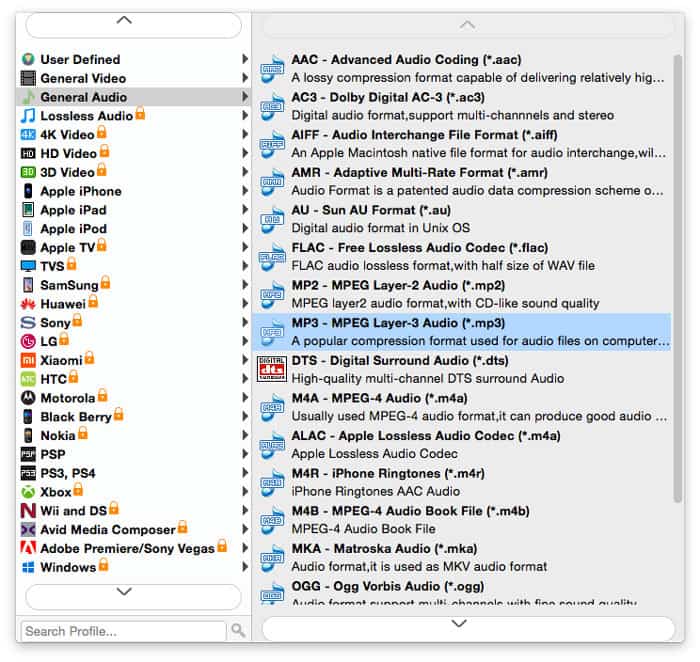
After editing your video file, head to Output format, open the General Audio category, and select MP3.

Mp3を選択

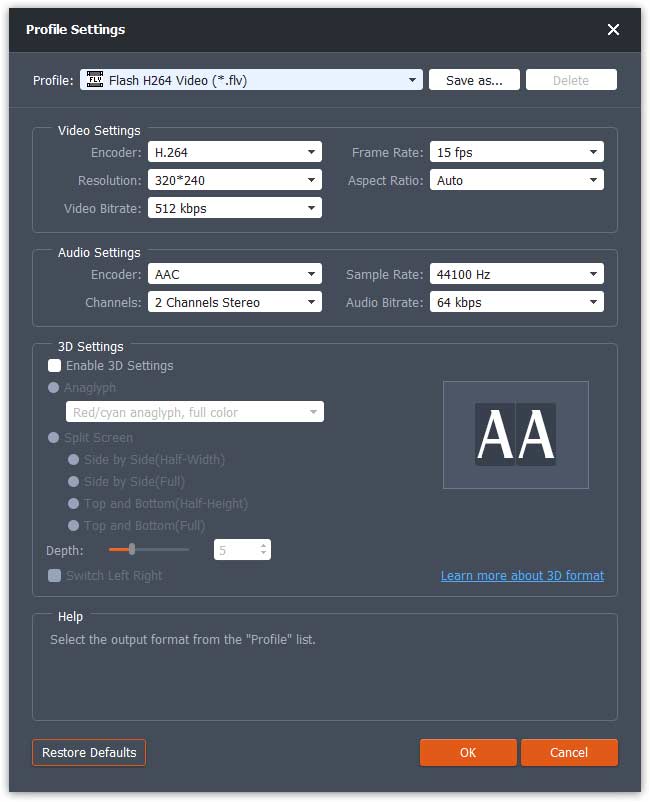
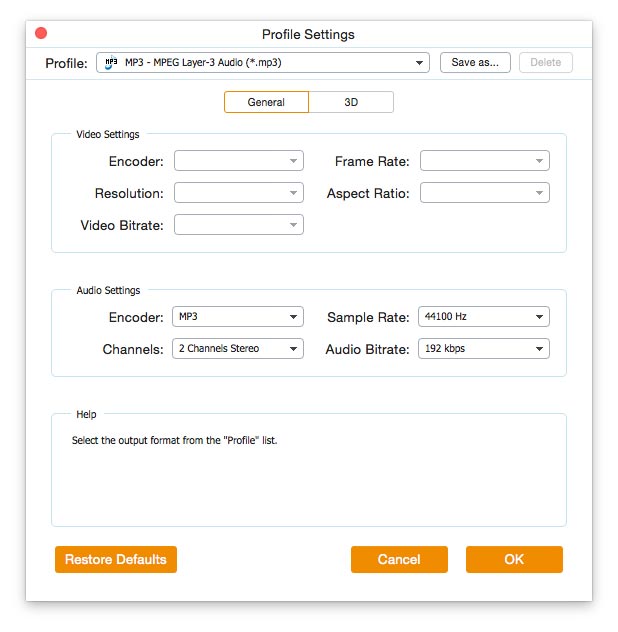
エンコーダー、チャンネル、サンプルレート、オーディオビットレートなどの値を調整してプリセットをさらにカスタマイズするには、歯車アイコンをクリックしてこれらを設定します。

プロファイル設定

Step 4. Start converting FLV to MP3

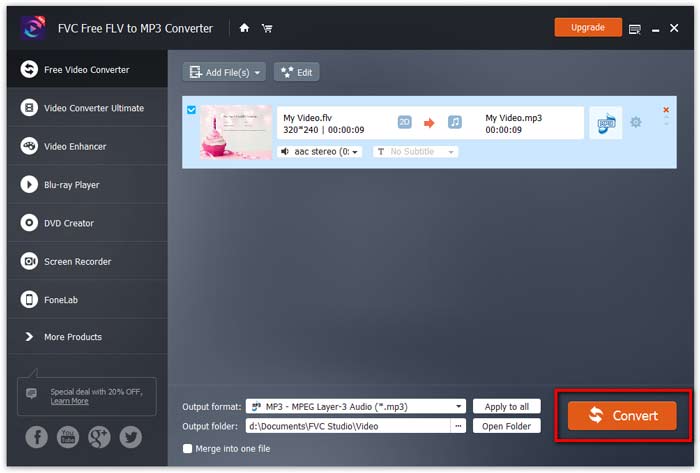
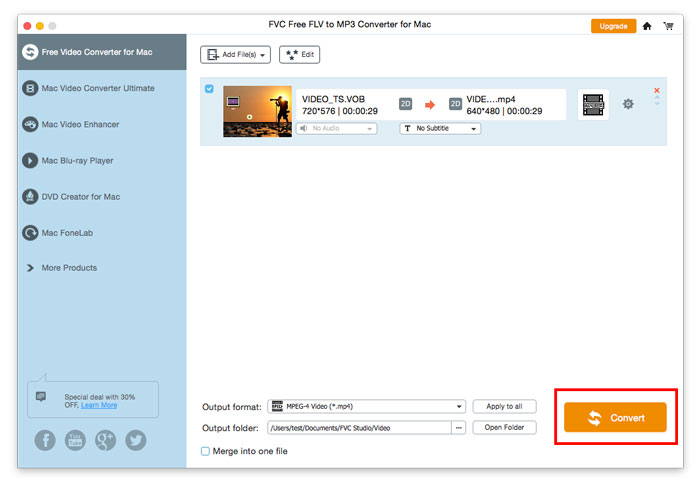
Before conversion, make sure where your converted files will be stored. If you need to change the destination folder, specify a different path by hitting on the three-dot icon next to Open Folder. To start the conversion, click the Convert button.

変換を開始します

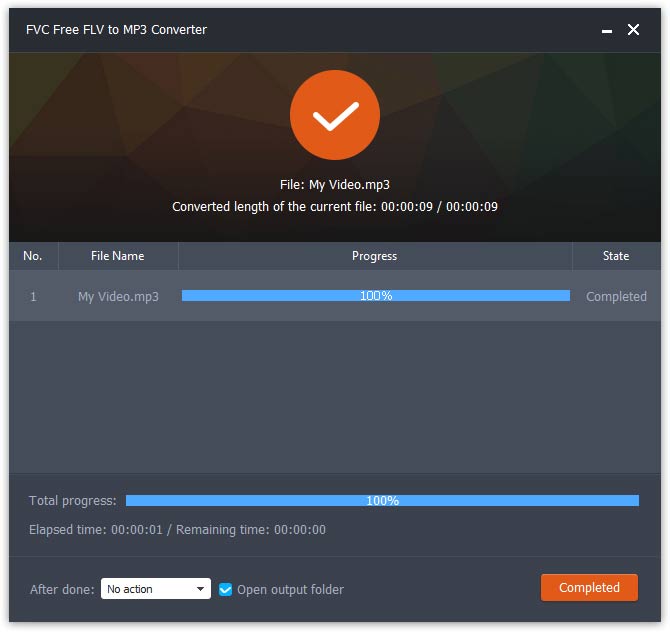
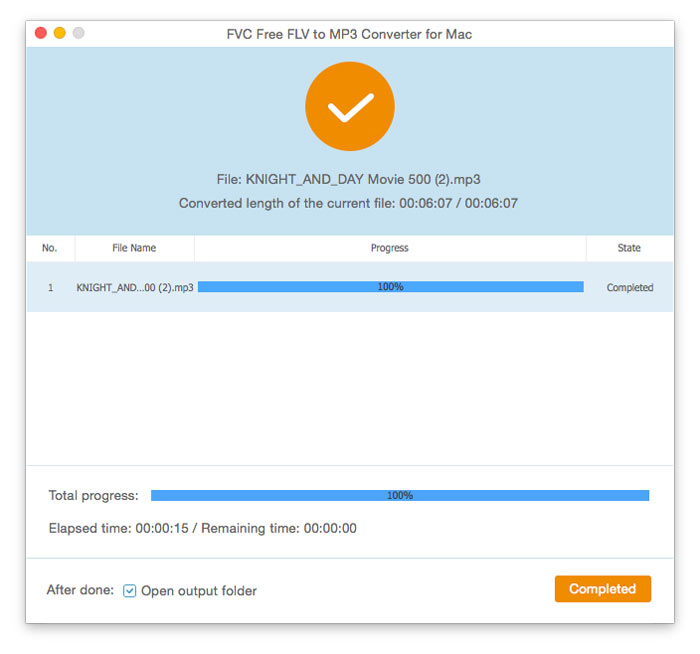
変換プロセスが終了するとすぐに、新しく変換されたファイルが含まれるフォルダが自動的に開きます。

変換が完了しました

ユーザーガイド

MP3変換ソリューション

はじめに

FVC Free FLV Converterは、その名前が示すとおりに機能する優れた無料メディアソフトウェアで知られています。 FLVビデオをMP4、AVI、MOV、MP3、またはその他の一般的なビデオおよびオーディオ形式に変換できます。一方、テーマの追加、ファイルのマージなど、変換前にビデオを編集できます。
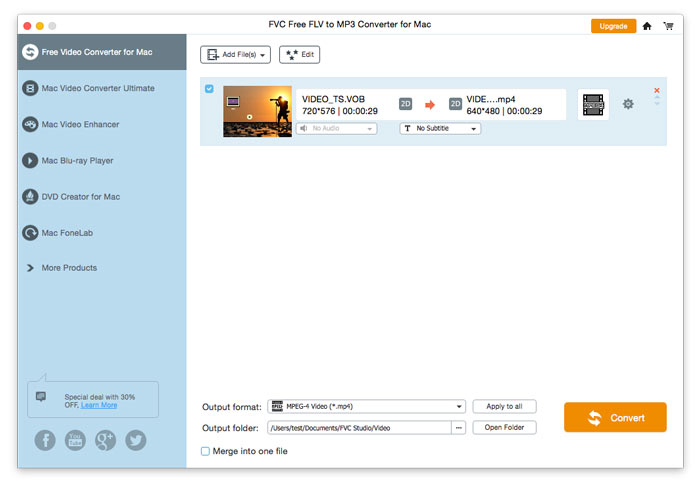
メインインターフェース

ダウンロードしてインストール

FVC Webサイトから無料のFLVからMP3へのコンバーターをダウンロードし、コンピューターにインストールします。この便利なフリーウェアは、ビデオファイルをFLVからMP3に非常に高速に変更できます。 FLVファイルからオーディオを抽出し、MP3、AAC、OGG、またはその他の一般的なオーディオ形式として保存することもできます。

環境設定

In Preferences window, you can define the output folder, choose the CPU affinity, tweal update settings, and more.

環境設定

FLVをMP3に変換する

Step 1. Install FVC Free FLV to MP3 Converter

まず、インストールファイルをダウンロードして実行します。 FVC Free FLV to MP3Converterのインストール方法に関する簡単な画面の指示に従ってください。

Step 2. Add a FLV file you want to process

Launch the converter, click the Add File(s) button in the upper left corner, and select one or more FLV files to convert to MP3.

FLVファイルを追加する

Step 3. Select MP3 as the output format

After editing your video file, head to Output format, open the General Audio category, and select MP3.

Mp3を選択

エンコーダー、チャンネル、サンプルレート、オーディオビットレートなどの値を調整してプリセットをさらにカスタマイズするには、歯車アイコンをクリックしてこれらを設定します。

プロファイル設定

Step 4. Start converting FLV to MP3

Before conversion, make sure where your converted files will be stored. If you need to change the destination folder, specify a different path by hitting on the three-dot icon nest to Open Folder. To start the conversion, click the Convert button.

変換を開始します

変換プロセスが終了するとすぐに、新しく変換されたファイルが含まれるフォルダが自動的に開きます。

変換が完了しました