


 ビデオコンバーター究極
 スクリーンレコーダー
 ビデオ修復
ビデオ修復最高のGIFクロッパーの助けを借りてGIFをトリミングする方法
メッセージに合った適切なGIFを選ぶことは、伝えたい内容にふさわしいトーンを届けるために欠かせません。しかし、GIF本来の意図をきちんと伝えるには、一部をトリミングしなければならない場合もあります。また、GIFをトリミングするときは、画質が劣化せず、同じfps(フレームレート)を保つ必要があります。ところが、最適なGIFトリミングツールを選ぶのは意外と難しいものです。すべてのツールがトリミング機能を備えているわけではなく、トリミングできても画質やfpsが落ちてしまうものもあります。この記事では、あなたに最適なGIFクロッパーを選べるよう、すでに当方で検証済みのツールだけを紹介し、正確な情報をお届けします。さらに、あらゆるプラットフォームで使える最良のGIFクロッパーと、その使い方も解説します。詳しく知りたい方は、このまま読み進めてください。

パート1。WindowsおよびMacオペレーティングシステムをサポートする最高のGIFクロッパー
1.FVC無料ビデオからGIFメーカーへ
このツールはWindowsとMacの両方に対応しており、FVCが開発した最高のアニメーションGIFクロッパー、FVC Free Video to GIF Makerです。このソフトを使えば、既存のGIFを編集・強化することも、新しくGIFを作成することもできます。インターネット接続がなくてもGIFをトリミングできるので、GIFをもっと印象的にしたいときに非常に便利で、効率よく作業できます。GIFをどのようにトリミングするかは、以下の手順を参考にしてください。
ステップ1. ツールをドライブにインストールし、ニーズに合わせて設定を調整します。
無料ダウンロードWindows 7 以降対応安全なダウンロード
無料ダウンロードMacOS 10.7 以降対応安全なダウンロード
ステップ2. ツールを起動すると、このようなミニインターフェースが画面に表示されます。
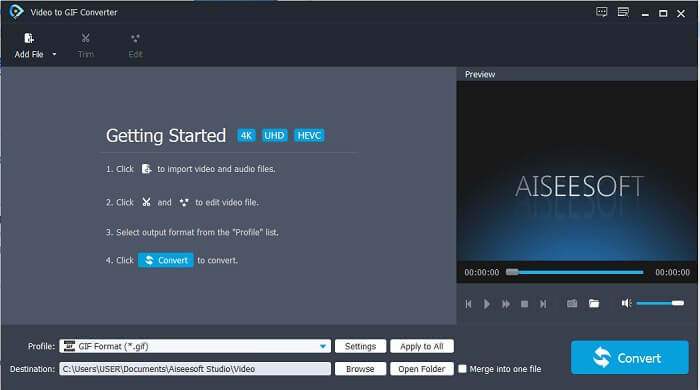
ステップ3. ファイルを追加をクリックするか、あるいは動画ファイルをツールのインターフェースにドラッグ&ドロップします。
![[ファイルの追加]をクリックします](/images/2021/09/click-the-add-file.jpg)
ステップ4. 編集をクリックしてGIFを調整します。トリミングに進み、GIFのサイズを調整します。アスペクト比やズームモードも変更できます。調整が完了したら、適用をクリックして変更内容を保存します。
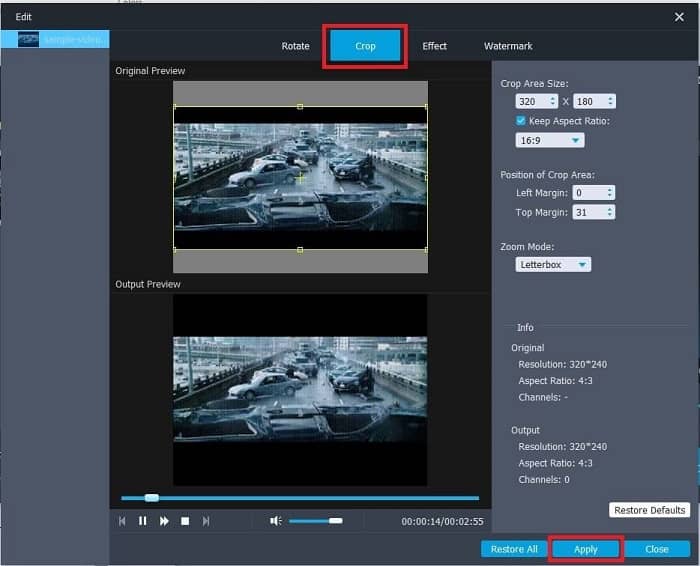
ステップ5. 変換をクリックして、動画をGIFに変換し始めます。変換が完了したら、動画名を入力してファイルエクスプローラーから最終出力を確認できます。
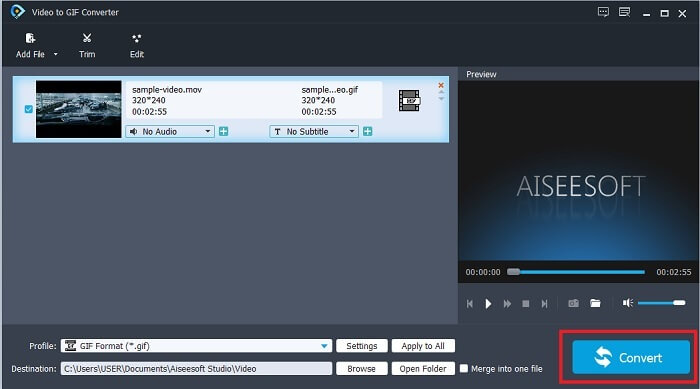
長所
- すべてのマイナーな機能はここで利用できます。
- オンラインツールやダウンロード可能なツールよりもはるかに優れています。
- このツールを使用して、GIFを簡単に作成できます。
短所
- Ultimateバージョンが提供する主要な機能を使用することはできません。
- プレミアムバージョンではなく、よりフォーマットの低いビデオをサポートします。
2.ビデオコンバーターアルティメット
このツールの無料バージョンは簡単な作業を行うことができますが、プレミアムバージョンは最高のGIFクロッパーです。 Video Converter Ultimateは、名前だけでなく、このツールがあらゆるビデオをGIFファイルに変換する究極のツールでもあります。無料版や以下のツールとは異なり、このツールを使用すると、シンプルなGIFをよりすばらしいものにすることができます。このツールでしか提供できない効果を追加して、GIFを優れたものに変換します。また、MP4からGIFなどのGIFへのビデオの変換、ビデオの1つへのマージ、3Dメーカーなども提供します。だから、あなたの個人的なクロッパーとしてこのツールを使用してください、そしてそれは決してあなたを失望させません。さらに、以下の手順を読み続けて、GIFをトリミングして、より具体的なメッセージを受信者に配信する方法を確認してください。
ステップ1. このツールを使用する前に、まずダウンロードする必要があります。ツールをドライブにインストールし、ニーズに応じて設定を変更してから、完了をクリックするとツールが起動します。
無料ダウンロードWindows 7 以降に対応安全なダウンロード
無料ダウンロードMacOS 10.7 以降に対応安全なダウンロード
ステップ2. ツールのダウンロードとインストールが完了すると、このような扱いやすいインターフェースが画面に表示されます。ツールバーをクリックし、ツールバー内のGIFメーカーをクリックします。
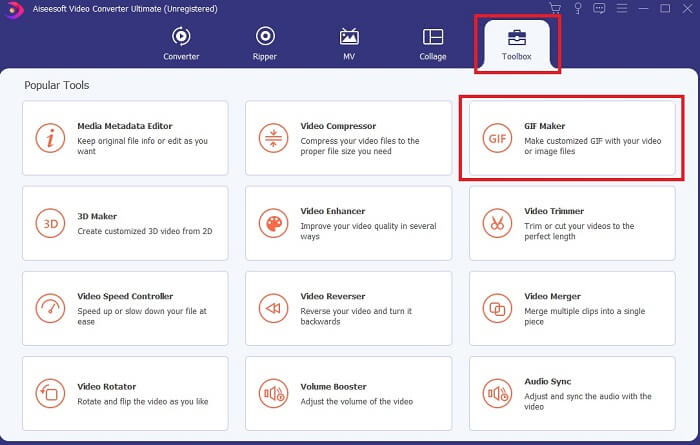
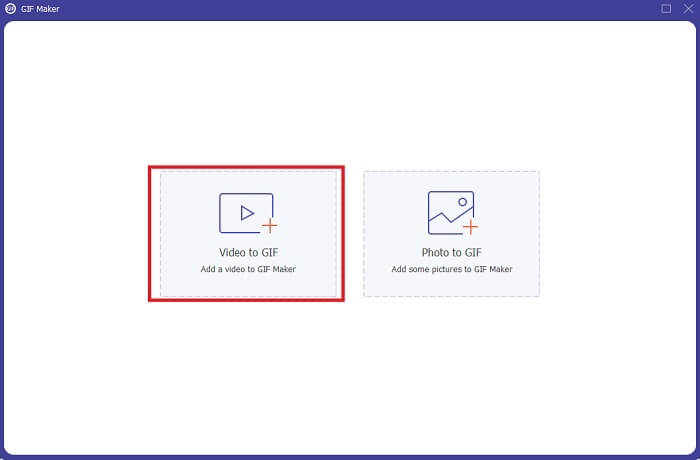
ステップ3. 動画を追加するには、ビデオからGIFをクリックし、トリミングまたは編集したいGIF(動画)を選択します。動画を選んだら、開くをクリックしてGIFメーカーを起動します。
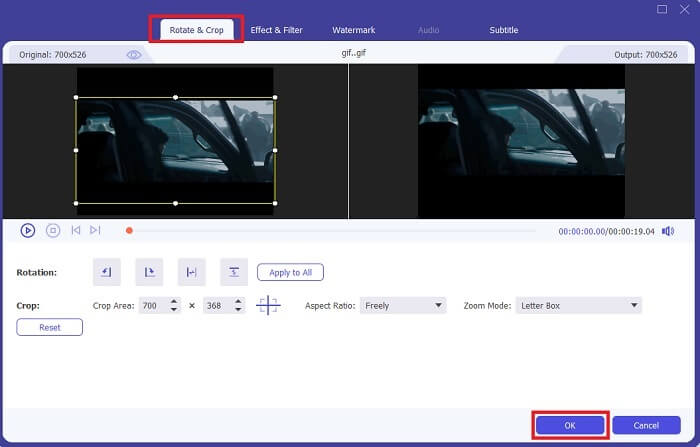
ステップ4. 星のアイコンが付いたボタンをクリックして編集を開始します。回転&トリミングをクリックしてGIFのトリミングを行います。さらに、エフェクト&フィルター、ウォーターマーク、字幕なども追加できます。すべての調整が完了したら、OKを押して変更を保存します。
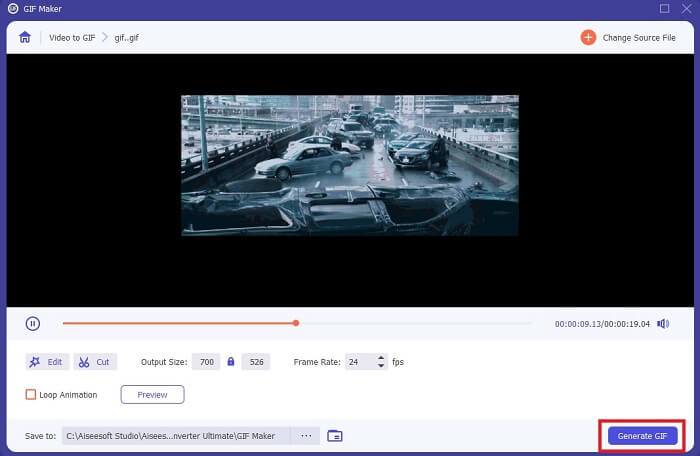
ステップ5. 最終出力の保存先を変更しておくと、あとで見つけやすくなります。GIFを作成をクリックして変換を開始します。変換が100%完了したら、指定した保存先またはファイルマネージャーで最終出力を確認してください。
長所
- GIFをよりインタラクティブなものに拡張したい場合は、使いやすいツールです。想像力を駆使して、GIFにスパイスを加えましょう。
- 他のプレミアムバージョンでは提供できない主要な機能を使用して、GIFを印象的な出力にすることができます。
- 100万人以上のユーザーが、このツールを第一選択のプレミアムバージョンツールとして選択しています。
短所
- ツールを使用するには、最初に支払いを行う必要がありますが、確かにそれほど高価ではありません。したがって、このツールを購入した場合は、それ以上のことは期待できません。
- 起動する前にツールをダウンロードしてください。インターネットをお持ちでない場合でも、インターネットに依存しないため、このツールを使用できます。
パート2。インターネット経由でアクセスできるトップ5の最高のGIFクロッパー
1. iLoveIMG
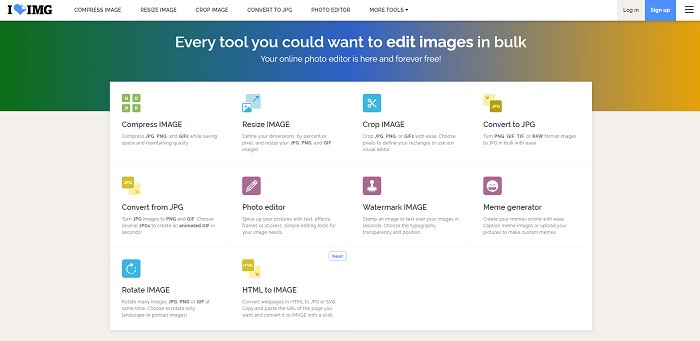
このオンラインGIFクロッパーを使えば、簡単にGIFをトリミングできます。iLoveIMGは、オンラインで使える高性能なGIF・JPG・PNGトリミングツールとして知られています。このツールは動画をGIF形式に変換することはできず、GIF・JPG・PNGの強化に特化していますが、サイトのインターフェースは期待以上で、シンプルなだけでなく、よりインタラクティブな作りになっています。そのため、サイトを使っていて退屈さを感じにくいでしょう。オンラインのWebアプリとしては10点中7点ほどの評価ができ、かなり優秀な部類と言えます。
長所
- GIF、JPG、およびPNGを強化するのに最適です。
- ウェブサイトのインターフェースは驚くほど美しいです。
- ダウンロードする必要はありません。
短所
- 接続が中断された場合、データが失われる可能性があります。
- ビデオ形式をGIF形式に変換することはできません。
2. RedKetchup
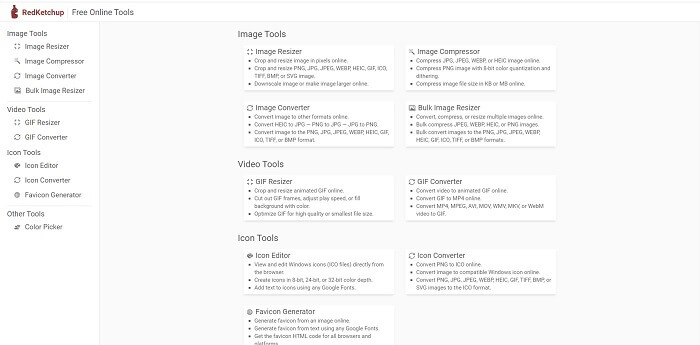
iLoveIMGが合わない場合は、このオンラインGIFクロッパーを試してみる価値があります。RedKetchupは、各編集ツールの説明がとても丁寧でわかりやすいサイトです。そのため、機能の使い方がよくわからない初心者でも、説明を読みながら理解しやすくなっています。また、画像をGIF、PNG、JPG、WEBPなどさまざまな形式に変換することも可能で、対応フォーマット数はiLoveIMGより多くなっています。ただし欠点として、ウェブページのデザインがかなり味気なく、背景全体が白一色で、色が付いているのはRedKetchupの名前とアイコンくらいという点が挙げられます。
長所
- iLoveIMGよりも多くの画像形式をサポートしています。
- 各ツール機能には簡単な説明があるため、ユーザーはその機能を理解できます。
- これは無料のオンラインツールです。
短所
- このツールのウェブページは、単調な色であるため、見るのがとても退屈です。
- インターネットが不安定な場合、ファイルが正しく保存されない可能性があります。
3. Kapwing
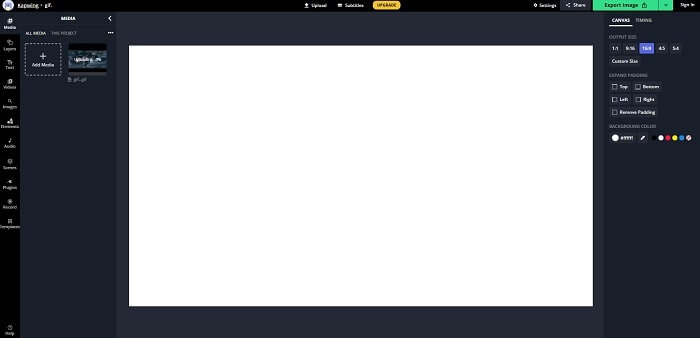
このツールはオンライン版のPhotoshopと言ってよいほど多くの機能を備えており、最高のGIFフレームクロッパーのひとつです。Kapwingは、友人と共有したくなるような高品質なGIFを作成できるツールとして知られています。前述の2つのツールと異なり、このツールは一部の動画形式に対応しており、それらをGIF形式に変換することも可能です。使いこなすまでに多少時間はかかりますが、その価値は十分あります。とはいえ、シンプルなGIFを作りたいだけなら、このツールは非常に適しています。このツールはオンライン版のPhotoshopと言ってよいほど多くの機能を備えており、最高のGIFフレームクロッパーです。Kapwingは、友人と共有したくなるような高品質なGIFを作成できるツールとして知られています。前述の2つのツールと異なり、このツールは一部の動画形式に対応しており、それらをGIF形式に変換することも可能です。使いこなすまでに多少時間はかかりますが、その価値は十分あります。シンプルなGIFを作成したいという場合でも、このツールは最適な選択肢と言えるでしょう。
長所
- ツールのWebサイトのインターフェイスは、Photoshopとほぼ同じ雰囲気を提供します。
- ビデオをGIF形式に変換します。
- 基本的な編集機能が提供されます。
短所
- ビデオの最終出力の処理は、常にインターネットの速度に依存します。したがって、最終的な出力を生成するには、多くの忍耐力が必要です。
- 出力から透かしを削除するには、サインアップする必要があります。だから、それが言うすべての更新といくつかの迷惑な発表のメールを期待してください。あなたが彼らにあなたのアカウントへのアクセスを許可したからです。
4.GIFGIF
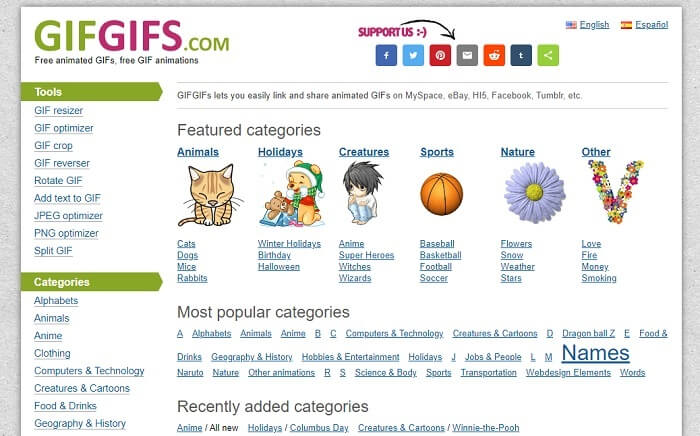
この画質を落とさないGIFクロッパーを使えば、GIFを劣化させずにトリミングできます。GIFGIFsは、オンライン上で豊富な既成GIFを提供しているサイトで、アルファベット、スポーツ、アニメ、衣類など、さまざまなカテゴリーから選べます。また、このツールはGIFの強化に役立つ機能を備えているだけでなく、JPGやPNGの最適化も行えます。
長所
- GIFをより良いものに拡張することは良い選択です。
- JPEG、PNG、GIFの最適化をサポートしています。
- カテゴリセクションですでに完了したGIFを選択します。
短所
- 検索バーがないため、使用したい完璧なGIFを見つけるのは困難です。
- インターフェースは大丈夫です。それは特別なことではなく、良くはないが悪くはないと言うべきです。
5. VEED.IO
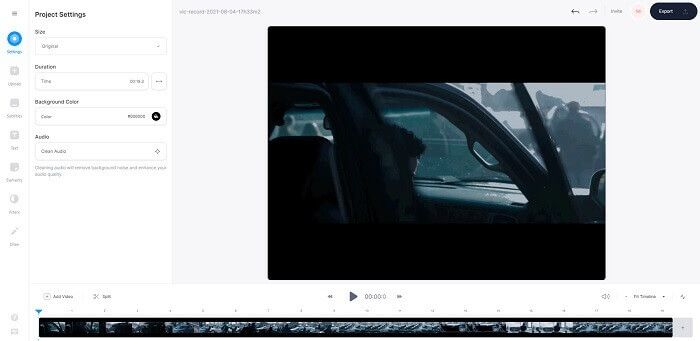
これをオンラインで最初に選択する無料のGIFクロッパーとして選択しますが、必要に応じてプレミアムバージョンにアップグレードすることもできます。 VEED.IOは、GIFをより良いものに拡張するための最高のオンラインツールの1つです。ただし、無料バージョンのツールは50 MBのGIFファイルサイズしかサポートしておらず、ファイルサイズを追加するには、プレミアムバージョンのツールを購入する必要があります。
長所
- それはあなたのGIFをより良くするための素晴らしい編集機能を提供します。
- シンプルなユーザーインターフェース。
- 必要に応じて字幕を追加することもできます。
短所
- 2D画像を改善するための3Dメーカーは提供していません。
- タイムラインを拡大しようとすると、ソフトウェアがクラッシュする場合があります。
パート3。GIFCropperに関するFAQ
GIF形式よりも優れた形式はありますか?
GIFがウェブ上で最高の動画フォーマットであることはよく知られていますが。しかし、GIFよりも優れたフォーマットがあることをご存知ですか?これはAPNGです。この形式は、GIFよりも多くのカラーパレットを提供し、圧縮にも優れています。ただし、WEBP、MNG、FLIF、およびAVIFを使用することもできます。
GIFが作成される理由は何ですか?
1987年の終わりごろ、Steve Wilhiteという人物が「コンピュータ画面に表示できる、もっとファイルサイズの小さい画像形式は作れないか」と自問したことをきっかけに、GIFが誕生しました。GIFについてさらに詳しく知りたい方は、こちらをクリックしてください。
どちらがいいですか? JPGまたはGIF?
JPG形式は、幅広い色をサポートしているため、より詳細な画像を提供し、写真を撮るのに最適です。 GIFは少量のカラーパレットを提供しますが、静止画像の作成には適しています。
結論
まとめると、まずは自分の求めるトリミング機能をしっかり提供してくれる、最適なGIFクロッパーを選ぶことが重要です。トリミングしてもGIFそのものの画質が損なわれないツールでなければなりません。その点を踏まえると、FVCが開発した究極のツールを選ぶのが賢明でしょう。多彩なGIF編集機能を備えており、他のGIFよりも際立たせるためのエフェクトや調整を簡単に加えられます。つまり、Video Converter Ultimateを使えば、これまでになく簡単にGIFをトリミングできるということです。
-
 GIFを圧縮し、高品質でファイルサイズを縮小するためのチュートリアル
 コンピューターまたは携帯電話でGIFを圧縮する2つの簡単な方法を次に示します。 FVC Free Online Video CompressorとPhotoshopを使用すると、さまざまな面でGIFファイルのサイズを縮小できます。
-
 GIFプレーヤー– Windows PC、Mac、Android、iPhoneに最適な5つのGIFプレーヤー
 どのプログラムがGIFファイルを開きますか? AndroidでGIFを表示するにはどうすればよいですか? iPhoneにはGIFを開くためのGIFプレーヤーがありますか?この投稿では、5つの最高のGIFプレーヤーを共有しています。
-
 Windows / MacでAVIビデオをアニメーションGIFファイルに変換する方法
 興味深いAVIセグメントを選択してGIFミームを作成したいですか?この記事では、AVIビデオをクリップし、AVIをアニメーションGIFファイルに無料で変換するための2つの最良の方法を説明します。
