


 ビデオコンバーター究極
 スクリーンレコーダー
 ビデオ修復
ビデオ修復トップ9:初心者のための最高のアニメーションGIF編集ソフトウェア[オンラインおよびオフライン]
感情をよりよく表現する最良の方法は、メッセージにGIFを挿入することです。その主な目的は、アニメーション画像と静止画像を保存してサポートすることです。 GIFは、Webで利用可能な他の形式よりも読み込みが良く、はるかに小さいことが知られています。画像だけでなくGIFを見る方がエキサイティングです。しかし、インターネットで検索するすべてのGIFが、提供したい感情を提供できるわけではありません。
そのため、インターネット上でGIFを検索する代わりに、彼らはGIF編集ソフトウェアを使って自分だけのGIFを作成します。とはいえ、「受け取る相手を感動させるような壮麗なGIFを作るには、どのツールを使えばいいのだろう?」と疑問に思っているかもしれません。ここでは、GIFを作成するための最良のツールをいくつかご紹介します。以下のツールはすべて、GIFへの変換・編集・作成など、さまざまな用途に使用できます。もし、用途に合った最適なツールを探しているのなら、ぜひこのまま読み進めて、各ツールの詳細を確認してください。

パート1。PCとMacで効果的に機能する最高のオフラインGIFエディター
1.FVC無料ビデオからGIFメーカーへ
お気に入りの動画をGIF形式に変換して、友人や家族、気になる相手に気軽に送れるようにしましょう。このFVCの無料動画GIFメーカーを使えば、自分だけのGIFを作成できます。主な役割は、MP4・MOV・AVIなど、あらゆる動画ファイル形式をGIF形式に変換することです。編集やトリミング機能も搭載されています。このGIFエディターは、あらゆるシステム環境で利用可能です。このツールの使い方を知るために、以下に示す手順に従って操作してください。
ステップ1. ツールをドライブにダウンロードし、インストールしてセットアップします。
無料ダウンロードWindows 7 以降対応安全なダウンロード
無料ダウンロードMacOS 10.7 以降対応安全なダウンロード
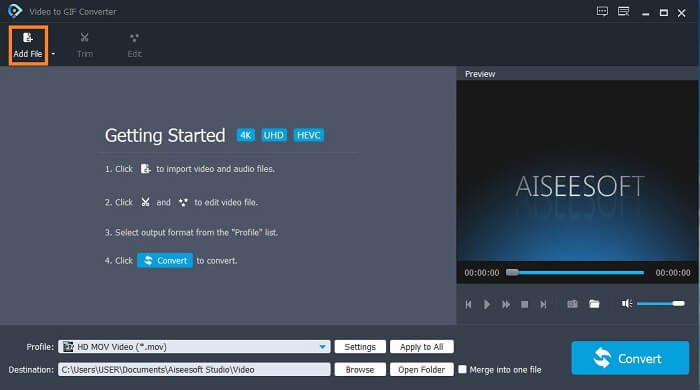
ステップ2. このようなインターフェースが画面に表示されます。ファイルを追加をクリックするか、ファイルをコンバーターにドラッグ&ドロップします。
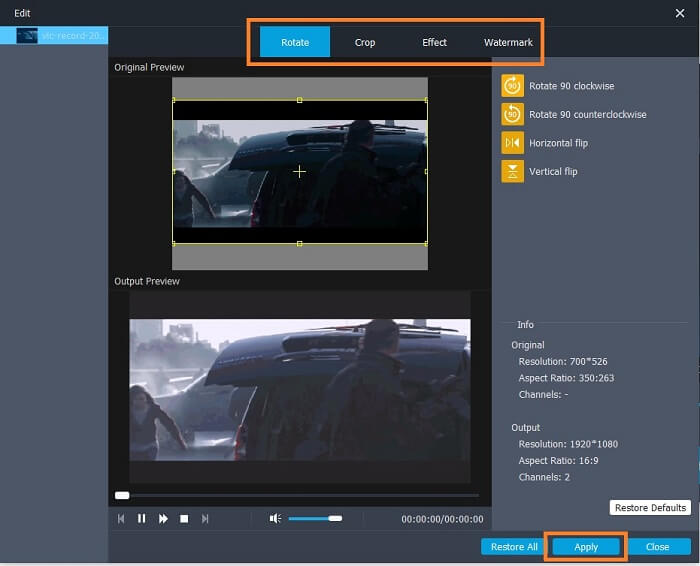
ステップ3. すでにGIFを追加している場合は、トリミングして短くすることもでき、OKをクリックして変更を保存します。また、編集画面でGIFを回転、クロップ、エフェクト追加、ウォーターマーク追加することもでき、適用をクリックして行った変更を保存できます。
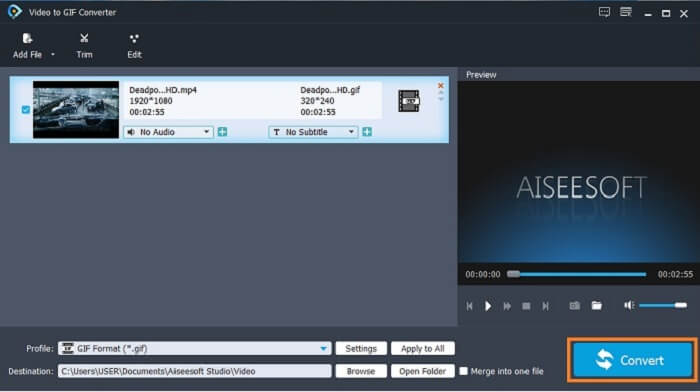
ステップ4. 完成したファイルを保存する出力先を選択します。変換を開始するには、変換をクリックします。
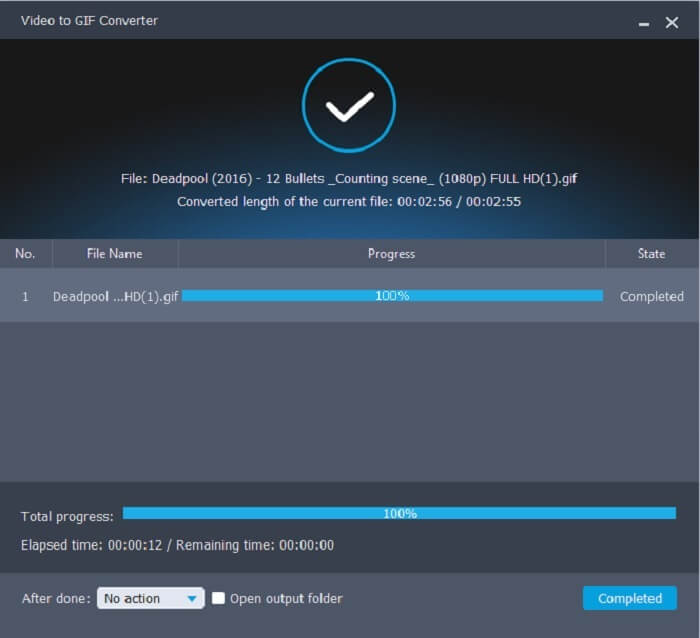
ステップ5. すべて完了すると、このような画面が表示され、変換が完了したことを示します。
長所
- ビデオ形式をGIFに変換するための最高の無料ツール。
- それはすべての異なる既知のプラットフォームで利用可能であり、常に信じられないほどの出力を生成します。
- インターネットが利用できない場合でも機能します。
短所
- 究極の機能のすべてがここに示されているわけではありません。
- プレミアム版と同様にダウンロード可能なツールです。
2.ビデオコンバーターアルティメット
前述のGIFエディターは、GIF作成において一級品のクオリティを提供してくれます。しかし、そのツールよりも、そしてこの後に紹介するツールよりも優れたツールがあることをご存じでしょうか。Video Converter Ultimateは、その名の通り、あらゆるソフトウェア上で利用できる究極のGIFメーカーです。GIF作成に優れているだけでなく、コンバーターとしても多機能に活用できます。GIFにエフェクトを加えて、他のGIFと差をつけましょう。もし、友達と「最高のGIF作り対決」をしていて勝ちたいのなら、これこそが相手を驚かせるチャンスです。また、このツールの正しい使い方を知るには、以下の手順を正確に守って、成功したGIFを作成してください。
ステップ1. ダウンロードボタンをクリックしてツールをコンピューターのドライブにインストールします。設定を変更し、[完了]をクリックして保存すると同時にツールを起動します。
無料ダウンロードWindows 7 以降に対応安全なダウンロード
無料ダウンロードMacOS 10.7 以降に対応安全なダウンロード
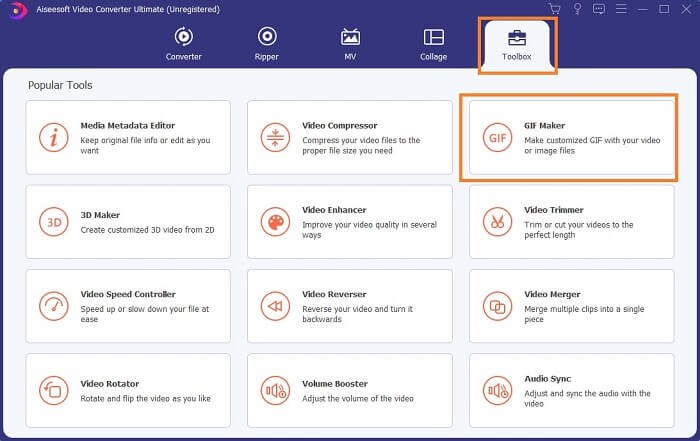
ステップ2. ツールがシステム上で起動すると、このようなインターフェースが画面に表示されます。ツールボックス内のGIFメーカーに進み、GIF作成を開始します。
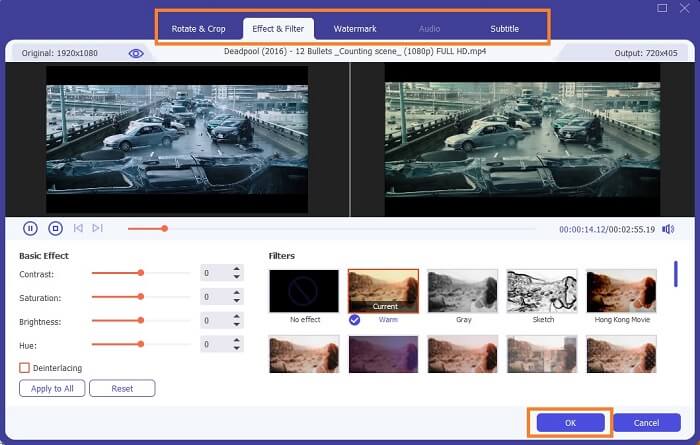
ステップ3. 次に動画からGIFをクリックし、変換したい動画を選択します。動画ファイルを選んだら、回転やクロップ、エフェクトフィルター、ウォーターマーク、字幕などの編集も行えます。調整を保存するにはOKをクリックします。
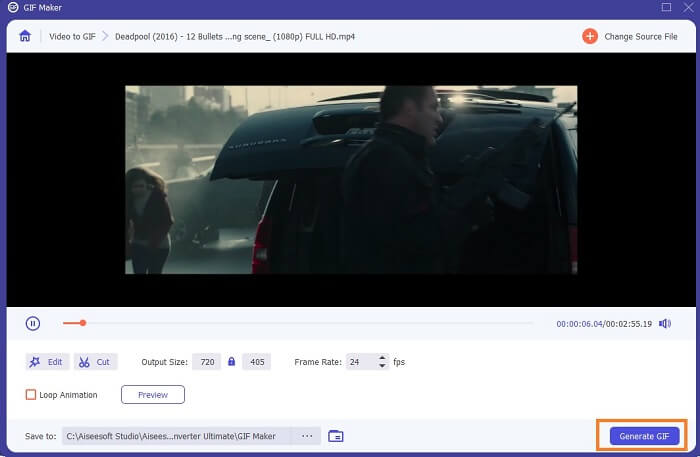
ステップ4. プレビューをクリックして、作成した動画の最初の10秒を確認します。GIFを生成をクリックして変換を開始します。
ステップ5. すべて完了したら、ファイルエクスプローラーでファイルを探し、完成したGIFを再生したり、送信したりします。
長所
- GIFを強化するための究極のツールを備えたGIF用の最高のビデオコンバーター。
- これは、Web上の既知および未知のすべてのビデオオーディオ形式をサポートします。
- 優れた最終出力を備えた多目的ツール。
短所
- これは従量制のツールですが、より安価です。
- 使用する前に、ストレージにダウンロードする必要があります。
パート2。最高のオンラインGIFエディターの3
1. Ezgif
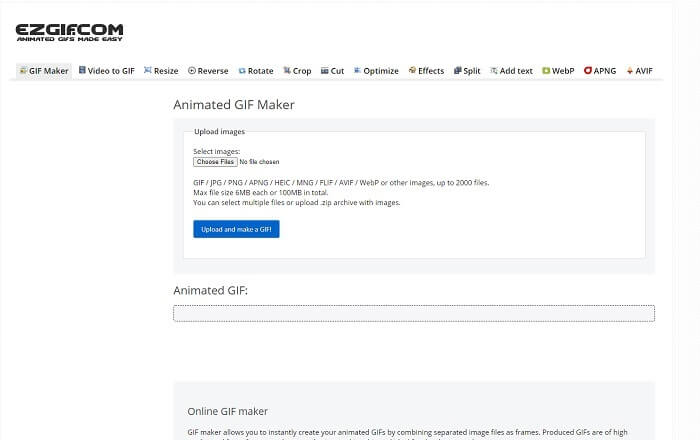
インターネット上で一度は目にしたことがあるかもしれないオンラインGIFエディターのひとつがEzgifです。Ezgifは、最良のGIFメーカーのひとつとして知られています。このツールは、動画の回転、クロップ、逆再生など、多数の機能を提供していますが、それぞれが別々のツールとして分かれているため、GIF作成と編集に集中したいときでも、強化したい編集機能ごとにファイルを移動しなければならず、やや面倒です。また、インターフェースは白い背景でシンプルではあるものの、見た目は少し退屈に感じられます。デザイン面では長らく更新がされていない印象のオンラインツールです。
長所
- さまざまなオプションを備えたオンポイントツール。
- ウェブページツールはシンプルです。
- GIFの作成に効果的です。
短所
- それぞれ6mb、全部で100mbに制限されています。
- ツールのすべての機能がWebサイト全体にあるため、ユーザーフレンドリーではありません。そして、その真っ白な背景のために見るのは少し退屈です。
2. VEED.IO
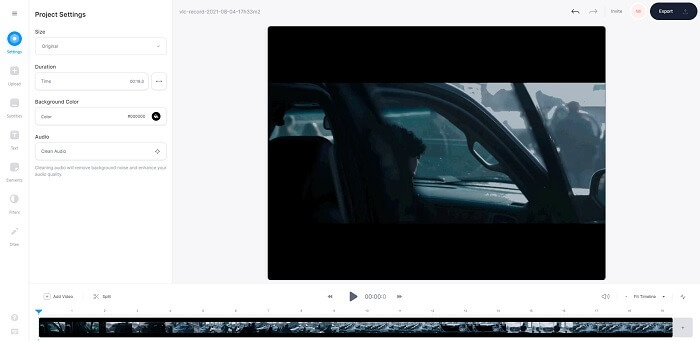
もうひとつのオンラインGIFエディターとして挙げられるのがVEED.IOです。このツールを使えば、動画をGIF形式に変換したり、GIFを作成・編集したりできます。メインサイトのデザインは、Ezgifとは違って比較的見やすく整っています。しかし、実際にオンラインでGIF作成を始めると、ツールのページが反応しなくなったり、セキュリティ面に不安があったりすることがあります。また、パスワードやクレジットカード情報を入力しないようにしてください。攻撃者に盗まれる可能性があります。
長所
- より良いカスタマーサポート。
- ツールのプロバージョンを提供します。
- インターネット経由で簡単にアクセスできます。
短所
- Webツールは保護されていません。だから、あなた自身の責任で訪問してください。
- 3D編集機能はありません。
3. Giphy
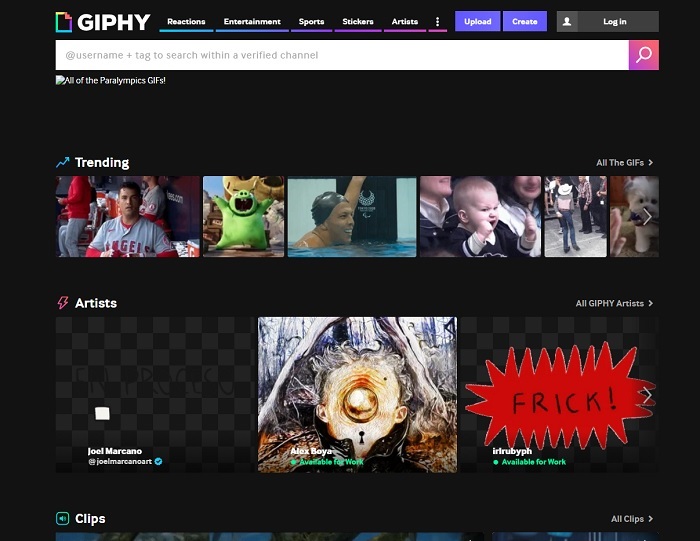
GiphyはオンラインのアニメーションGIFエディターです。このツールでは、リアクション、エンタメ、スポーツ、ステッカーなど、さまざまなサンプルGIFが提供されています。最良のGIFメーカーのひとつではありますが、利用するにはアカウント登録が必要です。つまり、サイトがあなたのアカウント情報へアクセスすることを許可することになります。そのため、このツールのアップデートや新機能、新着GIFなどのお知らせが、常にメールに届くようになる点を覚えておいてください。
長所
- オンラインでGIFをアップロードして作成します。
- ウェブ上の無料のGIF、クリップ、ステッカー用の最大のライブラリ。
- インターフェースは最新で、見た目も素晴らしいです。
短所
- ツールを使用する前にサインアップする必要があります。したがって、サインアップまたはログインしないと、ツールにアクセスできません。
- GIFの最大長はわずか30秒です。
パート3。AndroidおよびiOS上のGIFエディターアプリ
1. GIPHY:GIF&ステッカーキーボード&メーカー
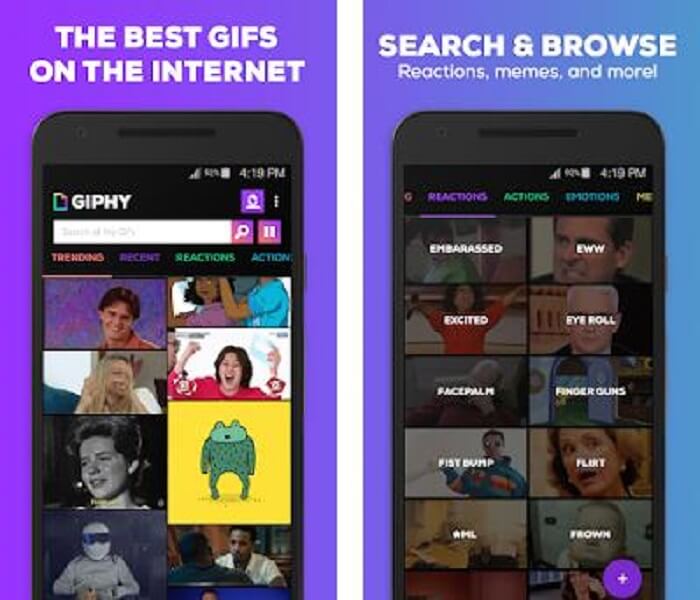
AndroidとiOSの両方で利用できるもうひとつのGIFエディターアプリが、GIPHY: GIF & Sticker Keyboard & Makerです。PlayストアおよびApp Storeの中でも最大級のGIFストレージを持つアプリとして知られています。それだけでなく、すでに用意されたGIFを利用できるほか、自分でGIFを作成することも可能です。さらに、自作のGIFをアプリ内で共有することもできます。ただし、作成中は問題なく動作していたGIFや、端末内に保存されていたGIFをアップロードすると、アプリ側で少し動作が不安定になり、一部のシーンだけ再生速度が速くなったり遅くなったりする場合があります。
長所
- すばらしいGIF、ステッカー、ビデオクリップ。
- アプリケーションに広告がほとんどまたはまったくありません。
- GIFを編集し、GIFにさらに美的なアニメーションを追加します。
短所
- このアプリからGIFをダウンロードすると、静止画像が表示される場合があります。 .gif形式でダウンロードする代わりに、.jpegになりました。
- アプリにログインするのは少し面倒です。正しくログインできず、さらにログインする必要がある場合があるからです。
2. ImgPlay–GIFメーカー
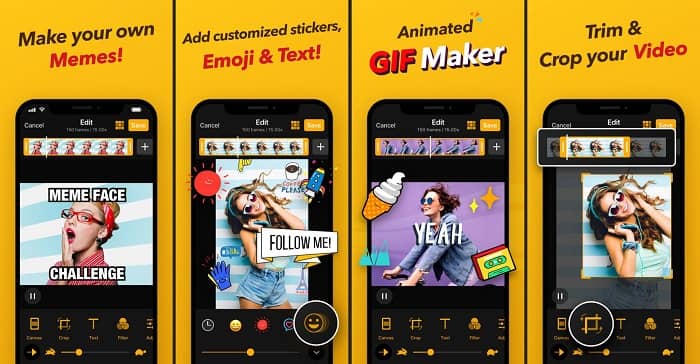
動画でも画像でも、GIFを作成する最も簡単で手軽な方法のひとつがImgplayです。Imgplayなら、画像や動画を、フル機能のGIFへと変換できます。このアプリは、GIFをできるだけ魅力的に見せるための優れた編集機能を提供します。ただし、完成したGIFを保存すると、GIF右下にウォーターマークが表示されます。ウォーターマークを削除するには、プレミアム版を購入する必要があります。
長所
- AndroidおよびiOSデバイスをサポートします。
- ツールのプレミアムバージョンを購入する場合は、GIFに30を超えるフィルターを適用して、GIFを改善します。
- ビデオや画像から簡単にGIFを作成できます。
短所
- AndroidよりもiOSの方がうまく機能します。基本的に、Androidの他の主要な機能では、明るさ、コントラスト、彩度、フレームレートを調整することはできません。
- また、これらのアプリにも広告を期待してください。それらを削除するには、プレミアムバージョンを購入する必要があります。そのfpsも超低です。
3. GIFX
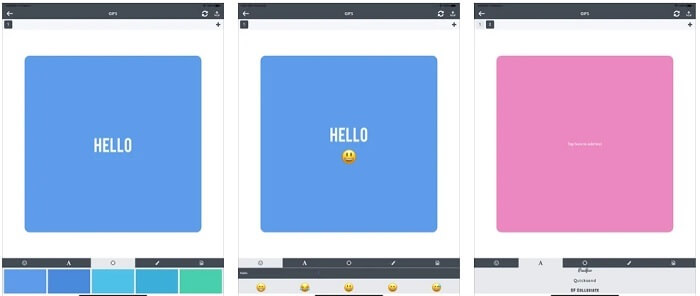
このGIFエディターはiOS専用です。GIFXを使えば、あなたが理想とする最高のGIFを作成できます。画像や動画をGIF形式に変換することも可能です。作成したGIFは、MMSやメールで共有することもできます。また、絵文字やテキストを追加して、感情をより豊かに表現することもできます。
長所
- iOSのこのアプリで独自のアニメーションGIFを作成します。
- iPad、iPhone、iPod touch、MacなどのさまざまなApple製品もサポートしています。
- このツールを使用してGIFの速度を調整します。
短所
- このツールはビデオをサポートしていると言っていますが、GIFにビデオを追加することはできません。
- アプリの評価は1つ星のみで、2件のレビューのみを受け取ります。これは、アプリケーションとしては非常に低いものです。
4.GIFスタジオ
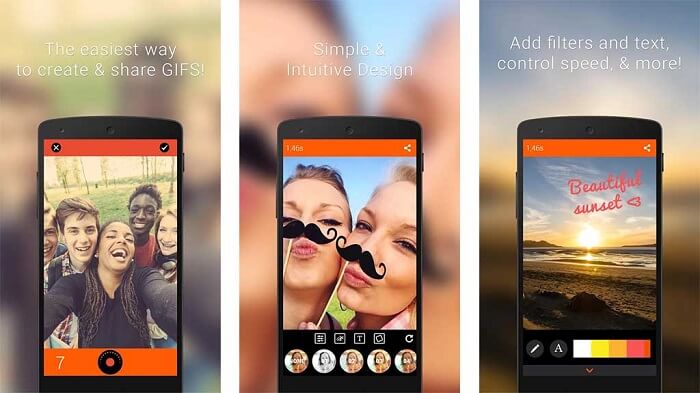
もし最高のGIFエディターアプリを探しているなら、GIF Studioがその有力候補になるでしょう。このアプリは、あなたの想像力をGIFの中で存分に発揮させてくれます。アニメーションGIFを作成・編集・再生できるほか、GIF作りを難しく感じているユーザーでも扱いやすいように設計されています。さらに、GIFをより魅力的にするための追加機能も数多く備えています。
長所
- 複数のGIFを1つにマージします。
- GIFにテキストを追加して、グリーティングカードを作成します。
- GIFを共有して、簡単に保存できます。
短所
- 開発者がそれを簡単にするからです。ユーザーインターフェイスは恐ろしいです。このアプリの使い方を学ぶのは少し難しいでしょう。
- 別のGifメーカーから作成されたGIFはサポートしていません。
パート4。GIFエディターに関するFAQ
GIFが提供できるような動画を保存できる他の形式はありますか?
有名な画像ビデオ形式の1つである30年後。すでに競合他社になっています:APNG、AVIF、MNG、WebP、FLIF。
GIFとはどのようなデータ圧縮ですか?
これはロスレス圧縮方式であるため、データを圧縮しても情報が失われることがなく、インターネット経由で形式をやり取りしやすいのが特徴です。もしGIFファイルが大きすぎる場合は、アニメーションGIFを小さいファイルサイズに圧縮する方法を確認してください。
GIF形式を記録するために使用できるGIFレコーダーは何ですか?
FVC Screen Recorderを使用できます。これは、すべての異なるプラットフォームで利用可能なダウンロード可能なGIF Recorderであり、GIF形式などを提供します。超高品質で、さらに多くのオプションがあります。 Windows用のFVC無料スクリーンレコーダーをダウンロードMac用のFVC無料スクリーンレコーダーをダウンロード
結論
そして今では、優れたメッセージを配信するための最良の方法はGIFを使用することであることが非常に明確になっています。生のメッセージを使用するのは良いことですが、GIFを追加する方がはるかに優れています。したがって、最適なGIFエディターを選択することは、共有したいメッセージの正しいトーンを提供し、明確なステートメントを持っているか、陽気なトーンを追加するために必須です。究極のツールを選択して、共有したい最高の印象を与える究極のGIFを作成します。
-
 Windows / MacでAVIビデオをアニメーションGIFファイルに変換する方法
 興味深いAVIセグメントを選択してGIFミームを作成したいですか?この記事では、AVIビデオをクリップし、AVIをアニメーションGIFファイルに無料で変換するための2つの最良の方法を説明します。
-
 [解決済み] FLVビデオを無料でアニメーションGIFファイルに変換する方法
 送信を改善するためにFLVビデオセグメントからGIFを作成する場合は、この記事からFLVビデオをGIFファイルに簡単に変換する方法の詳細を学ぶことができます。
-
 [2つの解決策] SWFを無料で簡単にGIFファイルに変換する方法
 Flashソフトウェアを介してGIF形式をエクスポートできない場合は、最初にファイルをSWF形式で保存してみてください。次に、この記事からSWFをGIFファイルに変換する2つの簡単な方法を学ぶことができます。
