


 ビデオコンバーター究極
 スクリーンレコーダー
 ビデオ修復
ビデオ修復PCとMacで利用可能な最高のGIFからAVIへのコンバーターを選択してください
これらの素晴らしいツールの助けを借りて、GIFをAVIファイル形式に変換することが可能になりました。品質を損なうことなく、どういうわけかそれをより良くするために。ただし、使用する可能性のあるコンバーターの中には、使用したい最高の品質を提供できないものがあります。したがって、GIFをAVI形式に置き換えたい場合でも心配する必要はありません。以下の手順に従って、ビデオを品質を損なうことなくAVI形式に変換し、使用するのに最適なコンバーターを選択します。

パート1。詳細な手順でGIFをAVIに変換する無料のプロフェッショナル
1.フリーウェイ-GIFメーカーへのFVC無料ビデオ
FVC Free Video to GIF Makerは、FVCが提供する最高の無料GIFからAVIへのコンバーターです。このツールを使えば、あらゆる動画や音声を無料で別の形式に変換できます。本ツールは、優れた変換機能を無料で提供することに特化しています。プレミアム版の主な機能の多くは無料版には含まれていませんが、それでも変換性能は十分優れています。この無料ツールの使い方を知るには、以下の手順に従ってGIFを変換する方法を確認してください。
ステップ1. ツールをデスクトップにインストールします。
無料ダウンロードWindows 7 以降対応安全なダウンロード
無料ダウンロードMacOS 10.7 以降対応安全なダウンロード
ステップ2. ツールのダウンロードが完了していれば、このようなサンプルのインターフェースが表示されます。
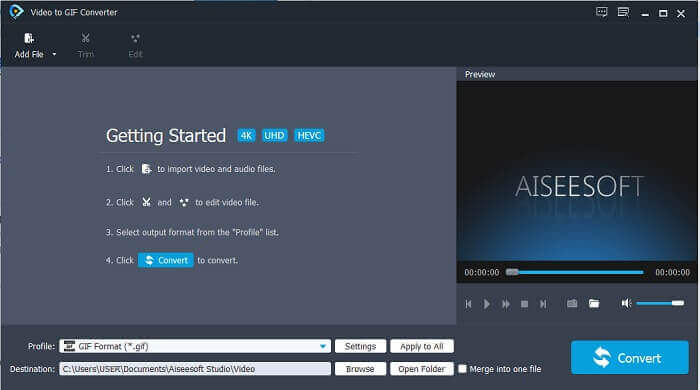
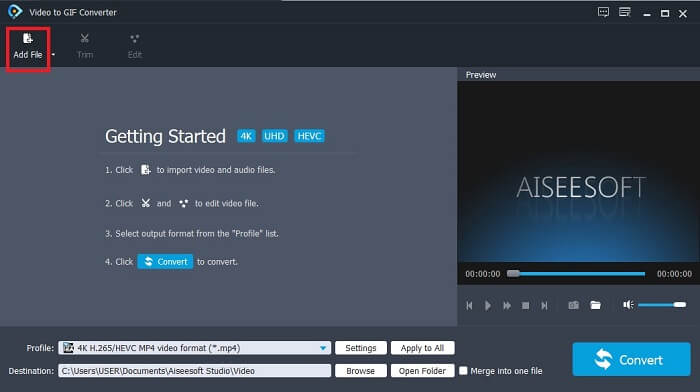
ステップ3. Add Fileをクリックして、変換したいGIFファイルを選択します。ファイルを選択したら、Openをクリックしてインターフェースに読み込みます。
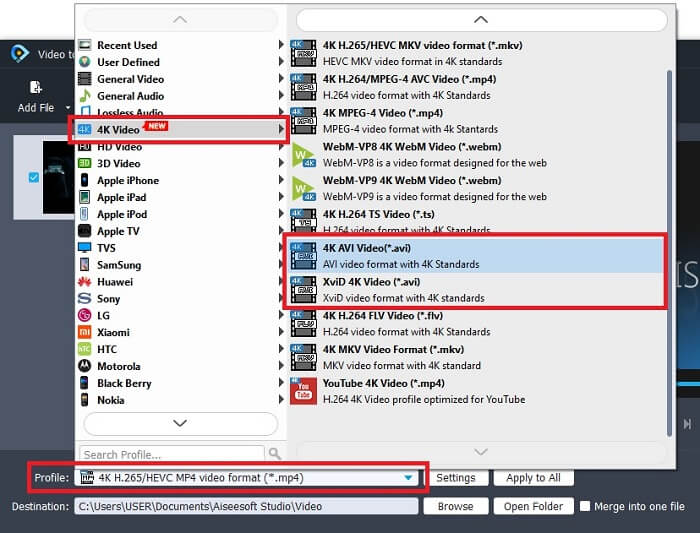
ステップ4. Profileで形式をAVIに変更します。4K Videoの項目でAVI形式をクリックしてください。すべての設定が完了したら、Convertをクリックして変換を開始します。
ステップ5. GIFの変換にはそれほど時間はかかりません。完了したら、変換後のファイルをすぐに楽しむことができます。
2.プロフェッショナルな方法-ビデオコンバーターアルティメット
おそらく、GIFをAVIに変換する方法、またはその逆について疑問に思っているかもしれません。そして、変換を高品質に仕上げてくれる特別なツールがあるのかと考えているでしょう。その答えがVideo Converter Ultimateです。このツールは、無料ツールや他の有料コンバーターよりも多くの形式に対応しています。また、動画や音声をより良いものに仕上げるための機能も豊富に搭載されています。この究極のコンバーターを使えば、GIFに命を吹き込むことができます。GIF形式を画質を落とさずにAVIに変換し、もし少しぼやけてしまった場合でも映像を強化する方法を学びましょう。お気に入りのGIFファイルを正しく変換するために、以下の手順に従ってください。
ステップ1. お使いのオペレーティングシステムに合ったダウンロードボタンをクリックします。デスクトップドライブにインストールし、ツールを起動する前に環境設定を変更します。
無料ダウンロードWindows 7 以降に対応安全なダウンロード
無料ダウンロードMacOS 10.7 以降に対応安全なダウンロード
ステップ2. ツールが起動していれば、このような小さなUltimateのインターフェースが画面に表示され、すでに立ち上がっていることが分かります。
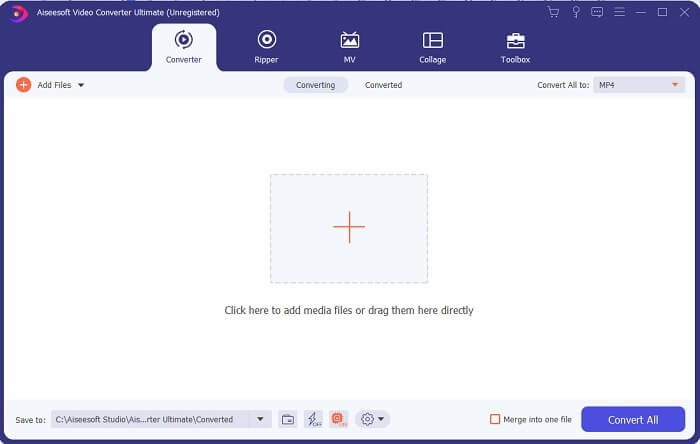
ステップ3. プラスアイコンのボタンをクリックしてファイルを追加するか、そこへ直接ドラッグ&ドロップします。
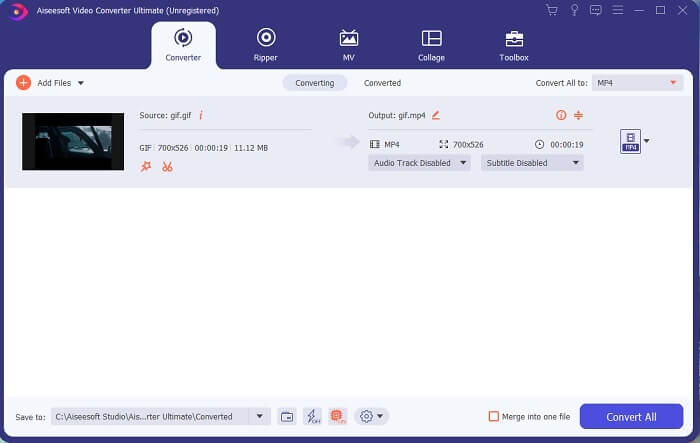
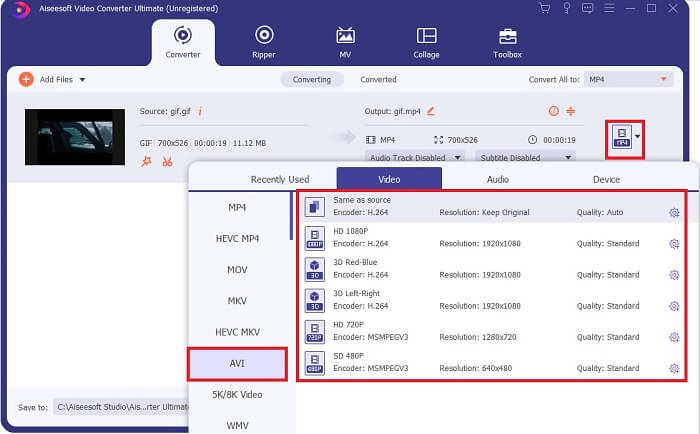
ステップ4. ドロップダウンボタンをクリックして形式をAVIに変更します。出力のエンコーダー、解像度、品質も選択できます。すべての設定が完了したら、Convert Allをクリックして変換処理を開始します。
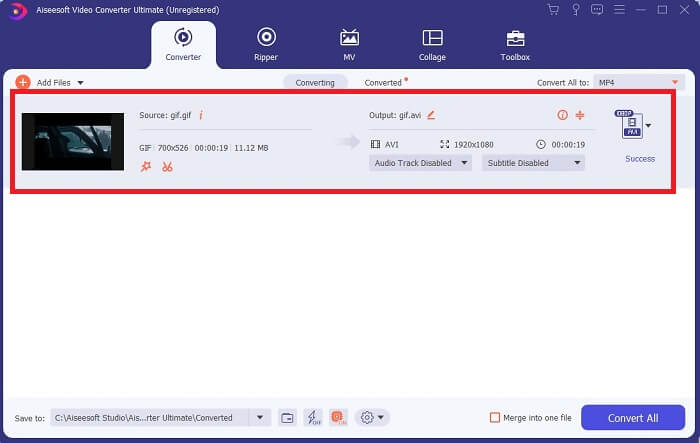
ステップ5. このツールは無料ツールの30倍、その他のツールの100倍の高速変換を実現しているため、長時間待つ必要はありません。変換が完了すると、ファイルマネージャーが自動的に開きます。
ビデオを強化するためのボーナスツールと手順
すべての有料コンバーターが、このような機能を提供しているわけではありません。場合によっては、GIFからAVIに変換すると、GIFのフレームレートがAVIよりも低いため、少しぼやけてしまうことがあります。しかし、出力動画をより良い品質に強化する方法があります。すでに変換した動画を強化するには、以下の手順に従ってください。
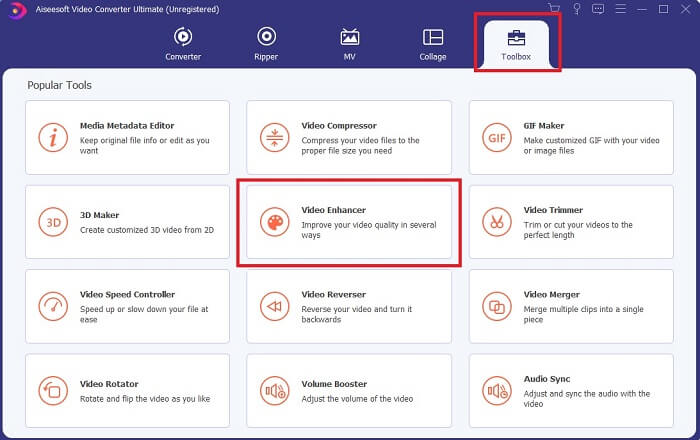
ステップ1. ソフトウェアのToolbox(ツールボックス)内にあるVideo Enhancer(ビデオ強化)をクリックします。
ステップ2. プラスボタンをクリックして、強化したい動画を選択します。Upscale Resolutionをクリックして動画の解像度を上げ、品質を向上させます。必要に応じて他の項目にもチェックを入れて画質をさらに改善できます。準備ができたらEnhanceをクリックして処理を開始します。
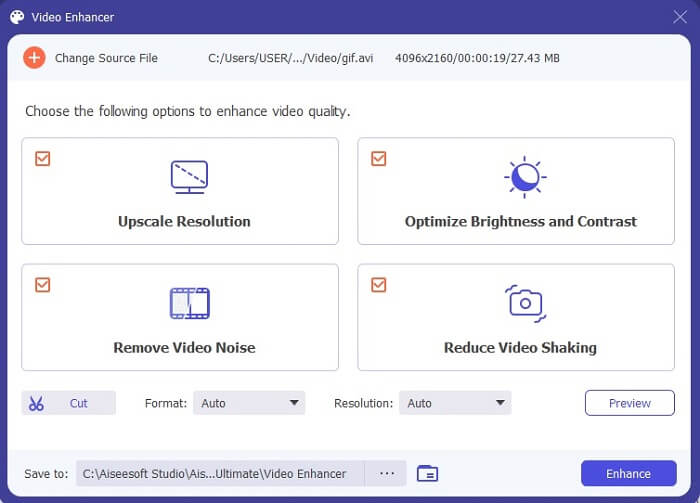
ステップ3. 動画の強化処理はすぐに完了します。強化後はファイルマネージャーが自動的に開き、より高品質になった動画をすぐに再生できます。
パート2。トップ3:Web上で利用可能な最高のオンラインコンバーター。
1. CloudConvert
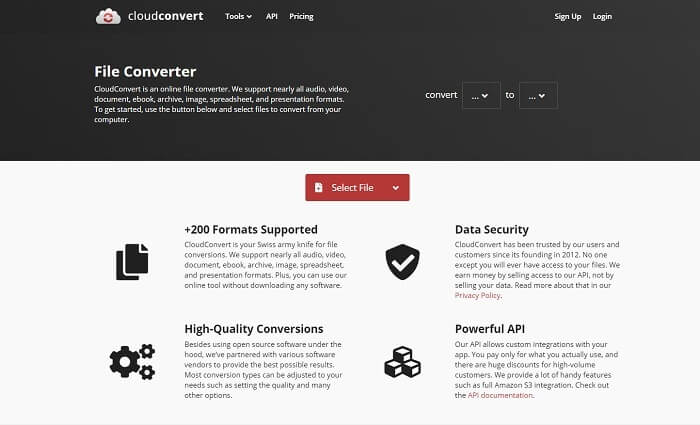
最高のGIFからAVIへのオンラインコンバーターはCloud Convertです。このツールは、動画・音声・文書・電子書籍・スプレッドシート・プレゼンテーション形式・画像など、ほぼあらゆる形式をサポートしています。オンラインツールなのでインストール不要で利用できますが、インターネット接続がないと、以下で紹介する2つのツールと同様に使用できません。このWebインターフェースはAnyConvよりも情報量が多く、さらに、非常に使いやすいインタラクティブなデザインになっています。
2. AnyConv
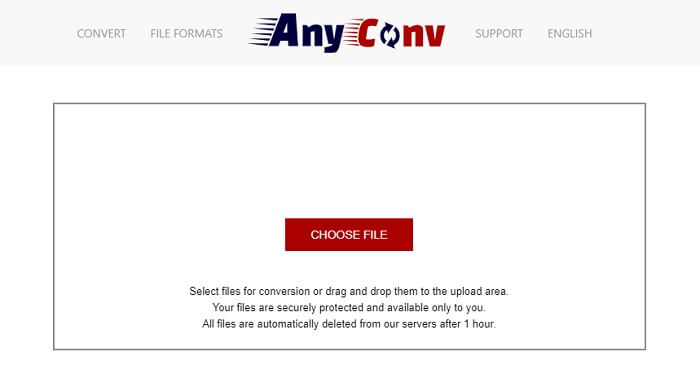
最も安全な方法で動画を変換したいなら、AnyConvの利用がおすすめです。これを使えば、アニメーションGIFからAVI形式への変換を簡単に行えます。このコンバーターは、変換されたファイルにアクセスできるのが自分だけであり、変換が完了したすべてのファイルは自動的に削除されるため、最も安全なツールとして知られています。ただし、Webサイト自体の情報量が少ないため、説明不足で使い方に戸惑う可能性があります。
3. online-convert.com
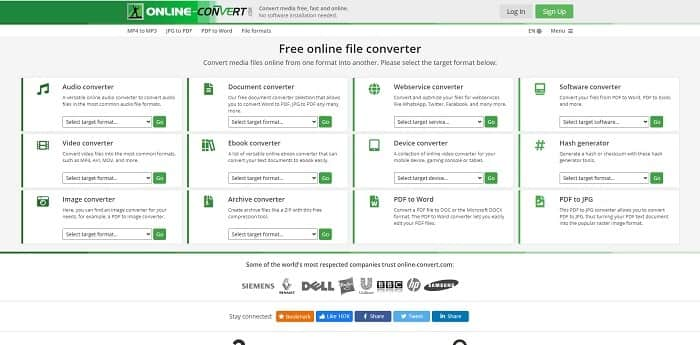
もう一つのオンラインコンバーターとして、online-convert.comも利用できます。このツールを使えば、あなたのようなユーザーが動画、音声、画像などさまざまなファイルを変換できます。また、Webサービスやデバイス、ソフトウェアなどを対象にした変換も可能です。これを利用して、AVIをアニメーションGIFに変換したり、その逆の変換を行ったりすることもできます。ツールのWebページは情報量が多く、それぞれのツールの使い方について簡潔な説明が掲載されています。ただし、インターフェースはグリーン系の配色で、やや野暮ったい印象を受けるかもしれません。
パート3。GIFからAVIへのFAQ
すべてのソフトウェアで利用できる最高のGIFクロッパーは何ですか?そしてそれを行う方法は?
GIFクロッパーを使うと、GIFをより細かくトリミングすることができます。詳しい情報は、このリンクをクリックして確認してください。
AVI形式は圧縮されていますか、それとも非圧縮ですか?
AVIはMPEGやMOVよりも高画質な動画形式であることがよく知られています。しかし、この形式は非圧縮のため、1ファイルあたりの容量が非常に大きくなります。たとえ1分程度の動画であっても、1.5GB以上、場合によってはそれ以上のストレージを必要とします。大きなAVIファイルを圧縮したい場合は、こちらをクリックして詳しい方法を確認してください。
AVIを開発したのは誰ですか?
AVI形式の開発者はMicrosoftです。その最初のリリースは1992年11月でした。
結論
詳細を結論付けるために、適切な仕事のために適切なツールを選択することは、特に変換において必須であることが知られています。ファイルを新しい形式に変換することは少し敏感であるため、間違ったコンバーターを使用すると、一部のデータが失われることが予想されます。ただし、Ultimate Converterを使用すると、インターネット接続やデータ損失がなくても、任意のファイルを変換できます。このツールは、1つの仕事をするのが得意であるだけでなく、他の仕事の中でも最高であるため、使用するのに適した選択です。
-
 PCおよびMac用のGIFレコーダーでGIF形式を記録するための5つの最良のオプション
 GIFを記録するために使用する必要がある最高のGIFレコーダーは何ですか?以下のリストは、どれが最高のスクリーンレコーダーであるかについての証拠を提供します。
-
 MPGをGIF形式に変換する方法[オンラインおよびオフライン]
 もっと良い感情を表現したいですか?次に、代わりにGIFを使用する必要があります。この記事では、MPGファイルをGIFに変換して、気分をより良く表現する方法を説明します。
-
 [2021更新] PC、Mac、iOS、Android向けの9つの最高のGIFエディター
 GIFをより表現力豊かにするために、GIFに個人的なタッチを追加する必要がありますか?この記事を読み続けて、編集方法とその仕事に最適なツールを確認してください。
