


 ビデオコンバーター究極
 スクリーンレコーダー
 ビデオ修復
ビデオ修復
 安全なダウンロード
MOV を GIF に変換する方法: オンライン プレゼンスを高めるための総合ガイド
今日のペースの速いデジタル世界で視聴者の注意を引き続けるには、魅力的なビジュアル コンテンツを作成する必要があります。アニメーション GIF は、複雑なコンセプト、感情、ブランド メッセージを楽しく記憶に残る方法で伝えることができるため、広く使用されています。しかし、すべてのビデオ形式が複数のプラットフォームやデバイスからアクセスできるわけではありません。これを行うには、MOV から GIF へのコンバーターを使用できます。
MOVファイルをアニメーションGIFに変換すれば、軽量で高品質なアニメーションを作成でき、WebサイトやSNS、メッセンジャーアプリなどで手軽に共有できます。さらに、テキストやフィルター、ブランドロゴなどを追加することで、GIFのプロモーション効果を高めることも可能です。MOV から GIF への変換は一見複雑に思えるかもしれませんが、オンライン/オフラインを問わず、多くの変換ソフトがこの作業を簡単にしてくれます。本記事では、MOVをGIFに変換する方法を解説し、そのメリットについても詳しくご紹介します。

パート 1. MOV をオフラインで GIF に変換する
オフライン ツールは一度だけインストールする必要がありますが、ファイル変換プロセスをより柔軟に制御できます。信頼できるソフトウェア プロバイダーを選択し、ソフトウェアを最新の状態に保ち、最適なパフォーマンスとセキュリティを確保することが重要です。とはいえ、Mac、Windows、およびiPhoneでMOVをGIFに変換するのに役立つプログラムのリストをここに提供しました.詳細については、それらを確認してください。
FVC Free Video Converter には、MOV動画ファイルをGIF画像ファイルに変換する機能があります。MOVファイルの選択とGIFファイルの出力設定を、シンプルで直感的なインターフェースで行えるため、変換作業を簡単に進められます。FVC Free Video ConverterでMOVからGIFに変換する際は、GIFファイルの出力サイズや画質、フレームレートなどの各種設定を細かく指定できます。また、保存前にGIFの仕上がりを確認できるプレビュー機能も搭載されています。総合的に見て、FVC Free Video Converterは、さまざまな用途でMOV動画をGIF画像に変換したい方にとって便利なツールです。主な機能については、以下の特徴を確認してみてください。
主な機能:
◆一度に複数のビデオを変換します。
◆ 高速化技術による高速変換。
◆ ユーザーの使いやすさを考えた設計。
ステップ1.パソコンにプログラムを入手
MOVをGIFに変換する方法をマスターするには、まずFVC Free Video Converterをパソコンにダウンロードしてインストールしてください。下の無料ダウンロードボタンをクリックすると入手できます。Mac版とWindows版のどちらかを選択してください。
無料ダウンロードWindows 7 以降対応安全なダウンロード
無料ダウンロードMacOS 10.7 以降に対応安全なダウンロード
ステップ2.変換したいMOVファイルを追加
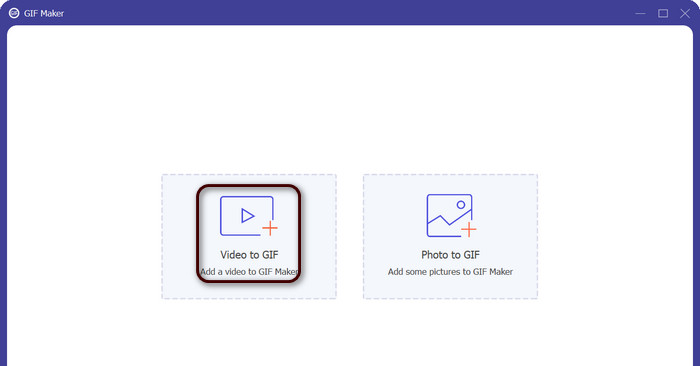
プログラムを起動するとメイン画面が表示されます。ここからツールボックスタブに進み、GIFメーカーツールをクリックします。続いて動画からGIFボタンを押して、変換したいMOVファイルを追加します。
ステップ3.動画を編集
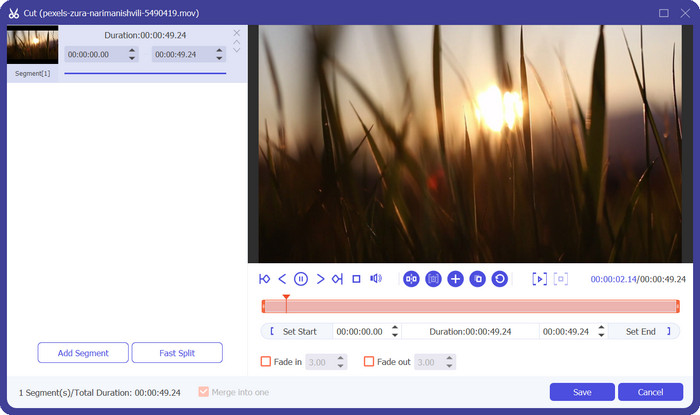
動画の一部をカットしたい場合は、カットボタンをクリックします。スライドバーを操作するか、開始時間と終了時間を直接入力して、GIFに使用したい動画の範囲を指定してください。次に、出力サイズ、フレームレート、画質などのGIF設定をカスタマイズします。編集ボタンをクリックすれば、GIFにテキストやステッカーを追加することもできます。
ステップ4.MOVをGIFに変換
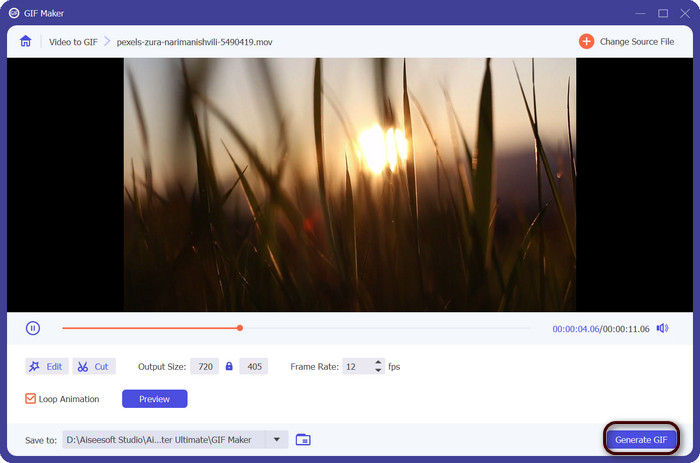
プレビューでGIFの仕上がりを確認し、イメージどおりになっていることを確かめます。問題なければGIFを作成ボタンをクリックしてGIFを生成します。作成されたGIFは、出力設定で指定した保存先フォルダに保存されます。
2.FFmpeg
FFmpeg は、開発者、メディアの専門家、愛好家に、オーディオ ファイルとビデオ ファイルを操作するためのさまざまな機能を提供する、汎用性の高い強力なソフトウェア ツールです。クロスプラットフォームの互換性により、FFmpeg はさまざまなオペレーティング システムで使用でき、柔軟性と汎用性が必要なプロジェクトにとって理想的なソリューションになります。 FFmpeg の優れた機能の 1 つは、MP4、MOV、AVI などの一般的な形式を含む、さまざまなオーディオおよびビデオ ファイル形式を処理できることです。次の手順を使用して、MOV を GIF に変換する方法を学びます。
主な機能:
◆ 変換とコード変換。
◆ 幅広いビデオおよびオーディオ フォーマットのサポート。
◆ ストリーミングとブロードキャスト。
◆ コマンドライン インターフェイス。
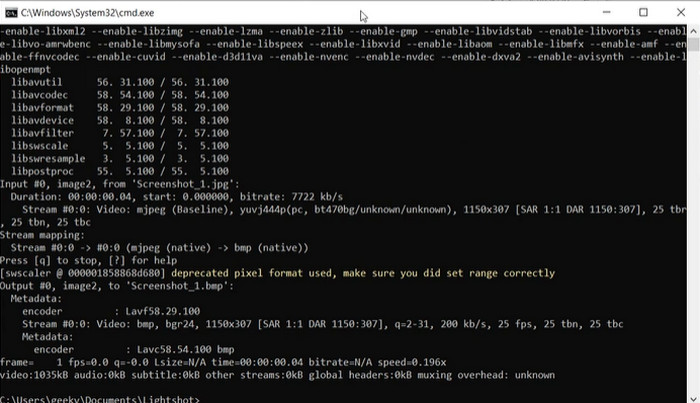
ステップ1. まずパソコンでコマンドプロンプトまたはターミナルウィンドウを起動します。次に、FFmpegでMOVからGIFへの変換を行うため、MOVファイルが保存されているディレクトリに移動します。
ステップ2. 次のコマンドを入力します:ffmpeg -i input.mov output.gif。input.mov には変換したいMOVファイル名を、output.gif には作成したいGIFファイル名を指定してください。必要に応じて、追加のフラグを付けて出力をカスタマイズすることもできます。たとえば、出力GIFのフレームレートを変更したい場合は、次のように -r フラグを追加します:ffmpeg -i input.mov -r 10 output.gif。この場合、フレームレートは1秒あたり10フレームに設定されます。
ステップ3. Enterキーを押してコマンドを実行します。FFmpegがMOVファイルをGIFに変換し、変換後のGIFファイルは入力ファイルと同じディレクトリに保存されます。これがMOVをGIFに変換する基本的な手順です。
3.フォトショップ
Adobe Systems の Photoshop は、デジタル画像を編集およびデザインするための業界標準のソフトウェアです。写真、グラフィック デザイン、およびアートの分野の多くの専門家が、デジタル写真、グラフィック、およびアートワークを生成および修正するために、このツールを利用しています。幸いなことに、Photoshop の多くのツールを使用すると、MOV ビデオを GIF に簡単に変換できます。ハイライトのいくつかは次のとおりです。
主な機能:
◆ ビデオ ファイルをインポートするためのビデオ タイムライン機能。
◆ GIF をさまざまなサイズと解像度でエクスポートします。
◆ アニメーション パネルでフレームごとのアニメーションを作成します。
ステップ1. パソコンでPhotoshopを起動し、メニューから ファイル > 読み込み > ビデオフレームからレイヤー を選択します。「ビデオをレイヤーに読み込み」ダイアログボックスが表示されたら、MOVファイルを選択して開くをクリックします。
ステップ2. ビデオレイヤーダイアログボックスで、動画全体を使用する場合は最初から最後までを、一部のみを使用する場合は選択範囲のみを選びます。そのあとOKをクリックします。
ステップ3. Photoshopが動画の各フレームをレイヤーとして読み込みます。メニューからウィンドウ > タイムラインを選択してアニメーションパネルを表示します。アニメーションパネルでフレームアニメーションを作成ボタンをクリックします。
ステップ4. アニメーションパネル右上のメニューアイコンをクリックし、レイヤーからフレームを作成を選択します。アニメーションパネルでは、各フレームの下に表示されている時間をクリックして値を変更することで、フレームごとの表示時間を調整できます。
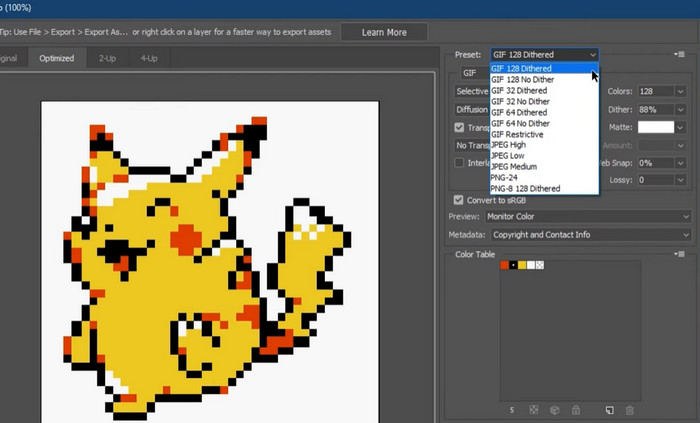
ステップ5. GIFの仕上がりに満足したら、ファイル > 書き出し > Web用に保存(従来)を選択します。Web用に保存ダイアログで、ファイル形式としてGIFを選びます。サイズ、カラーパレット、最適化オプションなどを好みに合わせて調整し、保存をクリックしてGIFを出力します。以上が、PhotoshopでMOVをGIFに書き出す方法です。
パート 2. オンラインで MOV を GIF に変換する
オンライン プログラムを使用してファイルを変換すると、ソフトウェアをインストールしたり、複雑なインターフェイスを操作したりすることなく、ファイルを変換するための便利でアクセスしやすい方法が提供されます。使用するプログラムに興味がある場合は、以下の MOV から GIF へのオンライン コンバーターをご覧ください。
1. 無料オンライン動画変換ソフト
FVCのFree Video Converter Onlineは、シンプルで使いやすいインターフェースを備えており、ユーザーは素早く簡単に動画ファイルを変換できます。入力ファイルを選択して、目的の出力形式や画質を指定するだけで操作できます。また、動画の解像度、ビットレート、フレームレートなど、さまざまな設定をカスタマイズすることも可能です。
ステップ1. まずWebブラウザを開き、FVC Free Video Converter Onlineの公式サイトにアクセスします。
ファイルを一括変換するには、デスクトップ版をダウンロードしてください。
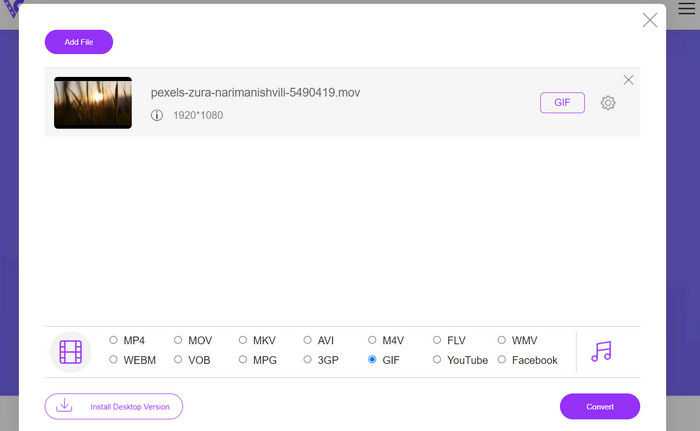
ステップ2. 変換するファイルを追加ボタンをクリックして、変換したいMOV動画ファイルをアップロードします。指定エリアにファイルをドラッグ&ドロップして追加することもできます。
ステップ3. 出力形式としてGIFのラジオボタンを選択します。続いて変換ボタンをクリックして、変換処理を開始します。
2. CloudConvert
CloudConvert は、ユーザーがビデオ、画像、ドキュメントなど、さまざまな種類のファイルを変換できるオンライン ファイル変換 Web アプリケーションです。 MP4、MOV、GIF などの一般的な形式を含む 200 を超えるファイル形式をサポートする幅広い変換オプションを提供します。
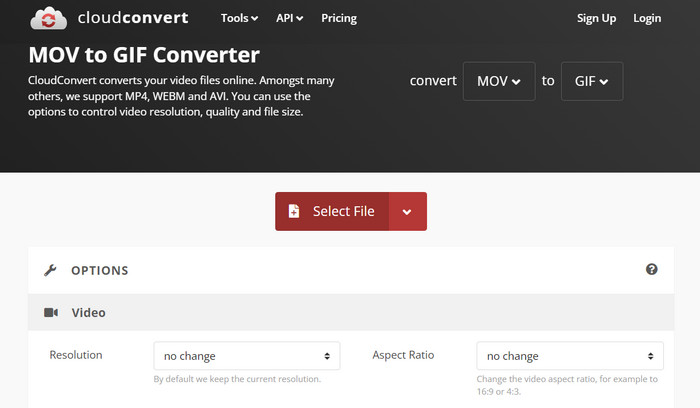
ステップ1. CloudConvertでMOVからGIFに変換するには、Webブラウザを起動してCloudConvertのサイトにアクセスします。ファイルを選択ボタンをクリックし、MOVファイルをアップロードします。
ステップ2. ファイルのアップロードが完了したら、出力形式としてドロップダウンメニューからGIFを選択します。必要に応じて、フレームレートや画像サイズなどの出力設定をカスタマイズすることもできます。
ステップ3. 変換ボタンをクリックして変換プロセスを開始します。完了後、変換されたGIFファイルをパソコンにダウンロードできます。以上が、この無料オンラインMOV to GIFコンバーターの基本的な使い方です。
3.EZGIF
EZGIF は、GIF を操作するための幅広いオプションを提供する柔軟な Web アプリです。このプログラムは、ビデオ ファイル、静止写真、さらにはその他の GIF から GIF を作成、編集、最適化するための無料のリソースです。動画ファイルをすばやく GIF に変換できる EZGIF の機能は、最も魅力的なセールス ポイントの 1 つです。ユーザーは MP4、AVI、MOV などの形式で動画をアップロードし、フレーム レートや画像サイズなどの設定を好みに合わせて調整できる GIF に変換できます。次の手順に従って、MOV から GIF への変換に EZGIF を使用します。
ステップ1. Webブラウザを起動し、EZGIFにアクセスして動画をアニメーションGIFに変換します。
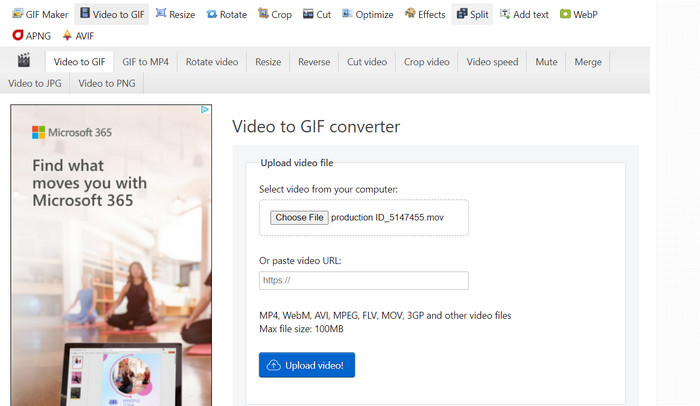
ステップ2. MOVをGIFに変換するには、ファイルを選択をクリックして、変換したいファイルを指定します。
ステップ3. ファイルのアップロード後に表示されるスライダーを使って、GIFにしたい開始時間と終了時間を設定します。GIFのサイズやキャプション(字幕・テキスト)も変更可能です。設定が完了したら、GIFに変換オプションを選んで変換を開始します。
関連記事
Windows&Macで使えるおすすめGIFルーパーでGIFをループ再生
MOVとGIF
MOV形式は、映画、テレビ番組、短いビデオクリップ、またはホームムービーの保存に使用できます。実際には、1991年にAppleによって導入されたQuickTime File Format(QTFF)で保存されます。MOVファイルは、人々が高品質のビデオを保存したいときによく使用されます。
GIFは、Webグラフィックの一般的な画像形式です。小さな画像やテキストを含む画像を保存するだけでなく、GIFはWebサイトに基本的なアニメーションを含めて表示することもできます。これは可逆形式であり、GIF圧縮によって画像の鮮明度が低下することはありません。
パート 3. MOV to GIF に関するよくある質問
MOV を GIF に変換する場合、どの設定を使用すればよいですか?
MOV を GIF に変換するときに使用する設定は、特定のニーズによって異なります。通常、フレーム レート、画像サイズ、および色深度を調整して、GIF を目的の用途に最適化します。
MOV ファイルの一部を GIF に変換できますか?
はい、ほとんどのツールでは、MOV ファイルの特定の部分を選択して GIF に変換できます。これは、必要な場合にのみ役立ちます
MOV ファイルから作成された GIF の一般的な用途は何ですか?
MOV ファイルから作成された GIF は、ソーシャル メディアの投稿、Web サイトのアニメーション、メール マーケティング キャンペーンなど、幅広い目的に使用できます。
結論
MOVをGIFに変換することは、魅力的なSNSコンテンツの作成から、製品機能のデモ、チュートリアルの作成に至るまで、さまざまな用途で役立ちます。変換に利用できるツールは豊富で、EZGIFやCloudConvertのようなオンラインサービスから、PhotoshopやAdobe After Effectsといった高度なデスクトップアプリケーションまで多岐にわたります。
-
 画像をアニメーション GIF に変更する 5 つの最良の方法 [2023 年更新]
 画像をGIFに変換する必要がありますか?この記事では、市場で見つけることができる5つの最高のコンバーターを提供します。それでは、この記事を読んでこれらのツールを見つけましょう。
-
 これらのすばらしいコンバーターを使用して、MOVをWMVに簡単に変換します
 MOVファイルをWMVファイルに変換したいですか?使用をお勧めするこれらのオンラインおよびオフラインのコンバーターを使用して、MOVをWMVに簡単に変換する簡単な方法を次に示します。
-
 GIFをカットしてコンテンツにスパイスを加える方法に関するベストガイド
 この必読ガイドをお見逃しなく。オンラインとオフラインの優れた GIF カッターを使用して、視聴者の注目を集めるために GIF をトリミングおよびカットする方法を学びます。
