


 ビデオコンバーター究極
 スクリーンレコーダー
 ビデオ修復
ビデオ修復GIFから透かしをオンラインで削除する方法 [ステップバイステップ]
GIFにウォーターマーク(透かし)を追加することは、GIFを保護する方法のひとつですが、「自分で付けたウォーターマークを逆に消したくなったらどうすればよいのか?」「使っているGIFメーカーにその機能はあるのか?」「ウォーターマーク削除機能がない場合は?」といった疑問が出てきます。この問題は本当に厄介ですよね。ですが心配はいりません。この記事では、オンラインとオフラインの両方で使える4つのウォーターマーク削除ツールをご紹介します。いずれも市場から厳選したツールで、GIFのウォーターマークを削除するのに最適なものばかりです。

これらのアプリの概要
| ビデオコンバーター究極 | オンラインGIFツール | WatermarkRemover.io | Pixlr | PhotoShop | |
| 解決 | 8K | 1080P | 5K | 8K | 30万 |
| 処理速度 | 速い | 中くらい | 中くらい | 速い | ハードウェアによって異なります |
| ハードウェア要件 | 低い | 該当なし | 中くらい | 高い | 非常に高い |
パート1。WindowsとMacでGIFから透かしをすばやく削除する最も簡単な方法
Video Converter Ultimate を使えば、望むと望まざるとにかかわらず、GIFからウォーターマークを確実に取り除くことができます。このツールはウォーターマークの追加と削除の両方に対応しており、Windows/Macどちらでも使えるオールインワンのツールです。それだけでなく、このソフトでGIF自体を作成し、作成したGIFを保護するために好きなウォーターマークを追加することも可能です。実際に試すには、以下の簡単な手順に従うだけでOKです。そうすれば、1分もかからずにウォーターマークのないGIFを手に入れられます。
Video Converter Ultimate の利点:
◆GIFの透かしを削除して追加するのが最良の選択です。
◆ユーザーフレンドリーなGUIは、ツールのインターフェースに何が起こっているのかをすばやく理解するのに役立ちます。
◆組み込みの超高速変換プロセスとハードウェアアクセラレーションは、超高速のインポートとエクスポートに役立ちます。
◆WindowsやMacなどのすべてのプラットフォームでダウンロードできます。
◆デスクトップでパーソナライズされたGIFを作成するために使用できる最高のGIFメーカーの高度な機能を備えています。
最強のウォーターマークリムーバーでGIFのウォーターマークを削除する手順
手順1. 下のボタンをクリックしてソフトをパソコンにダウンロードします。その後、起動して、GIFまたは動画を読み込みます。
無料ダウンロードWindows 7 以降に対応安全なダウンロード
無料ダウンロードMacOS 10.7 以降に対応安全なダウンロード
手順2. ウォーターマークリムーバーを開き、「ツールボックス」に進んで、Video Watermark Remover を探します。

手順3. GIFまたは動画をアップロードして、Export をクリックします。
![[エクスポート]をクリックします](/images/2025/06/click-export.jpg)
関連記事:
Adobe PhotoshopでGIFから透かしを削除する
Adobe PhotoShopをパソコンにインストールしておけば、透かしや影を写真から削除することもできます。PhotoShopは、エフェクトの追加、フィルター、オブジェクトの消去などができる、最も人気があり強力な写真編集ツールの一つです。無料の写真編集ソフトではありませんが、30日間の無料トライアルが提供されています。以下のガイドに従って、写真から不要なオブジェクトを削除してみましょう。
手順1. パソコンでPhotoShopを起動します。Adobe公式サイトからPhotoShopを無料ダウンロードし、体験版を利用することもできます。
手順2. 編集したい画像ファイルを、ドラッグ&ドロップで直接読み込めます。また、メニューバーの「ファイル」をクリックし、続けて開くを選んで、パソコン内の写真を指定することもできます。
手順3. 不要なオブジェクトを選択するには、選択とマスクツールを使用します。このステップでは、削除したい領域を選ぶために、用途に合ったツールを自由に選択できます。
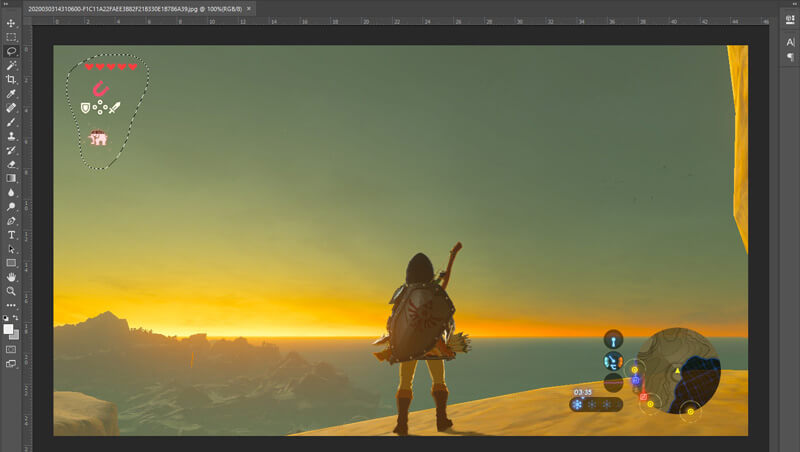
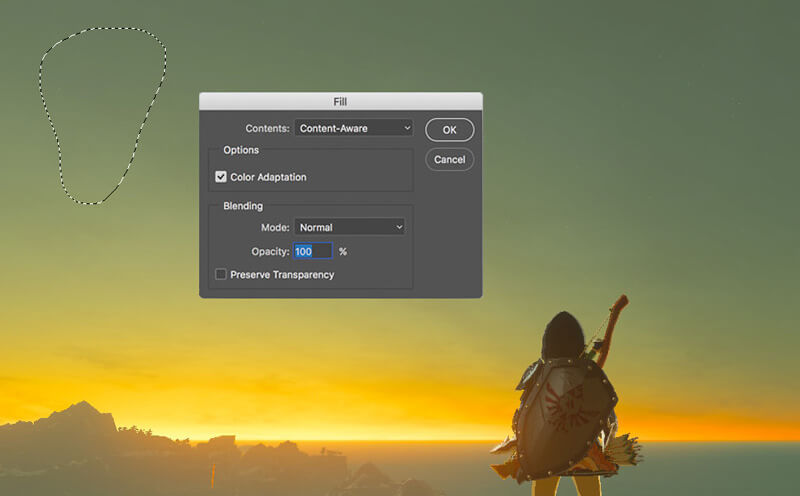
手順4. 次に、Photoshopのコンテンツに応じた塗りつぶし(Content-Aware Fill)ツールを使って、写真からオブジェクトを削除し、その部分を周囲に適したコンテンツで置き換えます。単にオブジェクトを消すだけでなく、自然な仕上がりにしたい場合、このコンテンツに応じた塗りつぶし機能を使うと、より良い結果が得られます。
手順5. PhotoShopでオブジェクトを削除し終えたら、ファイルをクリックして「保存」を選び、編集した画像をパソコンに保存します。出力形式としては、JPG、PNG、GIFなど、一般的な画像形式を自由に選べます。また、Ctrl + Sキーで、PhotoShopから画像ファイルを保存・書き出すことも可能です。
パート2. GIFから透かしをオンラインで削除する方法
これらの無料のオンラインツールを使用すると、GIFの透かしを削除できます。ただし、すべてのツールはネットワークに依存しているため、インターネットに接続していない場合、これらのツールは機能しないことを覚えておく必要があります。また、これらのWebツールを使用するとバッファリングされるため、使用に時間がかかる場合があります。したがって、無料のGIFリムーバーをオンラインで知りたい場合は、以下の詳細をお読みください。
オンラインGIFツールでGIFから透かしを削除する
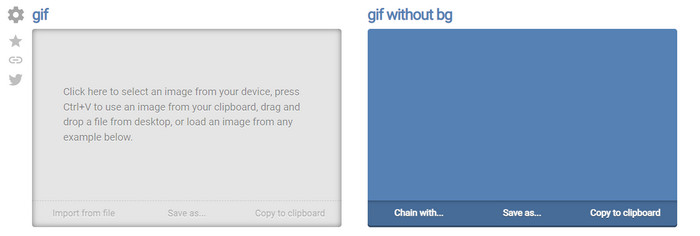
Online GIF Tools は、GIFからウォーターマークを削除するために使える無料ツールです。このツールには、GIFの背景にあるウォーターマークを削除するといった高度な削除機能も備わっています。ただし、高機能な一方で、フレーム内の色情報ごとのピクセルを削除していく仕組みのため、ウォーターマークの削除操作は少し複雑に感じるかもしれません。
手順1. WebブラウザでOnline GIF Tools を開きます。
手順2. Import File をクリックしてGIFをアップロードします。「background color」の項目で、options color coder をクリックし、ウォーターマークの色を特定します。
手順3. 最後に Save As と Download をクリックして、GIFをドライブに保存します。
透かし除去オンラインツールでGIFから透かしを削除します
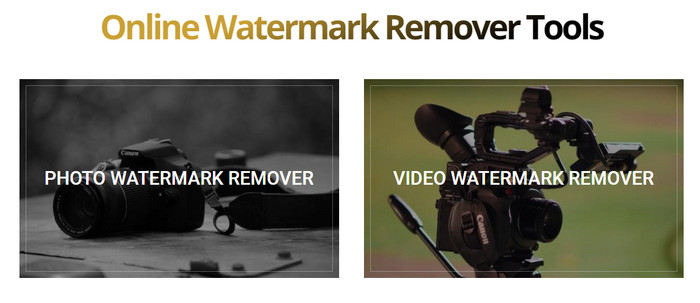
WatermarkRemover.io を使えば、GIFのウォーターマークが自動的に削除されます。このツールはウォーターマークを無料で除去するのに非常に優れており、ユーザーが細かい操作をする必要がないため、手間を大幅に減らせます。ツール側が自動で処理してくれるからです。ただし、地域によってはこのサービスを利用できない場合があり、その場合はウォーターマークを削除したGIFをダウンロードできません。
手順1. WatermarkRemover.io を開き、ロゴの下部をクリックしてGIFファイルを追加します。
手順2. ファイルを追加すると自動的に処理が開始されるので、そのまま完了を待ちます。
手順3. ダウンロードボタンをクリックして、パソコンに保存します。
PixlrでGIFから透かしを削除する

GIFのウォーターマークを取り除くための最良のWebツールを探しているのであれば、Pixlr を使ってみてください。先ほど紹介した2つのWebツールとは異なり、このツールにはウォーターマーク削除に使える多彩な機能が搭載されています。Photoshopに似たツールではありますが、特にGIFからのウォーターマーク削除に関しては、Photoshopほどの精度が出ない部分もあります。また、書き出し時にPixlr側のウォーターマークが付いてしまうという点にも注意が必要です。
手順1. Pixlr を検索して開きます。
手順2. Advance Editor をクリックし、GIFを追加してから 画像を開く(Open Image) を選びます。GIFを追加したら、しずく(droplet)アイコンをクリックしてウォーターマーク部分をぼかします。ウォーターマーク上を繰り返しクリックし、しっかり目立たなくなるまで処理します。
手順3. ファイル>保存(File then Save) をクリックします。
パート3。GIFから透かしを削除することに関するFAQ
透かしを削除すると、ファイルサイズが小さくなりますか?
ファイルサイズは変更されますが、ビデオの透かしを少し削除するだけなので、大きな影響はありません。したがって、元のファイルサイズと抽出された透かしがほとんど同じでない場合、問題は使用したものにあります。
透かしを削除した後、ビデオにぼやけが生じるのはなぜですか?
透かしを削除した後、それが透かしを削除するツールの方法であるため、ビデオにぼやけがあります。これは、ツールが提供する方法の1つであり、ビデオや画像の透かしをぼかして削除します。
透かしを削除すると、GIFの品質は変わりますか?
GIFの透かしを削除した後、品質に関する変更に気付くことはありません。ただし、一部のツールは高品質のGIFをサポートしていなかったため、GIFの品質を低下させます。したがって、透かしを削除した場合でも、高品質の出力のエクスポートをサポートする適切なツールを選択することを忘れないでください。
結論
以上を踏まえると、この記事を通じて、私たちが日ごろ使っているGIFや動画からウォーターマークを効果的に取り除く方法が分かります。ここで紹介したツールはいずれも、GIF上のウォーターマーク削除に適した有効な選択肢です。その中でも、Video Converter Ultimate は、GIFにウォーターマークを追加・削除する両面で特に優れた機能を備えています。もしこの評価に同意できるなら、ぜひこのツールを使ってみてください。仮にまだ半信半疑であっても、一度ダウンロードしてGIFのウォーターマークを削除してみることをおすすめします。実際に使ってみれば、素早く処理できることが分かり、このツールの実力に対する印象もきっと変わるはずです。
-
 WindowsとMacのPhotoshopでビデオに透かしを追加する最良の方法
 Photoshopのビデオに透かしを追加する方法を知りたいですか?その場合、この記事はあなたが知る必要があることをあなたに提供します。
-
 ビデオから透かしを簡単に削除する方法に関する3つのベストソリューション
 ビデオの迷惑な透かしを削除したいですか?このブログでは、ビデオの透かしを削除するためのさまざまなアイデアを学ぶことができます。
-
 画像をアニメーションGIFに変更する5つの最良の方法[2022年更新]
 画像をGIFに変換する必要がありますか?この記事では、市場で見つけることができる5つの最高のコンバーターを提供します。それでは、この記事を読んでこれらのツールを見つけましょう。
