


 ビデオコンバーター究極
 スクリーンレコーダー
 ビデオ修復
ビデオ修復
 安全なダウンロード
画像のサイズを変更する優れたアプリケーション - FastStone Photo Resizer
インターネットで写真リサイズ用のツールを探すのは簡単です。とくに現在は、オンラインで利用できる写真編集ソフトがたくさんあります。画像のリサイズや変換に関しては、オンライン・オフラインを問わず優れたツールが数多く見つかります。しかし、どれを選べばよいか迷ってしまう場合は、ここで選びやすくなるようにご紹介します。FastStone は、画像のサイズ変更に利用できる画像編集プラットフォームです。本記事では、FastStone の詳細と、FastStone Photo Resizer の使い方をわかりやすく解説します。

パート 1. FastStone Photo Resizer レビュー
FastStone Photo Resizer は、使用必須の画像編集アプリケーションです。 Windows デスクトップで使用でき、簡単にダウンロードできます。さらに、クリーンで使いやすいインターフェースを備えているため、ユーザーフレンドリーなツールになっています。 FastStone Photo Resizer は、JPEG、BMP、PNG、TIFF、GIF などのさまざまな画像形式をサポートしています。また、変換、名前の変更、トリミング、テキストの追加、色の変更、透かしの追加などに使用できる多くの編集機能も含まれています。
さらに、2 つ以上の画像を同時に処理できるバッチ処理を提供します。また、行っている変換をプレビューしたい場合は、FastStone を使用してそれを行うことができます。 FastStone 画像リサイザーは Windows コンピューターに無料でダウンロードできますが、明示的な機能を使用するにはアプリを購入する必要があります。 FastStone を使用して画像のサイズを変更する方法を知りたい場合は、以下のチュートリアルに従ってください。
長所
- さまざまな編集機能とツールを提供します。
- 低価格です。
- わかりやすいユーザーインターフェイスを備えています。
- 簡単なファイル共有プロセスがあります。
短所
- 限られたサポートとヘルプ機能しかありません。
- 無料ではありません。
- Windows ソフトウェアでのみ使用可能
FastStone Photo Resizer を使用して写真のサイズを変更する方法:
ステップ1. まず、Windows デスクトップに FastStone Photo Resizer をダウンロードしてインストールします。インストール後、アプリを起動します。次に、アプリのメインインターフェースで、メニュー内の Batch Convert(バッチ変換) ボタンをクリックして、サイズ変更したい画像を読み込みます。
ステップ2. 画像をインポートすると、インターフェース上に表示されます。その後、Output Format(出力形式) のドロップダウン矢印をクリックして、希望するファイル形式を選択します。出力先フォルダーを指定するには、Output Folder(出力フォルダー) の横にある Browse(参照) ボタンをクリックします。
![[出力の参照] をクリックします。](/images/2022/09/click-browse-output.jpg)
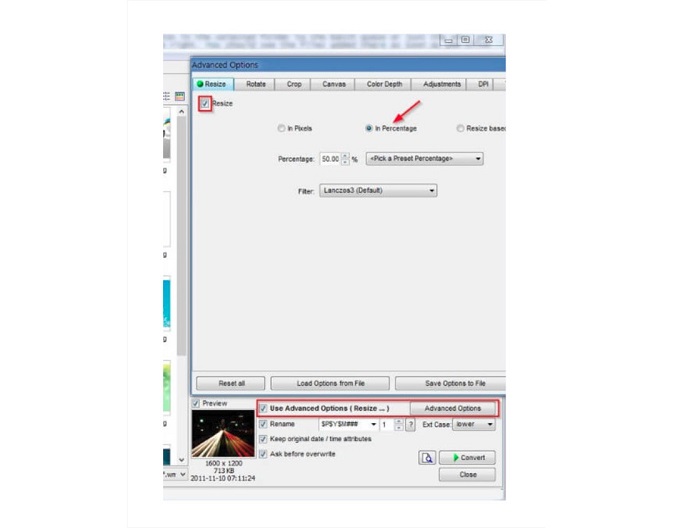
ステップ3. 次に、Advanced Options(詳細オプション) をクリックすると、新しいタブが表示されます。そこで Resize(リサイズ) タブを開き、In Percentage(パーセンテージ指定) オプションにチェックを入れて、画像サイズをパーセンテージで変更します。Filter(フィルター) の横にある ドロップダウン矢印 をクリックすると、フィルターを選択できます。
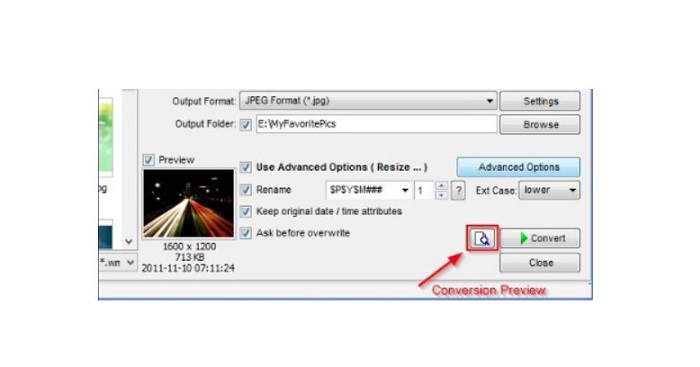
ステップ4. そして、Convert(変換) ボタンの横にある Preview(プレビュー) アイコンをクリックすると、元の画像と比較しながら仕上がりを確認できます。
ステップ5. 最後に、Convert(変換) ボタンにチェックを入れてリサイズ処理を開始します。この操作により、前のステップで選択した形式へ画像ファイルも変換されます。FastStone が画像のリサイズを完了すると、新しいウィンドウが表示され、出力された画像とそのファイルサイズが確認できます。
以上で、FastStone Photo Resizer チュートリアルは終了です。上記の手順に従って、FastStone を使用して画像のサイズを簡単に変更できます。
パート 2. FastStone Photo Resizer の代替手段
FastStone Photo Resizer は、Windows デスクトップでのみアクセスできます。もう 1 つの欠点は、他の編集機能にアクセスする前にアプリを購入する必要があることです。そのため、Windows、Mac、または Linux デバイスで利用でき、オンラインで利用できるビデオ トリマー アプリを使用したい場合は、このセクションをよくお読みください。
FVC無料画像アップスケーラー
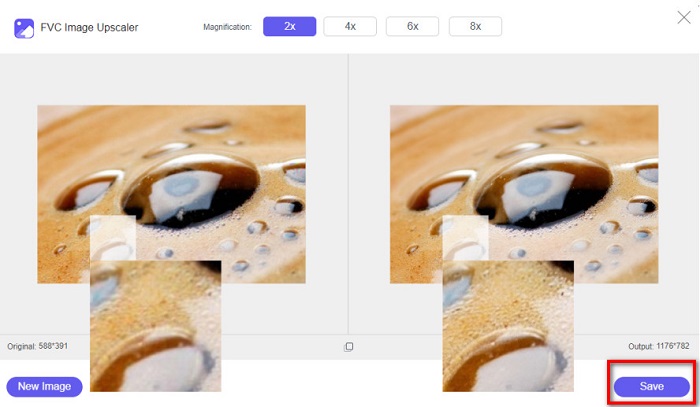
FVC Free Image Upscaler は、オンラインで利用できる最も人気のある画像リサイズアプリケーションのひとつで、Google、Firefox、Safari など、あらゆるブラウザーからアクセスできます。このオンラインツールは、ぼやけた画像の補正にも役立ちます。ピンボケや低画質の写真がある場合、このオンラインツールを使って、画像のブレを軽減しつつ画質を向上させることができます。さらに、画像を 2倍、4倍、6倍、8倍に拡大して高画質化することも可能です。FVC Free Image Upscaler の優れている点は、AI 技術を用いていることで、画像のぼやけた部分を自動検出し、そこを重点的に高画質化してくれるところです。
さらに、PNG、JPG、JPEG、BMP などのすべての画像形式をサポートしています。また、このツールを使用するためにアカウントを登録またはサインインする必要はありません。また、出力を保存する前にプレビューを確認したい場合は、このアプリケーションの使用中に行うことができます。また、安心して使えて便利です。また、インターネットに依存するアプリケーションであるにもかかわらず、画像をアップロードしてサイズを変更するのに苦労することのない高速処理インターフェイスを備えています。
ステップ1. ブラウザーを開き、検索ボックスに FVC Free Image Upscaler と入力します。表示されたリンクをクリックして、メインページへアクセスします。
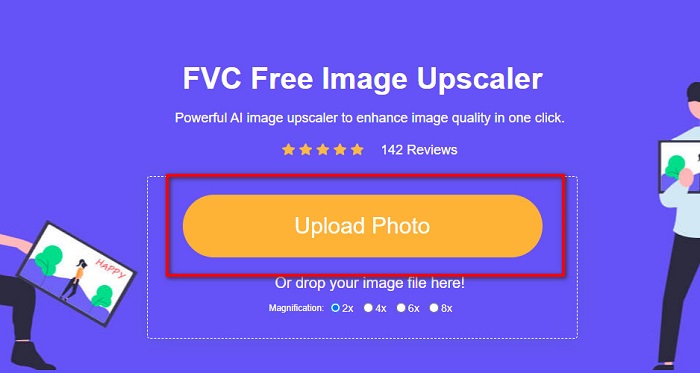
ステップ2. Upload Photo ボタンをクリックして、デスクトップ上でプログラムを起動します。アプリが起動したら、再度 Upload Photo ボタンをクリックして、リサイズ/ぼかし補正したい画像をアップロードします。
ステップ3. 次に、利用できる拡大倍率のプリセットが表示されます。2x、4x、6x、8x の中から選択できます。
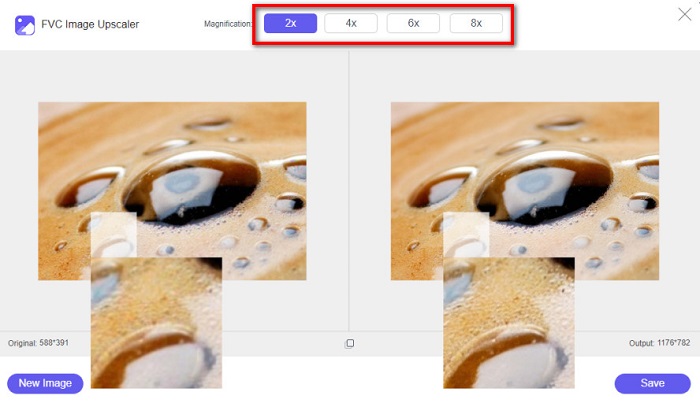
ステップ4. カーソルを動かして、画像のプレビューを確認します。結果に満足したら、インターフェース右下にある Save ボタンをクリックして保存します。
画像リサイズ.com
もうひとつの便利なオンライン画像リサイズツールが、Image Resizer.com です。Image Resizer.com を使うと、画像の縦横サイズを調整して画像をリサイズできます。さらに、写真をトリミングしたり回転したりする機能も備えています。インターフェースがシンプルでわかりやすいため、初心者にも扱いやすいツールです。しかし、煩わしい広告が多く表示されるため、作業の妨げになることがあります。
ステップ1. ブラウザーで Image Resizer.com と検索します。メイン画面で、Select Image ボタンをクリックし、リサイズしたい写真をアップロードします。
ステップ2. 続いて表示される画面で、画像のサイズをピクセル指定またはパーセンテージ指定で変更できます。写真に適用したい 幅(Width)と高さ(Height) を入力します。
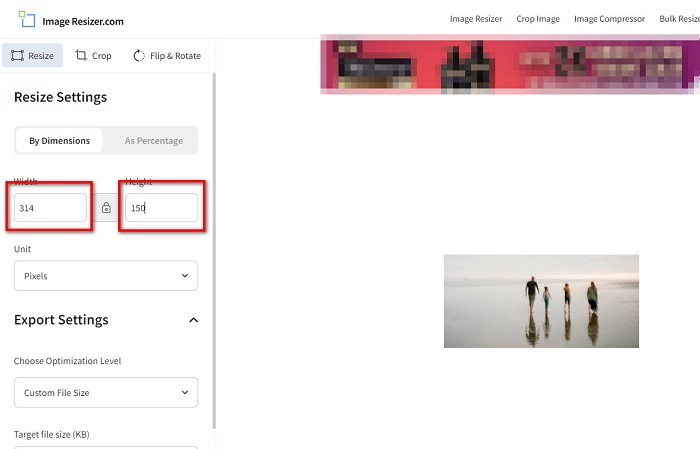
ステップ3. 画像のリサイズが完了したら、Resize Image ボタンをクリックして処理を終了します。
パート 3. FastStone Photo Resizer に関する FAQ
FastStone Photo Resizer の価格は?
$19.95 (ライフタイム ライセンス) の FastStone Photo Resizer のフル バージョンを購入できます。
FastStone ビューアは無料ですか?
FastStone Image Viewer は、Microsoft Windows で使用される画像ビューアーです。 FastStone Image Viewer は、無料またはオフチャージで使用できます。
FastStone Photo Resizer は写真の品質を損ないますか?
いいえ。FastStone Photo Resizer を使って画像を最適化しても、画像の画質が劣化することはありません。
結論
FastStone Photo Resizer は、Windows デスクトップで画像サイズを変更したい場合にとても優れたアプリケーションです。そのほかにも多くの編集機能を備えており、操作もわかりやすいユーザーフレンドリーなツールです。しかし、FastStone Photo Resizer の Mac 版があるかというと、現時点ではありません。そのため、すべてのプラットフォームで利用できる写真リサイズツールをお探しなら、FVC Free Image Upscaler をぜひお試しください。
-
 Imglarger の完全ガイド – フォト デザイナー向けのソリューション
 Imglarger は、最も優れた画像ソリューション ツールの 1 つです。このページをクリックして、Imglarger の完全な説明、長所と短所、価格、および代替品を確認してください。
-
 最高のフォトリサイザーアプリオンライン、オフライン、Android、iPhone
 最高の写真サイズ変更アプリは何ですか?ページをクリックして、ファイルの補正やサイズ変更に使用できる最も強力な写真リサイズ アプリのトップ 5 を確認してください。
-
 Web とオフラインで画像をリサイズする 6 つの方法 [100% の動作]
 ここに追加したチュートリアルを使用すると、好みのサイズに基づいて画像のサイズを簡単に変更できるようになりました。ここでその方法を学びましょう!
