


 ビデオコンバーター究極
 スクリーンレコーダー
 ビデオ修復
ビデオ修復Photoshopで画像を切り抜く方法
Photoshop ではさまざまなことができ、画像編集のためのオールインワンツールのような存在です。すでに Photoshop を使っていてその機能にある程度慣れている方も、これから切り抜き機能をいろいろ試してみたいという方も、私たちがサポートします。この記事で、Photoshop で画像を切り抜く方法を素早く簡単に学びましょう。また、もし Photoshop が環境やスキルに合わない場合でも、オンラインで画像を切り抜くほかの方法もあわせてご紹介します。
パート 1. Photoshop で画像を切り出す方法
Photoshop で画像を切り取る方法を学ぶことは、画像内のさまざまな要素を正確に分離して操作できるため、重要です。このスキルは、背景の削除、コラージュの作成、画像編集時の対象を絞った補正などのタスクの基本です。グラフィック デザイン、製品写真、デジタル アートのいずれの場合でも、画像をカットする機能により柔軟性と創造的なコントロールが可能になり、専門家も愛好家も同様にさまざまなプロジェクトで望ましいビジュアル結果を達成できます。
Photoshop で画像を切り取る方法は次のとおりです。
手順 1. Photoshop を開き、ファイルタブから画像を開きます。
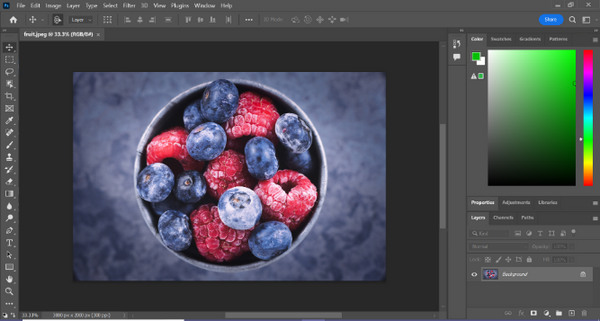
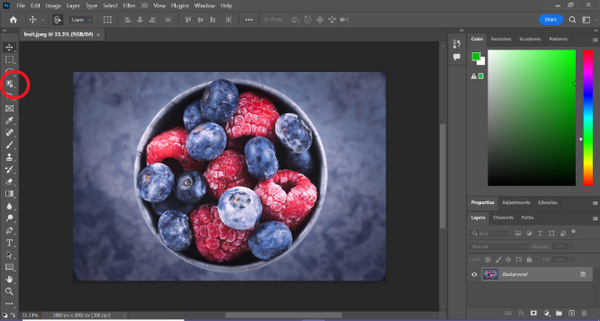
手順 2. オブジェクト選択ツールを選び、切り抜きたい被写体の上をドラッグして範囲を選択します。
手順 3. 選択とマスクをクリックします。
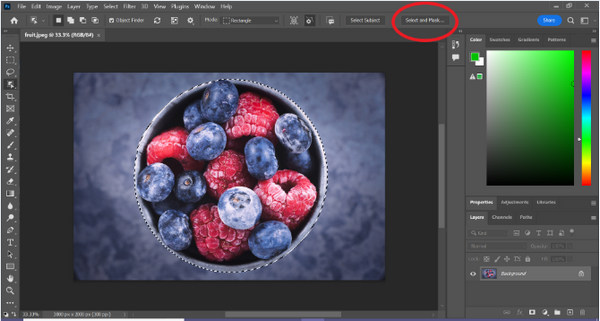
手順 4. 必要に応じてぼかし(フェザー)などの選択範囲の設定を調整します。
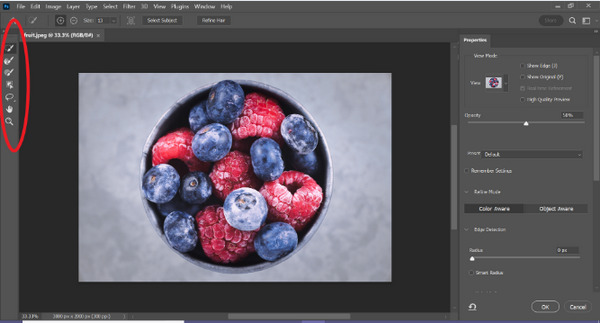
手順 5. マスクアイコンをクリックして画像を切り抜き、編集後の画像を保存します。
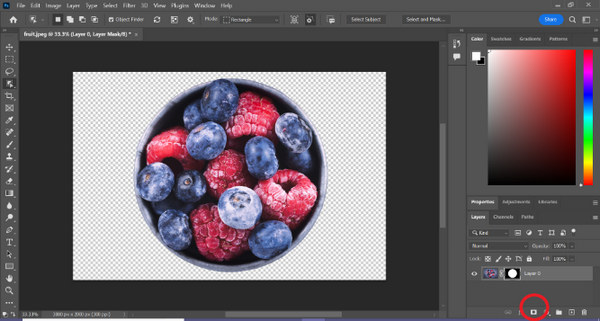
この簡単な手順に従えば、Photoshop で画像を素早く簡単に切り抜けます。ガイドどおりに進めるだけで、正確な画像編集をストレスなく行えます。また、切り抜いた部分を置き換えるために、画像の色を変更することも可能です。
パート 2. Photoshop オンラインを使用せずに画像を切り取るには?
コンピューターに Photoshop がインストールされていない場合でも、オンラインで画像を切り取る方法があります。 Photoshop は画像編集、特に画像を完璧に切り抜くための高品質なツールですが、使いこなすにはスキルと練習が必要でした。したがって、このツールが手に負えない場合は、これらの方法を使用して画像を簡単に切り抜くことができます。
方法 1: FVC オンライン背景リムーバー
FVC オンライン背景リムーバーは多機能かつ使いやすいツールで、PNG・JPG・JPEG などの形式の画像から自動で背景を削除できます。このツールを使えば、透過背景を簡単に作成できるうえ、ブラシを使って削除・保持したい部分を細かく指定するなどのカスタマイズも行えます。
さらに、FVC Free Background Remover を使用すると、画像の背景を好みの単色に変更したり、別の写真に置き換えたりすることもできます。このツールは背景の削除にとどまらず、トリミング、再配置、反転、回転などのシンプルな編集機能を提供し、ユーザーが画像全体の魅力を高めることができます。以下にこれを使用する手順を示します。
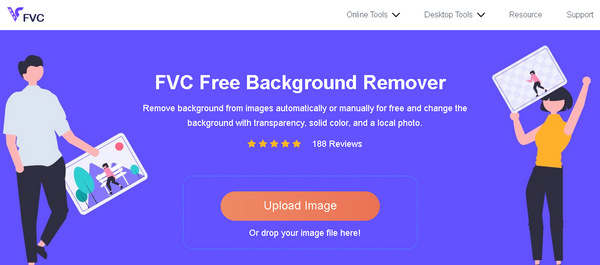
手順 1. まず公式サイトにアクセスし、「画像をアップロード」をクリックします。
手順 2. 自動処理が終わるまで待ちます。その後、エッジを微調整したり、被写体を移動したりして画像を編集できます。
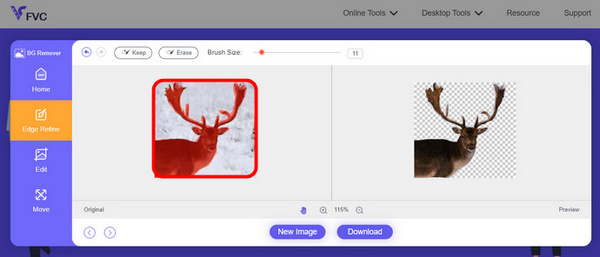
ステップ3. 仕上がりを保存するには、Download ボタンをクリックします。
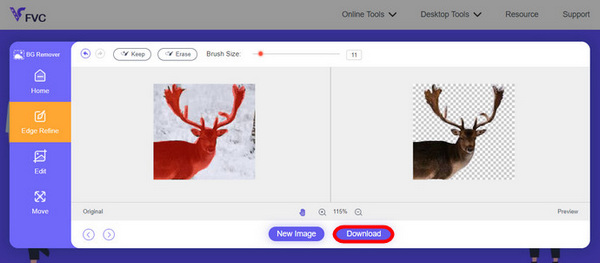
FVC Image Background Remover は、画像の切り抜きに最適なツールと言えます。無料で使えるだけでなく、画像に背景を追加する操作も非常にわかりやすく行えます。ご覧のとおり、いくつかの簡単なステップに従うだけで、写真の背景をとても簡単に取り除くことができます。
方法 2: iPhone iOS 16 機能を使用する
iPhone iOS 16 では、いくつかの新機能とアップデートが提供されます。そのうちの1枚が切り取られた画像です。この画像切り抜き機能を使用すると、ユーザーは写真の被写体を分離し、iPhone 上で直接写真の切り抜きを作成できます。

手順 1. iPhone の「写真」アプリで写真を開きます。
手順 2. 写真の被写体を長押しすると、キラッとした白い輪郭線が表示されます。
手順 3. そのまま画像をコピーしてメモ、メッセージアプリ、Messenger などに貼り付けます。別の iPhone デバイスに直接 AirDrop することもできます。
この写真切り抜き機能は、iOS 16 以降の iPhone XS、iPhone XR 以降でのみ利用できます。
パート 3. Photoshop での画像の切り抜きに関する FAQ
Photoshop で写真から誰かを切り取って別の写真に入れるにはどうすればよいですか?
Photoshop で写真の中の人物を切り抜いて別の画像に配置したい場合は、次の手順に従ってください。
1. 「なげなわツール」または「ペンツール」で人物の輪郭を丁寧になぞって選択します。
2. 右クリックして「選択範囲をコピーしたレイヤー」を選び、選択部分を複製します。
3. 移し替えたい画像を開き、新規レイヤーを作成して、先ほどコピーしたレイヤーを貼り付けます。
4. 必要に応じてサイズと位置を調整し、境界線を整えて自然になじませます。
Photoshop で何かを切り取って透明にするにはどうすればよいですか?
Photoshop で特定の部分を切り抜き、透過にしたい場合は次のようにします。
1. 「ペンツール」または「自動選択ツール(マジックワンド)」を使ってオブジェクトを選択します。
2. Delete キーを押して選択範囲を削除します。
3. 画像を PNG 形式で保存します。
4. 削除した部分が市松模様(チェック柄)で表示されていれば、透過になっている証拠です。
Photoshop でシェイプを減算するにはどうすればよいですか?
Photoshop でシェイプを減算するには、次の手順で行います。
1. シェイプツールまたは任意の選択ツールを使って、2 つの図形を作成します。
2. 両方の図形が別々のレイヤーにあることを確認します。
3. 上側のレイヤーを選択し、ツールバーの「パス操作」から「前面シェイプを削除(Subtract Front Shape)」を選びます。
4. 上側の図形が下側の図形から差し引かれ、くり抜かれた新しい形が作成されます。
Photoshop で細かいディテールを持つ複雑なオブジェクトを切り取ることはできますか?
はい、Photoshop には、複雑なオブジェクトを正確に選択するためのペン ツールなどの高度なツールが用意されています。正確にズームインし、オブジェクトの周囲にアンカー ポイントを作成し、パスを調整して詳細なカットアウトを実現します。
Photoshop で画像をカットする場合、「カット経由レイヤー」と「コピー経由レイヤー」の違いは何ですか?
Layer via Cut は、選択した領域を削除し、新しいレイヤーに配置します。一方、「コピーによるレイヤー」は、元の部分をそのまま残したまま、選択した領域を新しいレイヤーに複製します。カット時にオリジナルを残すかどうかに基づいて選択してください。
結論
簡単ですよね。Photoshop で画像を切り抜く方法がわかったら、そのスキルをさらに発展させて、Photoshop のほかの機能にも挑戦してみましょう。また、FVC オンライン背景リムーバーや iPhone を使って、オンラインでの別の切り抜き方法を試すこともできます。画像の切り抜きはこれまでになく簡単になっています。この機会を逃さず、本ガイドに沿って作業しながら、創造性をどんどん広げていきましょう。
-
 Photoshopで写真から透かしを削除する方法[手順]
 Photoshop は人気のある編集ツールの 1 つです。ここから Photoshop を使用して写真から透かしを削除する無料のチュートリアルを入手してください。また、別の方法を見つけてください。
-
 Photoshop で切り抜く方法: 初心者向けガイド [2025]
 このわかりやすいガイドで、Photoshop で画像をトリミングする方法を学びましょう。また、写真をトリミングするための領域の選択方法、アスペクト比の調整方法なども学びます。
-
 Photoshop で色を変更する方法 | 2025 総合ガイド
 Photoshop で背景色を変更する方法を学んで、創造性を次のレベルに引き上げてみませんか?この記事には、知っておくべきことがすべて記載されています。今すぐ読んでください!
