


 ビデオコンバーター究極
 スクリーンレコーダー
 ビデオ修復
ビデオ修復
 安全なダウンロード
PPTから背景画像を削除する方法:デスクトップとオンライン
PPTを作成する際、様々なスタイルのテンプレートを複数用意し、用意したアイコンや画像を挿入することがよくあります。しかし、多くの素材画像には背景色が付いています。ページ上に色が多すぎると、雑然とした印象を与えてしまいます。すべての要素がランダムに積み重なり、完璧なデザインにはなりません。
だからこそ、きちんと対処してPPTの背景画像を削除する必要があります。PowerPoint自体にも、この操作を実行するための方法が2つ用意されています。しかし、より高性能な背景削除サービスを体験したい場合は、この記事で紹介しているおすすめのオンラインツールを試してみてください。前置きはこのくらいにして、さっそくやり方を見ていきましょう。

パート1. PPTの背景を削除する方法
PowerPointでPPTを作成する際に、画像を手動で処理できます。PowerPointのインターフェースには、画像の背景を削除できるツールが2つあります。次に、これらの2つの状況でどのように行うかを見ていきましょう。
透明色の設定機能で背景を削除する
一つ目は、写真に透明色の効果を加えることです。この方法はモノクロ写真に非常に適しており、効果はすぐに現れます。
透明色機能を使用して、PPT の画像から白い背景を削除する方法を説明します。
手順1. PPT を開きます。編集したい画像のあるスライドに移動し、その画像を選択して、ツールバーの[書式]タブをクリックします。
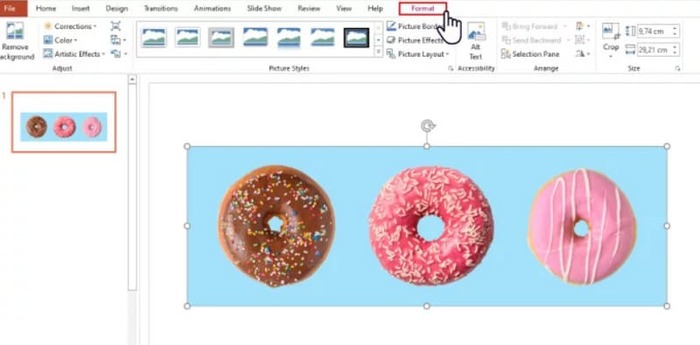
手順2. 左上にある[色]を探します。メニューを展開し、[透明色を指定]を選択します。
手順3. マウスポインターが鉛筆の形に変わります。画像の上にカーソルを合わせ、クリックしてください。画像の背景色が透明になります。
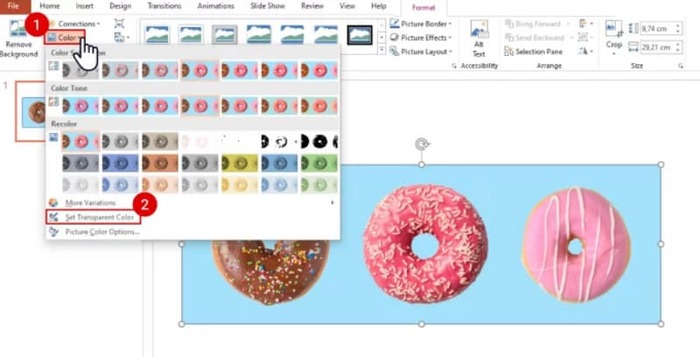
この方法は、背景に影がある画像には機能しないことに注意してください。また、画像内のオブジェクトの色が背景と近すぎる場合、透明化機能によって背景とオブジェクトの両方が消去される可能性があります。
背景削除機能で背景を削除する
PowerPointページの左上に「背景を削除」ボタンがあります。これをクリックすると、PPTの背景削除ツールが自動的に背景を認識し、削除する部分をハイライト表示します。
背景削除機能を使用して PPT スライドから背景画像を削除する方法を説明します。
手順1. スライドに画像を挿入したら、その画像を選択します。
手順2. [図の形式]>[背景の削除]をクリックします。
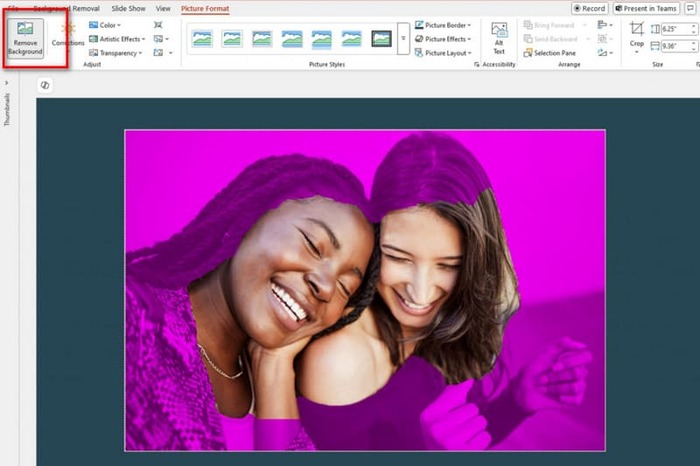
手順3. 自動的に処理が実行され、背景が検出されます。背景部分は紫色でハイライト表示されます。必要に応じて、[保持する領域としてマーク]または[削除する領域としてマーク]を選択し、枠を手動で調整することもできます。
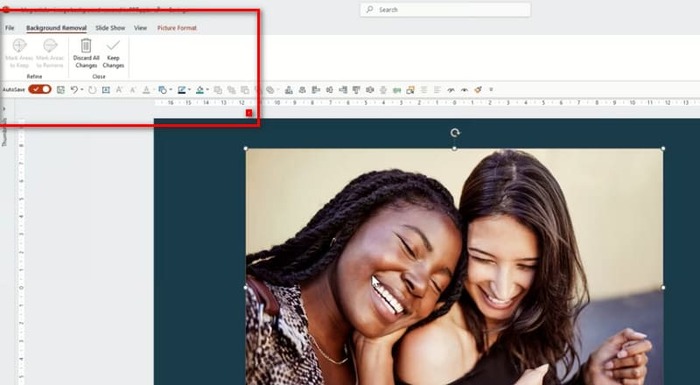
残念ながら、この機能と透明効果の機能には共通する問題があります。どちらも背景の検出精度があまり高くなく、画像の中核となる被写体まで消してしまう可能性があります。手動で調整しようとしても、実行時には最終的に PowerPoint の判断が優先されてしまいます。画像の背景が暗い、あるいは単色ではない場合は、背景を削除したり新しく追加したりできる、より高機能なツールを探すことをおすすめします。
パート2. オンラインで写真から白い背景を削除してPowerPointにアップロードする方法
無料:FVC背景除去ツール
以上のことから、PowerPoint が提供するツールは操作こそ簡単なものの、複雑な背景をもつ画像の処理には向いていないと分かります。そのような作業がある場合は、補助ツールとして FVC Free Background Remover の利用をおすすめします。料金は一切かかりません。PNG・JPG・JPEG 形式の画像をプラットフォームにアップロードするだけでよく、FVC Free Background Remover を使えば、スライドに使う画像の背景を別のものに差し替えることもできます。新しく使いたい背景画像をアップロードするか、単色背景を選択してください。
FVC Free Background Remover を使用して PPT の背景グラフィックを削除する方法を説明します。
手順1. ブラウザーで FVC Free Background Remover を開きます。[画像をアップロード]をクリックして、スライドに使う画像を追加します。
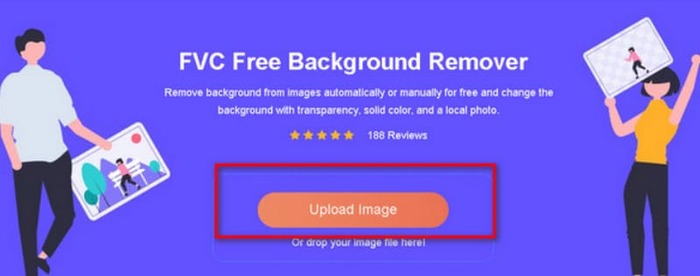
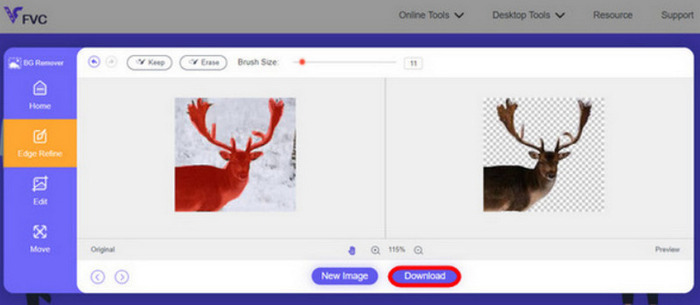
手順2. FVC Free Background Remover が画像を読み込み、自動で背景を削除します。処理が完了したら、画像を編集し、設定をカスタマイズできます。
手順3. 最後に[ダウンロード]をクリックして、編集済みの画像を保存します。
上記の PPT で画像背景を削除する方法は、主に静止画像を対象としています。画像上にウォーターマークやロゴなどがある場合は、よりきれいに見せるために、写真からウォーターマークを削除する方法も確認してみてください。
パート3. PPTの背景画像削除に関するFAQ
PPT の画像から白い背景を削除するにはどうすればよいですか?
PowerPointには、背景の削除や透明色効果などの便利な機能があります。ただし、これらの機能を使用すると画面の整合性が損なわれる可能性があります。FVC Free Background Removerを使えば、画像を簡単に削除できます。
PowerPoint で透明色が使用できないのはなぜですか?
まず、対象の画像が選択されていることを確認してください。画像が選択されていない場合は、透明色効果を追加できません。
背景の削除ツールが機能しない場合はどうすればよいですか?
まず、画像形式がPowerPointと互換性があるかどうか(JPG、JPEG、PNGなど)を確認してください。互換性がない場合は、まず形式を変換してください。この問題は、PowerPointが最新バージョンでない場合にも発生する可能性があります。まずPowerPointを更新してから、操作を再度実行してください。
結論
PowerPoint にはPPT で背景画像を削除できる機能が備わっていますが、その機能はかなり基本的なものにとどまります。画面内にある既存の要素が壊れてしまう可能性も高くなります。背景色が単純、もしくは白一色の画像であれば、PowerPoint 内蔵ツールだけでも十分でしょう。しかし、細部が多い画像の場合は、FVC Free Background Remover のようなプロフェッショナルツールの使用をおすすめします。操作は簡単で、追加のソフトウェアをダウンロードする必要もありません。
-
 4 つの方法で画像の背景を変更するためのステップバイステップ ガイド
 写真の背景を変更するツールをお探しですか?この記事では、画像の背景を簡単に変更するために使用できるさまざまな画像編集ツールについて学びます。
-
 効果的で便利なツールを使用した GIF 背景の削除
 適切なツールを使用せずに背景を削除するのはストレスになる場合があります。 GIF の背景を透明にする方法に関するアプリの推奨事項については、この投稿を確認してください。
-
 GIMPを使用して画像から背景を削除する方法
 GIMP を使い始めて、画像から背景を削除する段階的なプロセスを説明します。 GIMP を使用して透明な画像を作成する効率的な方法を今すぐ発見してください。
