


 ビデオコンバーター究極
 スクリーンレコーダー
 ビデオ修復
ビデオ修復
 安全なダウンロード
3つの効果的な方法を使用してLunapicで透かしを削除する方法[無料で使用できます]
初心者向けの画像編集ソフトとしては、ウェブ上で利用できる Lunapic を使って画像を編集してみるとよいでしょう。実はこのツールには便利な機能が 2 つあり、画像に入っているウォーターマーク(透かし)を追加したり削除したりできます。ここでは、画像に対して適用できるテクニックを説明し、ウォーターマークを削除する方法を紹介します。この記事を最後まで読んで、以下の手順でLunapic でウォーターマークを削除する方法を学んでください。

パート 1. 知っておくべき Lunapic を使用して画像から透かしを削除する 2 つのテクニック
Lunapic は、2 つの異なる方法で画像の透かしを削除します。トリミングとオブジェクトの削除。しかし、どの方法がより効果的で、どの方法がより効果的ではないのでしょうか?手順に進む前に、まずそれらについて説明しましょう。
第 1 の方法。画像の透かしをトリミングする
それが提供するトリミング機能は特別なものではありません。つまり、名前が示すように画像をトリミングします。透かしが側面にある場合は、この機能を使用できます。透かしをトリミングし、画像の一部を透かしなしで保存します。興味がある場合は、追加した手順に従ってください。
ステップ 1. ブラウザで Lunapic を検索して公式サイトを開き、Upload をクリックします。表示されたフォルダーから画像を選択し、Open を押してアップロードします。
ステップ 2. 画面上部のメニューから Edit をクリックし、Crop Image を選択してトリミング機能を使います。
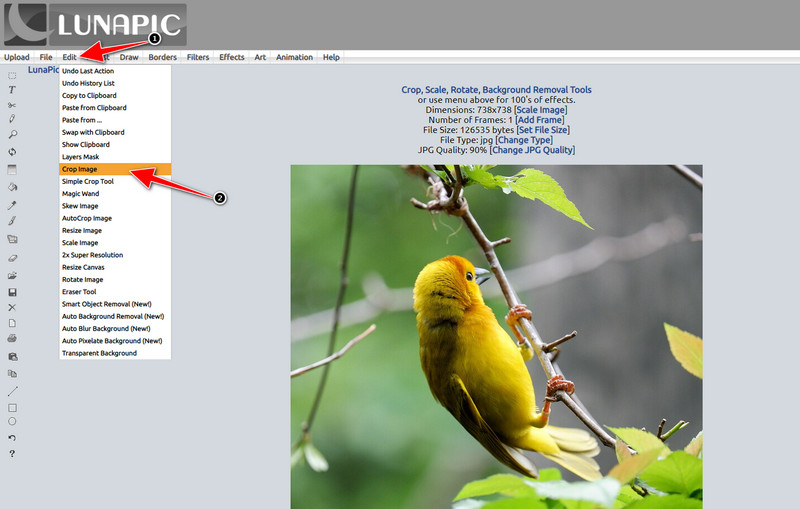
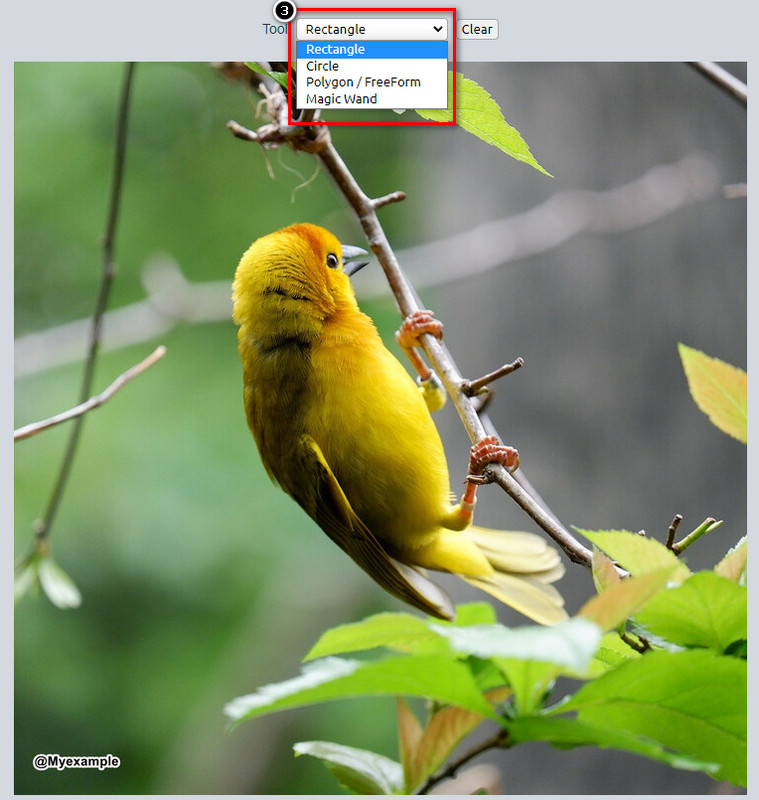
ステップ 3. ツールの ドロップダウン ボタンを押して、使用したいトリミングツールを選択します。調整して、ウォーターマークが含まれないようにしてください。
ステップ 4. Crop ボタンをクリックすると、書き出し後の最終的な仕上がりのサンプルが表示されます。結果に満足したら、Save を押して、トリミングした画像をローカルドライブにダウンロードします。
2番目の方法。オブジェクトの削除で画像の透かしを削除
トリミングとは異なり、オブジェクトの削除は、画像の寸法を変更せずに画像上のオブジェクトを削除することを扱います。この機能では、透かしを強調表示する必要があります。その後、ツールで削除できます。それは素晴らしいことではありませんか?あなたがそれを使いたいと思っているなら、以下の手順はLunapicで透かしをクリアする完全な方法を提供します.
ステップ 1. ウォーターマーク付きの画像を読み込むために、トリミング機能で行った最初のステップと同じ手順をもう一度繰り返します。
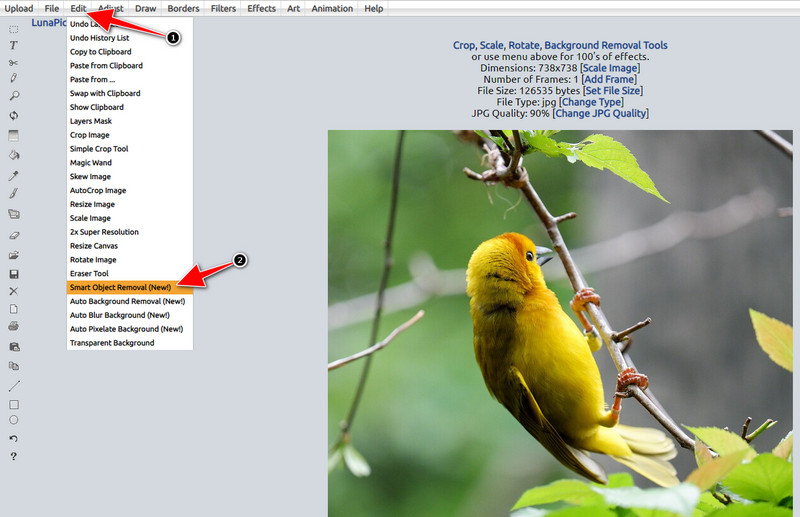
ステップ 2. Edit を開き、今度は Smart Object Removal を選択して、ウォーターマークを削除するために使える別の機能を利用します。
ステップ 3. 用意されているブラシを使ってウォーターマークの部分をなぞって選択します。ブラシサイズは好みに合わせて調整できます。
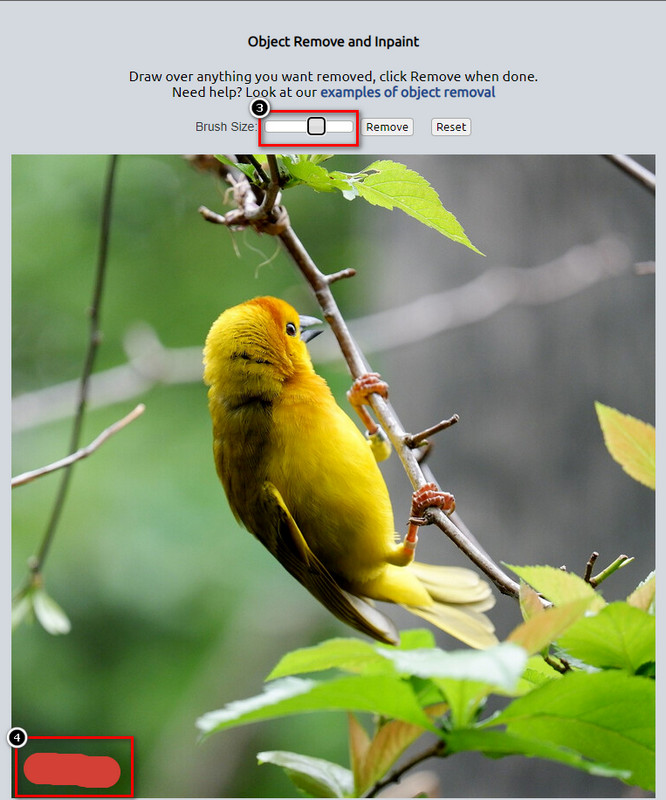
ステップ 4. Remove ボタンをクリックしてウォーターマークを消去し、画像を書き出す前にどのように見えるかを確認します。
ステップ 5. Save をクリックして、完成した画像をローカルドライブにダウンロードします。
パート 2. ワンクリックで透かしを無料で削除する Lunapic の最良の代替手段
Lunapic の代わりになるウォーターマーク削除ツールが必要な場合は、FVC Free Watermark Remover を利用することもできます。Lunapic と同様に、このツールもウェブ上で利用でき、会員登録やダウンロードは不要で、画面上に広告も表示されません。制限なく自由に使うことができ、サービス開始当初から高いパフォーマンスを維持しています。すでに何百万人ものユーザーをオンラインでサポートしてきました。画像からオブジェクトを削除したいときは、以下の手順に従ってみてください。
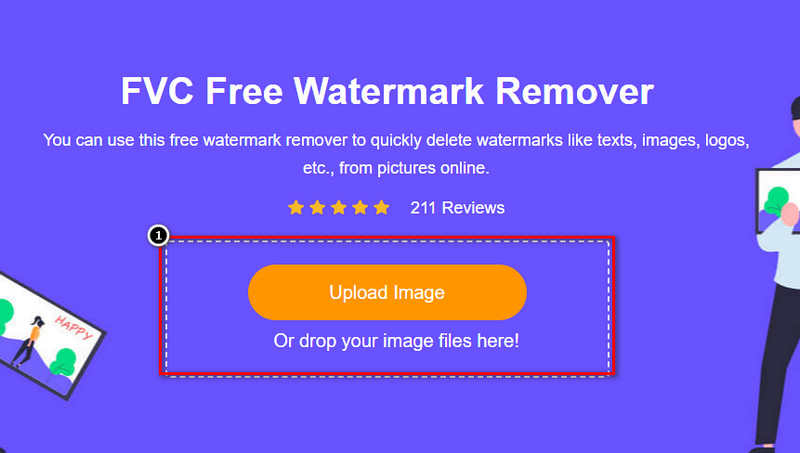
ステップ 1. このリンクをクリックして公式サイトを開きます。現在使用しているブラウザで新しいタブが開き、このウォーターマーク削除ツールの画面が表示されます。
ステップ 2. Upload Photo を押すと、ローカルドライブにあるウォーターマーク付き、または削除したい不要なオブジェクトが含まれた画像を読み込むことができます。
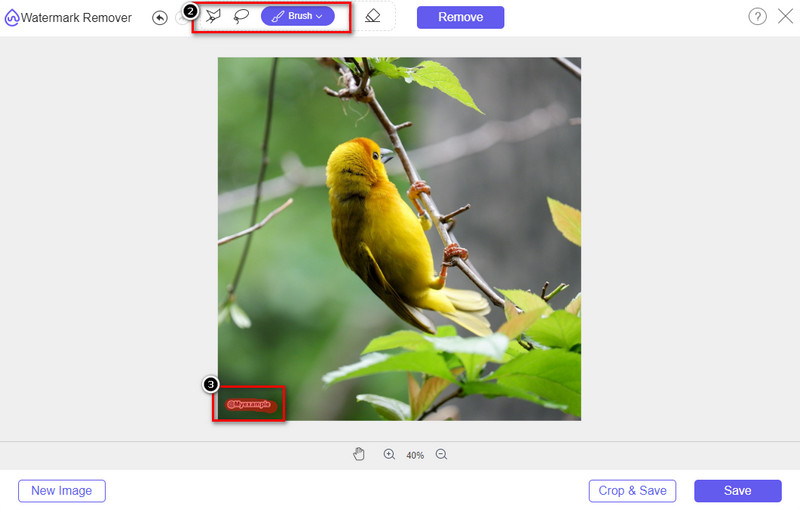
ステップ 3. アップロードした画像上のウォーターマークを選択するために使えるツールが 3 種類用意されています。いずれか 1 つを選び、そのツールでウォーターマーク部分をなぞって強調表示します。
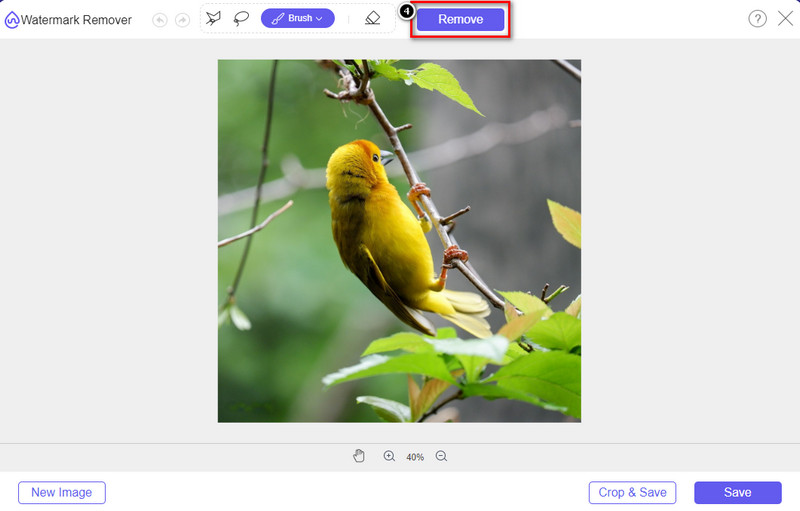
ステップ 4. Remove ボタンを押して、ステップ 3 で選択したオブジェクトを削除します。画像内で強調表示した部分はすべて取り除かれます。
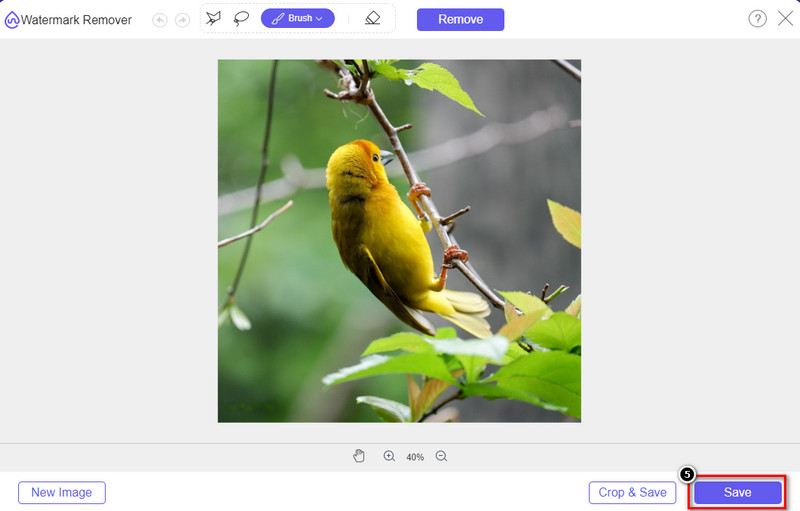
ステップ 5. Save ボタンを押して完成した画像をダウンロードします。画面に表示されるフォルダーの中から、その画像を確認できます。
さらに詳しく読む:
パート 3. Lunapic で透かしを削除する方法に関する FAQ
ルナピックは編集した画像に透かしを入れますか?
このオンライン エディターは Web 上で無料でアクセスできますが、ここで編集する画像に製品の透かしは埋め込まれません。提供されるプレミアム ツールを使用するためにサブスクリプションは必要ありません。制限なくツールをお楽しみください!公式 Web サイトにアクセスして、画像の編集に使用できるツールを確認して使用してください。
Lunapic に透かしを追加できますか?
もちろん、作成した画像に独自の特徴を追加して、他の人がその画像をコピーするのを難しくすることができます.ウェブサイトを開いて、[アップロード] をクリックして編集したい画像を追加し、ツールバーの左側にある T アイコンをクリックして、アップロードする画像に追加したいテキストの透かしを追加します。
ルナピックには背景リムーバーがありますか?
はい、Lunapic は、画像の背景を検出して即座に効果的に削除できる AI 技術をサポートしています。機能の名前は自動背景除去です。ツールを開き、[編集] をクリックします。画像の背景を削除するのに役立つ、私たちが話している機能が表示されます。また、使用したい場合は、ぼかした背景の追加もサポートしています。
ルナピックで使えるエフェクトは?
Lunapic は、画像、画像、グラデーション、マスキング、漫画、グリッチなどを画像に適用するために使用できる効果に関して、さまざまな選択をサポートしています。
結論
Lunapic を使用して画像から透かしを削除することは、この記事で追加するチュートリアルを使用すると非常に簡単です。このブログに追加した手順に従って、ローカル ドライブに保存した画像の透かしをトリミングまたは削除できます。透かしを削除するのに十分な経験がなくても、すぐにツールをマスターできます。ただし、透かしを自動的に削除する新しい高さを体験したい場合は、この記事で追加した代替手段を使用できます.その名前をクリックして公式 Web サイトにアクセスし、このツールに欠けている機能を確認してください。このブログを楽しんで読んだら、5 つ星を評価してください。
-
 PicsartFilterの透かしを簡単に削除するためのヒントとコツ
 Picsartフィルタの透かしを削除するには、ツールが必要です。透かし除去を達成するためにこの記事を読み続けてください。
-
 低解像度の画像をオンラインで高解像度に変換する方法
 低解像度の画像をオンラインで高解像度の画像に変換する方法を学びたい場合は、この記事が最適です。方法を学ぶために完全に読んでください。
-
 シュートプルーフ透かしを削除する方法の簡単な方法
 これらの簡単な方法に従って、シュートプルーフ透かしを削除します。これらの驚くべき透かしリムーバーを使用して、画像から耐射透かしを簡単に削除します。
