


 ビデオコンバーター究極
 スクリーンレコーダー
 ビデオ修復
ビデオ修復Appleデバイス用にMP3をM4Rに変換する方法に関する最も便利な方法
お気に入りの音楽をiPhoneの着信音にしてみたいと思ったことはありませんか?そんなことが本当にできるのか疑問に思うかもしれませんが、もちろん可能です。ただし、そのためにはファイルを変換する必要があります。なぜ最初に変換しなければならないのでしょうか。特定のファイルを着信音として設定するためには、そのファイルがM4R形式でなければならないからです。つまり、自分に合った優秀なMP3からM4RへのiTunesコンバーターを見つける必要があります。この記事では、MP3ファイルを変換するさまざまな方法、特に下記の内容を読み進めることで、MP3を一括でM4Rに変換する方法を紹介します。

パート1。MP3をM4Rに変換する最も実行可能な方法
Video Converter Ultimateは、MP3をM4Rに変換するために使用できる最も説得力のあるツールです。単一のファイルだけでなく、MP3からMP4へのバッチ変換も可能です。HDビデオとロスレスオーディオを生成できるコンバーターです。実際、元の品質を失うことなくファイルを変換することが理想的であり、推奨されています。速度はそこにある通常のコンバーターより30倍速いです。さらに、プレイリストを変換して携帯電話に保存する場合は、このツールで問題を解決できます。楽で汗も出ません。一方、オーディオの変換以外にも楽しめる機能がいくつかあります。また、使用する場合の参考のために、ステップバイステップガイドを以下に示します。
◆メタデータを編集します。
◆高速GPUアクセラレーション。
◆リアルタイムのテクニカルサポート。
◆ビデオの圧縮がサポートされています。
ステップ1. まず、以下のダウンロードボタンをクリックしてアプリを入手します。WindowsまたはMacにダウンロードできたら、アプリを起動します。
無料ダウンロードWindows 7 以降に対応安全なダウンロード
無料ダウンロードMacOS 10.7 以降に対応安全なダウンロード
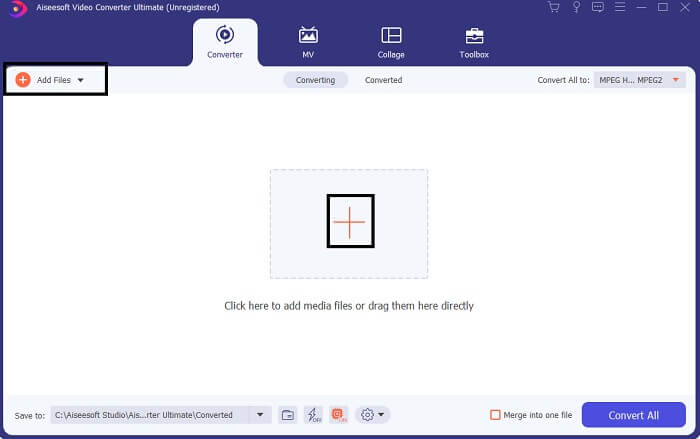
ステップ2. ツールのメインインターフェースには、ファイルをアップロードするための2つの方法が表示されます。中央のプラス記号アイコンをクリックするか、左上のファイルを追加ボタンをクリックしてください。変換したいファイルを選択してアップロードします。
ステップ3. 希望する出力にするために、インターフェース右上にあるプルダウンメニューをクリックして形式を変更します。
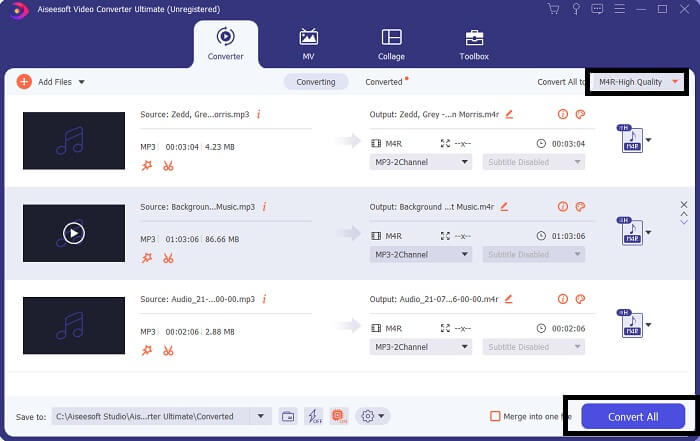
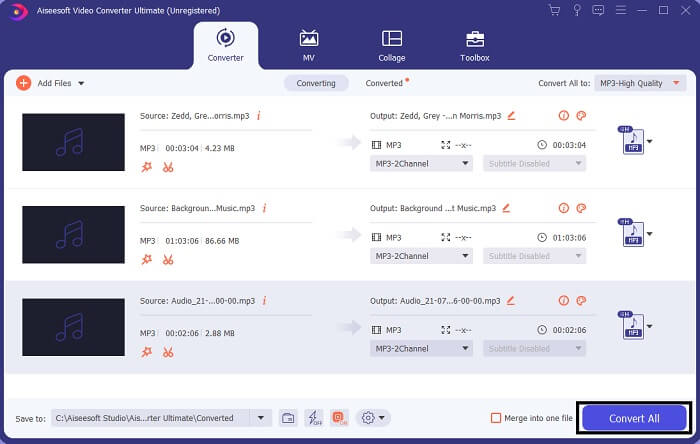
ステップ4. 最後に、メインインターフェース右下のすべて変換ボタンをクリックします。その後、ファイルの変換が完了するまで待ちます。
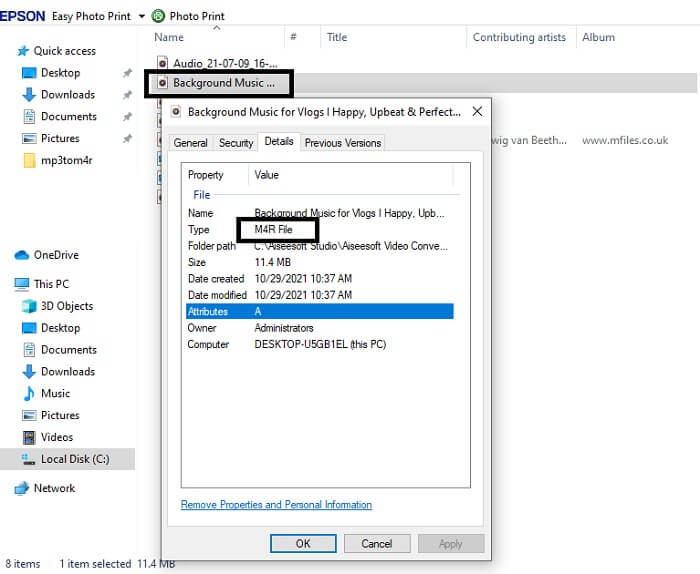
ステップ5. 変換後、音声ファイルが保存されているフォルダーを開き、それをiPhoneへ転送します。転送には専用の転送ツールやアプリを利用できます。インターネット上でおすすめのツールを探せますので、検索して、iPhoneの着信音に設定する手順まで進めてください。
パート2。MP3をM4Rオンラインに変換するための最良のツールのいくつか
FVC無料オンラインオーディオコンバータ
有料の変換ツールも便利ですが、実用性という点では無料ツールに勝るものはありません。こうしたニーズを踏まえ、FVCは無料版のツールを用意しました。FVC Free Audio Converterは、いつでもどこでも無料で利用できるツールです。必要なのは、インターネット環境と対応ブラウザだけです。このMP3をM4Rに変換するiPhone着信音コンバーターは、高音質かつロスレスな音声を出力できます。お金をかけることなく、満足度の高い仕上がりが得られます。さらに、このツールはバッチ変換にも対応していることをご存じでしたか?一度に複数のファイルを変換することも可能です。また、本ツールを使用することで得られる注目すべき機能もいくつかあります。一方で、便利に使えるよう操作ガイドも用意されています。
◆変換されたファイルの品質は元のファイルと同じです。
◆100%は無料で安全に使用できます。
◆変換時のサイズに制限はありません。
◆バッチ変換がサポートされています。
ステップ1. ツールにアクセスするには、FVC Free Audio Converterの公式サイトにアクセスします。
ステップ2. サイトにアクセスしたら、Add Files to Convert(変換するファイルを追加)をクリックします。初めて利用する場合は、Open FVC Launcherをクリックして起動を許可してください。その後、変換したいファイルを選択できるウィンドウが表示されます。
ファイルを一括変換するには、デスクトップ版をダウンロードしてください。
ステップ3. ファイルをアップロードすると、別のウィンドウが表示されます。画面下部で出力ファイル形式をM4Rにチェックを入れて変更します。
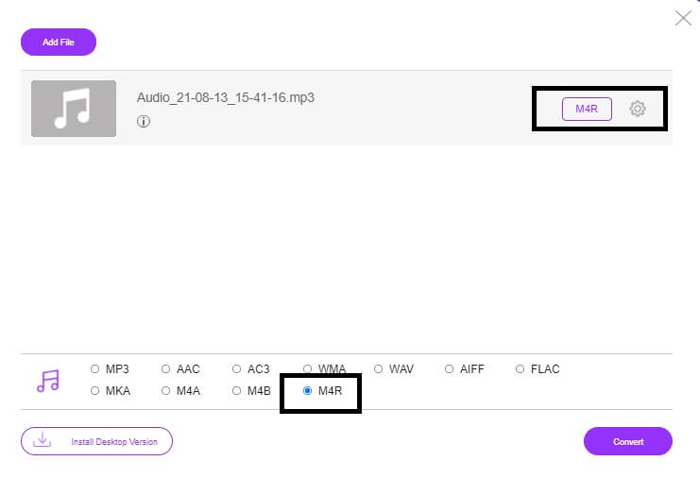
ステップ4. その後、Convertボタンをクリックして変換を開始します。
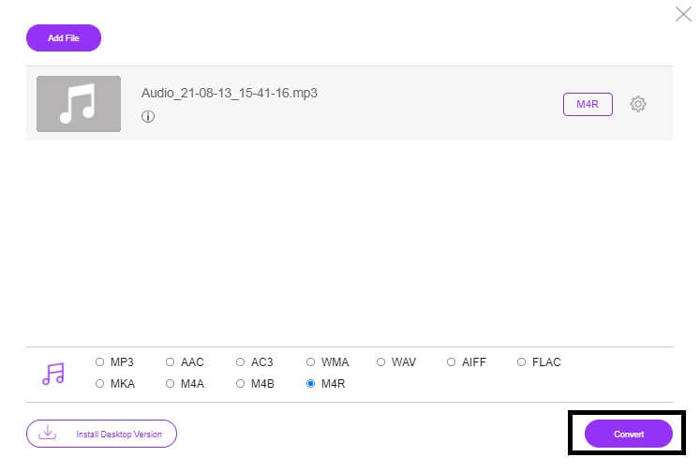
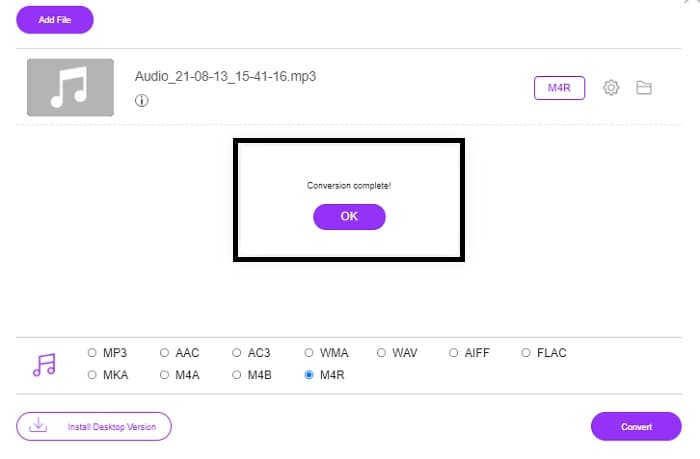
ステップ5. 最後に、ファイルを保存するフォルダーを選択すると、自動的にそこへ保存されます。その後、ファイルをiPhoneへ転送してください。バッチ変換も可能なので、1ファイルに限定する必要はありません。
関連記事:
ファイルコンバータによるM4ROnline
シンプルでありながら信頼できる──利用者はこのオンラインツールをそのように評価しています。デフォルトでは、MP3をM4Rに変換するために特化して作られています。名前が示す通り、この用途のためのツールです。複数のWebブラウザから利用できるため、ダウンロードや購入は不要です。公式サイトを訪れると、非常にシンプルなインターフェースであることが分かるでしょう。Browseボタンをクリックするだけで、アップロードと変換プロセスを開始できる、とても分かりやすい設計です。試してみたい場合は、公式サイトにアクセスして実際の操作感を確かめてみるとよいでしょう。その意味でも、このツールは良い代替手段となります。使い方の手順は、以下のステップで確認できます。
ステップ1. まず、M4R Onlineの公式ページへアクセスし、Browseをクリックします。
ステップ2. フォルダーからファイルを選び、Upload Fileボタンをクリックします。
ステップ3. 完了メッセージが表示されたら、そのファイルをクリックしてダウンロードします。
Online-convert.com
このツールは、かなり前からサービスを提供しているオンラインツールです。多くのユーザーにとって、変換ニーズに非常に役立つ存在であると言えます。もしそうでなければ、現在まで存続していないはずです。ホームページにアクセスすると、利用可能なすべてのツールが一覧で表示されます。オーディオコンバーター、ビデオコンバーター、画像コンバーター、ドキュメントコンバーター、電子書籍コンバーターなどがホームページにまとめて並んでいます。これらを一箇所に集約することで、ユーザーは必要なツールを簡単に見つけることができます。そのため、このサイトはMP3からM4RへのiTunesコンバーターのリストに加えるにふさわしいと言えるでしょう。一方で、参考として本ツールの使い方を以下に紹介します。
ステップ1. ツールの公式サイトにアクセスし、Audio Converter(オーディオコンバーター)を選択します。
ステップ2. Drop down(ドロップダウン)をクリックして出力形式を選択し、GOをクリックします。
ステップ3. 新しいウィンドウが表示されます。そこからChoose Filesボタンをクリックしてファイルをアップロードします。変換を開始するには、Start Conversionをクリックします。ファイルの準備が完了すると、自動的にPCへダウンロードされます。
MP3とM4R
MP3形式は、1993年にMoving Picture Experts Group(MPEG)によってリリースされました。オーディオを他の非圧縮フォーマットよりもはるかに小さいサイズに圧縮できるため、音楽を保存するための標準でした。特にオーディオをオンラインで配信するために、今日でも広く使用されています。
M4Rファイルは、AppleiTunesで作成されたカスタムiPhone着信音を保存するために使用されます。通常、この形式は、コンピューターからiOSデバイスに着信音を転送するときに表示されます。 iTunesで作成されたM4Rファイルには、通常、著作権保護が含まれています。
パート3。MP3からM4Rへの変換に関するFAQ
M4Rとは何ですか?
これは、Appleによって特別に作成されたファイル拡張子であり、iPhoneやその他のAppleデバイスの着信音として厳密に使用されます。品質に関しては、これはM4AやMP4と同じくらい優れています。
iTunes以外にMP3からM4Rへのコンバーターはありますか?
確かにあります。上記のツールから選択するか、リッピングしてWindowsMediaPlayerの使用を検討できます。すべてのプロセスを実行したくない場合は、オンラインで利用できる無料のツールを使用できます。長いリッピングプロセスを経ることなく、オーディオを希望のフォーマットに直接変換します。
着信音として使用するためにファイルをMP3からM4Rに変換する必要があるのはなぜですか?
必見です。ファイルを着信音と見なすには、ファイルをデフォルトでM4R形式にして、着信音として再生する必要があります。
結論
それで、確かにあなたは上記のツールに頼ることができます。ニーズに応じて、どのツールが役立つかを確認するだけです。あなたが学生であり、MacでMP3をM4Rに無料で変換したい、または使用しているデバイスを使用している一般市民の場合は、無料のツールを参照できます。業務用には、VideoConverterUltimateを使用することをお勧めします。変換するツールについて詳しく知りたい場合は、いつでもこのページに戻ることができます。
-
 [無料&オンライン]画像付きのMP3からMP4に変換する3つの方法
 MP3を高品質でMP4に変換する方法は?この投稿では、WindowsとMacでMP3をMP4に変更するための3つの効率的で無料の方法を示しています。
-
 MP3をWAV形式に変換する方法をご覧ください
 MP3をWAVに変換する方法を知りたいですか?どのツールがあなたが得ることができる最高品質の変換を生み出すかを決定します。
-
 M4AをWAVに変換する方法に関するガイドライン[PCおよびMac]
 詳細な手順と選択可能なさまざまなツールを使用して、M4AをWAVに変換する方法について詳しく知ることができます。

