


 ビデオコンバーター究極
 スクリーンレコーダー
 ビデオ修復
ビデオ修復
 安全なダウンロード
PCとMacでCiscoWebExARFをMP4に無料で変換する方法
私は同僚から会議の録画が入ったARFファイルをMacで受け取りましたが、Androidスマートフォンで再生したいのでMP4に変換したいと考えています。しかし、ARFをMP4に変換する方法が見つかりませんでした。どなたか教えていただけると助かります。
AFRファイル(Advanced Recording Format)は、CiscoWebExによって生成された記録ファイルです。 ARFファイルは、リンクを介して共有し、直接開くことができます。または、ARFファイルをローカルコンピューターにダウンロードして、Webexネットワークレコーディングプレーヤーで再生することもできます。
はい、ARFファイルはMP4ほど人気がなく、WebExプレーヤー以外は何も開かないものを見つけたかもしれません。
ARFファイルを簡単に再生するには、ARFをMP4に変換する必要があります。このページでは、その方法を無料で使える2つのやり方でご紹介します。

パート1。WindowsコンピュータでARFをMP4に無料で変換する方法
Cisco WebExは、ARFをMP4に変更するのに役立つ公式の方法を導入しました。何も必要ありませんが、Webexネットワークレコーディングプレーヤーをダウンロードしてください。
Webex Network Recording Playerは、WindowsコンピューターでARFファイルをMP4、WMV、およびSWFビデオに変換するソフトウェアです。
詳細な手順は次のとおりです。
ホストアカウントからARF記録ファイルをダウンロードしたことを確認してください。
ステップ1. Network Recording Playerを開き、ファイルメニューから開くを選択して、ARF録画ファイルを指定し、開きます。
ステップ2. ARF録画ファイルを再生しながら、ファイルを選択し、形式の変換を選んで、MP4(MPEG-4)を指定します。
ステップ3. 名前を付けて保存ダイアログボックスで、変換後のMP4ファイルの保存先を指定し、動画の画質やコーデックなどをカスタマイズします。
その後、すぐに、または必要に応じてスケジュールされた時間にARFファイルの変換を開始します。
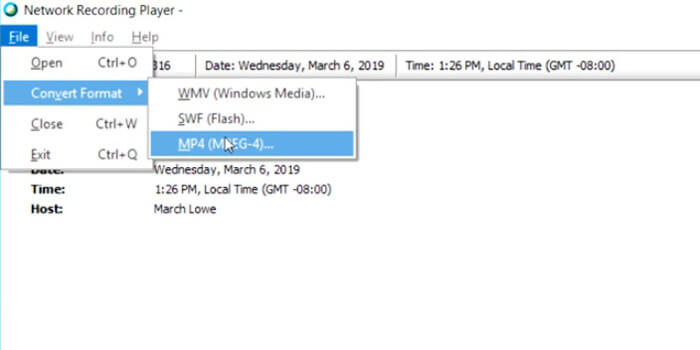
以上です。あとは変換したMP4ファイルを、お使いのMP4プレーヤーで簡単に再生できます。
WindowsコンピュータでARFをMP4に変換するのは簡単です。ただし、注意すべきいくつかの欠点があります。
- 1.ホストのみがARFファイルをダウンロードできます。または、管理者オプションのある受信者は、ARF記録ファイルをダウンロードできます。
- 2.変換タスクはWindowsコンピューターで実行でき、Macは使用できません。
- 3.一部のユーザーは、変換されたMP4ファイルが元のARFファイルと比較して品質が低いと報告しました。
パート2。Mac/ PCオンラインでARFをMP4に無料で保存する方法
MacでARFファイルを再生するのは簡単ですが、ARFファイルを変換することはできません。 MacでARFビデオを変換するには、サードパーティのソフトウェアが必要です。 HandBrake、VLC、FFmpegなどの主流のビデオコンバーターは、ARF変換をサポートしていません。 ARFをMP4としてエクスポートするには、録音方法を使用できます。
Free Screen RecorderはWindowsとMacに対応したオンライン画面キャプチャソフトで、コンピューター上で再生される動画や音声を含め、あらゆるものを録画できます。
ARF記録ファイルをMacの場合はMP4、Windowsの場合はWMVとして保存するには、無料のスクリーンキャプチャソフトウェアを使用して、Macでの再生中にビデオファイルを記録します。
ステップ1. オンラインの無料ARFレコーダーにアクセスし、録画開始をクリックすると、レコーダーランチャーのダウンロードを促されます。
ステップ2. インストール完了後に表示されるランチャーウィンドウで、フレーム枠をドラッグして録画範囲を調整し、ARFファイルの再生ウィンドウ全体が入るようにします。スピーカーを有効にして、ARFファイルの音声を録音します。
残りの2つのオプションであるマイクとカメラは、必要に応じて選択できます。
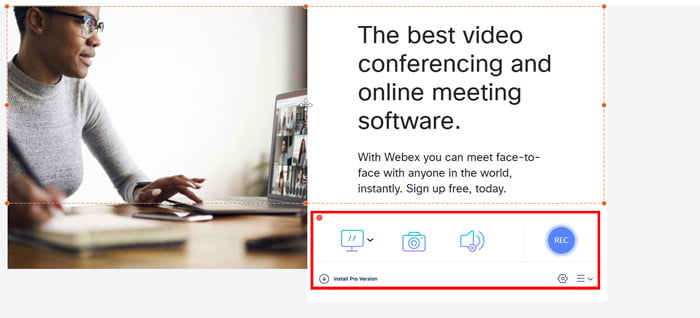
ステップ3. Mac上でNetwork Recording Playerを使ってARFファイルを再生しながら、RECボタンをクリックして録画を開始します。
停止ボタンをクリックして、記録されたMP4ファイルを保存およびダウンロードします。
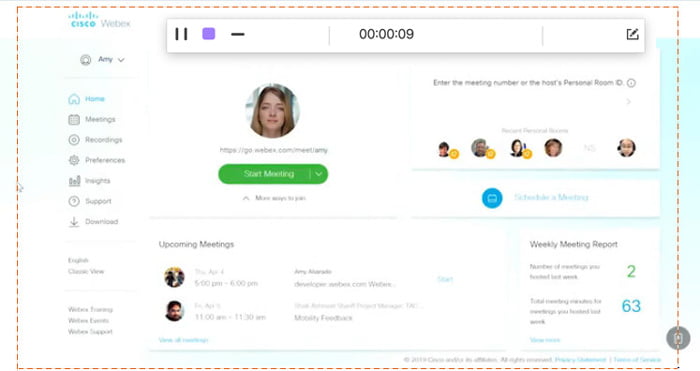
このように、共有リンクを介してARFファイルを開いた場合でも、MP4ファイルとして簡単に保存できます。
パート3。ARFからMP4への変換に関するFAQ
ARFをMP4に変換するのにどのくらい時間がかかりますか?
ARFをMP4に変換する時間は、録音ファイルのサイズと長さによって異なります。私たちのテストによると、WindowsでARFをMP4に変換するのに費やした時間は、Macでの録音に費やした時間よりも長くなります。
ARFとWRFの違いは何ですか?
1. WRFファイルは古い形式であり、音声・映像の品質はARFよりも低くなります。
2. ARFファイルはWebExのミーティングやセッション、イベントの中でのみ作成されますが、WRFはWebEx Recorderを使えば、ミーティング外でも誰でも作成できます。
3. ARFファイルはNetwork Recording Playerで開くことができ、WRFファイルはWebEx Playerで再生できます。
4. ARFファイルはWMV、SWF、MP4に変換できますが、WRFファイルはプレーヤーを使ってWMVに変換できます。
ARFファイルを開くものは何ですか?
WebExレコーディングへのリンクが記載された電子メールを受信した場合は、リンクをクリックして開きます。ファイルをダウンロードした場合は、WebexPlayerにARFファイルを開いてもらいます。または、ARFをMP4に変換して、便利に再生することもできます。
結論
ARFファイルを入手すると、直接開くのは簡単です。ただし、ARFファイルをダウンロードすると、WebEx以外のプレーヤーで再生するのがより複雑になります。このページでは、PCとMacでARFをMP4に変換する2つの方法を共有しているため、ARFファイルを普遍的に使用できます。
ARFをMP4に変換するときに問題が発生しましたか?
ARFをMP4に変える他の方法はありますか?
以下にコメントを残してお知らせください。
-
 MP4をMPEGに無料で変換する方法
 この投稿は、MP4をMPEGに変換するためのステップバイステップガイドです。上位4つの無料ビデオコンバーターを使用して、MP4をMPEG-1またはMPEG-2に変更できます。
-
 3つのステップ内で複数のMP4ファイルを組み合わせる方法
 プロジェクトの生のMP4ファイルをマージしたいですか?この投稿では、Windows、Mac、オンラインでMP4ビデオを簡単に組み合わせるのに役立つ上位6つの方法を集めています。
- トップ10の方法でWebMをMP4に無料で変換する方法
WebブラウザなしでWebMファイルを視聴する方法は? WebMをMP4に変換する必要があります。これは、オンラインおよびMacとWindowsコンピューターでWebMをMP4に変更するための無料のWebMからMP4へのコンバータートップ10です。
