


 ビデオコンバーター究極
 スクリーンレコーダー
 ビデオ修復
ビデオ修復
 安全なダウンロード
MacOS/Windows/LinuxでAVIをMP4に簡単に変換する方法 [2025]
AVI(Audio Video Interleave)は、Microsoftが開発したマルチメディアコンテナ形式です。音声と動画の両方のデータを1つのファイルに保存できるため、同期再生が可能であることが特徴です。現在、様々なアプリケーション、特に動画編集や動画保存に使用されています。しかし、この形式はファイルサイズが大きくなる傾向があり、最新のデバイスやストリーミングプラットフォームとの互換性に問題が生じることがよくあります。
一方、MP4はその正反対と言えます。この形式は高い圧縮率を提供し、ファイルサイズを小さく抑えることができます。さらに互換性と柔軟性の面でも、この形式は群を抜いて優れています。さまざまなデバイスやプラットフォームで広く使用・サポートされているため、多くのユーザーはAVI を MP4 に変換しがちです。同じような悩みを抱えていて、信頼できる変換ツールを探しているなら、このまま記事を読み進めてください。

パート1. MacOSとWindowsでAVIをMP4に変換する[高速&ロスレス]
Windows または macOS で AVI を MP4 に素早く、かつ無劣化で変換したいなら、最適なコンバーターツールは、FVC が厳選した Video Converter Ultimate です。このツールは AVI を含むあらゆる動画形式を変換できることで知られており、入力・出力合わせて1000種類以上の形式に対応しています。
ロスレス圧縮に関しては、このフル機能のコンバーターツールは、ビデオの元の品質を維持しながらファイルサイズを縮小し、保存と再生を容易にします。また、GPUアクセラレーションも提供しており、高速な変換プロセスを実現します。さらに、このソフトウェアはバッチ変換機能も備えており、複数のAVIファイルを同時に処理して効率を高めることができます。
ステップ 1.まず、FVC が厳選した Video Converter Ultimate をパソコンにダウンロードしてインストールします。
無料ダウンロードWindows 7 以降対応安全なダウンロード
無料ダウンロードMacOS 10.7 以降に対応安全なダウンロード
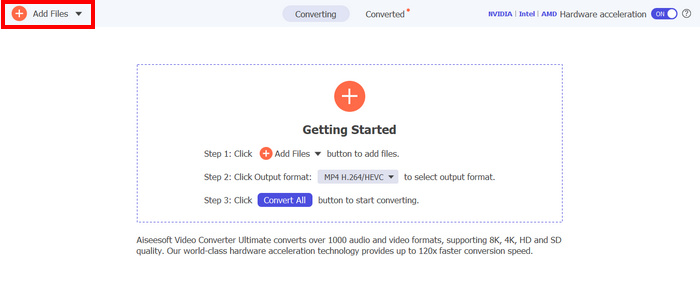
ステップ 2.次に、圧縮して MP4 に変換したい AVI ファイルを取り込みます。その後、Add Files ボタンをクリックします。
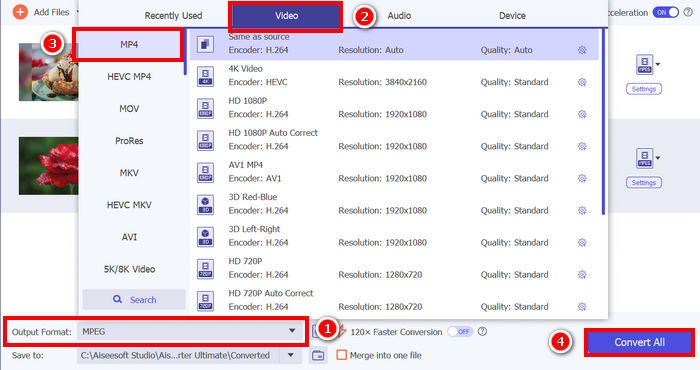
ステップ3.最後に、下部にある出力形式(Output Format)をクリックし、ビデオ(Video)タブに移動します。そこで一覧からMP4を選択してください。選択したら、すべて変換(Convert All)ボタンをクリックして、AVI ファイルを MP4 に変換します。
FVCが選んだVideo Converter Ultimateの最大の魅力は、その使いやすさです。他のAVIからMP4への変換ツールや一般的な動画変換ツールと比べて、わずか2~3ステップで完了します。さらに、高度なエンコード技術とGPUアクセラレーションにより、AVIファイルは高速かつロスレスで変換されることが保証されています。
AVI と MP4 の違いについて詳しく知りたい場合は、こちらをクリックしてください。
パート2. AVIをMP4に無料で変換する
一方、AVIをMP4に変換する無料の方法をご希望の場合は、チェックできるツールがあります。以下は、AVIファイルをMP4形式に自由に変換する3つの方法です。
VLCメディアプレーヤーを使用してAVIをMPに転送する
VLCは、Windows、macOS、Linuxでよく知られているメディアプレーヤーソフトウェアです。AVIやMP4を含む様々な形式のメディアを再生するという主な機能に加え、このツールはAVIからMP4へのビデオコンバーターとしても使用できます。AVIファイルをMP4に変換したい場合は、以下の手順をご確認ください。
ステップ 1.まず、パソコンに VLC メディアプレーヤーをダウンロードしてインストールします。
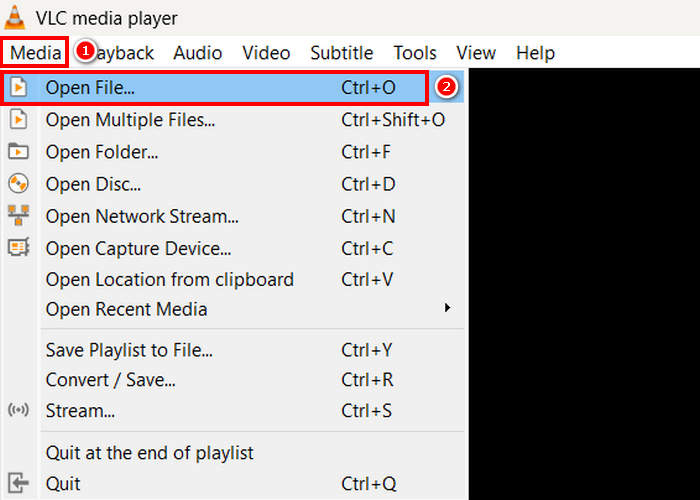
ステップ2.次に、メディア(Media)タブに移動し、その下にあるファイルを開く(Open File)をクリックします。そこから、MP4 に変換したい AVI ファイルをインポートします。
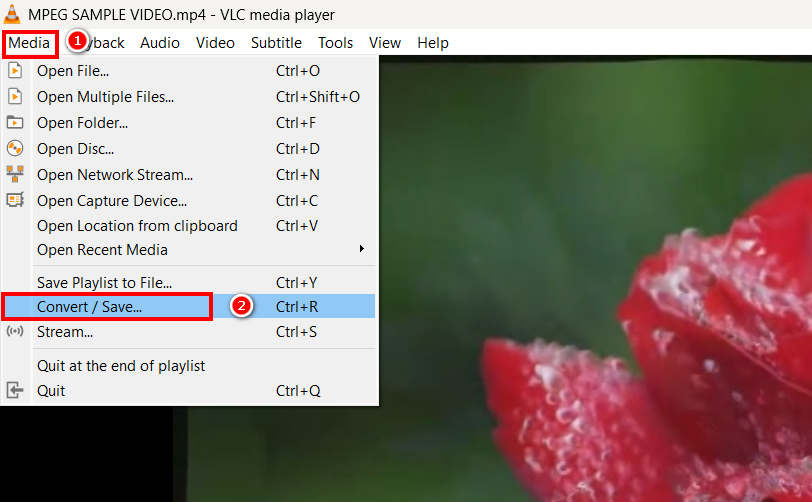
ステップ3.その後、再びメディア(Media)タブに戻り、今度は下にある変換/保存(Convert/ Save)を選択します。
ステップ 4.次に、プロファイル をクリックし、出力形式として MP4 を選択します。選択したら、下部の 開始 ボタンをクリックして、MPEG 動画の MP4 への変換を開始します。
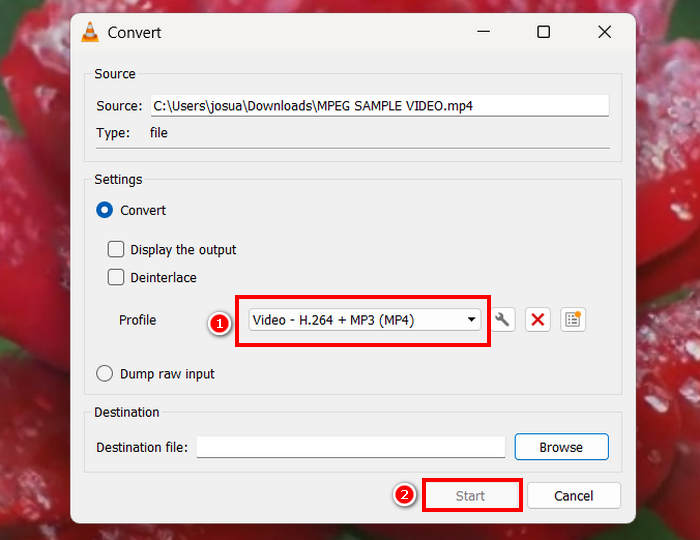
VLCのような無料の変換ツールは便利ですが、いくつか考慮すべき点があります。例えば、高度なエンコードオプション、一括変換、その他の必要な機能が欠けています。さらに、サポートされるフォーマットが限られているため、変換の柔軟性を求めるユーザーにとっては効率が悪いです。
HandBrakeでAVIからMP4に変換する
AVIをMP4に変換できるもう一つの無料コンバーターツールはHandBrakeです。このツールはオープンソースのビデオトランスコーダーで、Windows、macOS、LinuxでDVDをリッピングできます。また、AVIファイルをMP4などの形式に効率的に変換することもできます。このツールを使ってAVIをMP4に変換する方法は以下の通りです。
ステップ 1.まず、パソコンに HandBrake をダウンロードしてインストールします。
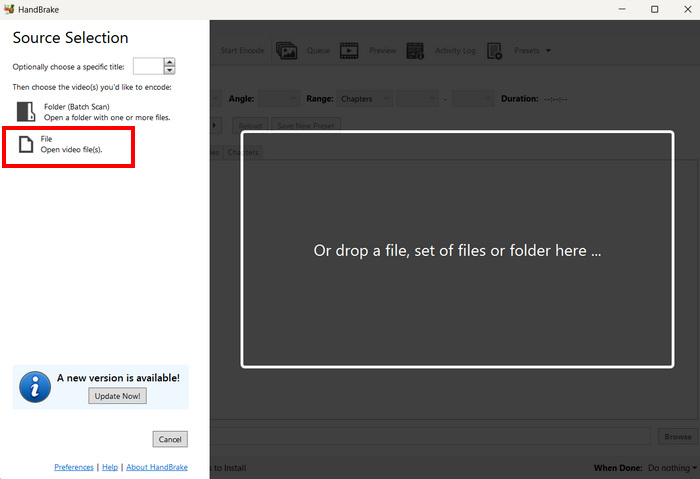
ステップ2.次に、パソコンでツールを起動し、左上の動画ファイルを開く(Open Video File)ボタンをクリックして、MP4 形式に変換したい AVI ファイルをインポートします。
ステップ 3.その後、フォーマット をクリックして MP4 を選択します。
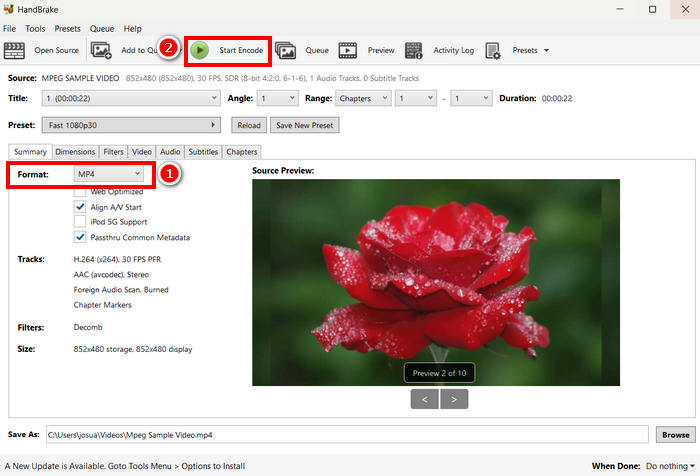
ステップ4.設定が完了したら、エンコード開始(Start Encode)ボタンをクリックして、AVI から MP4 への変換を開始します。
HandBrakeをビデオコンバーターとして使用する場合、出力形式が3種類しかサポートされていないという欠点があります。そのため、汎用性を求める方には向かないかもしれません。
QuickTimeで.AVIを.MP4に変換する
macOSをお使いの場合、最適なツールは内蔵ソフトウェアアプリケーションであるQuickTimeです。このアプリケーションは、スムーズなビデオ再生と基本的な編集機能で広く知られていますが、MP4を含む様々な形式でビデオを変換することもできます。
ステップ1.まず、Mac で QuickTime アプリケーションを起動します。
ステップ2.次に、ファイル(File)タブを開き、下にあるファイルを開く(Open File)をクリックして、MP4 に変換したい AVI ファイルを追加します。
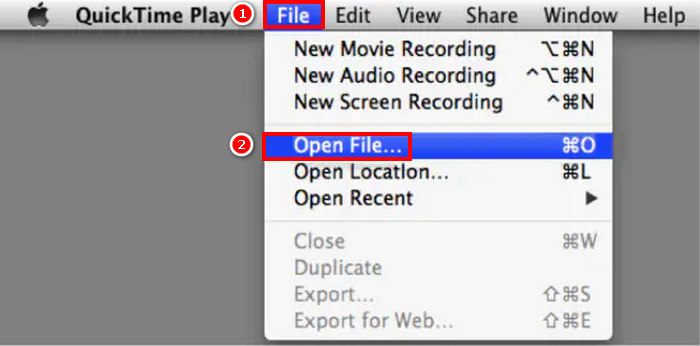
ステップ3.AVI ファイルが QuickTime に読み込まれたら、再度ファイル(File)タブを開き、スクロールして書き出す(Export)オプションをクリックします。
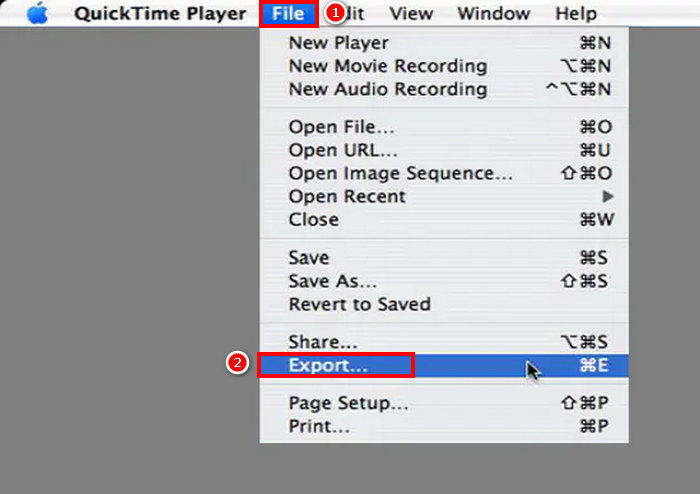
ステップ4.そこでMPEG-4ファイル形式を選択し、保存(Save)をクリックします。
QuickTime を使用して AVI を MP4 に変換するのは簡単ですが、他の専用のビデオ変換ツールと比較すると、いくつかの高度な機能が欠けています。
パート3. AVIをMP4に変換する[オンライン]
AVIをMP4に変換するもう一つの方法は、オンラインで変換することです。確かに、ソフトウェアアプリのインストールを必要としないビデオ変換ツールは存在しますが、それらのツールでは、AVIファイルをWebベースのプラットフォームに直接アップロードするだけで、すぐにMP4に変換できます。
Media.io経由でAVIからMP4に変換する
Media.ioはウェブベースの動画変換ツールです。このツールを使えば、AVIファイルをMP4に簡単に変換できます。AVIファイルをアップロードし、お好みのフォーマットを選択するだけです。
ステップ1.まず、Media.io の公式サイトにアクセスします。
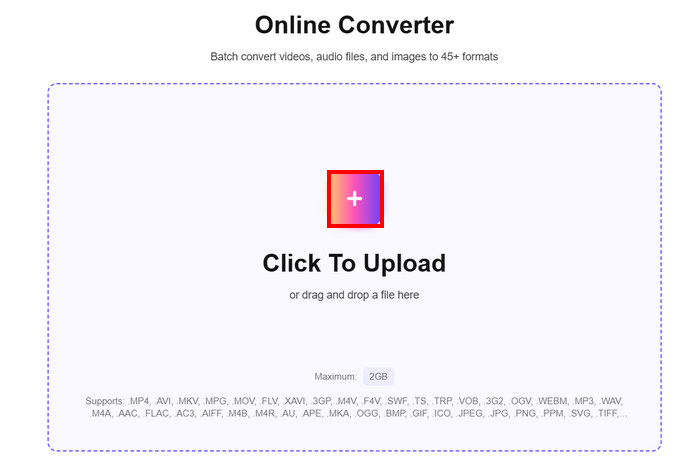
ステップ2.次に、プラスアイコンのボタンをクリックして、MP4 に変換したい AVI ファイルをアップロードします。
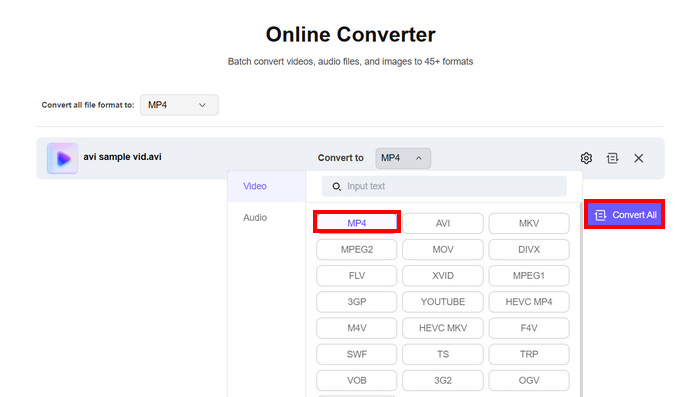
ステップ3.その後、MP4形式を選択し、選び終えたらすべて変換(Convert All)ボタンをクリックして、AVI から MP4 への変換を開始します。
注意: このツールで AVI を MP4 に変換する際にはサイズ制限があります。未登録ユーザーが処理できるのは、100MB までのファイルのみです。一方、機能を無制限に利用するには、有料のプレミアムプランを契約する必要があります。
FreeConvertで.AVIを.MP4に変換する
AVIをMP4に変換できるもう一つのオンラインツールはFreeConvertです。このオンライン動画変換ツールを使えば、AVIファイルを簡単にMP4に変換できます。また、圧縮オプション、ビデオコーデックの選択、出力品質の調整など、カスタマイズ可能な設定も用意されています。このツールを使ってAVIをMP4に変換するには、以下の手順に従ってください。
ステップ 1.まず、公式サイトにアクセスする必要があります。インターネットブラウザーで FreeConvert を検索してください。
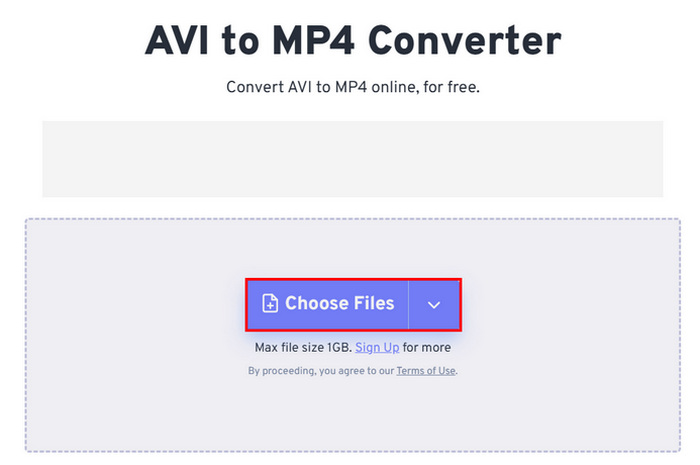
ステップ2.次に、ファイルを選択(Choose Files)ボタンをクリックして、MP4 に変換したい AVI ファイルをインポートします。
ステップ3.その後、出力(Output)をクリックし、出力形式として MP4 を選択します。準備ができたら、変換(Convert)ボタンをクリックするだけで AVI から MP4 への変換が始まります。
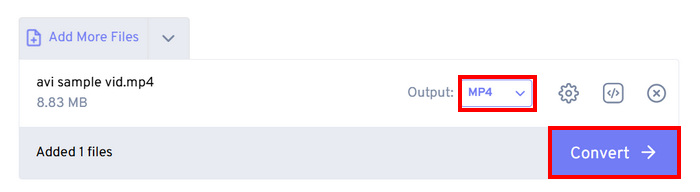
注意: FreeConvert で変換できるファイルの最大サイズは 1GB までです。これは、大きな AVI ファイルを変換したいものの、サブスクリプションプランにお金をかけたくないユーザーには制限となります。
CloudConvertでAVIをMP4に変換する
AVIをMP4に変換できる最後のオンラインツールはCloudConvertです。他のオンライン変換ツールと同様に、このツールでもAVIを好みの形式に簡単に変換できます。ただし、MP4以外には3つの形式しかサポートされていないため、より柔軟な変換を求めるユーザーには物足りなく感じるかもしれません。
ステップ1.まず、公式サイトからこのツールにアクセスします。
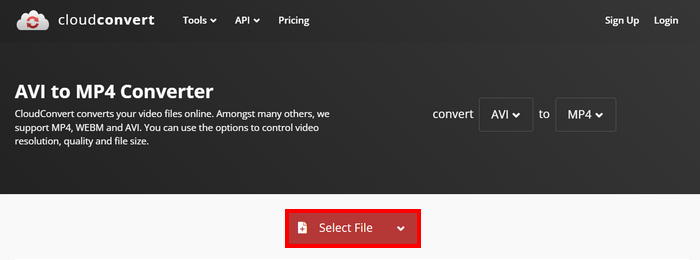
ステップ2.サイトにアクセスしたら、ファイルを選択(Select File)をクリックして、MP4 に変換したい AVI ファイルをインポートします。
ステップ3.その後、変換形式(Convert to)ボタンをクリックし、希望する形式としてMP4を選択します。設定できたら、Convert ボタンをクリックして AVI から MP4 への変換を開始します。
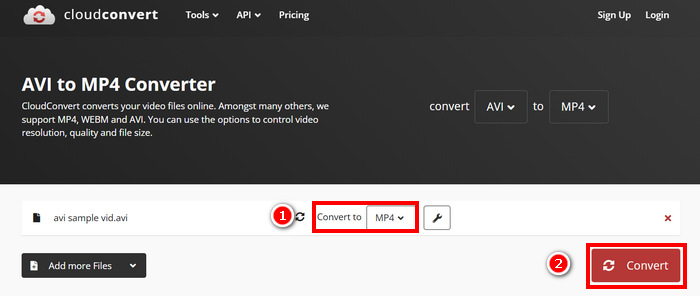
CloudConvertの唯一の欠点は、無料版ではファイルのアップロードが1GBまで、同時変換が5件まで、1日あたりの変換回数が10回までに制限されていることです。より大きなファイルを変換したり、より多くの変換を行う必要がある場合は、プレミアムプランへのアップグレードが必要です。
パート4. 7つのAVIからMP4へのコンバーターの比較
7つのAVIからMP4へのコンバーターを詳しく見てみましょう。対応プラットフォーム、変換速度、フォーマットに基づいて、それぞれのコンバーターを区別することができます。
FVCがVideo Converter Ultimateを選んだのは、ビデオコンバーターとしての汎用性という点で優れた選択肢だったと言えるでしょう。一方、オンライン方式のデメリットは、その優れた機能のほとんどを、サブスクリプションに登録した人しか利用できないことです。とはいえ、これらのAVIからMP4への変換ツールはそれぞれ独自の機能を備えており、それぞれ独自のターゲット市場を持っているため、自分に最適なものを選ぶことが重要です。
パート5. AVIからMP4への変換に関するよくある質問
AVI を MP4 に変換する理由は何ですか?
AVI ファイルはサイズが大きくなることが多く、最新のデバイスやストリーミングプラットフォームと互換性がない場合があります。一方 MP4 は、より高い圧縮率によりファイルサイズを小さく抑えられ、さまざまなメディアプレーヤーやデバイスとの互換性も幅広く備えています。あるいは、専用のAVI プレーヤーを利用するという選択肢もあります。
AVI を MP4 に変換する最も高速かつロスレスな方法は何ですか?
高速変換を提供するAVIからMP4への変換ツールは数多くありますが、中でもFVCが選んだVideo Converter Ultimateは見逃せません。このフル機能のビデオ・オーディオ変換ツールは、高速かつロスレスな変換を保証します。また、バッチ処理に対応し、GPUアクセラレーションを活用し、高品質の出力を維持します。
ソフトウェアをインストールせずに AVI を MP4 に変換できますか?
はい。Media.ioやFreeConvertなどのオンラインツールをご利用いただけます。ただし、無料版にはファイルサイズ制限があり、処理にはインターネット接続が必要になる場合があります。
結論
MP4 形式は、その構造が AVI と比べてシンプルであるにもかかわらず、依然として最も好まれる形式の一つです。これは主に、そのファイルサイズの小ささと、現代のデバイスやストリーミングプラットフォームとの高い互換性によるものです。そのため、最高のAVI から MP4 へのコンバーターを探しているなら、ここで紹介したツールを一通り試してみて、自分の好みやニーズに最も合うものを選んでください。さあ、AVI ファイルをどんどん MP4 に変換していきましょう!
-
 Windows / Mac / Onlineで大きなAVIファイルを無料で圧縮する方法
 コンピューターでAVIファイルを圧縮する3つの無料の方法を読んで入手してください。品質を損なうことなく、AVIビデオのファイルサイズを小さくすることができます。 AVIビデオのサイズは想像するほど小さくすることができます。
-
 スクリーンビデオをAVIファイルとしてキャプチャするためのトップ4の無料AVIスクリーンレコーダー
 高品質の AVI ファイルで画面を録画するには、この記事でトップ 4 の無料 AVI スクリーン レコーダーを特定して共有します。これを読んで、必要なものを入手してください。
-
 AVIをMP4に変換する5つの優れたAVIコンバーター[迅速かつ簡単]
 AVIファイルを変換するのに最適なコンバーターを知りたいですか?次に、このリンクをクリックして、どれをすぐに知るかを始めましょう。
