


 ビデオコンバーター究極
 スクリーンレコーダー
 ビデオ修復
ビデオ修復
 安全なダウンロード
WindowsとMacでMP4をAMVに簡単に変換する3つの効率的な方法
大きな映画など、大きなMP4ビデオをスマートフォンに送信する場合は、十分なストレージ容量がない可能性があります。 MP4をAMVファイルに変換するには、高度な圧縮アルゴリズムを使用して、はるかに小さいビデオを取得できます。ビデオをオンラインで変換する必要がある場合でも、特定のサイズのビデオを微調整して編集する必要がある場合でも、記事から3つの最も効率的なMP4からAMVへのコンバーターについて詳しく知ることができます。

パート1:MP4をAMVオンラインに変換する方法
もしシンプルなMP4を手軽にAMVに変換したいだけであれば、FVC Free Online Video Converter は、MP4・AMV・AVI などさまざまなファイル形式に対応した多機能なオンライン動画変換ツールです。動画と音声の設定を細かく調整できるほか、ウォーターマーク(透かし)やその他の制限なしでファイルを変換することも可能です。
- 1. MP4をAMVに変換し、 AVI, MKV その他、オリジナルの品質の動画。
- 2.フレームレート、ビデオ品質、ビデオコーデック、オーディオ品質などを微調整します。
- 3.3つのステップだけでAMVファイルを変換するための簡単なユーザーインターフェイスを提供します。
- 4.透かしなしでファイルを変換することは安全で安定した方法です。
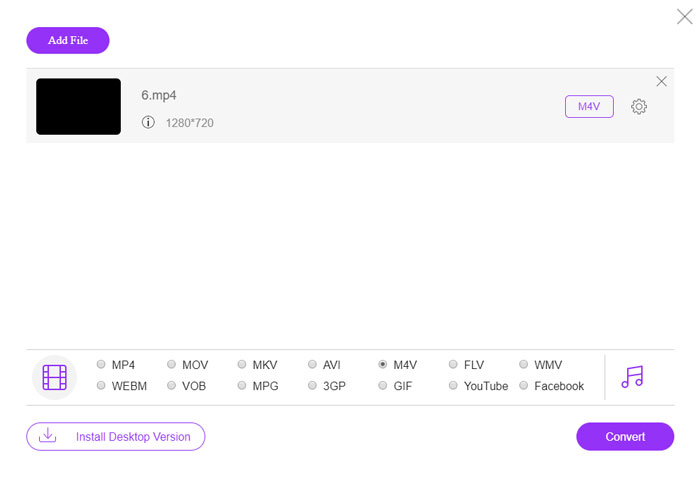
ステップ1. 任意のブラウザーでオンラインの MP4 から AMV へのコンバーターにアクセスし、初回は Add File to Convert ボタンをクリックして動画コンバーターをインストールします。その後、MP4 ファイルをプログラムに読み込むこともできます。

ステップ2. 画面下部から出力形式として AMV を選択します。もちろん、ビデオエンコーダー、解像度、ビットレート、フレームレートなど、動画と音声の設定を調整して、希望どおりの動画に仕上げることもできます。

ステップ3. 準備ができたら、Convert ボタンをクリックして MP4 から AMV への変換を開始します。数秒で目的のファイルが作成されるので、その後スマートフォンなどへ動画を転送できます。
パート2:VLCメディアプレーヤーでMP4をAMVに変換する方法
VLC Media Playerは、最も人気のあるMP4からAMVへのコンバーターの1つです。また、いくつかの基本的なビデオ変換および編集機能も提供します。さらに、変換後に出力AMVビデオをプレビューすることもできます。以下の詳細なプロセスを確認してください。
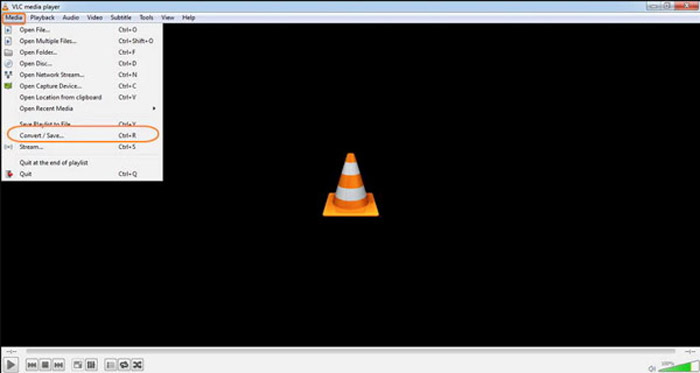
ステップ1. パソコンで VLC Media Player を起動し、メディア(Media) メニューから 変換/保存(Convert/Save) を選択します。ファイル(File) タブの ファイル選択(File Selection) リストの右側にある 追加(Add) ボタンをクリックし、MP4 ファイルを参照して選択します。
ステップ2. Convert/Save ボタンをクリックして続行します。変換(Convert) ウィンドウで、出力形式として AMV を選択します。選択したプロファイルを編集(Edit Selected Profile) ボタンをクリックすると、動画と音声の設定を細かく調整できます。
ステップ3. 参照(Browse) をクリックして、出力ファイルの保存先とファイル名を指定します。その後、開始(Start) ボタンをクリックすれば、パソコン上で MP4 ファイルを AMV に変換できます。
パート3:簡単にMP4をAMVに変換するための最良の方法
FVC Video Converter Ultimate は、Windows と Mac の両方に対応したオールインワンの MP4 から AMV への変換ソフトです。動画形式の変換だけでなく、さまざまな動画・音声パラメーターの調整、字幕・音声トラックの追加、さらには変換した動画の編集まで、簡単に行うことができます。
- 1.MP4をAMVやその他のオリジナル品質のビデオ形式に変換します。
- 2.フレームレート、ビデオ品質、ビットレート、ビデオコーデックなどを微調整します。
- 3.回転、クリップ、フィルターの調整などを行うための複数のビデオ編集機能を提供します。
- 4.70倍速い速度でビデオを変換するための高度なハードウェアアクセラレーション。
無料ダウンロードWindows 7 以降に対応安全なダウンロード
無料ダウンロードMacOS 10.7 以降に対応安全なダウンロード
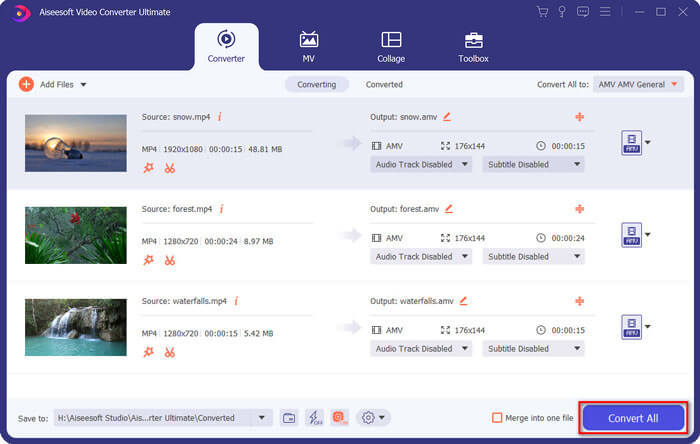
ステップ1. MP4 から AMV へのコンバーターをダウンロードしてインストールし、パソコンで起動します。Convert ボタンを選択し、Add File オプションをクリックして MP4 ファイルを読み込むか、複数の MP4 ファイルを直接ドラッグ&ドロップして追加します。

ステップ2. 動画ファイル右側のフォーマットアイコンをクリックし、出力形式として AMV を選択します。また、Gear アイコンをクリックして動画と音声の設定を調整したり、動画編集やフィルター調整を行うこともできます。

ステップ3. 動画サイズなど、出力される AMV の内容に問題がなければ、Convert All ボタンをクリックして MP4 から AMV への一括変換を開始します。その後、作成した AMV ファイルを別のデバイスへ転送できます。
パート4:MP4からAMVファイルへの変換に関するFAQ
1. AMVファイル形式とは何ですか?
AMVファイルはアニメミュージックビデオファイルとして知られています。これは通常、中国のポータブルメディア再生デバイスで使用されます。 AMVビデオ形式は、94x64〜160x120のビデオ解像度を持つ低解像度向けに機能します。 MP4をAMVに変換すると、より多くのビデオをスマートフォンに簡単に送信できます。
2.スマートフォンとコンピューターでAMVファイルを再生する方法は?
MP4をAMVファイルに変換する場合、スマートフォンまたはコンピューターでビデオファイルを再生するにはどうすればよいですか?実際には、AMVをAVI形式の変形として使用することができます。これは、ほとんどのメディアプレーヤーで機能します。 iOSデバイスでAMVファイルを再生する必要がある場合は、代わりにVLC MediaPlayerまたは他のメディアプレーヤーを使用できます。
3. AMVとMP4の違いは何ですか?
MP4は、オンラインストリーミングサービスおよびデバイスに使用できる最も頻繁に使用されるビデオ形式の1つです。 AMVはMotionJPEGの変形であり、可変量子化テーブルではなく固定量子化テーブルを備えています。 MP4をAMVに変換すると、特にビデオをデバイスに転送する場合に、ビデオを圧縮してより多くのストレージスペースを節約できます。
結論
MP4をAMVに変換するための最良の選択は何ですか?記事から最良の方法の詳細を学ぶだけです。追加のソフトウェアを使用せずにビデオをオンラインで変換および圧縮する必要がある場合は、FVC Free Online VideoConverterが考慮できる究極のソリューションです。
-
 AVI VS MP4 –どちらが優れているか(品質/圧縮/ファイルサイズ…)
 AVIとMP4のどちらがより良いビデオフォーマットですか?詳細な比較が必要な場合は、このAVI VSMP4の記事を確認してください。 AVIとMP4の違いと類似点は多くの面で知ることができます。
-
 WindowsおよびMac用のトップ10MP4プレーヤーソフトウェア(無料および有料)
 10の最新のMP4ビデオプレーヤーソフトウェアの推奨事項から最高のMP4プレーヤーを読んで入手してください。 WindowsとMacでMP4ビデオファイルをラグなしでスムーズに再生できます。
-
 Mac / Windows用にMP4をWMVに変換する方法
 この投稿では、MacまたはWindowsでMP4ビデオをWMV形式に変換する方法を共有しています。また、デスクトップソフトウェアとWebベースのオンラインコンバーターの両方を含む、いくつかのオプションを提供します。最高のMP4からWMVへの変換ツールを知る準備はできましたか?
