


 ビデオコンバーター究極
 スクリーンレコーダー
 ビデオ修復
ビデオ修復
 安全なダウンロード
RMVBをMP4に変換する無料のオンライン方法
RMVB(RealMedia Variable Bitrate)は、すべてのアプリケーションでサポートされているわけではないRealMedia形式の動画ファイルです。多くの人が、スマートフォンなどで簡単に再生できるように、ファイル形式をRMVBからMP4へ変換したいと考えています。本ガイドでは、RMVBファイルをMP4に素早く変換できる、無料かつオンラインで利用できる3つの方法を紹介します。これにより、面倒な手間なく動画を引き続き楽しめます。

パート1。RMVBからMP4へのコンバーターでRMVBをMP4に変換する方法
Windows 10やMacでRMVBをMP4に変換するには、RMVBからMP4へのコンバーターを使うと、非常に高速かつ信頼性の高い変換が可能です。Free RMVB to MP4 Video Converterは、RMVBからMP4への高速変換が行える高機能かつ無料の動画変換ソフトです。また、RMVBをAVI、FLV、MOVなど、他の形式に変換することもサポートしています。以下では、RMVBをMP4に変換する手順を紹介します。
無料ダウンロードWindows 7 以降に対応安全ダウンロード
無料ダウンロードMacOS 10.7 以降に対応安全ダウンロード
手順1. まずは、このフリーソフトをパソコンにダウンロードしてインストールします。その後、Free RMVB to MP4 Converterを起動し、Add File(s)ボタンをクリックしてRMVBファイルをプログラムに読み込みます。なお、このソフトは一度に複数のファイルをまとめて変換できるバッチ変換にも対応しているため、複数のRMVBファイルを同時に変換できます。
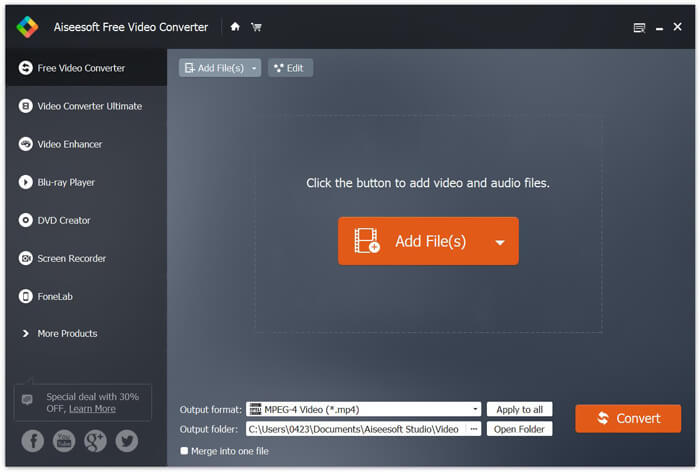
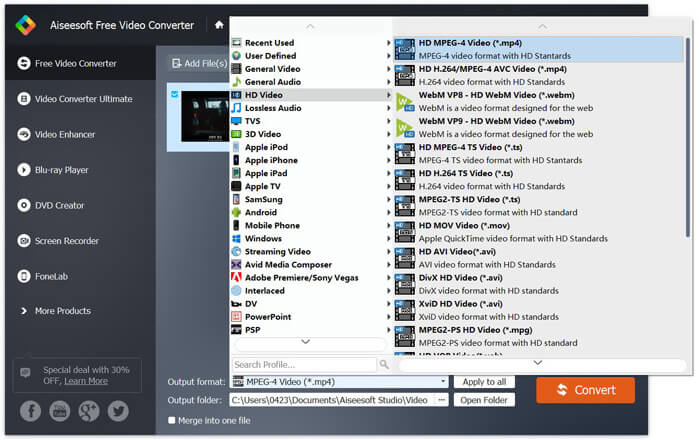
手順2. ファイルをプログラムに追加したら、Output formatに進み、出力形式としてMP4を選択します。
手順3. Convertボタンをクリックします。数分待てば、目的のMP4ファイルが出力されます。
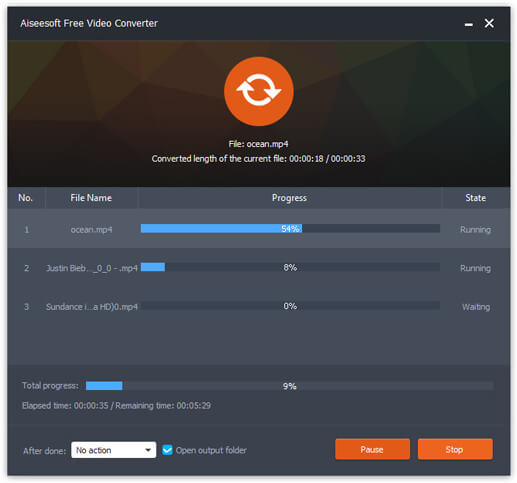
MP4ファイルが用意できたら、パソコンやモバイル端末で再生できます。さらに、このFree RMVB to MP4 Converterを使えば、RMをMP4に変換したり、WMVをMP4に変換したりすることも可能です。
パート2。VLCでRMVBをMP4に変換する方法
VLCは実用的なビデオ変換ツールとしても機能し、RMVBファイルを高品質でMP4に簡単に変換できます。 VLCを使用してこの仕事をする方法を見てみましょう。
手順1. まず、パソコンにVLC Media Playerをダウンロードしてインストールし、起動します。
手順2. メニューバーからMediaタブに進み、Convert/Saveを選択して次に進みます。
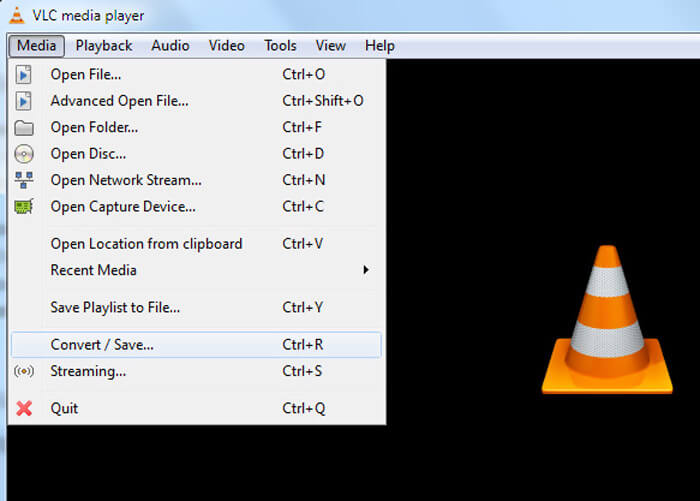
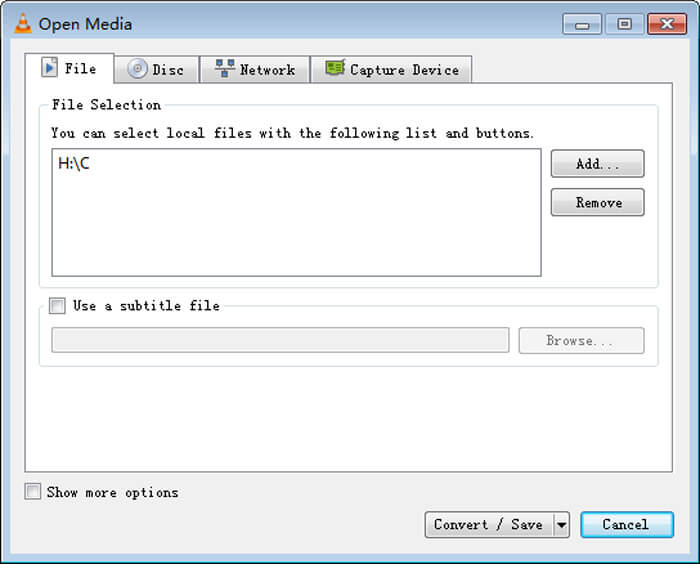
手順3. Open Mediaウィンドウが表示されたら、FileオプションのAdd…ボタンをクリックしてRMVBファイルをVLCに追加します。その後、ウィンドウ下部のConvert/Saveボタンをクリックします。
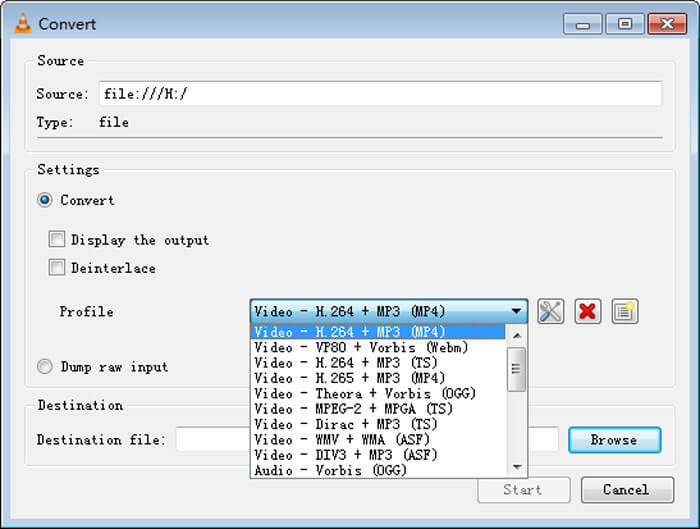
手順4. 続いて、Convertウィンドウが開きます。ここでSettingsの下にあるProfileを開き、ドロップダウンメニューから出力形式としてMP4を選択します。最後にStartをクリックすれば、RMVBをMP4に変換でき、再生も簡単になります。
パート3。RMVBをMP4オンラインに変更する方法
オンライン動画コンバーターを使えば、RMVB動画を高速でMP4に変換することも可能です。Free Online Video Converterは、MP4、MOV、FLV、AVI、MP3、AACなど、あらゆる一般的な動画・音声ファイル形式に無料で変換できる、Webベースの動画変換ツールです。ブラウザー上から簡単な操作で、RMVBからMP4への変換を行えます。
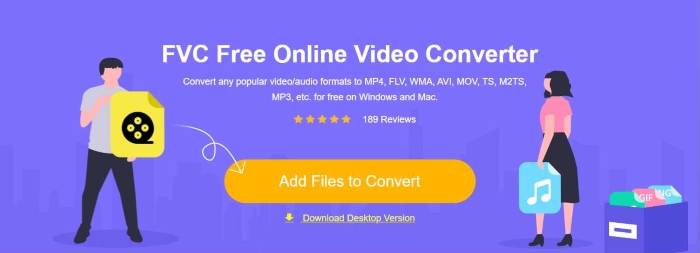
手順1. https://www.free-videoconverter.net/free-online-video-converter/ にアクセスし、Add Files to Convertボタンをクリックしてランチャーを起動します。
ファイルを一括変換するには、デスクトップ版をダウンロードしてください。
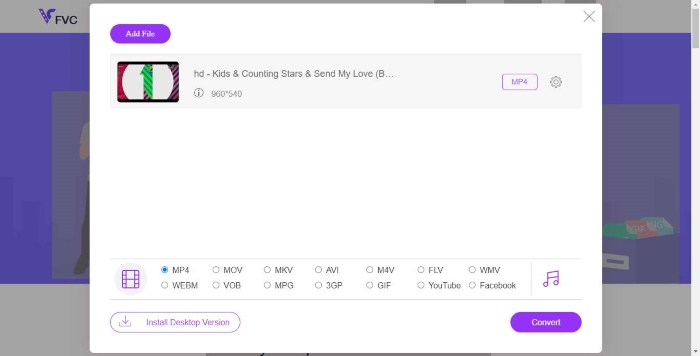
手順2. その後、RMVBファイルをこのオンラインツールに読み込みます。次に、Videoタブの下にあるMP4形式を選択します。変換の準備ができたら、Convertボタンをクリックして変換を開始します。変換が完了すると、変換後のファイルは自動的にパソコンへ保存されます。
RMVBとMP4
標準のRealMedia(.RM)形式の新しいバリエーションであるRMVBは、可変ビットレートを使用して圧縮されたRealMediaビデオファイル形式です。これは、アジアの映画やアニメで人気のある形式です。 RMVBファイルはサイズが小さく、ビットレートは低くなりますが、品質は向上します。
2001年にMovingPictureExperts Group(MPEG)によってリリースされたMP4形式は、ビデオ、オーディオ、字幕、および画像データを別々のトラックに保存するのに役立ちます。これはMPEG-4Part14の略です。さらに、ビデオのストリーミングと共有に使用される最も一般的な形式の1つです。
パート4。RMVBからMP4へのFAQ
RMVBファイルとは何ですか?
RMVB(RealMedia可変ビットレート)は、可変ビットレートを使用するRealMediaビデオファイル形式です。かつては、ファイルサイズが小さく、品質がはるかに優れているため、アジアのアニメ、映画、エピソード、急流などをWebで配布するために人気がありました。
RMVBファイルを開く方法は?
RealPlayerは、Windows、Mac OS X、およびLinuxでのRMVBファイルの再生をサポートしています。または、VLCを使用してRMVBファイルを再生することもできます。
HandBrakeはRMVBをMP4に変換できますか?
HandBrakeは、サポートされている多くのデバイスで動作するようにビデオを変換するための優れたツールです。 RMVBをMP4に変えるのは誰にとっても素晴らしい選択です。
つまり、これがRMVBファイルをMP4に変換する方法です。上記の手順に従って問題が発生しましたか?お気軽にご意見をお聞かせください。
-
 Mac / Windowsでビデオ_TSファイル/フォルダをDVDに書き込むための3つの簡単なステップ
 TSファイルをDVDディスクに変換して書き込むにはどうすればよいですか?このステップバイステップガイドでは、Windows / MacでTSファイルとフォルダをDVDにコピーして、DVDプレーヤーまたはTVでTSファイルを視聴できるようにする方法を説明します。
-
 Windows / MacでTSをAVI / MKV / MOV / WMVに変換する6つの簡単な方法
 TSファイルをAVI / MKV / MOV / WMVにすばやく変換したいですか?この記事では、オンラインおよびオフラインのビデオコンバーターと完全なガイドを紹介します。たぶんあなたはここで最高の無料のTSコンバーターを手に入れることができます。
-
 Windows / MacでMP4をM4Aに変換する方法(無料およびオンライン)
 オンラインでMP4をM4Aに変換するにはどうすればよいですか? MP4ファイルからオーディオを抽出できますか?この投稿を読むと、MP4からM4Aへの変換に関するすべての回答が得られます。

