


 ビデオコンバーター究極
 スクリーンレコーダー
 ビデオ修復
ビデオ修復
 安全なダウンロード
WMVをMP4に変換する方法:4つの方法のどれが優れているか
WMV は Windows に最も適した形式ですが、MP4 や MOV などの形式ほど互換性は高くありません。iPhone、iPad、Mac のユーザーは、この形式を問題なく開くことができない場合があります。iPhone、iPad、Mac のユーザーは WMV ファイルを開けないことがあり、iMovie や QuickTime Player もこの形式をサポートしていません。この制限を回避し、WMV ファイルをあらゆるデバイスや編集ソフトで扱えるようにするには、MP4 形式に変換する必要があります。この操作を行えるツールは多数あり、あとはどれを選びどう使うかという問題になります。本ガイドでは、そのすべてをわかりやすく解説します。おすすめのデスクトップ版およびオンライン版のWMV から MP4 への変換ソフトをご紹介し、さらに独特な動作環境を持つ FFmpeg もリストに含めています。表であらゆる面から性能を比較し、各ツールごとに詳しい図解付きの手順も用意しました。

パート1. Win/MacでWMVをMP4に変換する方法
4 つの変換ツールの中で、特におすすめしたいのはFVC Video Converter Ultimateです。その理由は、ほぼすべての一般的な形式に対応しており、Windows と Mac の両方のユーザーにとって使いやすいからです。このソフトは単に WMV を MP4 に変換するだけでなく、出力前の動画に対してさまざまな編集や強化を行うことができます。インターフェース上にはトリマー、エンハンサー、コンプレッサー、ノイズ除去などの機能がそろっており、画面に各種フィルターを追加して、より色彩豊かな仕上がりにすることも可能です。本来の形式変換の作業に戻ると、FVC Video Converter Ultimate は高度なハードウェアアクセラレーション技術に対応しており、最大 30 倍速で変換できるうえ、画質の劣化も可能な限り抑えられます。さらに FVC Video Converter Ultimate に任せれば、音声や画像の処理もまとめて行えます。1000 種類以上の形式に対応したこのオールインワンプログラムは、ユーザーにとって間違いなく最適な選択肢と言えるでしょう。
無料ダウンロードWindows 7 以降対応安全なダウンロード
無料ダウンロードMacOS 10.7 以降に対応安全なダウンロード
FVC Video Converter Ultimate を使用して WMV ビデオを MP4 に変換する方法は次のとおりです。
ステップ 1. デバイスに FVC Video Converter Ultimate をダウンロードしてインストールします。起動後、ファイルを追加をクリックして、用意した WMV 動画を読み込みます。

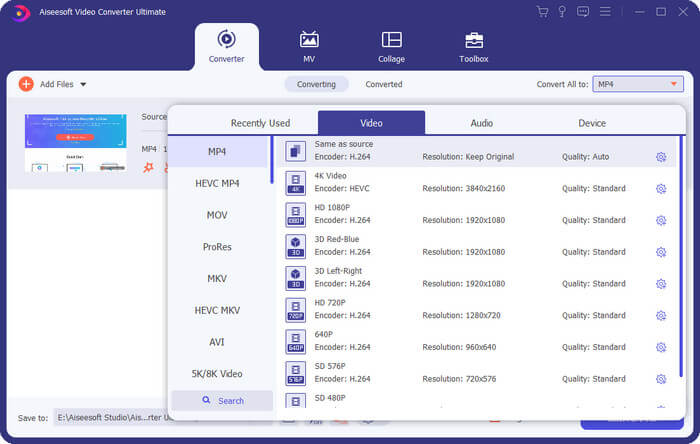
ステップ 2.「一括変換」を開き、ビデオ > MP4 を選択します。用途に合わせてお好みの解像度バージョンを選びます。
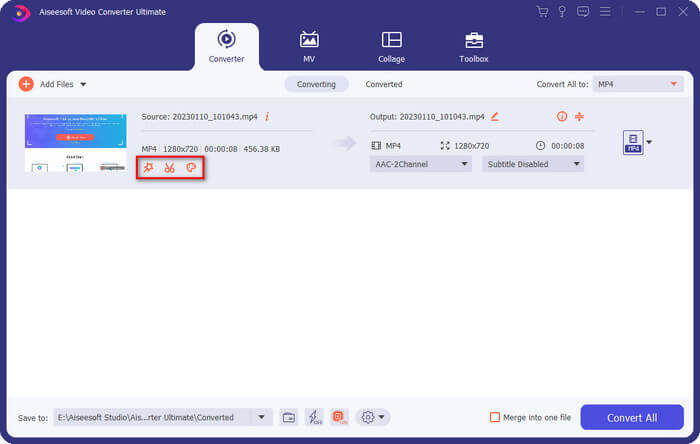
変換前に追加した動画を編集したい場合は、編集またはカットをクリックします。
ステップ 3. 保存先のパスを設定し終えたら、すべて変換をクリックして、MP4 と WMV 間の変換を開始します。
パート2. VLCメディアを使ってWMVをMP4に無料で変換する
プレーヤー
試してみる価値のあるもう一つのサードパーティ製WMV-MP4変換ソフトはVLC Media Playerです。その最大の利点はオープンソースで無料であることです。Windows、Mac、Linuxのいずれのユーザーでも、デバイスにダウンロードできます。このプレーヤーは、市場に出回っているほぼすべての標準的なマルチメディアフォーマットに対応しており、いくつかの基本的なビデオ編集ツールも備えています。
VLC Media Player を使用して WMV を MP4 に無料で変換する方法は次のとおりです。
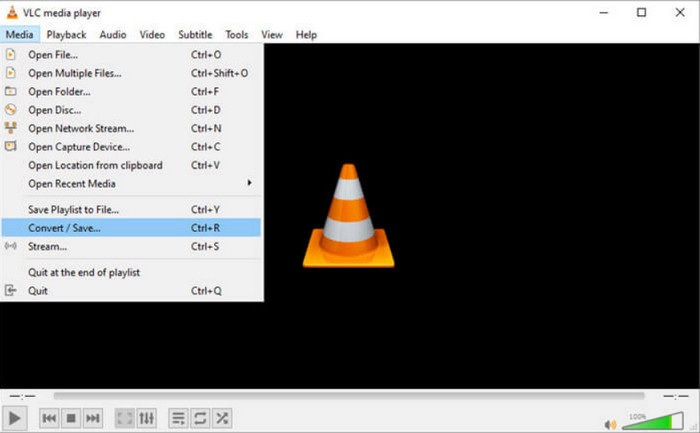
ステップ 1. パソコンに最新バージョンの VLC Media Player をダウンロードしてインストールします。起動したら左上のメディアをクリックし、表示されるリストから変換/保存を選択します。
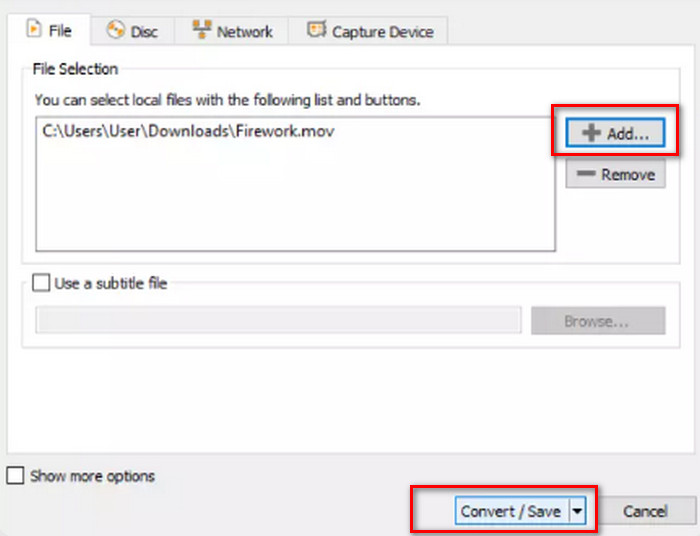
ステップ 2. 新しいポップアップウィンドウが表示されます。ファイルタブに移動し、追加をクリックして変換したい WMV ファイルを読み込みます。その後、変換/保存をクリックします。
ステップ 3. さらに別のウィンドウが開きます。「プロファイル」を見つけて、出力形式としてVideo - H.264 + MP3 (MP4)を選択します。
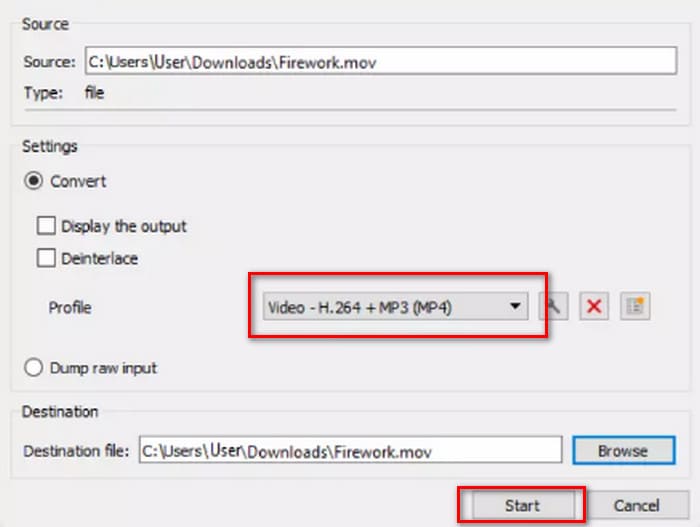
ステップ 4. 出力先フォルダーを指定し、[開始] をクリックして WMV を MP4 に変換します。
VLCメディアプレーヤーのサービスは完全に無料ですが、利用できる動画処理オプションが少なすぎます。アップロードした動画に変更を加える必要がある場合は、FVC Video Converter Ultimateのようなプロ仕様のマルチメディアファイル編集ソフトウェアの使用をお勧めします。
パート3. FFmpegを使ってWMVをMP4に品質を損なうことなく転送する
WMV形式からMP4形式への変換は、一般的にソースファイルをアップロードし、出力形式を選択して「開始」または「変換」ボタンをクリックするだけです。しかし、FFmpegは違います。フォーマット変換や動画編集機能も備えていますが、通常のインターフェースやボタンはなく、コード命令駆動型です。FFmpegを起動するには、対応する操作のテンプレートを探し、動画の保存パスと出力形式を入力する必要があります。このプラットフォームもオープンソースで無料です。
FFmpeg を使用して WMV を MP4 に変換する方法は次のとおりです。
ステップ 1. パソコンに FFmpeg をインストールします。その後、パソコンの検索バーで「ターミナル」アプリケーションを探して起動します。
ステップ 2. 以下のコード例を参考にします。
ffmpeg -i input.wmv output.mp4
入力を、ストレージ パスを含む WMV ファイルの名前に置き換えます。出力を、同じ形式の希望する出力パスに置き換えます。
例: /home/user/Desktop/XXX
ステップ 3. 編集したコマンドを入力し、キーボードのEnterキーを押します。
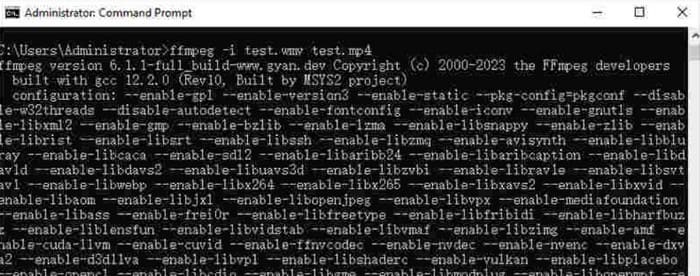
コードコマンドに慣れている、またはFFmpegの使用経験があるユーザーにとって、これはMacまたはWindowsでWMVをMP4に変換する最も簡単な方法です。しかし、初心者にとってはコードの編集が難しく、変換プロセスがほとんど見えません。
パート4. WMVをMP4にオンラインで簡単に変換する
デスクトップソフトウェアの使用が面倒で、より効率的で便利な方法をお探しの場合は、WMVをMP4に変換するオンラインツールをお勧めします。そのようなプラットフォームは数多くありますが、Convertioは良い選択肢です。このプラットフォームの利点は、クラウドからの動画のアップロードに対応し、シンプルなカスタマイズ設定が用意されていることです。ソフトウェアやプラグインのインストールは不要で、ブラウザから簡単に見つけてすぐに使用できます。
Convertio を使用して WMV を MP4 に変換する方法は次のとおりです。
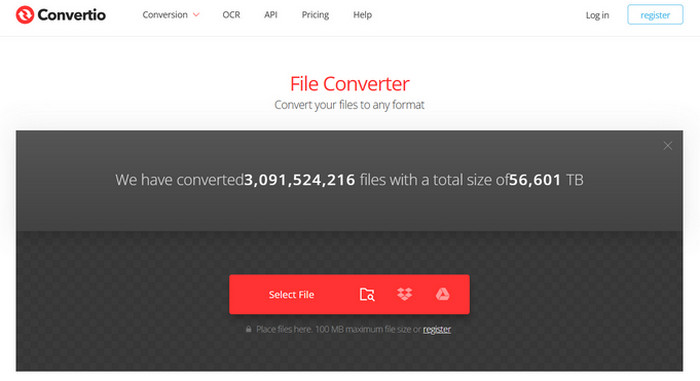
ステップ 1. ブラウザで Convertio を開きます。ファイルを選択をクリックして、WMV 動画をこのサイトに追加します。
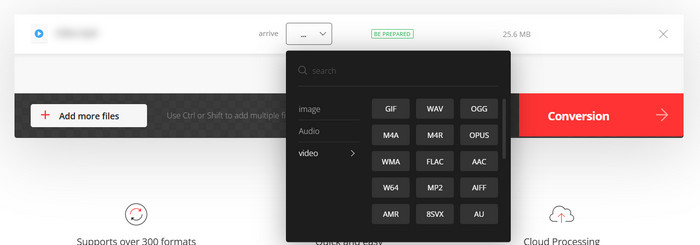
ステップ 2. 到着 > ビデオ > MP4 を選択します。最後に、変換をクリックします。
Convertioは、緊急の変換タスクがある方や、サードパーティ製ソフトウェアでコンピュータのメモリを消費したくない方に最適です。ただし、このプラットフォームには動画編集機能が少なく、最大100MBまでのファイルしか扱えません。WMVをMP4に無制限に時間をかけずに変換したい場合は、他の方法を試してみることをお勧めします。
パート5. 表でそれぞれの方法を比較する
4つのフォーマットコンバーターの中からどれを選ぶか迷っている方は、以下の表をご覧ください。それぞれのパフォーマンスを様々な観点から比較しています。
| 速度 | サポートプラットフォーム | サイズ制限 | 編集機能 | 使いやすい | |
| FVCビデオコンバーターアルティメット | 30倍高速 | WindowsとMac | 番号 | 様々 | 非常に簡単 |
| VLCメディアプレーヤー | 良い | Windows、Mac、Linux | 番号 | 基本的な設定 | 良い |
| FFmpeg | 良い | Windows、Mac、Linux | 番号 | 様々 | 難しい |
| Convertio | 1~2分以内に変換を完了します | すべてのプラットフォームにはデスクトップとモバイルが含まれます | 100MB | 非常に少ない | 非常に簡単 |
パート6. WMVをMP4に変換する際のよくある質問
WMV を MP4 に変換する必要がありますか?
WMV 形式は MP4 よりわずかに画質が高いものの、互換性とファイルサイズの面では MP4 の方が優れています。画質に強いこだわりがある場合は、変換後にMP4 編集ソフトを使って画質を向上させたり、ビットレートなどのパラメータを調整したりすることもできます。
WMVは時代遅れですか?
WMVは非常に初期の頃に登場しましたが、現在でも広く使用されており、動画の転送や共有に適しています。ただし、WMVはiOSデバイスには適していないという点だけ注意が必要です。
Windows でビデオを MP4 に変換するにはどうすればいいですか?
VLC Media Player や HandBrake などの無料ツールも良い選択肢です。ただし、私たちが推奨するのは FVC Video Converter Ultimate です。高い互換性を備えているだけでなく、最も充実した動画処理機能を搭載しており、ウォーターマークの追加や削除にも対応しています。
結論
本記事では、WMV を MP4 に変換する方法を解説しました。紹介した 4 つの変換ツールは、多機能な FVC Video Converter Ultimate、無料の VLC Media Player、独特な起動方法を持つ FFmpeg、オンラインで使える Convertio です。性能を比較してみると、最もコストパフォーマンスに優れているのは FVC だとわかるでしょう。ファイルサイズの制限がないだけでなく、4 つの中で最も充実した動画編集機能を備えており、FFmpeg ほど操作が難しくないのも大きな利点です。
-
 無料|品質を損なうことなくMP4をWMVに変換するための3つの最良の方法
 この投稿では、MacまたはWindowsでMP4ビデオをWMV形式に変換する方法を共有しています。また、デスクトップソフトウェアとWebベースのオンラインコンバーターの両方を含む、いくつかのオプションを提供します。最高のMP4からWMVへの変換ツールを知る準備はできましたか?
-
 2025 年のベスト WMV ビデオ プレーヤー 10 選 (コンピューターとスマートフォン) のレビュー
 WMVを再生するにはどうすればよいですか? VLCはWMVを再生できますか? WMVファイルを再生できるアプリは何ですか?この記事では、Mac、Windows PC、Android、iPhone で使える最高の WMV ビデオ プレーヤー 10 個を紹介します。
-
 WMV ファイルをオンラインで無料で結合する 3 つの最良の方法 (2025 年更新)
 WMVビデオクリップをオンラインで無料でマージするにはどうすればよいですか? FVC Free Online VideoMergerとClideoWMV Joinerは、WMVファイルをオンラインで結合するための2つの強力なツールです。この記事では、それらの使用方法を紹介します。

