


 ビデオコンバーター究極
 スクリーンレコーダー
 ビデオ修復
ビデオ修復
 安全なダウンロード
適切なコーデックを使用してWindowsMediaPlayerでMKVビデオを再生する3つの方法
Matroska Multimedia Containerの略であるMKVは、無料でオープンなコンテナファイル形式で、1つのファイルに多数のビデオ、オーディオ、画像、字幕トラックを保持します。 MKVファイルは、ビデオクリップ、ムービー、およびTV番組の保存に一般的に使用されます。一部のWindows8 / 7ユーザーは、デフォルトのビデオプレーヤーであるWindows MediaPlayerでMKVビデオを再生できないと不満を漏らしています。
真実は、Windows Media PlayerがMKVコンテナの分割(開く)をサポートしていないということです。それでもWindowsMedia PlayerでMKVビデオを再生したい場合は、Windows MediaPlayer用の正しいMKVコーデックをインストールする必要があります。この記事では、Windows Media Player用のMKVコーデックの場所、およびWindows MediaPlayerでMKVビデオを再生するその他の方法について説明します。

パート1。WindowsMediaPlayer用のMKVコーデックをダウンロードする場所
Windows Media PlayerでMKV動画を再生したい場合は、対応するコーデックをインストールする必要があります。ここでは、Windows Media Player向けの代表的なコーデックパックを3つ紹介します。これらをダウンロードしてインストールすることで、Windows Media PlayerでMKVコーデックを利用できるようになります。
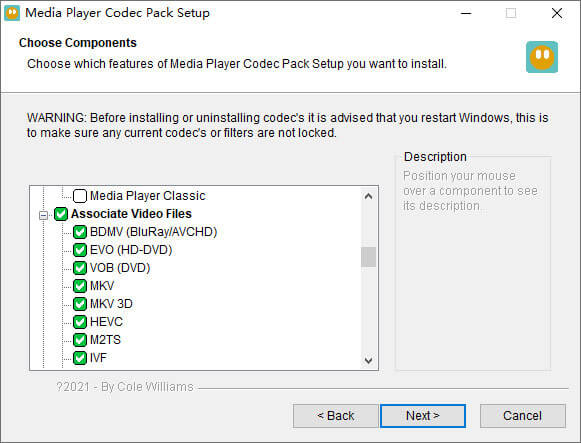
1. Media Player Codec Pack
Media Player Codec Packは、Windows MediaPlayer用の用途の広いコーデックパックです。最新のビデオおよびオーディオファイルを格納するために使用されます。 Microsoft Windows 10、8.1、8、7、Vista、XP、2000、2008、2003と互換性があります。MediaPlayerCodecPackをダウンロードして、MKV、XviD、VOB、EVO、HEVC、M2TS、IVFなどのコーデックを入手できます。 Windows Media Player 12、11、または10用のBDMV、MP4、MOV、WEBM、FLVなど。
2. CCCP(Combined Community Codec Pack)
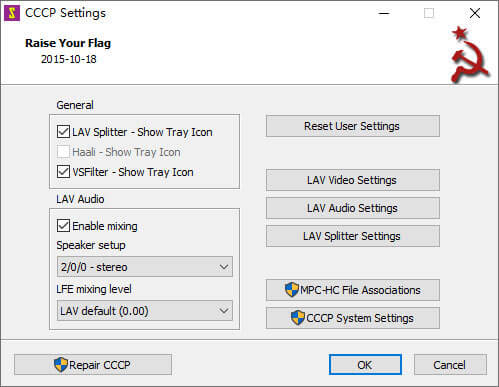
Combined Community Codec Packは、Windows用の再生パックです。これは、Windows Media PlayerでMKV、MP4、MOV、VOBなどのあらゆる種類のビデオファイルを再生できる包括的なコーデックのセットを提供します。 Windows 10/8/7、WindowsVista、Windows XP、Windows2000と互換性があります。このアプリは公式ウェブサイトから無料で簡単にダウンロードできます。
3. ffdshow
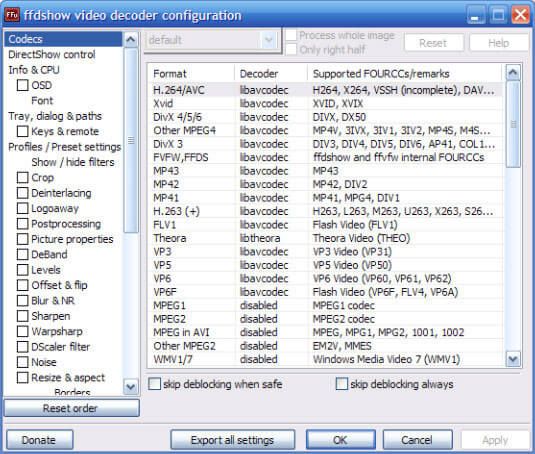
Ffdshowは、ほとんどのオーディオおよびビデオ形式をサポートするWindowsコーデック用の高度な再生パックです。 h.264、MPEG-4、H.263、VP3、Theora、SVQ3、MP3、AC3、DTS、AACなどに適切なコーデックをインストールできます。また、字幕のサイズ変更、インターレース解除、表示などのフィルターも提供します。ffdshowをダウンロードして、Windows MediaPlayerに適したMKVコーデックをインストールできます。
パート2。WindowsMediaPlayerで再生するためにMKVを変換する
MKV動画はWindows Media Playerで標準サポートされていませんが、MKV動画をWindows Media Player対応形式に変換することができます。ご存じのように、Windows Media Player 12はMPEG、WMV、AVCHD、WMA、AAC、3GPなど、ほとんどの動画・音声形式をネイティブでサポートしています。Video Converter Ultimateを使えば、MKV動画をMP4、AVI、MOV、WMV、MKV、MPEG、MP3、FLACなど、あらゆる動画・音声形式に変換できます。
無料ダウンロードWindows 7 以降に対応安全なダウンロード
無料ダウンロードMacOS 10.7 以降に対応安全なダウンロード
ステップ1. 「ダウンロード」ボタンをクリックして、Video Converter Ultimateをパソコンにダウンロードします。このMKVコンバーターを起動し、ファイルを追加ボタンをクリックして、MKV動画をプログラムに読み込みます。
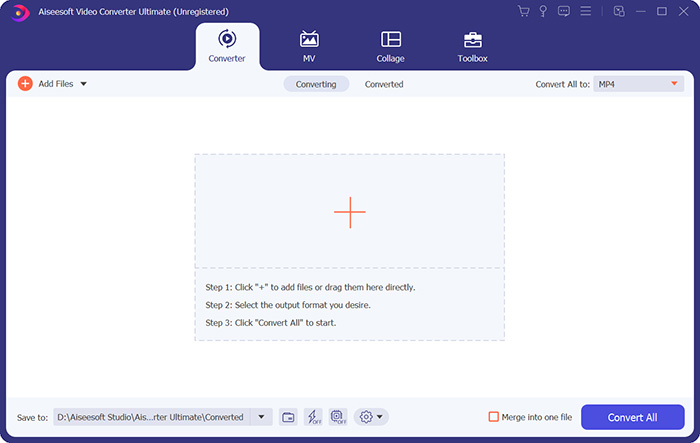
ステップ2. 変換形式の右側にあるドロップダウン矢印をクリックし、動画タブからMP4などの形式を選択します。

ステップ3. 画面下部の「保存先」エリアで、変換後のMKV動画を保存するパスを指定します。最後に、すべて変換ボタンをクリックして、パソコン上でMKVからMP4への変換を開始します。
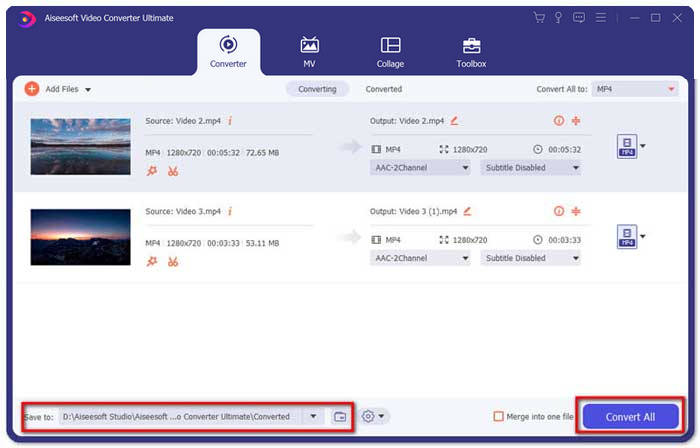
変換が完了すると、変換されたMKVビデオをWindows MediaPlayerで再生できます。変換前にMKVビデオをさらに磨きたい場合は、メインインターフェイスの[編集]アイコンをクリックして、MKVビデオの回転、トリミング、透かし入れ、字幕の追加、その他のフィルターを適用できます。
パート3。WindowsMediaPlayerAlternativeでMKVを再生する
変換済みのMKVファイルを用意しているのに、Windows Media Playerが正常に動作しない場合はどうすればよいでしょうか。MKVをWindows Media Playerで再生する際には、さまざまな要因が再生を妨げる可能性があります。Windows Media Player用の特定のコーデックをインストールしたくない場合は、別のMKV動画プレーヤーを試してみることもできます。FVC Free Video PlayerはオンラインのMKV動画プレーヤーで、MKV、MP4、FLV、MOV、AVI、3GP、MP3、AACなど、あらゆる形式のマルチメディアファイルを再生することができます。HTML5技術に基づいており、ブラウザー上でMKVをスムーズに再生できます。追加のパッケージのダウンロードや購入、会員登録は一切不要です。
ステップ1. FVC Free Video Playerの公式ウェブページにアクセスします。今すぐ再生ボタンをクリックして、ランチャーをパソコンにダウンロード・インストールします。

ステップ2. メインインターフェースのファイルを開くボタンをクリックして、MKV動画をWindows Media Playerの代替プレーヤーに追加します。

ステップ3. MKV動画を読み込むと、自動的に再生が開始されます。再生中は、コントロールタブから、再生、一時停止、早送り、巻き戻しなどの操作を行うことができます。

お見逃しなく:Windows Media PlayerでDVDを再生する方法
パート4。WindowsMediaPlayer用のMKVコーデックのFAQ
どのメディアプレーヤーがMKVコーデックを再生できますか?
VLC Media Player、Media Player Classic、KMPlayer、MX Player、MKPlayer、Zoom Player、5K Player、GOM Playerなど、MKVコーデックをサポートする多くのプレーヤーがあります。
MKVファイルはMP4よりも小さいですか?
MKVファイルは、複数のオーディオトラック、字幕トラック、およびその他の機能があるため、通常、MP4よりもファイルサイズが大きくなります。 MP4ファイルは小さいサイズに保たれていますが、MKVとしての高品質を保っています。これは、2つのコンテナ形式MKVとMP4が同じビデオとオーディオをカプセル化できるためです。
VLC Media PlayerはMKVファイルを再生しますか?
はい。 VLC Media Playerは、MKVを含む、ほぼすべてのビデオおよびオーディオ形式を認識して再生できます。 MKVファイルがVLCMedia Playerで再生できない場合は、MKVコーデックをインストールするか、代わりにFVC Free VideoPlayerなどの他のMKVプレーヤーを試すことができます。
結論
MKVファイルはロスレス品質をサポートし、無制限の画像、ビデオ、オーディオを含むことができます。 MKVがWindowsのデフォルトのメディアプレーヤーであるWindowsMedia Player12で再生できないのは面倒です。スムーズに再生するためにMKVコーデックをインストールするか、MKVを他のビデオ形式に変換してみてください。 Windows Media Playerにうんざりしている場合は、FVC Free VideoPlayerなどの他のMKVビデオプレーヤーを試すことができます。あなたの問題が完全に解決されたことを願っています。
-
 VLCプレーヤーがMKVを再生しない、修正方法
 VLCプレーヤーはMKVファイルをサポートしていますか? VLCがMKVを再生しないのはなぜですか?この投稿では、VLCプレーヤーがMKVファイルを再生しない問題を修正するための4つの便利なヒントを共有しています。
-
 iPad2021でMKVファイルを再生する方法
 iPad 2でMKVファイルを再生する方法は? iPad Pro / Air / 2で再生するためにMKVをMP4に変換できますか?この投稿では、iPadでMKVをプレイする2つの簡単な方法を共有しています。
-
 Windows Media PlayerがMP4を再生していませんか?それを修正する5つの効率的な方法
 Windows Media PlayerでMP4を再生できませんでしたか? Windows10コンピューターのWindowsMediaPlayerでMP4を再生する理由と究極のソリューションの詳細をご覧ください。
